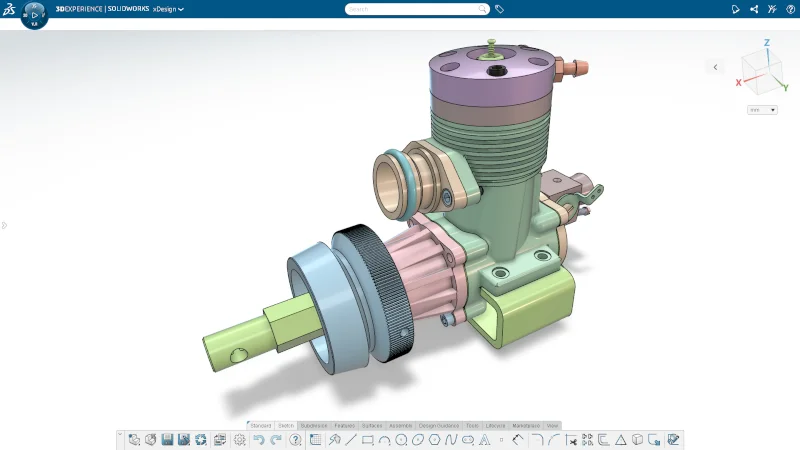
What’s New in SOLIDWORKS xDesign 2026x GA
Fall is here, and I’m happy to announce there’s a new update for SOLIDWORKS xDesign. The R2026x GA update includes many time-saving enhancements, including a redesigned landing page, the ability to wrap sketches onto 3D faces, exploded views for product definition, and much more.
USER EXPERIENCE
Redesigned Landing Page for All Users
New to xDesign? No worries, we’ve got you covered with the redesigned home page. Hit the create button to start modeling or watch the tutorials on how to get started using the parametric, subdivision modeling, documenting tools, and more.
The redesigned landing page, which has been available to students since R2025x FD02, is now available for makers and commercial users!
Get started fast with learning content right at your fingertips, or quickly find your recent designs, and much more on the new landing page.
Option to Auto-Save on Disconnect
Protect your work from unexpected interruptions by automatically saving progress when a disconnection occurs. A new option to “Auto-save on disconnect” is available in the Preferences dialog. When enabled, any changes to open physical products will be saved to the database automatically in the event of a disconnection, which could be caused by internet issues, timeouts, or crashes.
Improved Import Tools
Importing files is now faster and more efficient, as you now have more options in the Import dialog. You can select an option to have files uploaded in the background, allowing you to continue working until the files are ready to open. You can also select multiple files and perform a bulk import.
Easily monitor the status of bulk import jobs from the Import Monitor, which is accessible from the Action Bar or on the landing page.
PART & ASSEMBLY DESIGN
New Wrap Command
Add logos, text, or intricate patterns to curved surfaces without manual modeling effort. The new Wrap command projects open or closed sketch profiles onto one or more target faces and generates a result such as an Emboss, Deboss, Scribe, or Curve. You can choose an Open or Closed contour from the new Wrap dialog.
In addition, similar to other modeling commands like Extrude, Revolve, and Sweep, you can switch between creating a solid, surface or thin, which is a huge benefit of xDesign, unmatched by other CAD programs.
Manage External References with Greater Control
When it comes to external references, there can be a lot of confusion, even for power CAD users. The External Reference Manager is going to alleviate that by providing a centralized interface to view and manage the status of all the external references in a design. This enables you to change reference states between enabled, disabled, or isolated, making it easier to manage dependencies within assemblies.
Easily Add Recycling Symbols to Parts
Ensure accurate recycling identification and promote sustainability with new enhancements that automate the process of adding recycling symbols to parts. From the Update Content Library dialog, there is a new option to Update Recycle Symbols. Once that command has been run, you can use the Insert Sketch tool to insert pre-built sketches for various types of recycling symbols. When inserting a recycling symbol sketch, the appropriate symbol is automatically chosen based on the material assigned to the active part.
New Option for Automatic Color Assignment
Make your designs pop by adding a splash of color to your assemblies. There’s a new option in the user preferences menu to enable automatic color assignment to parts. When enabled, this option automatically assigns distinct colors to each new geometry set, making it easier to distinguish between different parts in an assembly. This option works when creating new parts and when importing non-native parts and assemblies.

SUBDIVISION MODELING
Normal Robot
There’s a new robot in the subdivision modeling Robot menu, called the Normal robot, that allows you to manipulate multiple faces all at once and pull them in their normal direction.
This capability enables you to easily create complex shapes with the ability to move selections perpendicular to the curvature of the surface at each selection. This allows you to move many entities in different directions in a single action.
DRAWINGS & MBD
Exploded View (Beta)
There’s a new view type for creating exploded views using the new Exploded View (Beta) command. Create your exploded view in 3D and easily add it to your drawing sheet.
This new feature will help you communicate complex assembly details, demonstrate how components fit together, identify internal components and highlight assembly instructions with clean dynamic visuals using both model-based and drawing-based workflows.
Sheet Scale
You can now set a Sheet Scale view in the new Sheet menu. With the View Scale option, all views placed on the sheet will automatically adopt that sheet scale setting, eliminating the need to adjust each individually.
There are also multiple options that can be done at the system, document, sheet, and view levels. For example, the administration could adjust the sheet scale setting at the system level, so everyone uses the same view scale.
These new options will save you time and ensure consistency by setting the drawing scale at the sheet level. This enhancement streamlines drawing creation and reduces errors, especially in multi-view layouts.

Dynamic View Borders
Enjoy a cleaner, more focused workspace with dynamic drawing view borders. By default, the definition environment will feature dynamic view borders, which will only appear when you hover over them with your mouse or select them, reducing on-screen clutter and keeping editing capabilities just a click away.

Annotation Set Indicator in Authoring Apps
Stay in tune with your documentation throughout the design process with new visual indicators that show which physical products contain an associated annotation set.
You can add a column in the Session Information Panel that will show you if the components in your assembly have an annotation set. This simple indicator within the Session Information Panel ensures complete documentation coverage for your design and instantly helps you identify which components still require downstream documentation.
In addition, when you select that assembly or component from the DesignManager, there is a new icon in the Context menu that will open the annotation set. This will help you identify whether a component has a drawing, and you can open it directly, so there’s no app switching.
Integrated Lifecycle Tools
You’ll now find the Lifecycle tab in the xDrawing Action Bar, helping you manage your drawing’s evolution with lifecycle and revision controls directly at your fingertips. These commands provide quick access to critical operations, such as revisioning and state changes, without ever leaving the authoring environment.
RENDERING
Automatic Camera Matching
Effortlessly align the camera with your backplate in a single click to achieve the perfect layout quickly and accurately, thanks to advanced Artificial Intelligence (AI), which boosts content production.
This is usually pretty hard to do manually in rendering. Getting an object to look like it’s realistically sitting on a flat image is quite difficult because it’s not a 3D image, it’s just flat. Aligning an object to the correct perspective can be difficult, and the Automatic Camera Matching functionality automates this, making it easier, and gives your rendering a more realistic feel.

Camera Grid
There’s also another option to help you better align objects with the option to turn on a grid. Improve precision and capture the perfect perspective with the new grid settings to assist with manual camera adjustments.

Additional Enhancements
- Added support for importing Parasolid files into xDesign, enabling seamless data migration from third-party CAD applications such as Siemens NX and Solid Edge.
- Cross-highlighting now works with items that were hidden with view filters. If you select or hover over an item in the DesignManager that was hidden with a view filter, that item will now appear highlighted in the graphics area.
- Added an option to open the Information Panel for a 3D Shape directly from the 3D Shape context toolbar.
- When you create a revision in xDrawing it includes all of the related objects so that you only have to manage the top level.
These enhancements are available starting Saturday November 15th so by the time you get back to your desk on Monday November 17th you’ll be able to dive right in.
Also, xDesign is now available as a single product, that includes parametric part and assembly design, subdivision modeling, sheet metal, frame design, mold tools, drawings, MBD, and rendering. Check out this blog to learn about the new SOLIDWORKS xDesign role offer or visit https://www.solidworks.com/product/solidworks-xdesign.
See what’s new in SOLIDWORKS 2026 here.


