What’s New in SOLIDWORKS 2026x FD01 – Design and Modeling


There’s been a lot of buzz about the potential of AI in the design and engineering industry for several years now, and SOLIDWORKS has been delivering on that promise. I recently returned from 3DEXPERIENCE World in Houston, where we announced several new AI features in beta that you can try out now in the latest functional delivery update of SOLIDWORKS Design (formerly 3DEXPERIENCE SOLIDWORKS).
Here are a few of the top enhancements in the R2026x FD01 update, including the ability to:
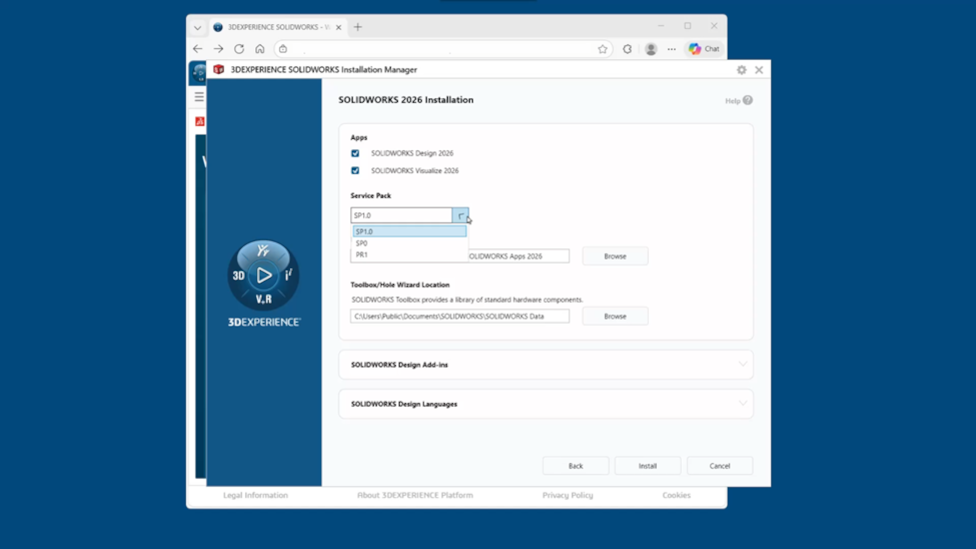
- Install multiple versions of SOLIDWORKS Design to collaborate more efficiently with others who use a different version.
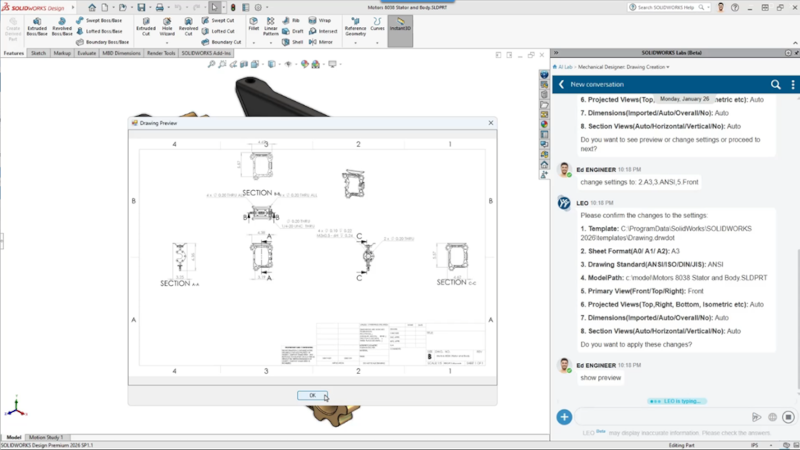
- Use AI to set drawing specs upfront, refine the preview with prompts, then generate and save a drawing that matches your requirements—faster, with less manual setup.
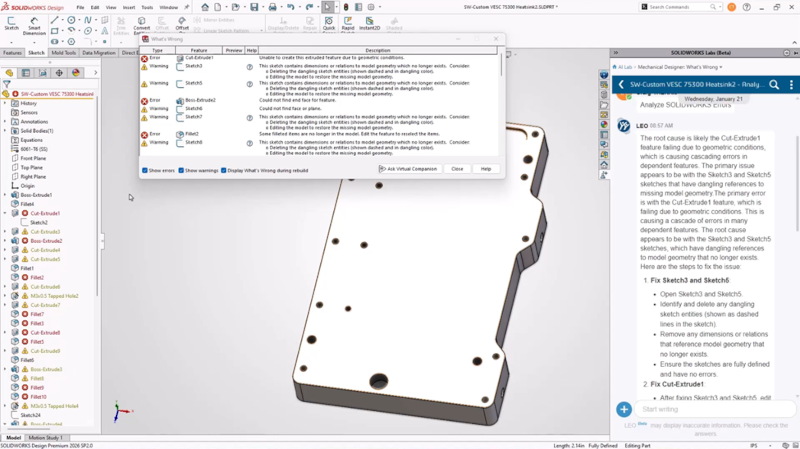
- Fix part model errors faster with AI-guided root-cause analysis.
Let’s take a look at the enhancements below.
- Install Multiple Versions of SOLIDWORKS Design
Users can now install multiple versions of SOLIDWORKS Design to collaborate with partners using a different SOLIDWORKS Design version. In addition, users can now quickly and easily create shortcuts and modify existing installations. In SOLIDWORKS Design 2026, you can install SOLIDWORKS 2025. Then, in SOLIDWORKS Design 2027 and beyond, you can install the two previous versions.
- AI-powered Prompt-guided Drawing Generation (Beta)
Generate drawings even faster with AI. Last year, we introduced generative drawings, and you asked for more control. Now, you can define how you want your drawing to look by specifying the size, format, and views up front.
It’s no longer a one-size-fits-all result. Set your template and standards, choose the primary view, and refine the preview with prompts. When it looks right, generate the drawing and save it to your selected location. The result: drawings that match your standards, your intent, and your requirements—without the usual manual setup.
- AI-powered What’s Wrong Analysis (Beta)
You’re all familiar with this scenario: you’re building complex parts, and you change or delete something in your model, and it causes a lot of features downstream to fail. Thankfully, with the What’s Wrong dialog box, you can get an idea of what you need to fix. However, we’ve enhanced this functionality to be even smarter, and now it will identify the root cause of the failure, so you can fix part model errors faster with AI-guided root-cause analysis.
- AI-powered Assembly Structure Generator (Beta)
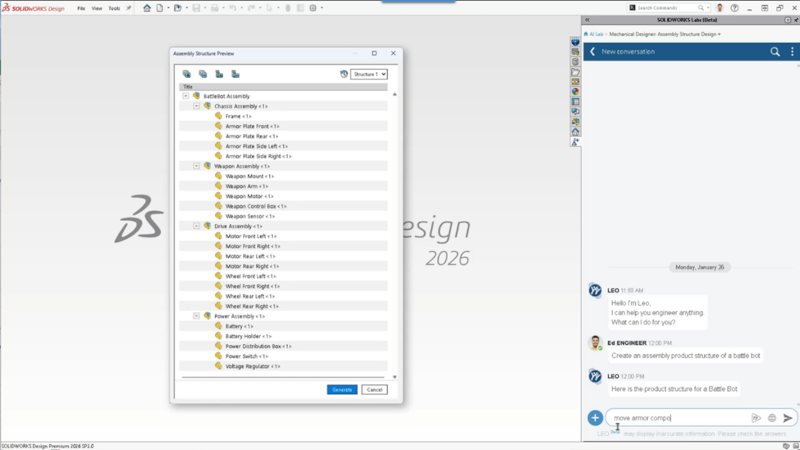
Generate an assembly structure from a simple prompt by specifying what type of assembly structure you need.
For example, you can automatically generate a chassis assembly, and then remove or replace components, adjust hierarchy, and more, until you’re happy with it. When you’re satisfied with the results, hit the Generate button to create the SOLIDWORKS assembly and part files.
This will save you a lot of time from manually changing the assembly structure and ensure it matches your intent.
- Contextual Assistant Notifications
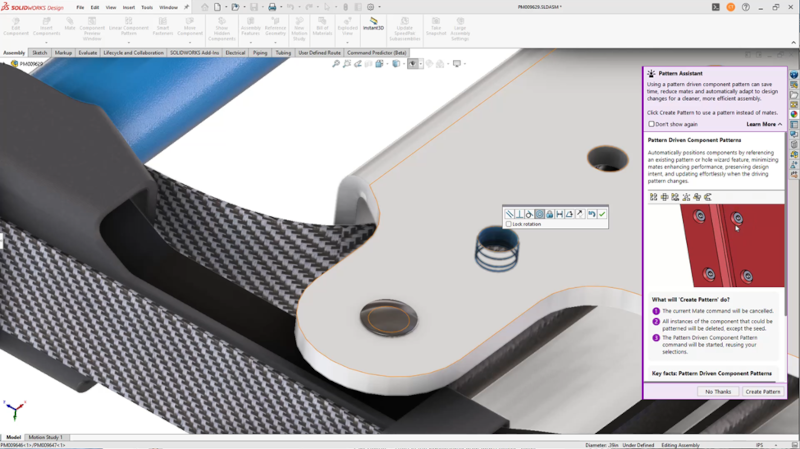
Get tips and recommendations to help you become more efficient with advanced SOLIDWORKS Design functionality. For example, configurations can be confusing. Now, when you’re creating configurations and product filters, you’ll get notifications that provide short, action-specific tips.
In addition, when SOLIDWORKS Design senses that a component pattern could be used instead of placing components manually one at a time, you’ll get a notification suggesting you create a component-driven pattern. And at that point, you could even have the system create the pattern for you.
- Support for Ordinate Dimensions in MBD
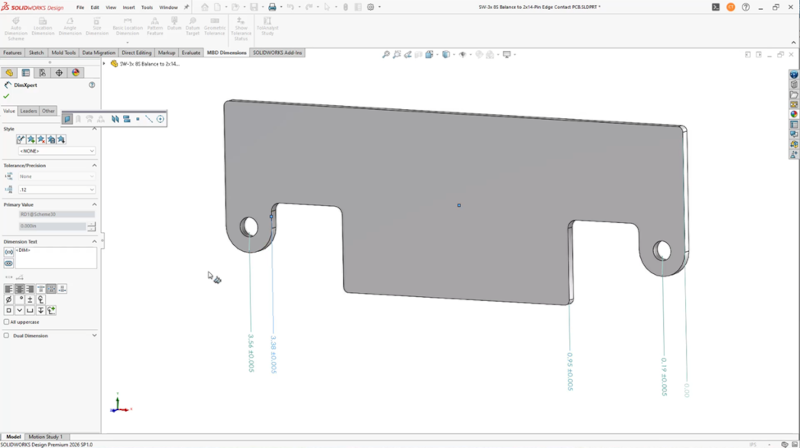
Many companies are moving towards drawing-less manufacturing and model-based definition (MBD), where they’re either creating only 3D models or putting all their annotations and dimensions on the 3D model.
I’m happy to announce support for ordinate dimensions in this update. Ordinate dimensioning schemes are important for improving clarity, reducing clutter, and enhancing manufacturability by anchoring all features to a common origin.
This highly requested feature will help improve communication with manufacturing by taking advantage of more dimensioning flexibility with the option to create ordinate dimensions in 3D.
- Ability to Import Models as a Background Process
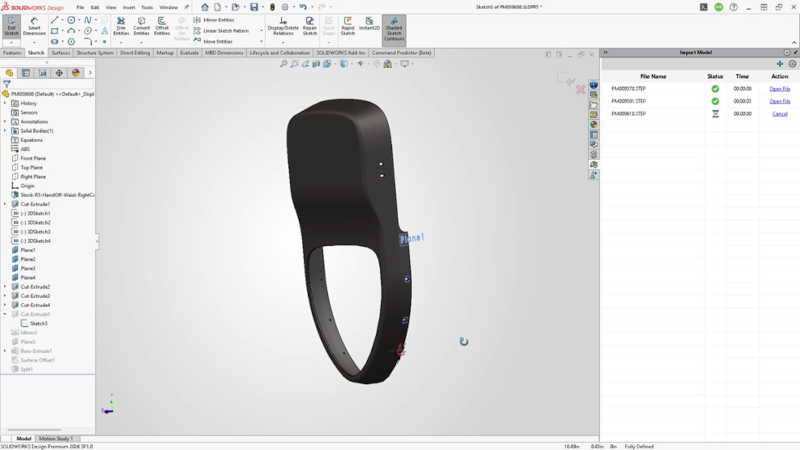
This new capability is small, but mighty. Continue working in SOLIDWORKS Design, while large non-native SOLIDWORKS models, such as STEP, IGES, or IFC, are imported in the background. Easily keep an eye on the status to see when the files have been imported, so you can start working with them.
Check out the What’s New Wiki page to see these enhancements in action. In addition, check out the new SOLIDWORKS Design Ultimate role that combines AI capabilities, built-in robust collaboration, lean teamwork, and project, release, and product lifecycle management capabilities. Learn more here.

Craig Therrien
Latest posts by Craig Therrien (see all)
- What’s New in SOLIDWORKS 2026x FD01 – Design and Modeling - February 25, 2026
- What’s New in SOLIDWORKS 2026 – Design - October 22, 2025
- What’s New in SOLIDWORKS R2025x FD03 – Design and Modeling - July 7, 2025