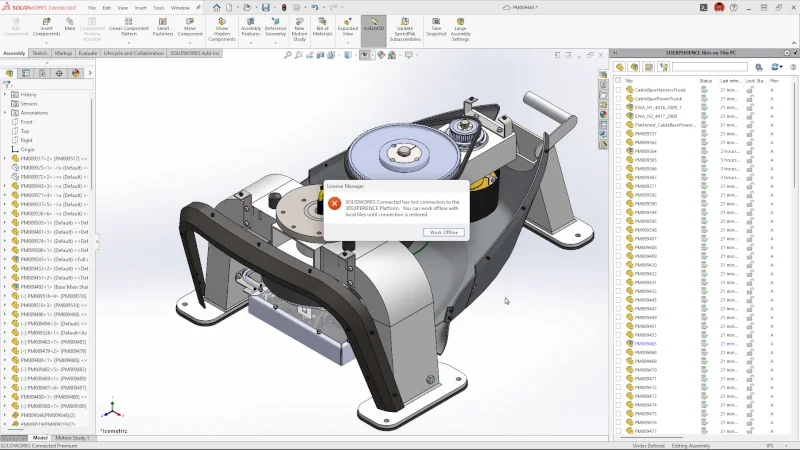

The latest functional delivery of SOLIDWORKS is here, which means new enhancements you can start taking advantage of right away! This update has some huge productivity gains, including selective opening of assembly components, AI-powered automatic fastener recognition and assembly, AI-powered improvements for automatic drawing creation, mid-session offline mode, and much more.
Let’s take a look at the top 10 enhancements for design and modeling in the R2025x FD03 update for 3DEXPERIENCE SOLIDWORKS and SOLIDWORKS with Cloud Services.
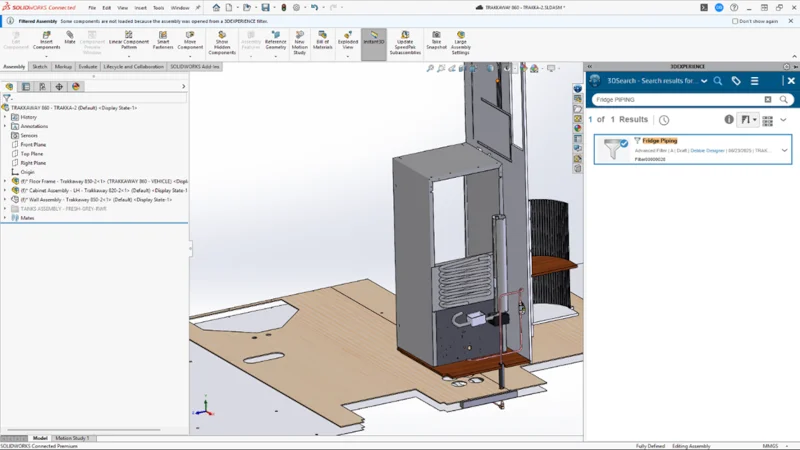
- Selective Loading of Assembly Components – work more efficiently and collaboratively on large assemblies.
With 3DEXPERIENCE SOLIDWORKS, you can streamline your design process by selectively opening sections of your design structure from the 3DEXPERIENCE platform. Visualize component relationships and use advanced filtering to find relevant components. After saving a Filter, you can open it in SOLIDWORKS. Save time and boost collaboration by allowing multiple designers to work efficiently on the same large assembly without interfering with each other.
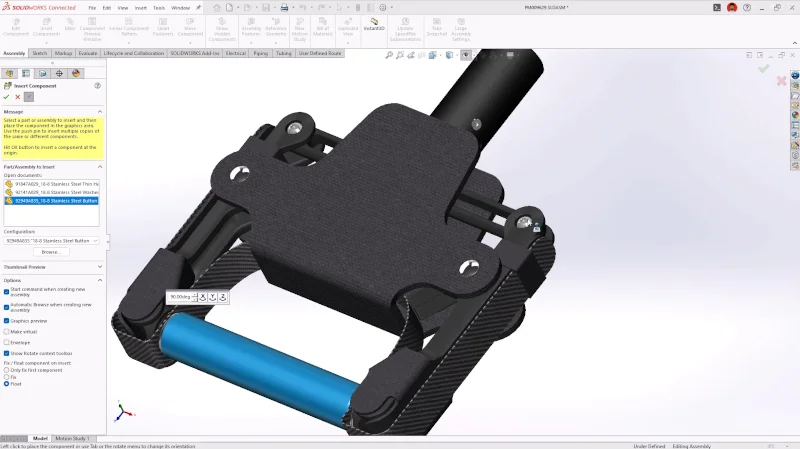
- AI-based Automatic Fastener Recognition and Assembly – save time on manually assembling.
This one is my personal favorite. When inserting components into assemblies, SOLIDWORKS will automatically recognize components that appear to be nuts, bolts, or washers as fasteners, AND automatically assemble them.
As you know, we have automatic fastener assembly when using SOLIDWORKS Toolbox components. However, we know many of you use custom or outsourced fasteners from other catalogs. Now, this capability extends to non-toolbox components. Drop in these parts, and boom, they will automatically be snapped into place, saving you time from having to do each component separately.
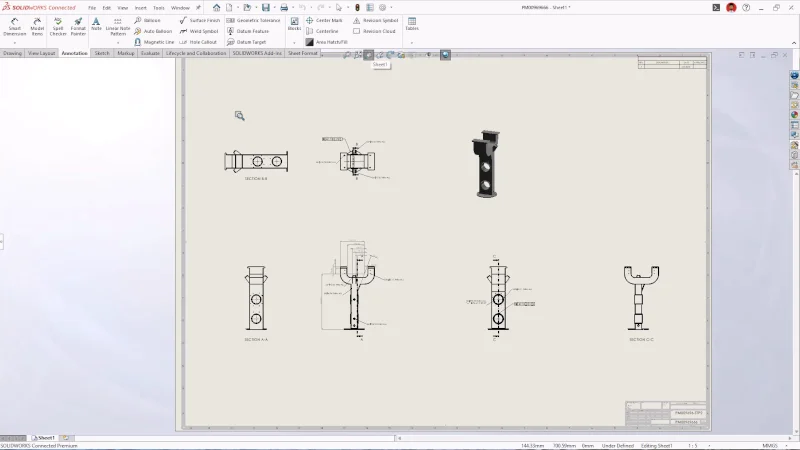
- Generative Drawing Creation – accelerate drawing creation with AI-assisted enhancements.
In FD01 earlier this year, we added the capability to automatically create drawings with the simple click of a button, so you wouldn’t have to create them from scratch. In this update, we’ve done a lot in the way of automated drawings, including the following exciting enhancements:
- Automatic hole recognition leveraging AI- The Hole Wizard recognizes geometry that looks like holes, such as countersunk, counterbore, and through holes, and intelligently applies the appropriate hole callouts. This goes for native SOLIDWORKS or imported geometry.
- Ensure your views are automatically arranged to avoid overlap with each other and with annotations through the power of AI.
- Automatically match the sheet format industry standard to the part or assembly industry standard.
- Automatically determine the best-fit sheet size to ensure all views and annotations are clearly scaled and neatly arranged without overlap.
- Access the ‘Auto-Generate Drawing (Beta)’ command under the ‘New’ command.
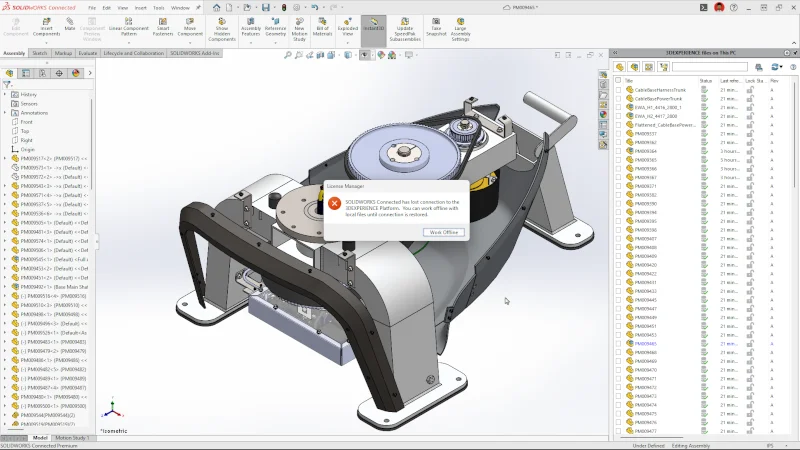
- Unplanned Offline Mode – continue designing with less interruptions.
We have further improved offline mode capabilities. If you experience a connection loss while connected to the 3DEXPERIENCE platform, you’ll get a notification, and you can continue your work in SOLIDWORKS in offline mode, without the need to save, exit and start a new session. This improvement also extends to SOLIDWORKS Visualize and 3DEXPERIENCE DraftSight, ensuring uninterrupted productivity across all applications.
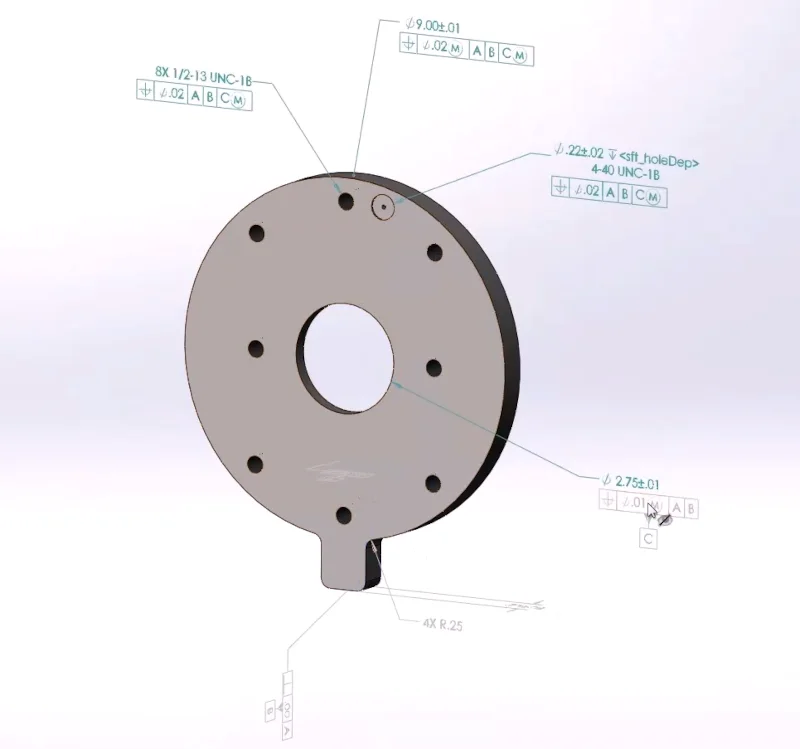
- Hiding and Showing Annotations in Parts and Assemblies – gain greater control over displaying annotations.
Model-based Definition (MBD) enhancements include the ability to hide or show specific annotations in parts and assemblies when using DimXpert. Whether you’re working with complex assemblies or detailed part designs, this feature simplifies the presentation of critical data, improving clarity and reducing visual clutter, when necessary.
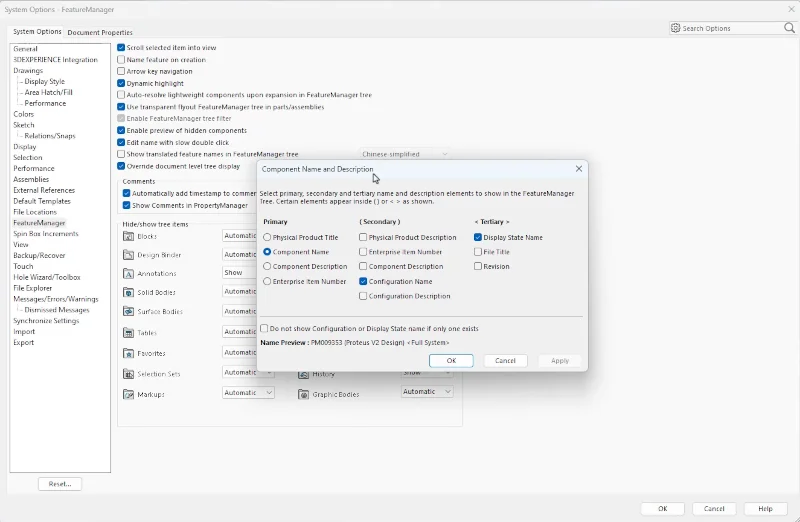
- Override Document Level FeatureManager Design Tree Settings – control how documents are displayed.
Enforce company standards and best practices with a new system-level display setting for the FeatureManager design tree.
Use the Override document-level tree display to specify options in the Component Name and Description dialog box at the system level. When enabled, the system-level options override the document-level options for the component names in the FeatureManager design tree. The system-level options do not override the document-level options in the document.
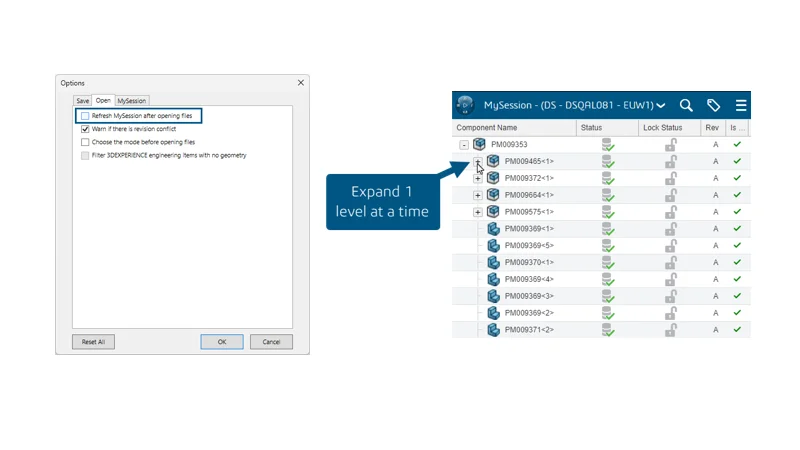
- Dynamic Tree Expansion In MySession – quickly open and navigate large and complex assemblies in MySession.
Currently, when you open an assembly, the tree in MySession is fully expanded, and all updates are retrieved from the 3DEXPERIENCE platform. By disabling the “Refresh MySession after opening files” option in the Options tab, you can simplify navigation of large and complex assemblies. This enables on-demand tree expansion in MySession so that only the first level of child components is loaded initially. As you expand the tree, additional levels open one at a time, reducing load times and improving overall workflow.
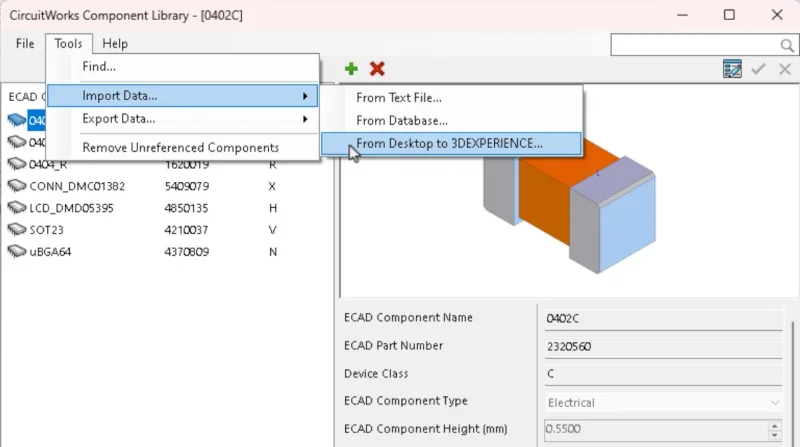
- Synchronize CircuitWorks Component Libraries – ensure a single source of truth.
As you may know, CircuitWorks is now available in SOLIDWORKS Standard, Premium, and Professional, enabling two-way collaboration between electrical and mechanical designers.
From the CircuitWorks Component Library, you can now synchronize CircuitWorks component libraries between SOLIDWORKS and 3DEXPERIENCE SOLIDWORKS to keep electrical component libraries up to date and consistent across different environments.
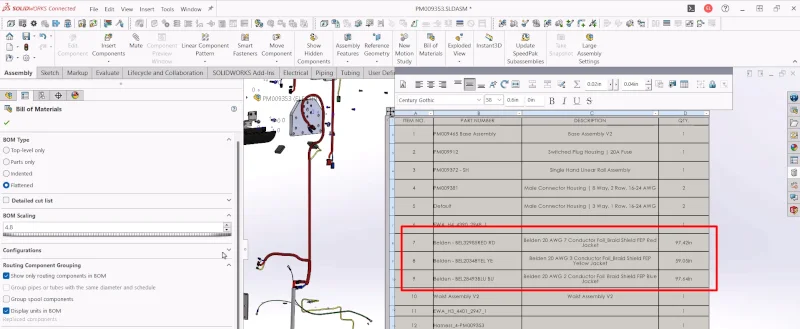
- Combined BOMs Across Multiple Routing Assemblies – ensures that downstream manufacturing personnel have all the essential information in one place.
In SOLIDWORKS Routing, you can create a more flexible Bill of Materials (BOM) for designs involving cable, wires, harnesses, fluid, and piping networks. This enhancement allows you to track total lengths of cable or wire types across all subassemblies, as well as individual cable/wire lengths, while also providing combined counts of components.
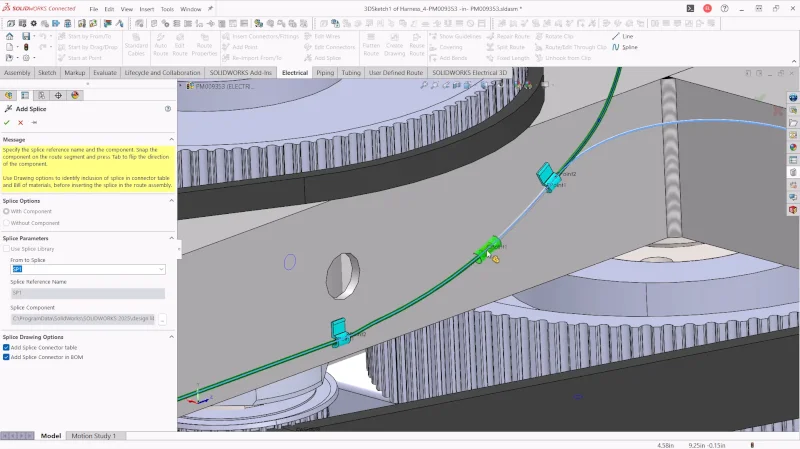
10. Splice Highlighting – include placement guidance of splices and components.
In SOLIDWORKS Routing, visually guide the placement of splices and other inline electrical devices in harness segments. By using imported from-to connection information, harness segments suitable for locating a splice or other inline electrical device are highlighted to guide placement of the device. This intuitive guidance makes the placement of splices and inline components easy and precise.
To see these enhancements in action visit the What’s New Wiki page here.
See the last blog on FD02 here.
For more information on SOLIDWORKS solutions, visit https://www.solidworks.com/product/solidworks-3d-cad.