
This year marks 30 years of SOLIDWORKS, continuing its legacy of ease of use; it remains a user-driven solution for design and engineering professionals. The new release drops in November, and I’m excited to tell you about some of the top features in SOLIDWORKS 2026. From AI-powered design and detailing to selective loading of assembly components, and more, learn about the latest developments in SOLIDWORKS Design solutions.
All enhancements apply to SOLIDWORKS Design solutions, unless stated otherwise.
- AI-POWERED ENHANCEMENTS
Accelerate documentation and assembly design with AI-powered drawing automation and fastener recognition.
Automatic Drawing Creation
Automatically create drawing sheets with views and proposed dimensions with the simple click of a button, using the Auto-Generate Drawing (Beta) command under the New menu. Once enabled, this will automate drawing creation with automatic hole recognition for native SOLIDWORKS or imported geometry. In addition, this functionality will ensure your views are automatically arranged and match the sheet format industry standard to the part or assembly industry standard.
Automatic Fastener Recognition and Assembly
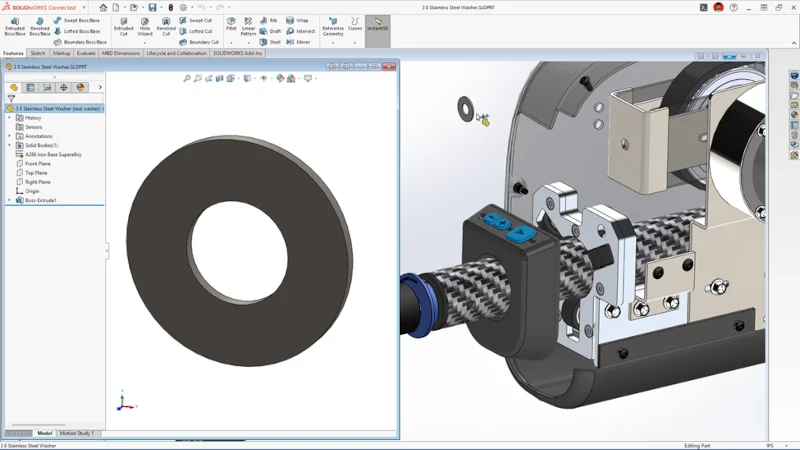
This enhancement is one of my favorites. When inserting components into assemblies, SOLIDWORKS automatically recognizes components that appear to be nuts, bolts, or washers as fasteners and then assembles them accordingly.
This capability also extends to non-toolbox components, enabling you to drop in parts that will automatically be snapped into place, saving you time from having to do each component separately.
- ENHANCED LARGE ASSEMBLY FEATURES
Save time and resources when working with large assemblies with the following enhancements.
Selective Loading of Assembly Components
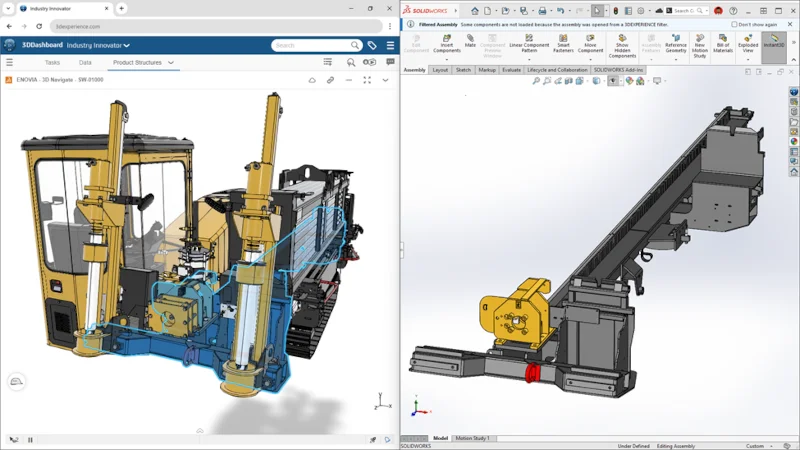
This one is a game changer, as you can selectively filter specific portions of your design from the 3DEXPERIENCE platform using component relationship visualization and advanced filters to find relevant parts. This helps speed up opening large assemblies and enables you to open only the components you want to work on, thereby reducing on-screen clutter.
Smarter Rebuild Recognition for Cosmetic Changes
Reduce assembly rebuild times by skipping rebuilds when only cosmetic changes are made to referenced components. A new Performance System option allows you to prevent unnecessary rebuilds, thereby improving overall efficiency.
Disable Auto-Resolve for Lightweight Components
Improve performance and save time when working with large assemblies with the ability to shut off auto-resolve and then open an assembly in Lightweight mode. Under System Options, click FeatureManager, then shut off the auto-resolve option, then go to Open, Lightweight, Open. When you expand your assembly in the feature tree, you can view your components faster and resolve them later, giving you greater control over when components are fully loaded.
- IMPROVED USER EXPERIENCE
Maintain productivity and focus with enhancements that support uninterrupted work and efficient design.
Unplanned Offline Mode
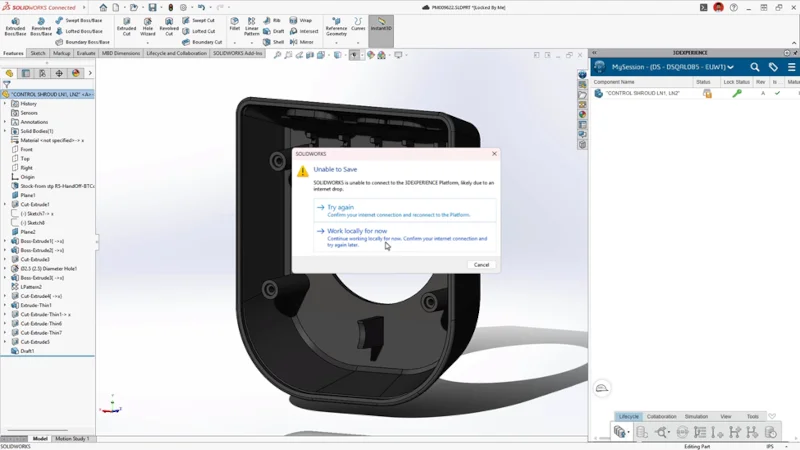
We introduced offline mode a few years ago and have made the option to connect to Offline mode even easier. If you experience a connection loss while connected to the 3DEXPERIENCE platform, you’ll get a notification, and you can continue your work in SOLIDWORKS in Offline mode, without the need to save, exit and start a new session.
Simplified User Interface
Speed up your workflow with a more intuitive interface that displays the most commonly used commands, helping you focus on design, reduce distractions, and work more efficiently.
Enhanced Command Search
Make searching with the Command Search faster by adding a customizable set of keywords so you can easily find the commands you need. For example, you might add search terms such as DWG, blueprint, plan, etc., which would pull up the Make Drawing from Assembly command.
This is helpful for new users, those coming from different CAD systems, and a quick way for existing users to pull up a command.
- STREAMLINED PART DESIGN
Simplify complex tasks, reduce setup time, and gain more control and flexibility throughout the design process with streamlined Physical Product creation, simpler definition of base and edge flange start and end points in sheet metal modeling, and faster sketching with easy square geometry creation.
Create Physical Products with Attributes
The SOLIDWORKS new document creation workflow has been improved so you can create Physical Products on the 3DEXPERIENCE platform directly. Similar to creating a SOLIDWORKS part, assembly, or drawing, you now have the option to create a Physical Product. In addition, you can fill in attributes such as project number, project name, manufactured/purchased part as part of the new workflow.
This is helpful, as everyone on the platform can see the attributes you added to that part.
Define a Custom Start point for a Sheet Metal Base Flange
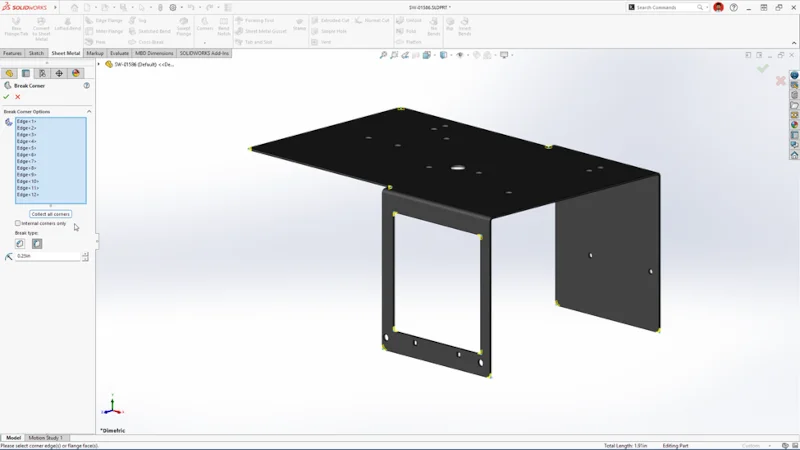
When creating edge flanges for sheet metal parts, you can now define the length of the edge flange using a sketch point. Gain greater flexibility in sheet metal design by using a sketch point to define the end of an edge flange, eliminating the need for workaround methods.
Create Squares with the Rectangle Command
Easily create squares using the Rectangle command by holding the shift key, automatically applying equal relations to the adjacent entities.
- MORE EFFICIENT COLLABORATION AND DATA MANAGEMENT
Accelerate teamwork and decision-making with powerful new collaboration and data management capabilities.
Enhanced Drawing Stamping
Drawing stamping now includes maturity status with additional attributes. These attributes provide detailed information about the latest maturity transition performed on a drawing through Change Status or Change Action commands. In addition, attributes can now include user names or email addresses. You can stamp the user names or email addresses of the users who participated in the drawing release process. Track maturity changes and view drawing history with evaluated attributes, eliminating manual updates.
Collaborate and Connect Right from SOLIDWORKS
Share designs using 3DDrive and 3DSwym and access the User Forum directly from within SOLIDWORKS.
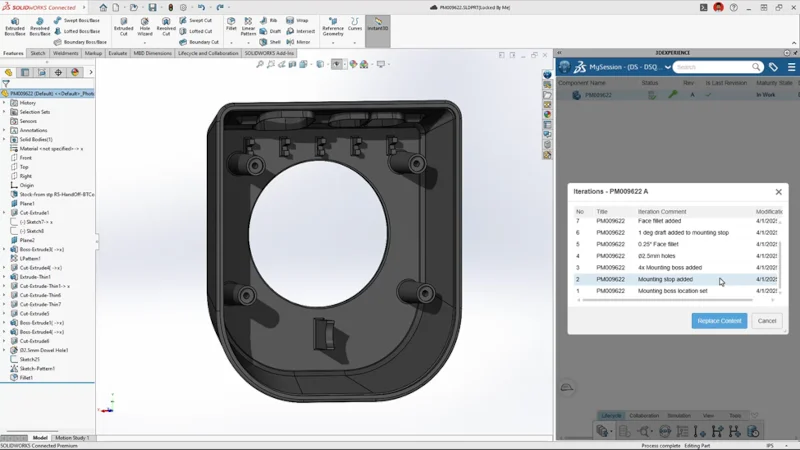
Support for Iterations
Update a selected file to the latest version on the 3DEXPERIENCE platform, ensuring accuracy.
- Improved Drawing Detailing and MBD
Speed drawing detailing with improvements to dimension line breaks, magnetic lines, and the ability to display all design configuration information in a table on the same drawing.
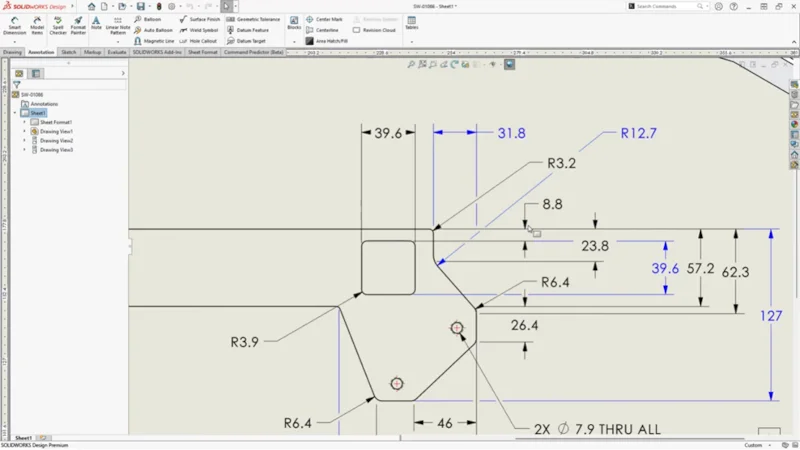
Automatic Dimension Line Breaks for Intersecting Text and Annotations
Automatically create breaks in dimension lines where they intersect or overlap with text and annotations, improving drawing clarity and readability.
Insert Family Tables for Configurations in a Drawing
Automatically display configuration details and custom properties of parts and assemblies on drawings using Family Tables, enhancing clarity and reducing manual documentation.
Magnetic Lines for Annotation Alignment
Use magnetic lines to support attaching and aligning Notes, Weld Symbols, and other annotations, beyond just balloons.
Add Custom Text in Geometric Tolerance (GTOL) Values
Enhance tolerance definitions by adding custom text and symbols—such as minutes (′), seconds (″), and special characters like (/), (*), (|), and ()—directly within tolerance values for greater precision and clarity.
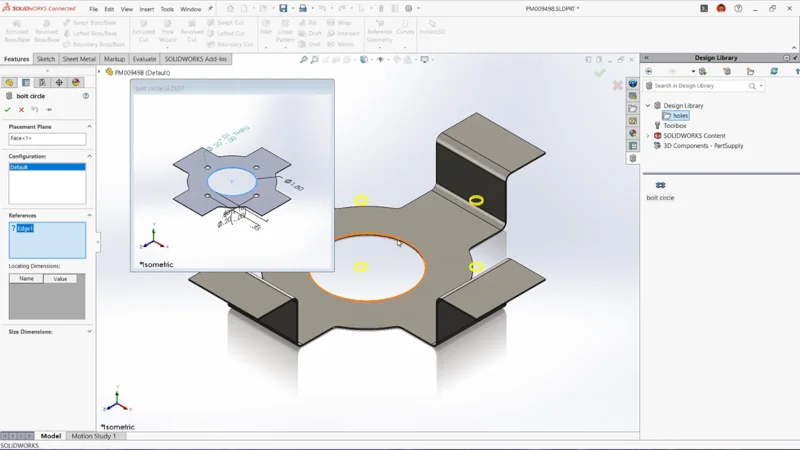
DimXpert Dimensions with Library Features
Save DimXpert model-based definition dimensions to library feature parts in your Library with a new option to check “Include MBD Dimensions.” This enables you to reuse them when a library feature is applied to a model, saving time and promoting standardization over having to detail the feature after placement.
- MORE FLEXIBILITY FOR ELECTRICAL, PIPE, AND TUBE ROUTING
Combined BOMs Across Multiple Routing Assemblies
In SOLIDWORKS Routing, you can create a more flexible Bill of Materials (BOM) for designs involving cable, wires, harnesses, fluid, and piping networks. This enhancement enables you to track the total lengths of cable or wire types across all subassemblies, as well as the individual lengths of cables and wires, while also providing combined counts of components.
Support for Assembly Clips
Route pipe, tube, and electrical paths using clips, mounts, or hangers placed in parts or assemblies, improving design flexibility.
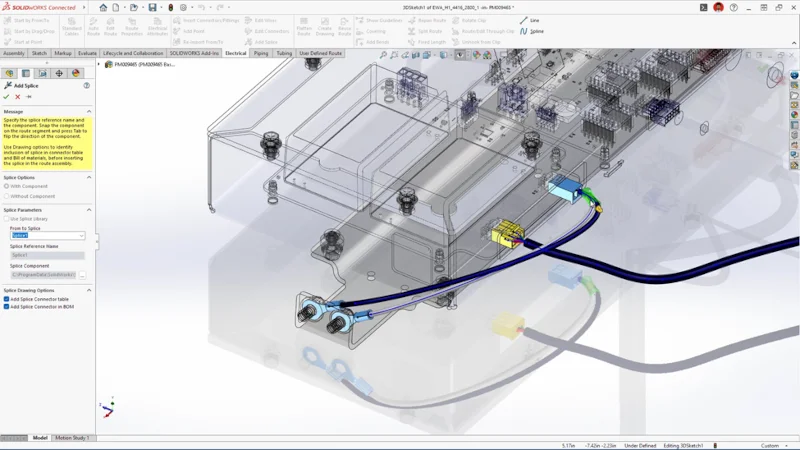
Visual Guidance for Easier Electrical Splice Placement
Visually guide the placement of splices and other inline electrical devices in harness segments. Using imported from-to connection information, harness segments suitable for locating a splice or other inline electrical device are highlighted to guide placement of the device. This makes the placement of splices and inline components easy and precise.
- Streamlined ECAD/MCAD Collaboration and Design
Strengthen ECAD-MCAD collaboration by improving parent-child data tracking and the ability to review and undo MCAD changes before ECAD implementation.
Support for Parent-Child Relationship in IDX 3.0
Maintain the Parent-Child relationship when using IDX files with the ability to store and track parent and child data, including keep-in, keep-out, PTH, and NPTH details, improving traceability.
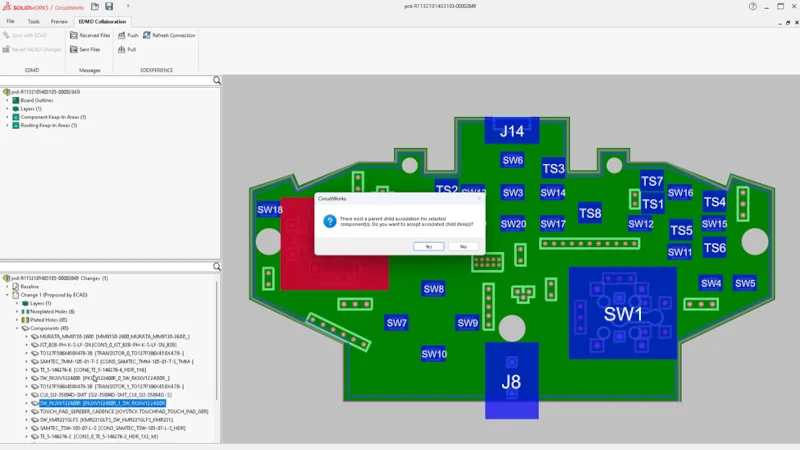
Ability to Overwrite Previous Push
When using CircuitWorks, you can review and undo MCAD changes before final ECAD updates by overwriting the previous push in IDX 3.0.
- MORE EFFICIENT RENDERING IN SOLIDWORKS VISUALIZE
Produce more life-like renderings with greater clarity, thanks to enhanced tessellation control and the option to use the Denoiser in CPU mode.
Enhanced Tessellation Control
Balance geometry quality and performance with tessellation control and faster import speeds.
In addition to overall import performance improvements, you will now have more control over the import quality, with additional options to enable you to import higher-quality models faster.
Run Denoiser in CPU Mode
Create high-quality renderings faster, in fewer passes, with the ability to enable the Denoiser in CPU render mode.
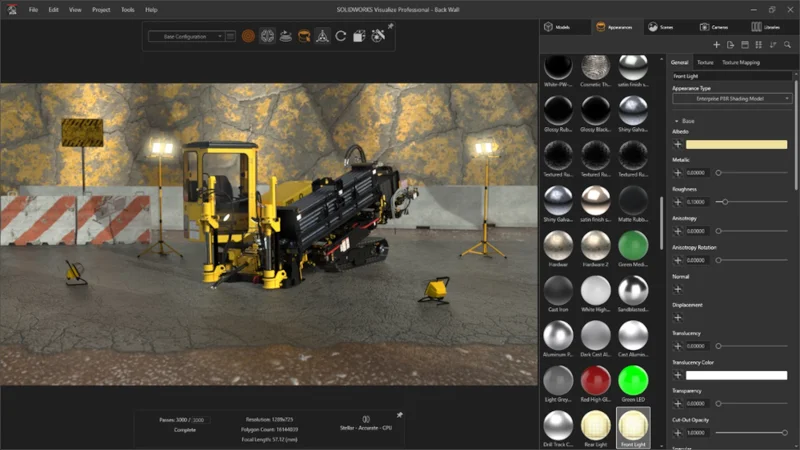
Import PBR Materials for glTF and USDZ Files
Streamline the creation of renderings from imported models with support for PBR materials in USDZ and glTF file formats.
- MORE PRODUCTIVE IMPORT/EXPORT
Accelerate your workflow with direct package exports from the Share dialog, save time by selectively including drawings in export packages, and simplify complex imported multi-body parts with advanced selection tools.
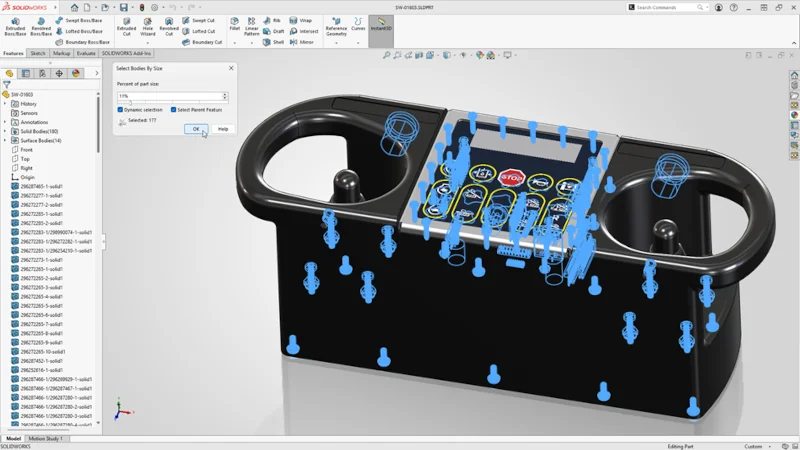
Selection Filter for a Large Number of Feature Bodies
Simplify complex multi-body parts more efficiently by using advanced selection tools to isolate and manage bodies based on similarity or size.
Share Files Using Export as a Package from Share Menu
Sharing files is more convenient, as you can quickly share assemblies saved on the 3DEXPERIENCE platform using the “Export as Package” option in the Share dialog box.
Exclude Drawings in Export Package
Control which drawings you’d like to include or exclude when exporting data packages.
Download this flyer to keep these enhancements handy, and see what is new in other SOLIDWORKS 2026 solutions here.