
SOLIDWORKS 2026 is here and if Charles Darwin were to review SOLIDWORKS 2026 he’d give it a 10 out of 10. It’s survival of the fittest, with features trimmed of their weakest habits. What’s new this year isn’t drastic new features like metaphorically growing new wings or gills; it’s pure evolution, and it’s awesome.
Here are the best things about SOLIDWORKS 2026.
1. Some of the best things actually arrived in 2025. Let me explain.
Fun fact: some of the best things about SOLIDWORKS 2026 GA (general availability) actually released throughout the year with the Functional Delivery (FD) versions of SOLIDWORKS 2025. Some of the highlights include AI capabilities that first released in an FD version of 2025.
The FD terminology is an evolution of the traditional Service Pack (SP) terminology. If a feature was released in an FD version of SOLIDWORKS 2025, then it’s called out in the section title.
2. New name, who’s this?
Introducing: SOLIDWORKS Design.
SOLIDWORKS is now known as SOLIDWORKS Design. This is a welcome change that makes a lot of sense because if you’ve been around the SOLIDWORKS ecosystem over the last few years, you’ve undoubtedly been exposed to a lot of overlapping terminology and services: 3DEXPERIENCE Platform, Cloud Services, subscription for a perpetual license, 3D Drive, 3D Space, Cloud Services and so on. If you’re a little confused, don’t worry, you’re not alone; I’m in the SOLIDWORKS industry and still sometimes lose track. So, to me this is a welcome change.
You’ll notice the name change in the SOLIDWORKS UI, the Windows Application Menu, and even your Desktop Shortcut. I’ll be referring to the SOLIDWORKS CAD Desktop application as SOLIDWORKS Desktop from now on — you’ll also welcome this clarity, I’m sure.
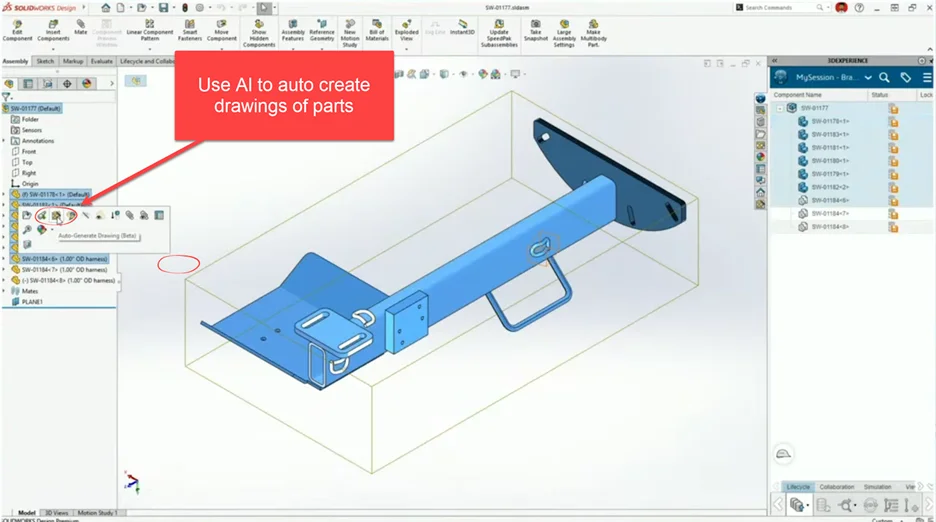
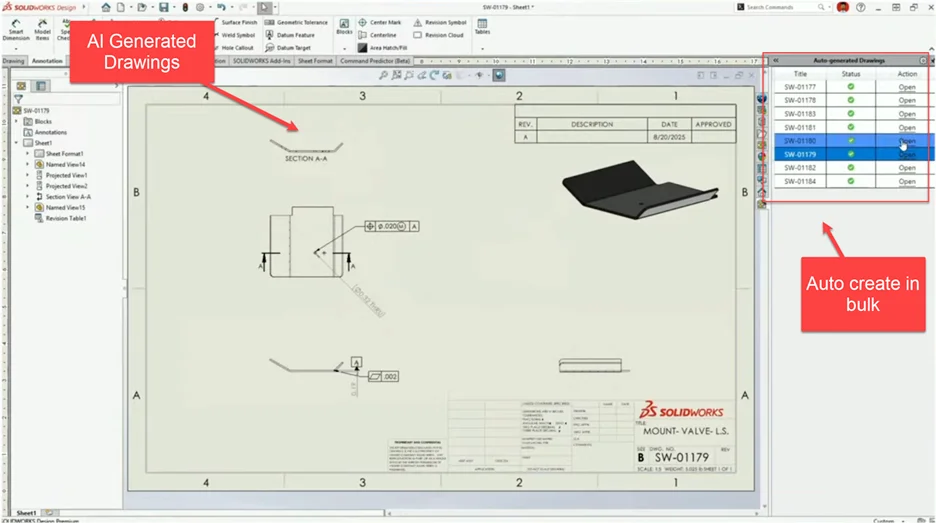
3. AI Auto generates drawings: Leverage AI to help you focus on value.
This one is huge! And surprise…it was here before 2026. This is one of the big ones that actually released in SOLIDWORKS 2025 FD01 and was improved in FD03. It’s now one of the best additions to the SOLIDWORKS tool set because of the immense time savings available by automating things that don’t add value to your workflow as a designer.
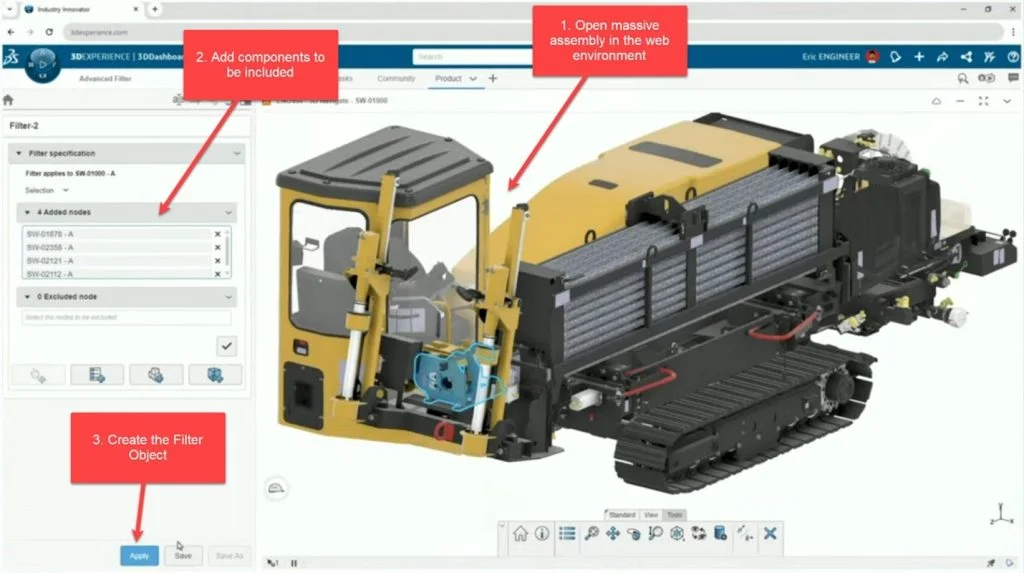
4. Selective Loading (2025 FD03): Save time loading massive assemblies.
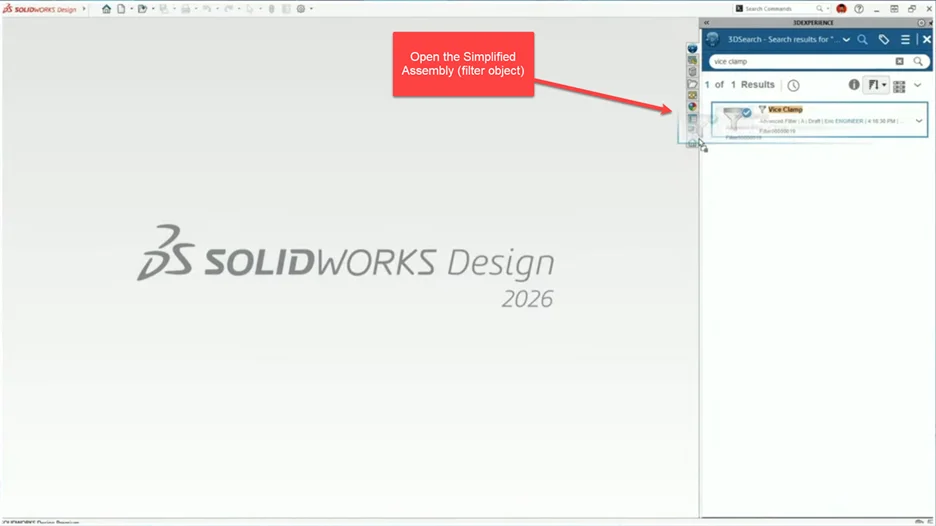
Supercharge loading with this tool to open only what you need and dramatically reduce load times. It works by first opening your assemblies in the web browser using the 3DEXPERIENCE Platform to create a filter object which can be opened in the SOLIDWORKS Design Application.
5. Pin Commands (2025 FD02): Repeat more commands, quickly and easily.
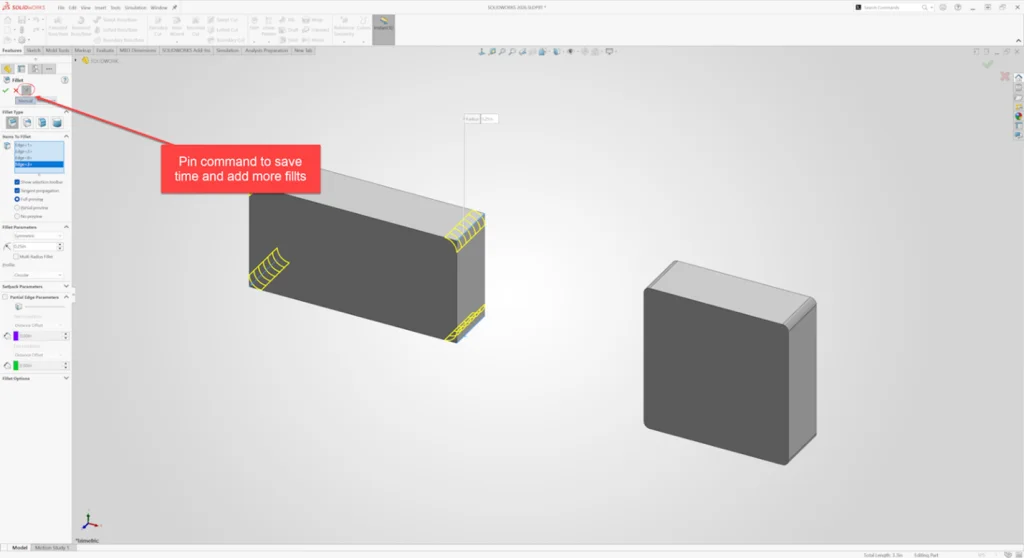
Some commands in SOLIDWORKS could always be pinned to stay active so you can quickly reuse them. But this functionality wasn’t extended to every command, and none have been more frustratingly absent than the Fillet command.
New to SOLIDWORKS 2026 is the ability to pin both the fillet and chamfer commands so they stay active and you can easily keep adding rounds or chamfers.
6. Sketch Squares with the Shift Key (2025 SP02): Easily create common shapes.
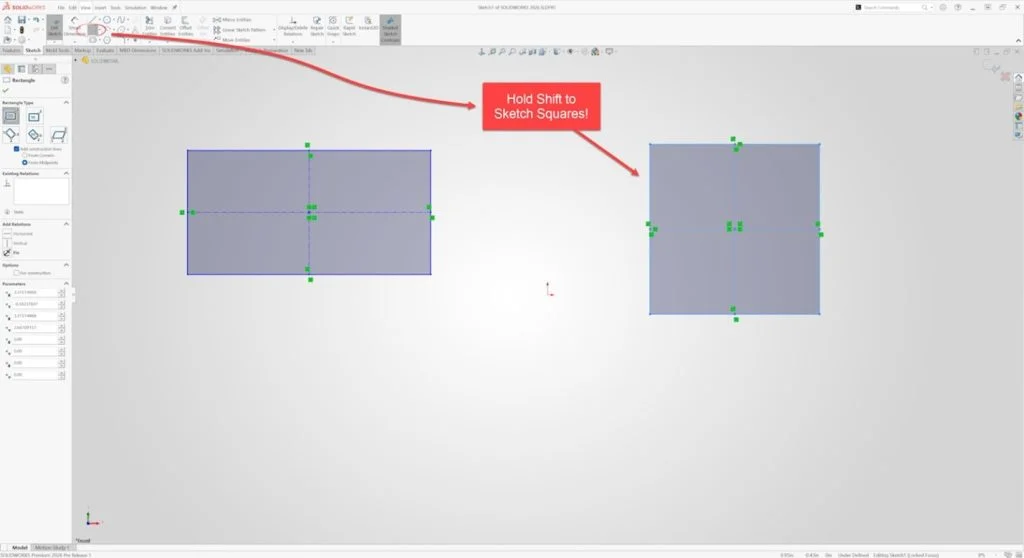
This one is simple and self-explanatory but absolutely incredible. When sketching a rectangle, you can create a square by holding the Shift key. This adds equal relationships to the sides to maintain your design intent of four equal sides (i.e. a square). To be completely honest, this is probably my favorite improvement. It’s one that is guaranteed to save a lot of time for every designer.
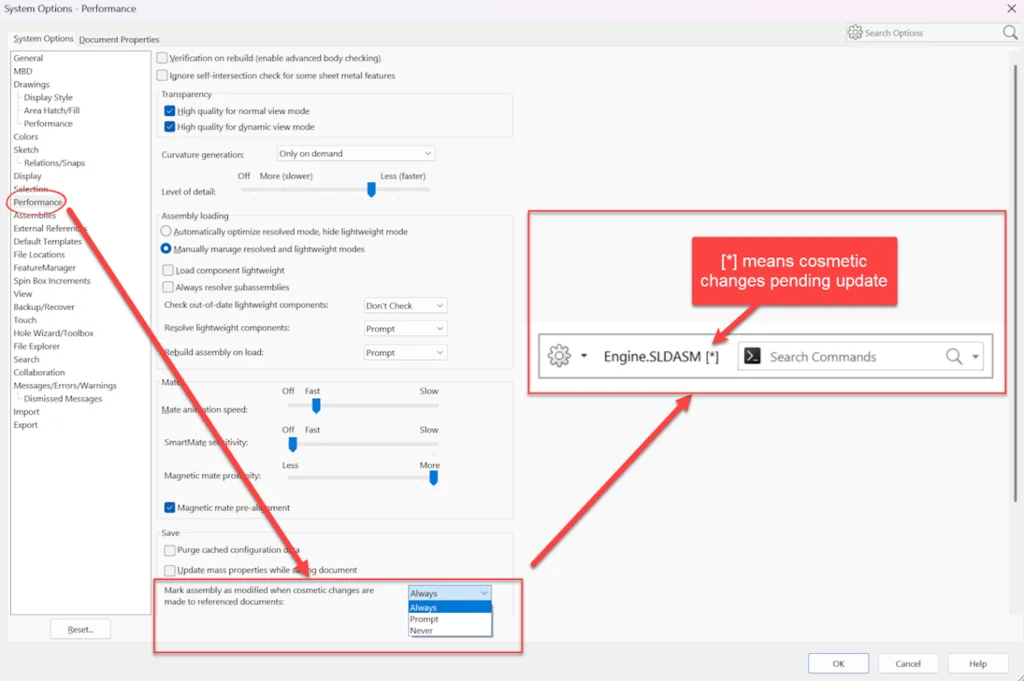
7. Cosmetic Changes for Rebuilds: Save time and be in control of rebuilds.
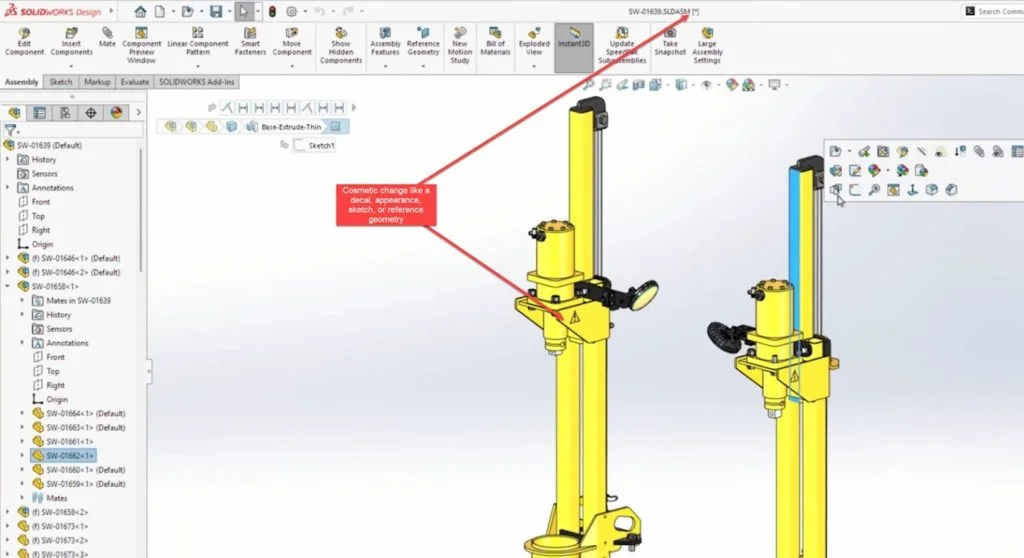
This enables you to increase performance and save time by skipping unnecessary rebuilds when you’ve only made cosmetic changes. There’s now a system option which puts you in control of rebuild requirements for nonessential (cosmetic) changes that don’t modify the parasolid geometry, such as sketches, reference geometry, hiding or showing bodies. You now can control when these rebuilds/updates happen.
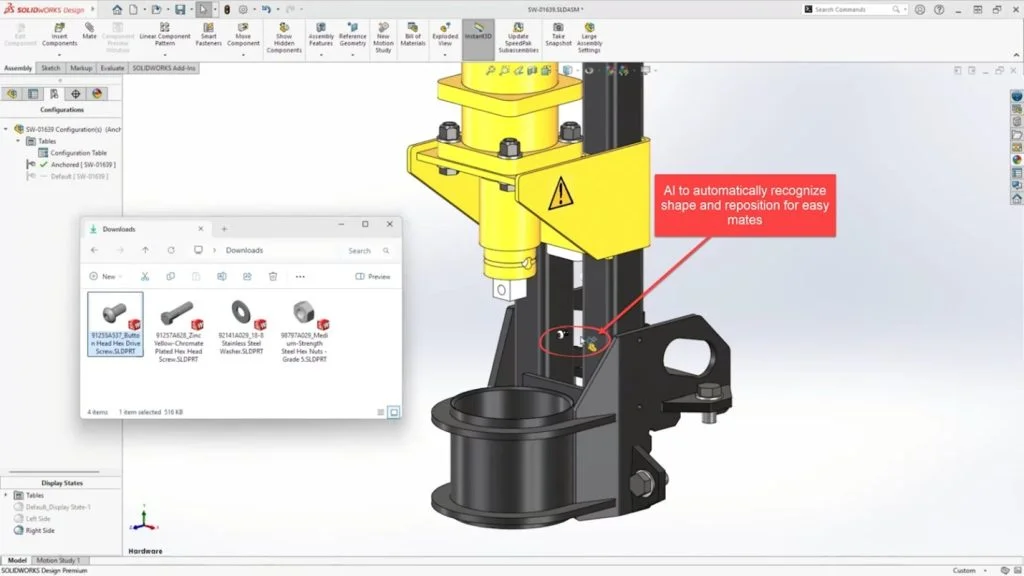
8. Fastener Automation with AI: Quickly and easily add components to assemblies.
SOLIDWORKS’ powerful AI is able to automatically recognize the geometry of components such as fasteners (nuts, bolts and washers), and properly position and mate them based on the geometry. This is a huge time saver for fasteners that is not limited to Toolbox components—it even works for non-native SOLIDWORKS files!
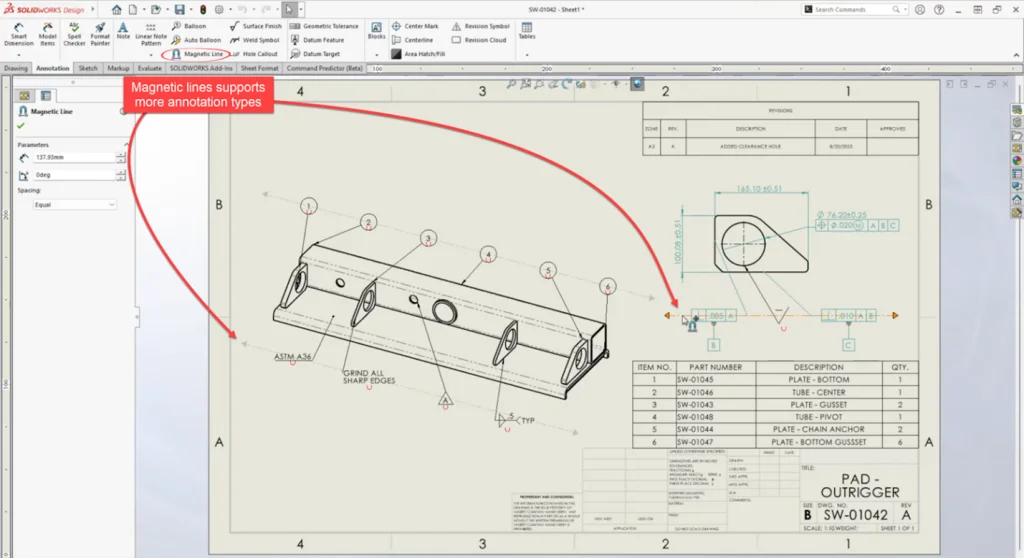
9. Magnetic Lines for More: Easily align more objects.
Magnetic lines are great for neatly laying out annotations. Now in SOLIDWORKS 2026, they are even more capable with the functionality to now support notes, weld symbols, geometric tolerance symbols, surface finish symbols and revision symbols, to help you add clarity and sophistication to your drawings
10. Break Dimension Lines: Add clarity to drawings.
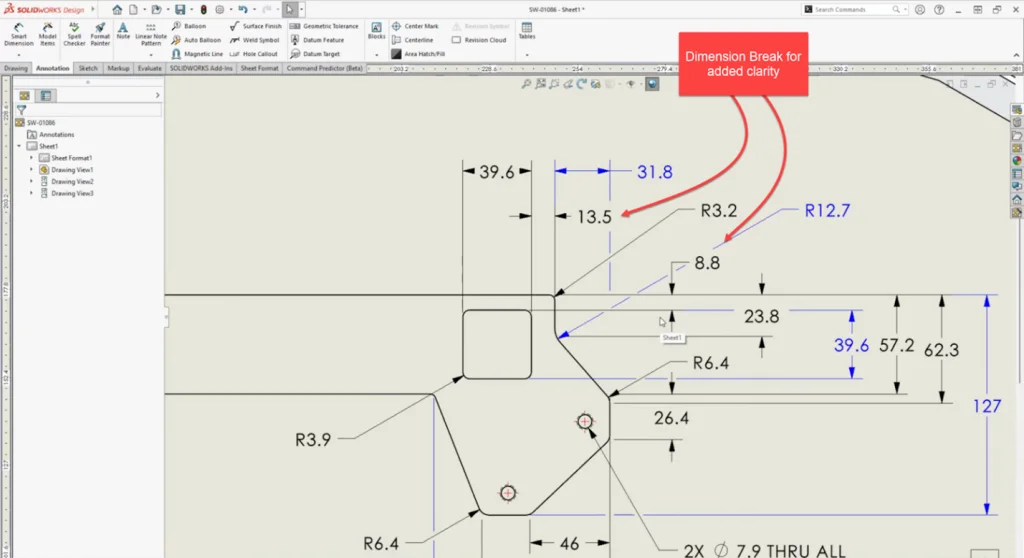
In SOLIDWORKS 2026, you can clean up your drawings by adding Dimension Breaks.
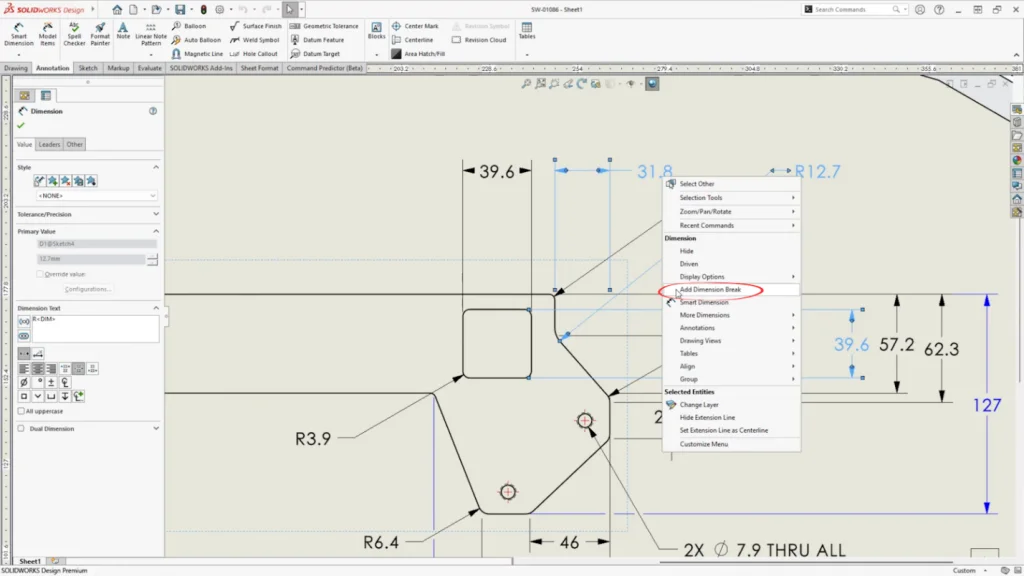
These break the dimension lines around other annotations to clean up the clutter and add clarity to your 2D drawings. With just a right click on the annotation, you can add dimension breaks to make sure the dimension leaders neatly go around the dimensions to clean up the drawing.
11. Reference Points: Define reference points with specific coordinates.
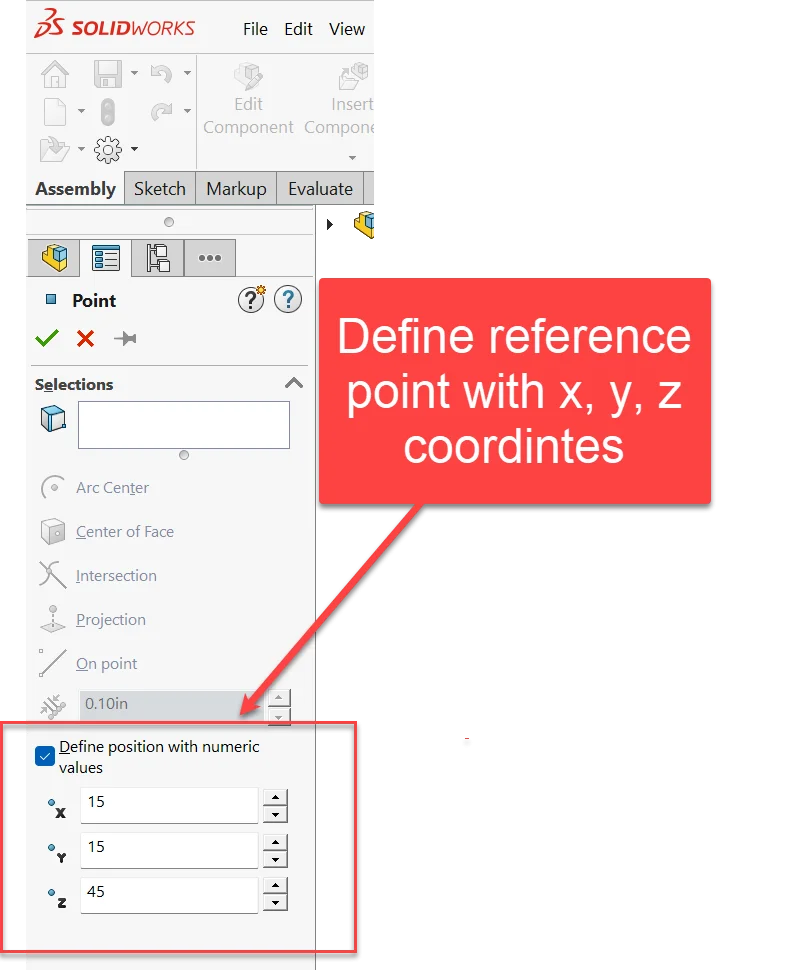
Gone are the days of adding reference points through the convoluted process of first creating a sketch point placed with dimensions, so you can then create a reference point at a specific x, y, z position.
Now in SOLIDWORKS 2026, you can define the position of reference points with numeric values.
12. Toggle visibility of properties.
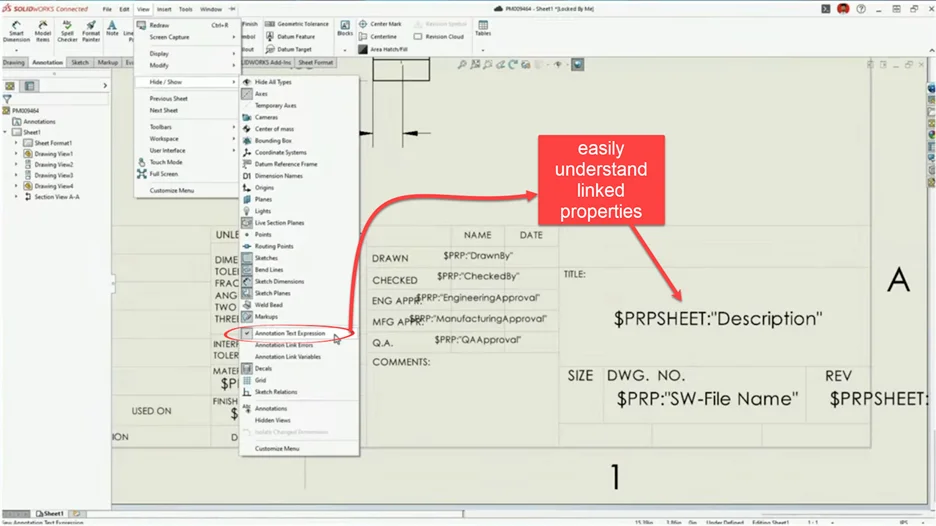
With just a click, you can toggle on the visibility of linked properties in drawings. This significantly streamlines the process of digging through text fields in your 2D drawing. Previously this was only available by first editing the sheet format and then digging through the properties individually. With this new view toggle, you can instantly understand your drawing properties.
13. Photorealistic Renders in SOLIDWORKS: Integrated rendering with SOLIDWORKS Visualize.
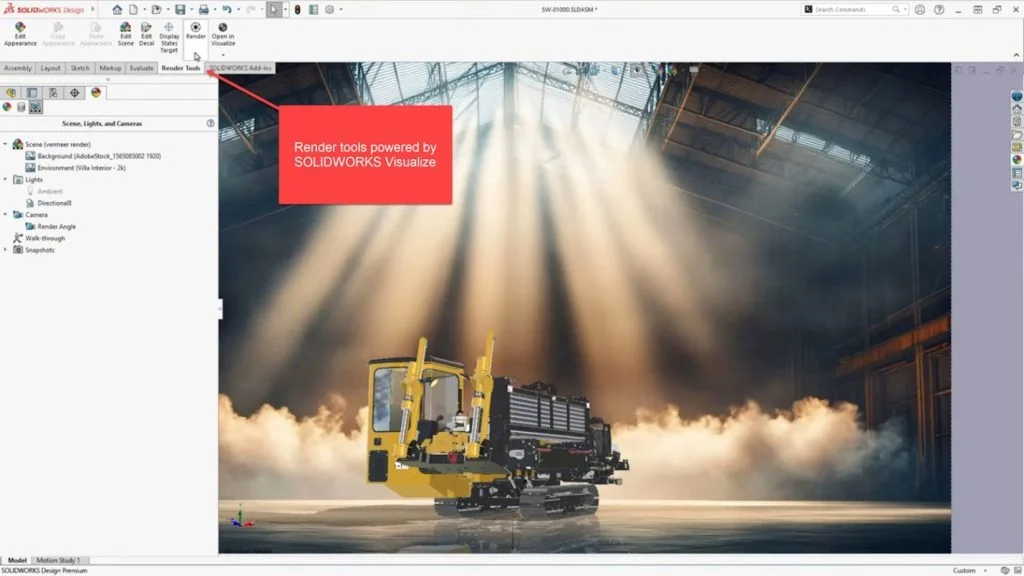
With Photoview360 retired, SOLIDWORKS Visualize takes the place of an integrated rendering engine you can use to create photorealistic renders within SOLIDWORKS. The workflow is the same as you’re used to with Photoview360, but the results are much better. All you need is the Visualize add-in turned on, and you can leverage the SOLIDWORKS scenes, lights and appearances to create extraordinary renders of your designs.
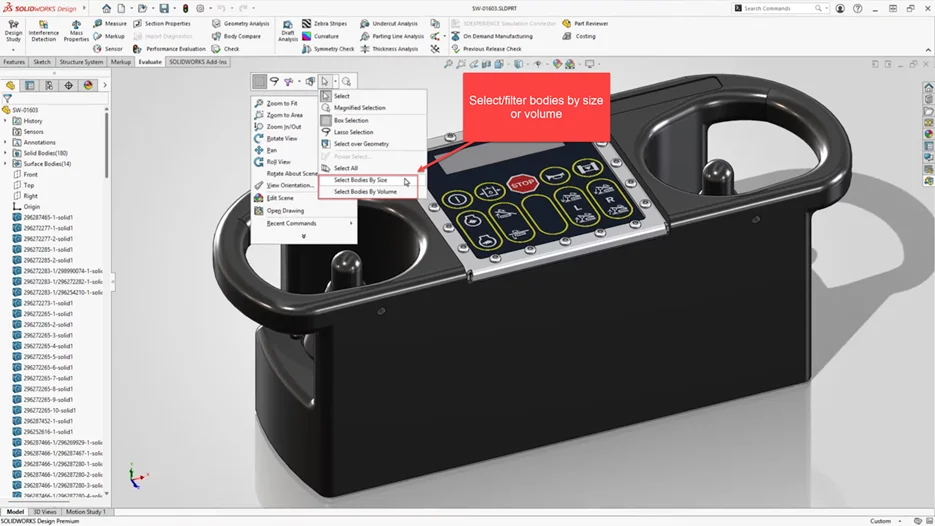
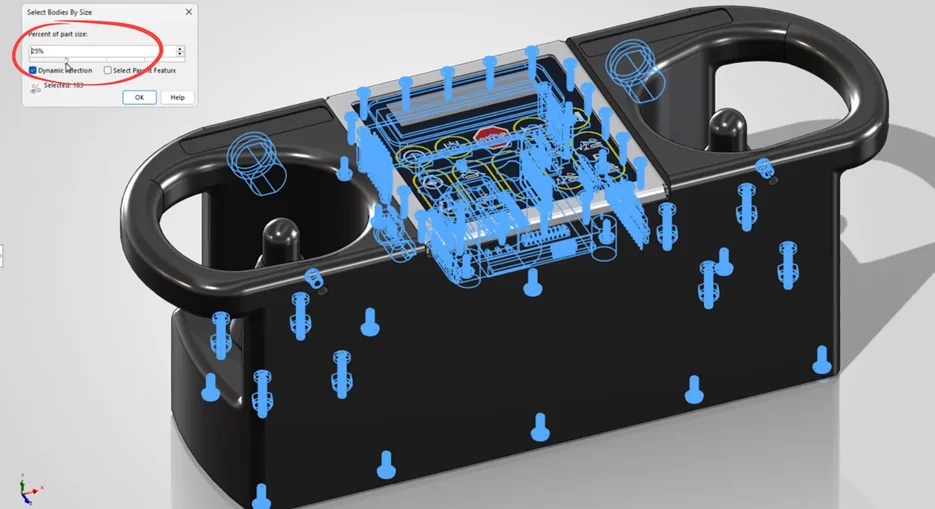
14. Filter by size and volume: Find and select bodies, fast.
You can quickly filter and select bodies based on size or volume using new selection filters in SOLIDWORKS 2026. It’s an extension of previous functionality to now include selection methods for parts.
15. Dismissed Messages: Never miss a message.
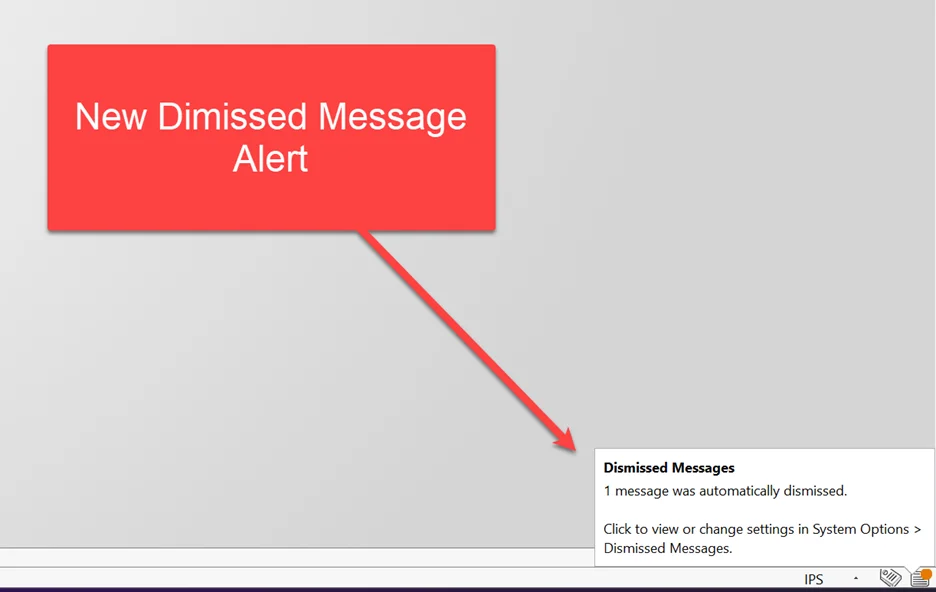
You’ve definitely seen the option for dismissed messages that says, “Don’t show again.” It appears in just about every message that pops up in SOLIDWORKS.
The check box takes its job seriously, in that “Don’t show again” means never again — unless you know where to find it in the system options.

Now in SOLIDWORKS 2026, there is a message that pops up letting you know that there’s been a dismissed message you might have forgotten about, and where to go to control this behavior.
16. Personalized Command search terms: Find Commands how you want.
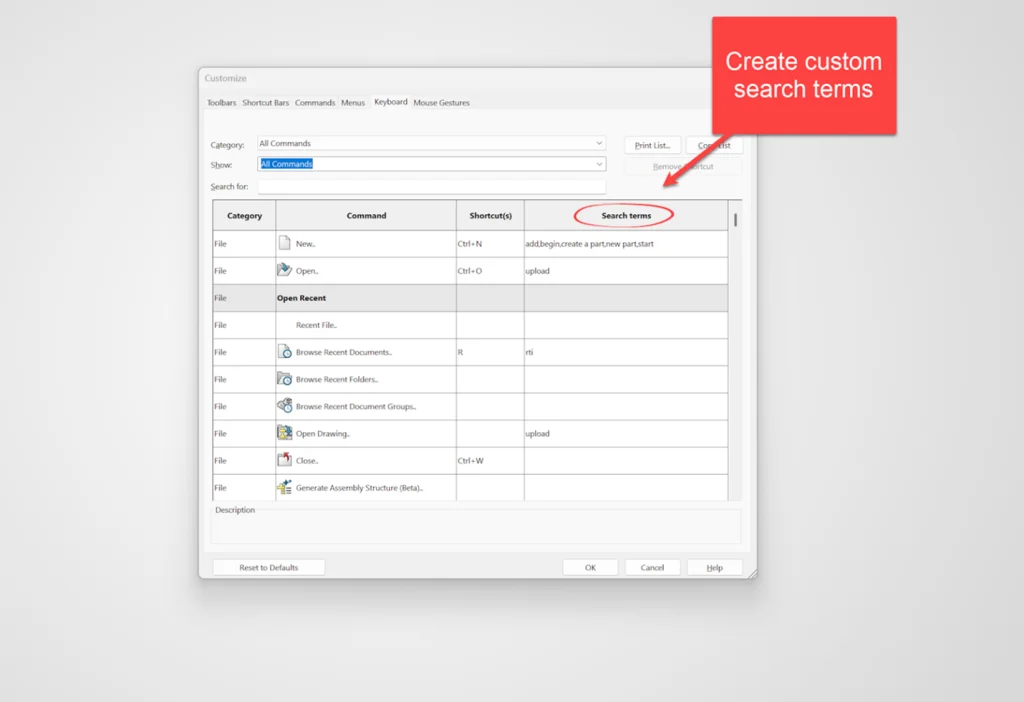
The Command search is hands-down the main workhorse of productivity for users of SOLIDWORKS. It’s been around for years and has saved countless hours of digging through menus to find commands. Now with SOLIDWORKS 2026, the Command Search has some added customizations available where you can create custom search terms for commands to help you quickly find a particular command.
That’s the stated benefit for this functionality, but I see this as being the means to find a command in the first place because it can be tough sometimes to remember the proper name for a command, especially if it’s not a common one you use.
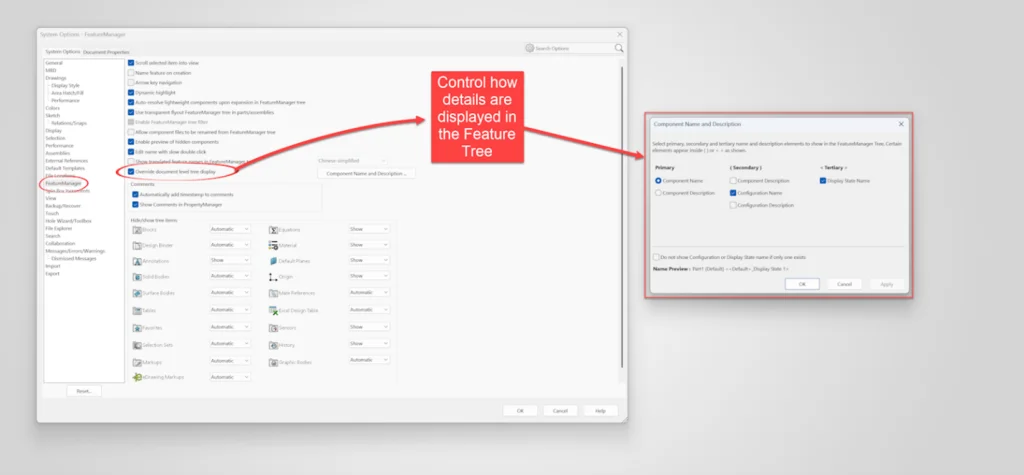
17. Tree Display System Option puts you in charge.
The Feature Manager Design Tree can get cluttered with details like component name, configuration name and display state name. This has previously been a Document property, but now you can control this at the System Option level, which puts you in charge of what information is shown in the tree.
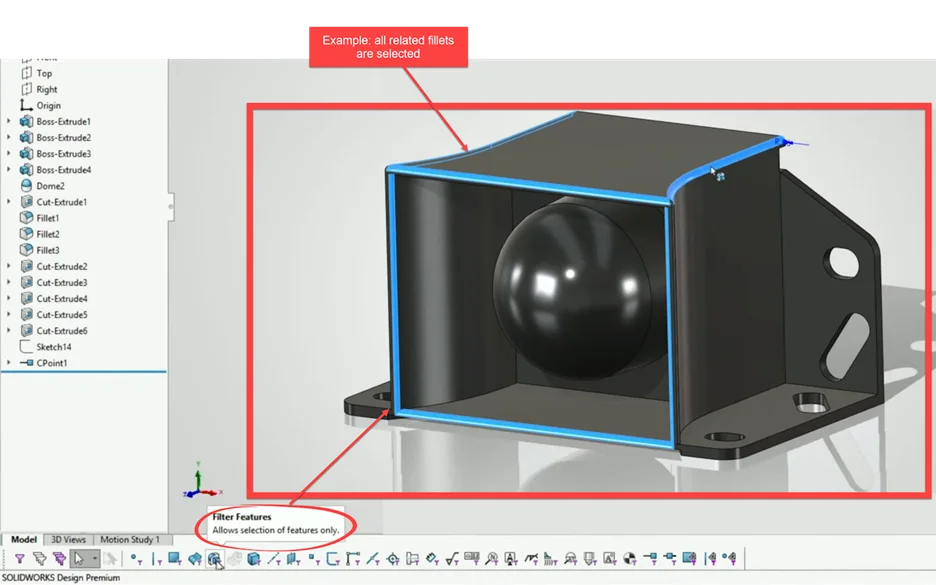
18. Feature Filter: Easily find features in the graphics area.
Helps you get graphical feedback to understand parent and child relationships of features. For example, with this turned on when you click an individual fillet, then all of the other fillets that were created with that original feature are all also created. This helps you maintain control when you dig into the details of your design.
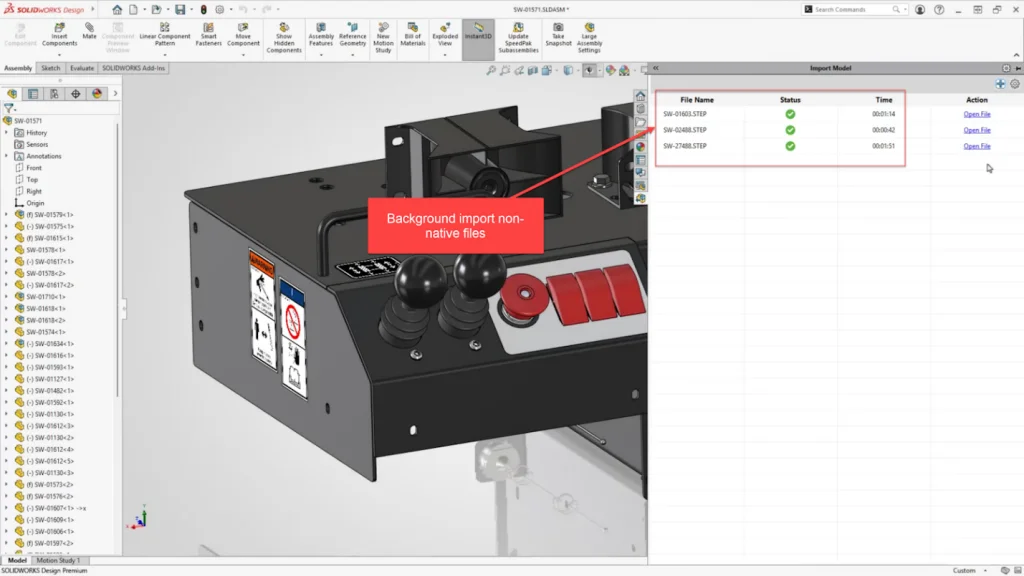
19. Background Import: Convert other CAD formats automatically, in bulk and in the background.
Via the task pane in SOLIDWORKS 2026, you can import neutral file formats (e.g. STEP) in bulk through the new background importer. This enables you to queue and process multiple files to import automatically without having to sit there and watch the proverbial paint dry because the files need to import before you can get to work.
20. More is around the corner!
There’s more to come throughout the year! More features will arrive in future SOLIDWORKS 2026 FD releases, which promise more great evolutions to the SOLIDWORKS tool set to help you design better and faster.