
Most users have figured out how to leverage design tables in SOLIDWORKS to manage different configurations of parts and assemblies.
The release of SOLIDWORKS 2025 provided some configuration table workflow enhancements that increase flexibility, improve iteration speed and strengthen traceability.
SOLIDWORKS 2025 upscaled the configuration dialog. The tool now supports improved filtering, column resizing and more interactive editing of configuration fields. This helps users maintain clarity when a lot of parameters are involved. It also reduces mouse clicks when working with dozens or hundreds of configurations, speeding up the process.
A very useful organizational upgrade is the ability to save the current view of a configuration table (row/column filter, sorting, visible columns) and apply it to the model. Within the “Saving Configuration Changes” topic, the help documentation states that users may “save the table and changes made in the Modify Configurations and the Configuration Table dialog boxes” and then apply them.
Another key area of enhancement: you can more easily add or delete columns in the configuration table to handle features, sketches or parameters across many configurations. This is part of the expanded capabilities of Modify Configurations.
This means tasks such as “suppress feature X in all ‘small’ configurations but enable it in ‘large’ ones” become more efficient.
Behind the curtain, SOLIDWORKS has made improvements in load times, smoother filtering/sorting within the design table, and the processing speed when you switch from one configuration to another has been increased.
You can save different views of your design table, so you have a Standard View that hides some of the columns and a Deluxe View that shows all the columns. You can have a view that focuses on materials and colors and another view that focuses on mates.
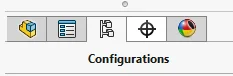
You can access and create configurations on the Configurations tab on the browser.
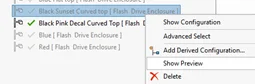
The ability to see a preview of a configuration was introduced in SOLIDWORKS 2020, but I still think it is a useful enhancement. After all, how many of us have clicked on every single configuration trying to locate the one we wanted?
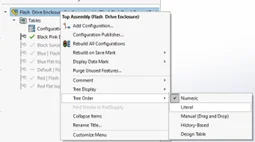
You have the ability to organize your configurations using Tree Order, so you can move your most popular configurations toward the top of the list. This was introduced in SOLIDWORKS 2017.
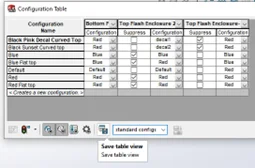
You can save a table view by typing in a name for the view and clicking Save table view.
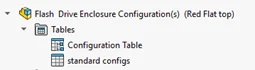
When you save a table view, you create a new table that is listed in the Configurations tab.
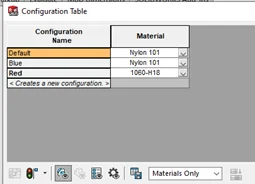
Note that this only works at the component level.
Let’s say you want to only see Materials in the table. First, delete the columns you don’t want to see, and you will only see the column for the materials.
Assign a name to the Table View and click Save table view.
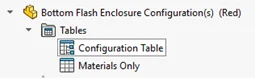
I now see the default Configuration Table in the Tables list as well as my saved table view.
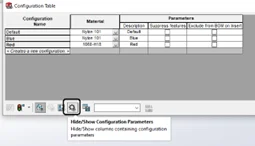
To see all the Configuration Parameters used on a Part/Assembly, click the Hide/Show Configuration Parameters button.
You can then delete the columns you don’t want to see and save the Table View.
This may not seem like an important improvement, but if you have a complex assembly with a lot of parts, the ability to save custom configuration table views can save a lot of time scanning through all the columns, suppressing and unsuppressing or selecting different options.
The Configuration Publisher has been around since 2010, but it continues to be improved. The 2025 release advanced those improvements further.
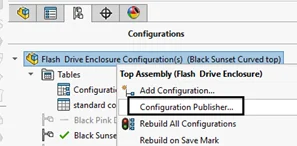
The Configuration Publisher is launched from the Configurations tab on the browser.
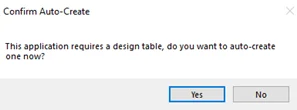
In order to manage and publish configurations, SOLIDWORKS will need to create a design table if you don’t already have one.
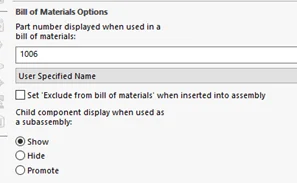
I have found it is helpful to identify configurations by their part number. You can add the part number of each configuration to the design table.
Just go to the Configurations tab in the browser, right click on a configuration, and select Properties.
Go to the Bill of Materials Options section, then select User Specified Name from the drop-down.
Type in the part number for that configuration. Then hit the Green Check to close. Go through each configuration to assign a part number.
The Configuration Publisher leverages any named dimensions or suppressed components.
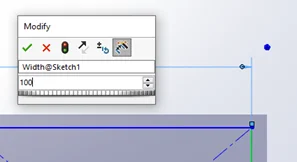
To name a dimension, you need to be in Sketch Mode.
When you place the dimension, you can add a name on the top edit field.
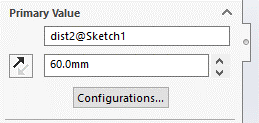
If you want to use a dimension that you already placed in a configuration, just edit the sketch, select the dimension and add a name to the properties.
If you already have started defining your configurations, you can specify in which configurations to apply the defined value.
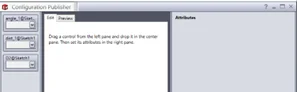
When the Configuration Publisher launches, it displays any dimensions that you named on the left side pane.
You then drag the dimensions you want to use to control your configurations into the center pane.
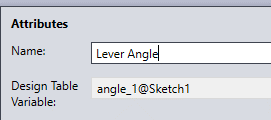
You can modify the Label for the dimension, so it is easier for a user to identify.
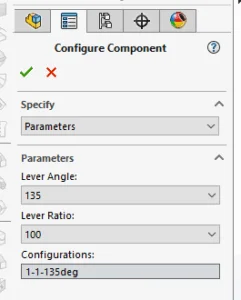
When you place the component or sub-assembly into a file, you will see this Configure Component box that allows you to quickly select which configuration to use.
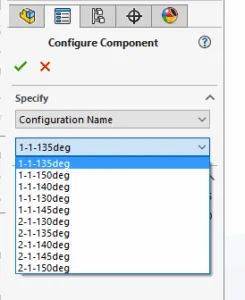
Use the Specify drop-down to switch between a parameter list and Configuration Name list.
Configuration tables have long been a potent tool for managing variants in SOLIDWORKS, but with the 2025 release they became smarter, more usable and more deeply integrated into the broader design ecosystem. From improved filtering and editing dialogs to saved table views and performance gains, the enhancements provide tangible productivity benefits for design teams of all sizes.
If your next product cycle involves multiple variants, options or modular assemblies, now is a great time to revisit your configuration table strategy and adopt the latest capabilities. By doing so, you’ll deliver faster, more accurate models, with better documentation and fewer errors.