
Since its inception, SOLIDWORKS users have often addressed file compatibility between versions by saving back “neutral” file formats such as .STEP files when they need to collaborate with vendors or other external clients that may have older versions of the software.
SOLIDWORKS 2013 introduced a limited “future version” compatibility that offered a partial solution, but it wasn’t until SOLIDWORKS 2024 that the options for working with older versions of the software were substantially expanded through the introduction of the “Save as Previous Version” functionality.
This article will outline the challenges associated with file interoperability between SOLIDWORKS versions, the most significant recent enhancements and workflows, and when and how to use them. We’ll focus in-depth on the “Save as Previous Version” functionality and discuss some of the nuances through a couple of examples.
Compatibility Terminology
There’s plenty of room for discussion over the semantics of this functionality, and what should be called “backwards” versus “forwards” compatibility. Backwards compatibility is something we take for granted in nearly all software today — the ability to open older version files in newer version software. Forward compatibility is much less commonplace, and directly represented by the “future version” functionality mentioned.
I’d make the argument that the ability to “down-save” files to a previous version should also be considered “backwards compatibility” in the sense that it helps enable interoperability with older versions of the software. Moreover, the average user often seems to associate the term with the functionality we’re covering here.
Historical Challenges of SOLIDWORKS Versions
I’m sure it’s obvious to most readers that SOLIDWORKS by default is not “forward” compatible — you can open SOLIDWORKS 2020 files just fine in SOLIDWORKS 2025, but not the other way around. Attempting to open files that were originated in newer versions will generally result in the “Future Version” error, seen below:
Figure 1. The “Future Version” error.
You can check which version of SOLIDWORKS file was saved in by using the Windows file properties.
Figure 2. Checking the SOLIDWORKS version with Windows file details.
It’s not an issue if you always stay up-to-date on the latest version — unless you need to collaborate with someone who is on a different upgrade cycle than you.
Multiple Installs
To get around this problem, users take to a variety of workarounds. One such method is multiple installs, because SOLIDWORKS lets you install multiple versions on the same system.
Note: If you’re going to do this, I recommend planning it carefully — installing the software versions from oldest to newest, and clearly naming each installation directory and associated folders (for example, “C:Program FilesSOLIDWORKS Corp 2020,” “C:SOLIDWORKS Data 2020,” etc.).
Older versions of the software can be downloaded from SOLIDWORKS Downloads for the past three releases. You can contact your value-added reseller if you need access to even older versions.
Figure 3. How many SOLIDWORKS installs are too many?
This setup is common for contractors and consultants who need to match their client’s software versions. Just check the file version using the techniques above, and launch your own matching version of SOLIDWORKS.
In the 2013 version, the SOLIDWORKS Launcher was even updated to support opening files in specific versions, for the case of multiple installs like this.
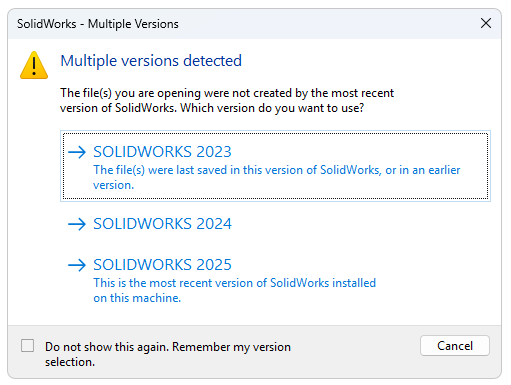
Figure 4. SOLIDWORKS launcher with multiple version support.
Exporting Neutral File Formats
If juggling multiple software versions isn’t on the table, or the use case just doesn’t require a full feature history, exporting a neutral file format such as a .STEP file can be a workaround. This will allow users of previous versions to import the geometry as solid or surface bodies, but without any feature history or model “intelligence.”
While you may often find Parasolid recommended as a neutral export for SOLIDWORKS, for backwards compatibility purposes I would recommend .STEP files specifically. I’ve found that if saving back to an old enough version of SOLIDWORKS, a Parasolid export may experience compatibility issues as well, since SOLIDWORKS routinely updates its Parasolid modeling kernel.
Besides losing the intelligence of the model, a major downside of this workflow is that it’s inherently non-associative.
Future Version Support (2013+)
The first major enhancement to interoperability between versions came in the form of “Future Version Support,” first introduced in SOLIDWORKS 2013. This allows opening files from the following year’s release in Service Pack 5 of the previous version. This is possible, at least in part, because the Service Pack 5 update typically releases after SP0 of the new yearly release, allowing the developers time to ensure compatibility with any new features.
Figure 5. Source file in 2025 version.
The example above is a LIDAR unit which has had the top-level assembly and the mount component updated to SOLIDWORKS 2025 version. Opening the same assembly in SOLIDWORKS 2024 SP5 yields the result in the image below. You can see special “Future Version” markers on the Top-Level Assembly as well as the “MH-LIDAR-Mount” component, and the notable lack of a feature tree for the part model with a “Future Version file” indicator in its place.
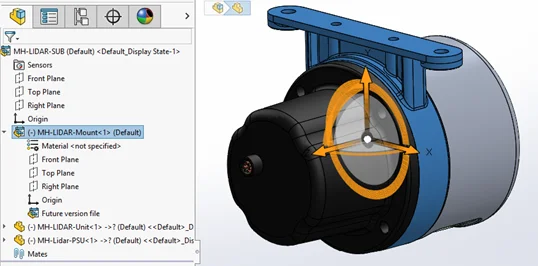
Figure 6. Same file opened in SW2024 with “Future Version” support.
What Can You Actually Do with “Future Version” Support?
Assembly capabilities in this mode are pretty flexible — you can measure future version components, place assembly mates referencing them, insert them into other assemblies and so on. Note, however, that no part-level feature tree is available, and any operations that would require it are not possible. You’re effectively working in a “read-only” style mode when it comes to parts.
It is possible to create drawings of future-version components, but it’s not possible to open existing drawings from a future version.
This mode is associative, which is a big boon overall, but still limited in terms of what can be done. I think it’s fair to say it left a majority of users wanting more.
A comprehensive list of capabilities and limitations for Future Version support is available in the SOLIDWORKS Help Files.
Improving Performance When Opening and Saving Files from a Previous Version (2020+)
This is a stealthy enhancement that affects interoperability in both directions. In the “before times” (SOLIDWORKS 2019 and earlier) opening any old version SOLIDWORKS assembly and trying to save it would force you to update all referenced files, too. On top of that, there could be serious performance issues accessing older version files.
This made updating SOLIDWORKS for companies with extensive CAD libraries a major hassle, and some would plan to use special tools to up-convert all their CAD models over the weekend to avoid all the “older version” warnings.
In 2020 and newer versions, performance when accessing older version files is greatly improved. Additionally, a system option “Force referenced documents to save to current version” is provided that, when cleared, allows you to save only modified files.
Essentially, clearing this option enables updating your files on-demand as needed, rather than requiring users to do it all at once. This is a great option to have, and you can read more about it in the SOLIDWORKS 2020 What’s New documentation.
Save as Previous Version (SOLIDWORKS 2024+)
Introduced in SOLIDWORKS 2024, “Save as Previous Version” represents a capability that I think almost everybody wanted, but few thought would ever see the light of day. The new “Save as Previous Version” functionality can back-port your SOLIDWORKS files (Parts, Drawings or Assemblies) to older versions of the software while preserving all the feature history and design intent. When I first heard about it, I thought it was too good to be true.
To my knowledge, SOLIDWORKS is the only major 3D CAD software around that has a feature like this, and even among software in general it’s quite rare to allow “back-saving” or “down-saving” files.
Who Can Use It?
Firstly, it’s worth mentioning this is one of those features tied to an active SOLIDWORKS subscription. So, even if you have a license of SOLIDWORKS 2024 or 2025 but an expired subscription plan, you’ll likely lose access to this particular feature (along with some others that check subscription entitlement, like the SOLIDWORKS CAM Standard add-in).
How Far Back Can It Save?
The “Save as Previous Version” functionality supports a rolling two versions back. This means SOLIDWORKS 2024 can save back to 2023 or 2022, while SOLIDWORKS 2025 can save back to 2024 or 2023.
It should be possible to “step” files back through multiple versions (assuming you have the multiple required installations) – so in theory, any future SOLIDWORKS file from here on out should be able to be saved back to the 2022 version with a little bit of effort.
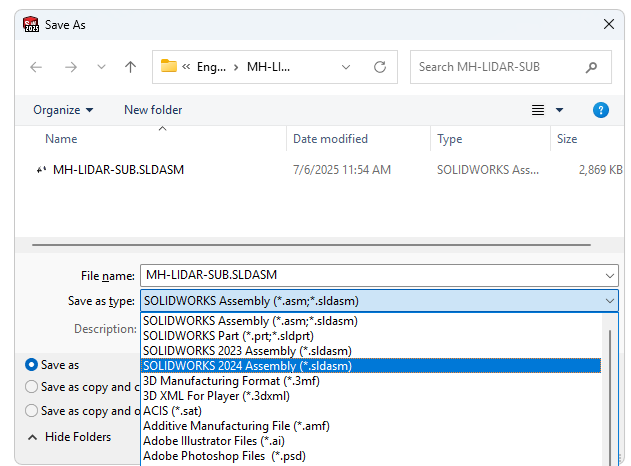
Figure 7. Initiate the Save As command and choose a prior version file.
What File Types are Supported?
Parts, Drawings and Assemblies can all be saved back. In addition, it’s supported in “Pack & Go.” It’s definitely safest to make a distinct copy of your files rather than trying to perform this on your working set, but if you must then I recommend using either “Pack & Go” or the “Advanced” options in the “Save As” prompt to prevent accidentally down-saving the working copy of your files.
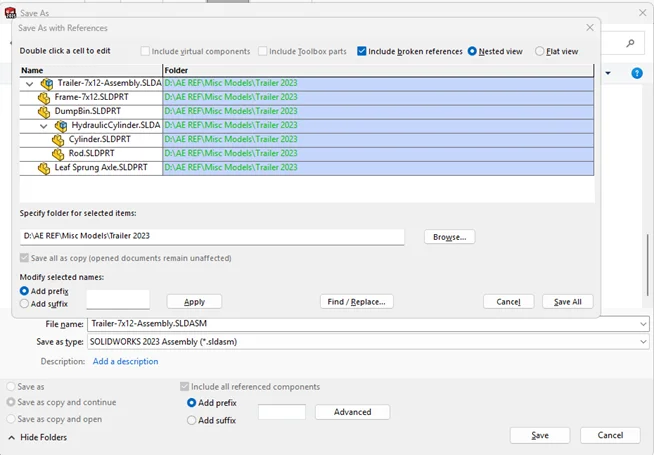
Figure 8. “Advanced” Save As to back-save files with references.
What About New Features?
SOLIDWORKS adds new features with each release, and in order to support saving to older versions, SOLIDWORKS runs compatibility checks with a tool called “Previous Release Check.”
Essentially, any features that weren’t available in the version you’re trying to back-save to are identified, marked as “incompatible” and must be manually addressed.
Let’s look at the case of this trailer assembly, which I know uses some newer features. I’d like to back-port all the way to SOLIDWORKS 2023.
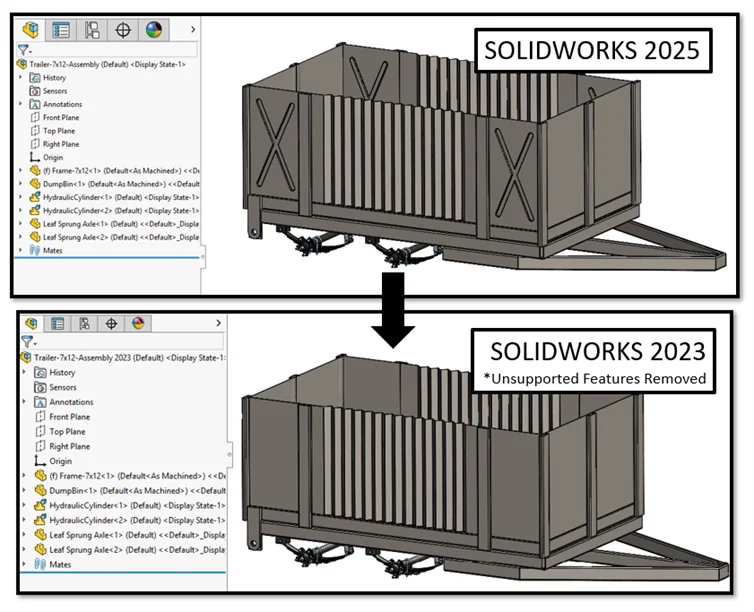
Figure 9. Trailer assembly to back-save from 2025 to 2023.
The Previous Release Check is presented in the example below, and is very helpful to chase these newer features down. You can see how for this Trailer assembly, back-saving to 2023 version would require a bit more work than back-saving to the 2024 version.
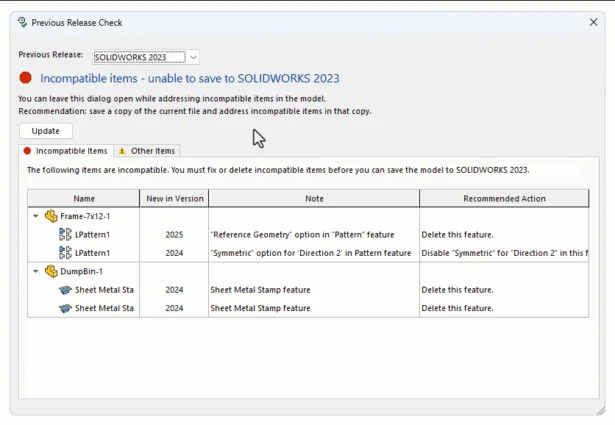
Figure 10. Previous Release Check.
How we address these items varies. In some cases, it may be as simple as disabling a new checkbox that was added to a feature. However, in the vast majority of cases it will mean hunting down these “newer” features and deleting them from the model.
And I do mean delete — not just suppress.
So, if you have a model that’s built entirely around the latest and greatest features this is going to be bad news for down-saving, and you’ll have your work cut out for you.
Thankfully, SOLIDWORKS is a relatively mature product and there is almost always at least several alternate ways to do things. For this model, I’d have to replace the “Stamp” features for Sheet Metal with something like a Forming Tool feature (though I took the easy way out and just deleted them for now), and replace my patterned Reference Geometry with some manually created planes.
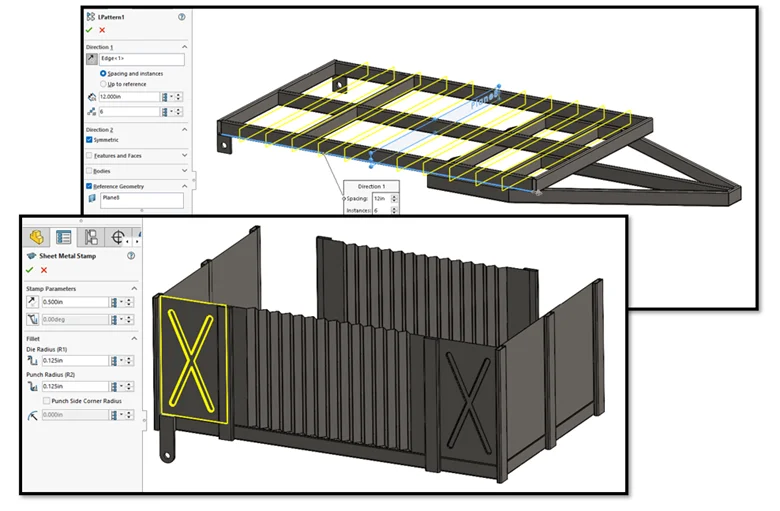
Figure 11. Incompatible features from newer SOLIDWORKS versions.
What about 3rd Party or Add-in Data?
The “Other items” tab on the Previous Release Check will identify possible additional data that may be stripped off the model. In this case, I have SOLIDWORKS Simulation studies set up and the sad news is those will not survive the back-porting process. I imagine the same will be true for CAM programs or anything else non-standard.
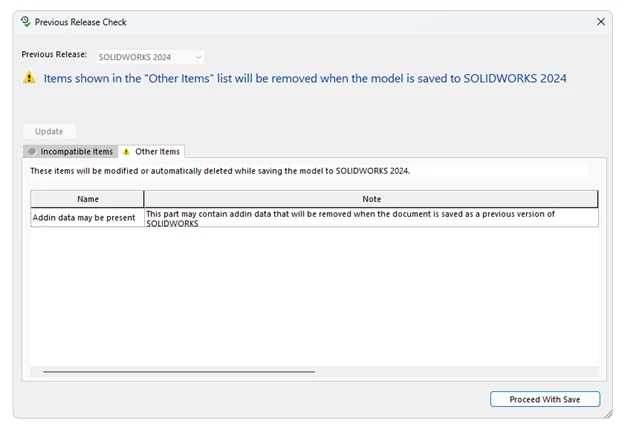
Figure 12. Other Items Check for previous releases.
Did I mention being sure to work off a copy of your files rather than the original set? This is one of the big reasons — even if you don’t have any incompatible items, you may unintentionally wipe any add-in data associated to the file if you accidentally back-save over the original copy.
(Ask me how I know!)
Conclusion
I never thought I would see the day we’d be able to back-port SOLIDWORKS files to older versions while preserving design intent and feature history. If you’ve had to collaborate with external clients or stakeholders using different versions of the software, you will surely understand the value of this tool.
I’ve put this tool through some pretty serious testing over the past year, both for my own interests and occasionally out of necessity when I forgot to match a client software version. On everything from in-context assembly designs to complex surface models, it has yet to let me down in any serious way, and the “burden” of removing or otherwise addressing incompatible features has proven to not be a significant issue.
The “Previous Release Check” has also been a neat tool on its own to see what newer features you’re using in your day-to-day that you might not even be aware of.
And don’t forget: if you’re only a version behind your collaborators and planning to update soon, the “Future Version” support can be a nice tool to hold you over and allow you to create drawings or utilize the parts in assemblies.