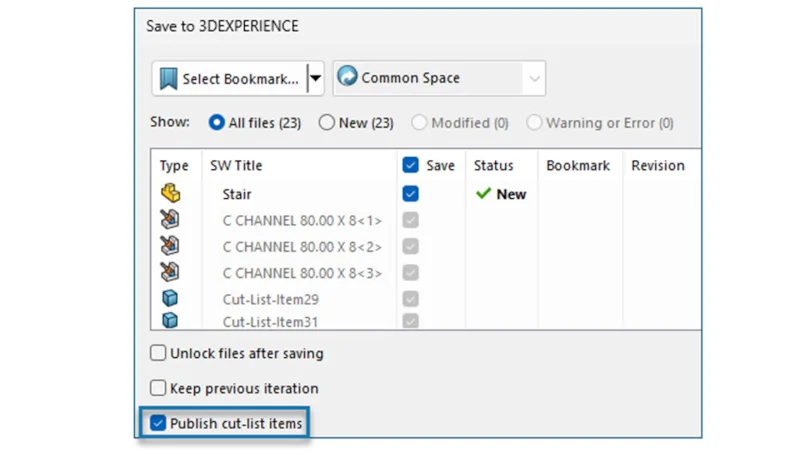

Weldment design is never just about the CAD model—it’s about ensuring that every member, every cut, and every material specification flows smoothly from design to production. You can enhance this workflow with the ability to manage and visualize SOLIDWORKS cut lists on the 3DEXPERIENCE platform. This functionality enables you to assign a cut list for a sheet metal or weldment part that includes all the metadata and properties of the part, ensuring design accuracy, better collaboration, and downstream manufacturing.
Weldment structures often serve as the backbone of structural designs and are found in a wide variety of products, including automation equipment, scientific machinery, industrial equipment, and many other specialized products. A weldment structure is a body that consists of multiple metallic structural members that are welded together.
The SOLIDWORKS weldment design functionality makes it possible to design a weldment structure as a single multibody part, from sketching the basic framework and creating structural members with groups of sketch segments, to adding elements like gussets and end caps to complete the structure. In addition, you can create designs that have extrusions and generate the cut lists and bills of materials (BOMs) required for manufacturing.
Why is the ability to design and save weldment parts as a single multibody part important? Instead of creating a full assembly with dozens or even hundreds of separate parts, you can capture the whole weldment structure in a single part file. Plus, changes to the sketch or structure automatically update for all related members in the structure.
The Value of Cut lists
Current methods of saving cut lists on Excel sheets and other formats often lead to a broken digital thread. You add your cut list to a weldment, put it on a drawing, export it, and send it along to manufacturing, Enterprise Resource Planning (ERP) and production. But if there is a design change, cut lists will need to be manually updated and exported again, costing your design team time.
With the ability to save and manage cut lists on the platform, you can avoid this scenario. When a change is made on a design it is automatically reflected in the cut list, keeping teams connected and production rolling. Engineers, project managers, and manufacturers have access to a single source of truth, reducing miscommunication and accelerating collaboration. When weldment cut lists are tied to PLM attributes, teams gain, real-time updates across projects, traceable revisions and approvals, reduced risk of shop-floor rework, and improved procurement accuracy.
The SOLIDWORKS cut list feature is designed to simplify the process of communicating the BOM for multi-body designs.
After creating the first structural member in a part, SOLIDWORKS adds a weldment feature and a cut list feature in the FeatureManager design tree. The cut list in the part acts like a solid body’s folder, where each unique weldment body resides in a separate folder with the name “Cut-List-Item.” You can assign custom properties to these items. Lastly, the software prepares a weldment cut list that appears as a table in the drawing. The weldment cut list contains all information similar to a BOM. The cut list groups bodies automatically based on similar geometry.
Types of Cut lists:
- Structure Member- bodies created using structure system or structural member features.
- Sheet Metal Member- bodies created using sheet metal features.
- Generic Member- all other bodies in a part, created using generic modeling features.
Publishing Cut List Items on the 3DEXPERIENCE Platform
To publish cut list items, save the SOLIDWORKS part as a weldment part on the 3DEXPERIENCE platform. The side panel displays the extension of the weldment part as “SW Weldment Part.” Keep in mind to save the SOLIDWORKS part as a weldment part, it must meet the following criteria:
- Part must not have already been saved on the 3DEXPERIENCE platform.
- The part must contain a weldment feature.
- The part must be flagged as a single physical product.
Publishing cut list items on the 3DEXPERIENCE platform also has some requirements, including:
- The part must be a weldment part.
- The cut list must be up-to-date.
- The cut list item property must have the cut list ID.
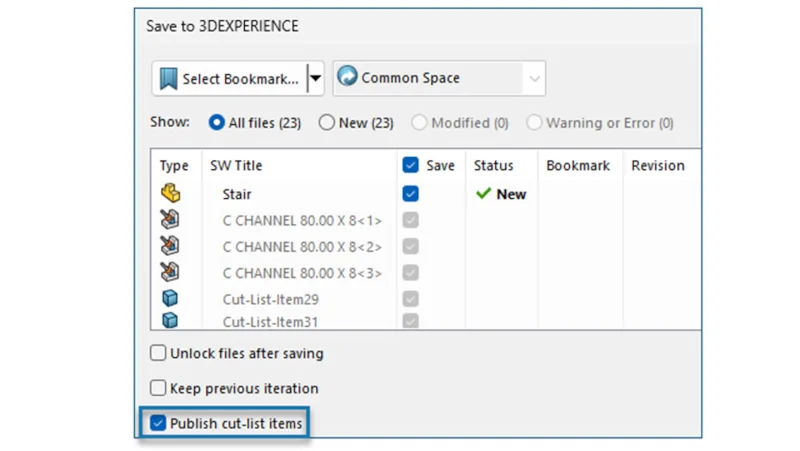
To publish cut list items on the 3DEXPERIENCE platform:
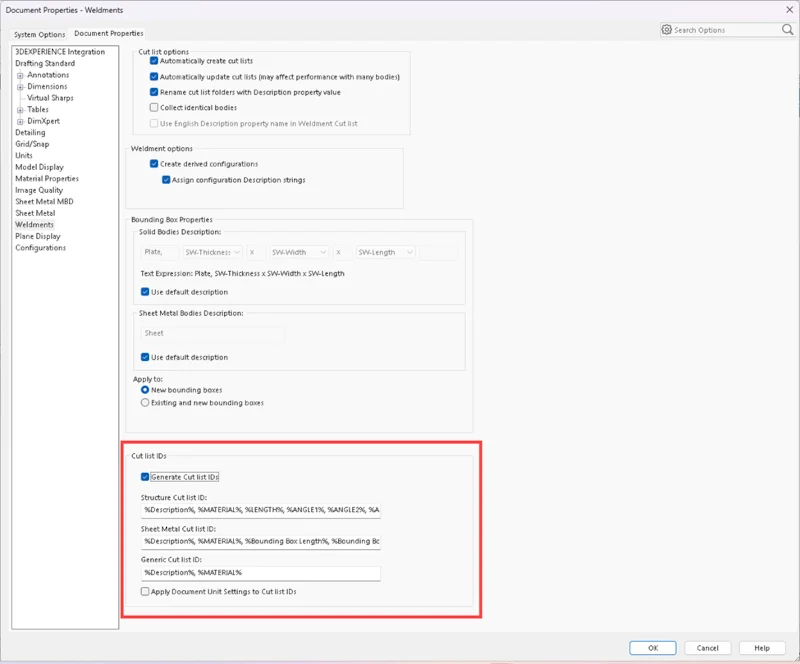
With a weldment part open, click Options on the Standard toolbar, select the Document Properties tab, and then select Weldments.
In the Document Properties Weldments dialog box, under Cut list IDs, select Generate Cut list IDs, and click OK.
In the 3DEXPERIENCE Task Pane, right-click the part and click Save.
Best Practices for Managing Cut Lists on the Platform
Managing weldment structures efficiently is critical for design accuracy, downstream manufacturing, and collaboration across teams. Here are my recommendations to ensure data integrity, consistency, and traceability.
- Create template files for Weldment parts, ensuring they align with the data model.
- Standardize the cut list ID definition.
- Do not publish the cut list until the design change management status is mature and almost ready to release.
- Freeze the SOLIDWORKS data while cut list items are being enriched.
- Define custom properties early.
Populate critical metadata such as material, finish, and cut length directly in the cut list. Doing this at the design stage ensures that BOMs, manufacturing instructions, and procurement data remain accurate.
- Link cut list properties to PLM attributes.
The 3DEXPERIENCE platform allows direct mapping between weldment cut list properties and PLM attributes. Linking these fields ensures that changes made in CAD automatically reflect in the platform, reducing manual errors.
- Audit cut lists regularly.
Before finalizing assemblies, review cut lists for missing or duplicate entries. A quick audit prevents fabrication delays and costly shop floor mistakes.
- Automate updates where possible. Take advantage of the platform’s ability to automatically update cut lists when weldment geometry changes. This ensures your design-to-manufacturing handoff is seamless and error-free.
Best Practices for Weldment Structures
- Standardize profiles and libraries.
- Use standardized weldment profiles across your design teams to avoid mismatched members and inconsistent cut list results. Storing these profiles on the platform ensures everyone works from the same data set.
- Leverage templates for efficiency.
- Save time by creating weldment templates that define common structures, profiles, and properties. Templates reduce repetitive setup and promote design consistency across projects.
- Apply clear naming conventions.
- Consistent member naming and property definitions in weldments make downstream reports easier to read and interpret. Avoid vague labels that lead to confusion in the cut list or BOM.
By adopting these best practices on the 3DEXPERIENCE platform, teams not only reduce errors but also create a connected, collaborative approach to design.
Cut list support functionality became available earlier this year, and I hope you are taking advantage of this functionality. See a short video here on 3DSwym.
Did you know that 3DEXPERIENCE SOLIDWORKS is now available through our online store? Discover what it can do for you.