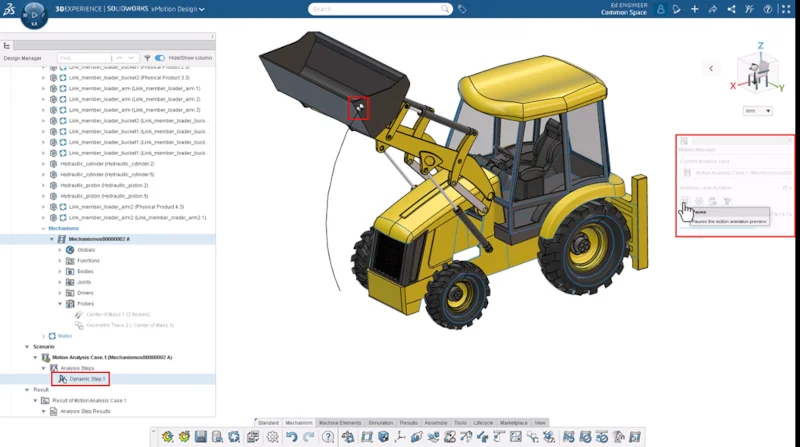

Fresh out of Florida State University, I am excited to announce that I officially joined Dassault Systèmes in April 2025, after multiple internships at the company. I am the new product manager for 3D Motion Creator, a fully browser-based solution for motion studies, and I will be working with the R&D team and customers to further enhance the software.
In this blog, I will share the latest functional delivery (FD) updates for FD02 and FD03. Enhancements include a new 3D robot manipulator so you can interactively move bodies, the ability to visualize mass properties in 3D, and monitor the center of mass and its geometric trace during an animation.
In FD01, we introduced the Center of Mass command that enables you to create probes to visualize the position of the center of mass of one component or its relative movement during a simulation for a group of components. The center of mass can also be monitored using 2D plots for the duration of the simulation to see how the bodies will behave when in motion. This aids in determining if the components involved in the motion simulation are stable or if your mechanism needs to be modified. In FD02, we expanded on the Center of Mass functionality with the following enhancements:
Control Body Mass Properties in 3D – better understand body mass.
You can now display mass properties in 3D view during authoring. Go to the View tab on the Action Bar, click on View Filters, and turn on Body Mass Properties.

Then, when you go to the Feature Tree or click the body directly in the graphics area, you will see a yellow and black sphere that represents the center of mass so you can get an idea of how heavy a particular body is by looking at the relative dimensions of each sphere. You can also scale the center of mass sphere by using the 3D scaling option under the View tab of the Action Bar.
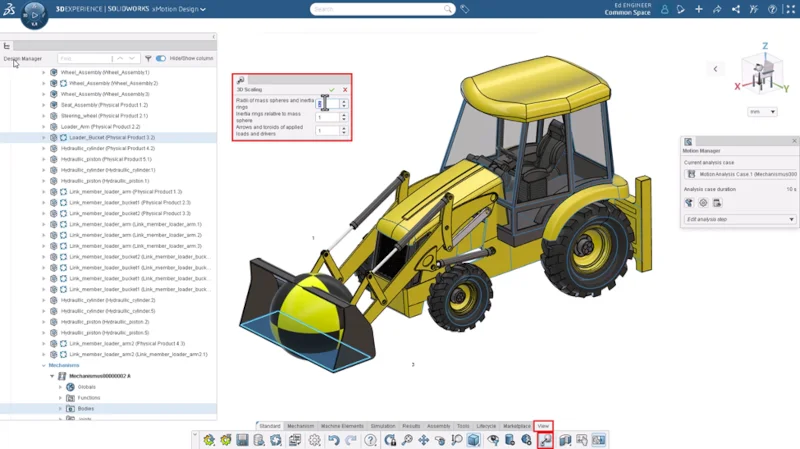
In addition, you can display combined mass properties. For example, if you select multiple bodies (holding the Ctrl key) in the Feature Tree or the graphics area, you can look at their combined mass property by clicking on the Combined Body Mass Properties option under View Filters.
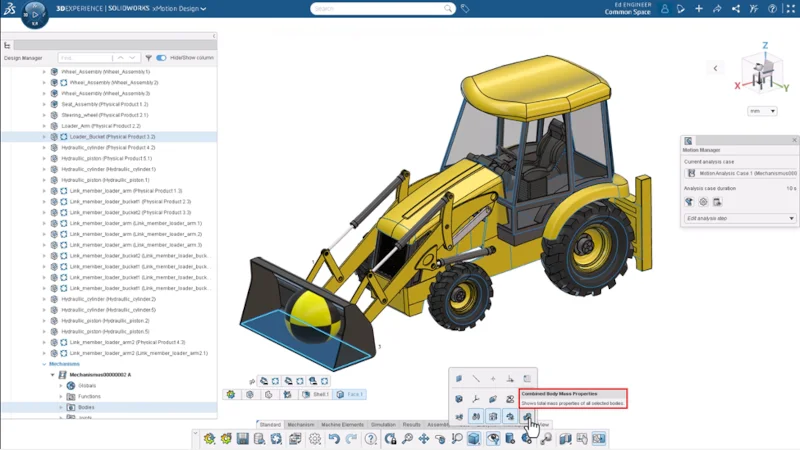
These enhancements will improve your understanding of your motion model and help you avoid modeling errors with the ability to review and control body mass properties in 3D for each body or combination of bodies.
Monitoring Center of Mass during Animation – visualize qualitative component mass properties.
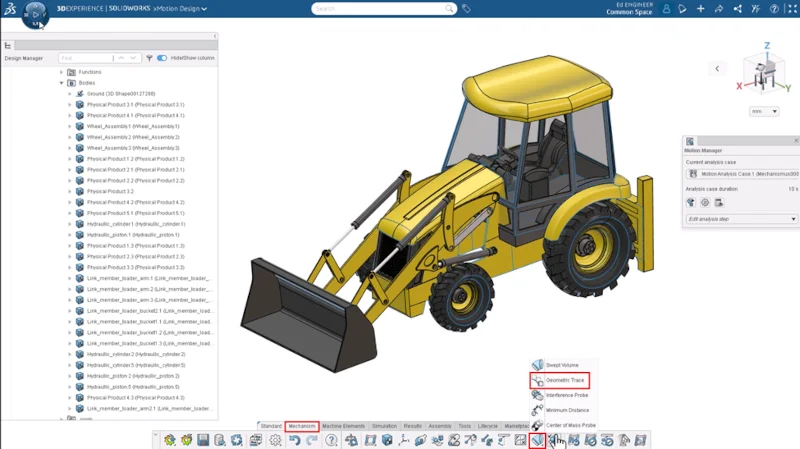
You can now monitor the center of mass during an animation and create a geometric trace. The first thing you do is create a Center of Mass probe, and then after that, you can create a geometric trace. To create the Center of Mass probe, go to the Mechanism tab of the Action Bar, click the Center of Mass Probe, then select your bodies. This creates a Probe container under the Mechanisms section of the Feature Tree and a center of mass probe under it.
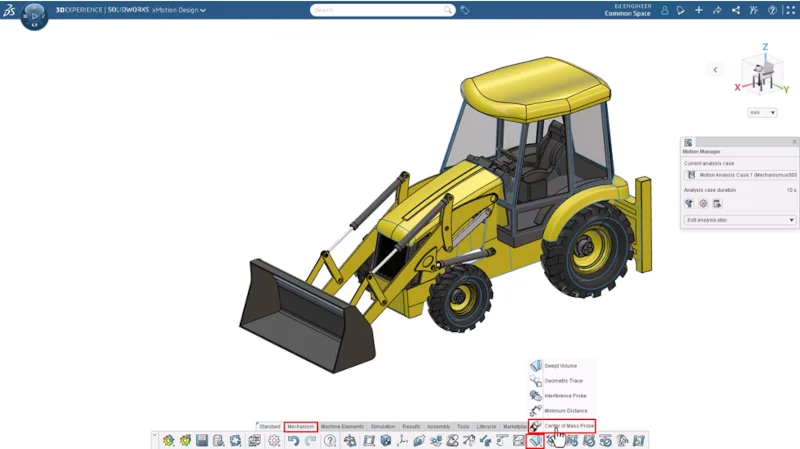
Once the probe is created, you can visualize the geometric trace of the combined center of mass of the selected components. Go to the Geometric Trace option by clicking on the drop-down menu under the Swept Volume option in the Mechanism tab of the Action Bar.
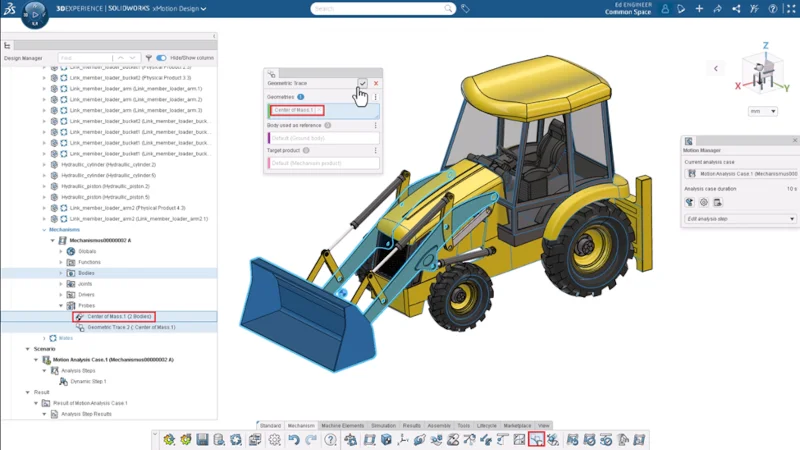
Then select the Center of Mass probe created in the previous step under the Probe container in the Mechanism section of the Feature Tree, and click OK.
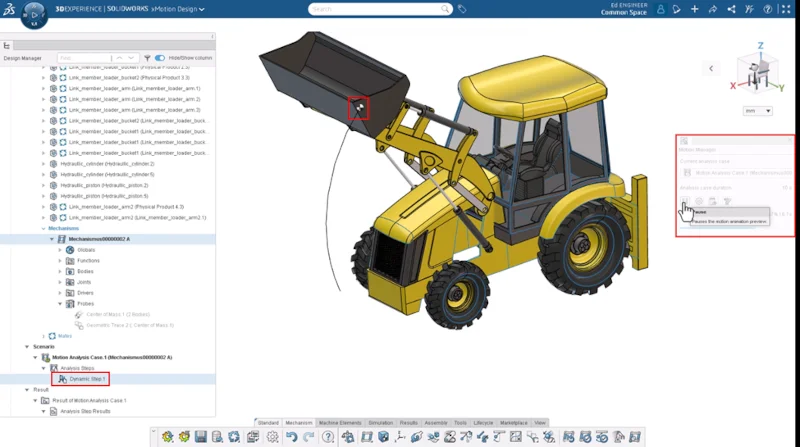
Next, re-run the simulation to visualize the geometric trace of the center of mass.
To learn more about FD02 updates, visit the What’s New page here.
Interactively Move Bodies with the 3D Robot Manipulator – easily move bodies to the desired location in the graphics area or visualize the movement of components relative to each other, respecting the mechanism constraints.
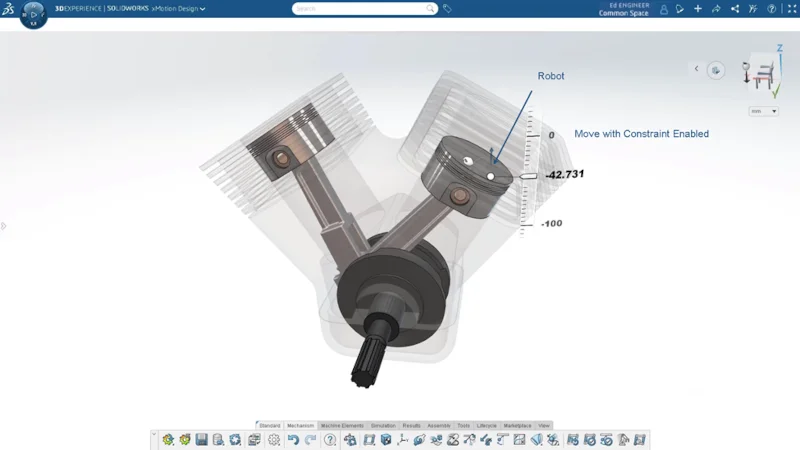
There’s a new 3D Robot Manipulator that enables you to easily move and rotate parts and assemblies using axis and arc handles for linear and rotational adjustments. You can access it using the ‘Move with Triad’ option from the contextual toolbar. This aids in moving the bodies within a mechanism in the graphics area for easier visualization.
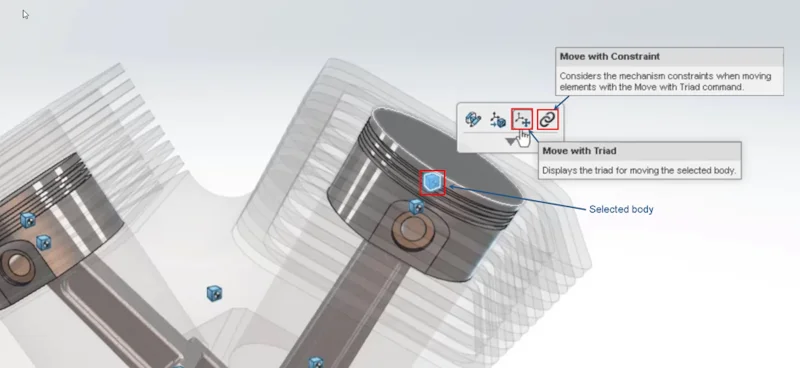
With the robot selected, the ‘Move with Constraint’ option disabled allows you to freely move a body by dragging it using the axes and arc handles of the robot, while ignoring the constraints set up in a mechanism. You can roughly position a body in the graphics area to get clear visibility for selecting geometry, e.g., while creating joints, and then assemble the system using joints/mechanism solve.
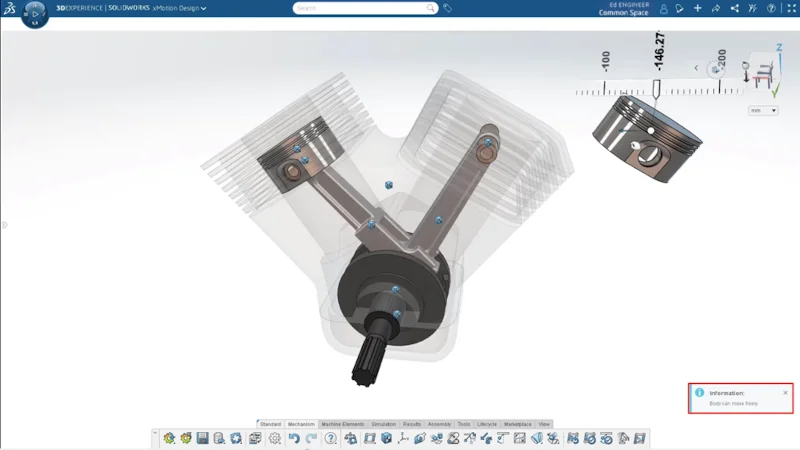
The robot with the ‘Move with Constraint’ option enabled allows you to move objects while respecting assembly constraints, based on the Engineering Connections, so you can quickly check, capture, save, or modify the mechanism’s current state.
To see more on FD03 updates and watch a video on this enhancement, check out the What’s New page here.
To see the FD01 update, check out this blog.
Did you know that 3DEXPERIENCE SOLIDWORKS is now available through our online store? Discover what it can do for you.