
In Lesson 6, we covered general information, content and taking the on-line proctored Part 1 of the SOLIDWORKS CAD Design Associate (CSWA) Certification exam. The exam can be taken with either Desktop SOLIDWORKS or 3DEXPERIENCE SOLIDWORKS. Note: You need to pass both parts (Part 1 & Part 2) to obtain your CSWA Certification.
The CSWA exam indicates a foundation in and apprentice knowledge of 3D CAD design and engineering practices, principles and drawing views. For hiring managers, it acts as a valuable assessment to attest for an individual’s competency, thereby reducing the amount of time and energy required to research candidates.
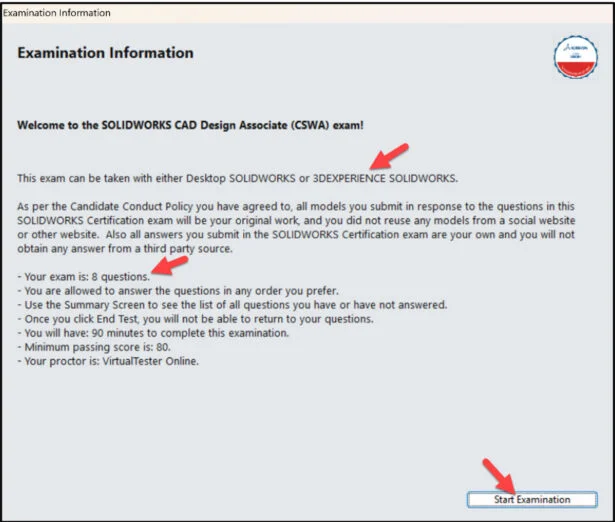
Lesson 7 covers general information, content and taking the on-line proctored Part 2 of the SOLIDWORKS CAD Design Associate (CSWA) Certification exam. Part 2 of the exam is 90 minutes; minimum passing score is 80 with 8 questions.
There are three questions on the CSWA Academic exam in the Drafting Competencies category, three questions in the Advanced Part Creation and Modification category and two questions in the Assembly Creation and Modification category.
There are three questions (total) on the CSWA exam in the Drafting Competencies category. Each question is worth five (5) points.
The three questions are in a multiple-choice single answer format. You are allowed to answer the questions in any order you prefer.
Part 2: Drafting Competencies Category:
- Read the question.
- Understand the question.
- Identify various drawing views:
- Projected view.
- Exploded view.
- Auxiliary view.
- Section view.
- Removed Section view.
- Detail view.
- Broken-out Section view.
- Break view.
- Crop view.
- Aligned Section view.
- Alternate Position view.
Part 2: Advanced Part Creation and Modification Category:
- Read the question.
- Understand the question.
- Set correct document properties (units, precision, etc.).
- Apply material.
- Identify the correct Base sketch.
- Part origin: Arbitrary.
- Identify and apply the correct Sketch tools: Line, Circle, Rectangle, Offset Entities, Convert Entities, Arc, etc.
- Insert the correct geometric relations and or dimensions.
- Identify and apply the correct Feature tools: Extruded Boss/Base, Extruded Cut, Revolved Boss/Base, Mirror, Shell, Fillet, Chamfer, Circular Pattern, Linear Pattern, etc.
- Create the correct offset Plane.
- Apply the Mass Properties tool.
- Apply the Measure tool.
- Show/Hide Axes.
- Save the model.
- Perform the requested design modification.
- Save the final model.
There are three questions in the Advanced Part Creation and Modification category. The first question is in a multiple-choice single answer format. If you don’t find an option within 1% of your answer, recheck your assembly before going to the design modification section. The next two questions are the design modification with a single answer format. Note: You need to enter the answer in the correct units with the correct decimal place. There is no partial credit for any questions.
The questions require knowledge on finding the correct overall mass or the location of the Center of mass relative to the default Origin.
Note: All answers are in the MMGS (millimeter, gram, second) unit system. Decimal place 2.
Part 2: Assembly Creation and Modification Category:
- Read the question.
- Understand the question.
- Download the Assembly zip folder.
- Save the Assembly zip folder to a local hard drive.
- Un-zip the Assembly folder (5 – 6) components.
- Open all parts (components) from the folder.
- Create a new SOLIDWORKS Assembly document.
- Set document properties (units, precision, etc.).
- Identify the first component.
- Insert the first component into the Assembly (Bottom-up).
- Fix the first component to the origin of the assembly.
- Insert all needed components.
- Rotate the components if needed in the assembly.
- Insert needed mates: Coincident, Concentric, Perpendicular, Parallel, Tangent, Distance, Angle, Advanced Distance, Advanced Angle, and Aligned, Anti-Aligned option.
- Apply Mass Properties.
- Apply the Measure tool (Distance/Angle).
- Save the model.
- Create a new Coordinate System.
- Modify the assembly.
- Save the final model.
Note: Do not use feature recognition when you open the downloaded components. This is a timed exam.
There are two questions in the Assembly Creation and Modification category. The first question is in a multiple-choice single answer format. If you don’t find an option within 1% of your answer, recheck your assembly before going to the design modification section. The next question is the design modification with a single answer format.
The questions require knowledge on finding the correct overall mass, or the location of the Center of mass relative to the default Origin, creating a new coordinate system or utilizing the measure tool to obtain the correct distance/angle from one component to another.
Taking the on-line proctored CSWA Exam (Part 2)
Click the provided link: https://3dexperience.virtualtester.com/#home.
The 3DEXPERIENCE® Certification Center Home page is displayed.
The 3DEXPERIENCE® Certification Center is where students are able to login to take their certification opportunities, manage their certificates, address their digital badges, and make changes to their account settings.
If your school is an SOLIDWORKS academic certification provider, the provider can allocate free CSWA Segment 1 and Segment 2 exam opportunities.
Login to 3DEXPERIENCE Certification Center Home page. Click the LOGIN icon. Note: A 3DEXPERIENCE ID is required.
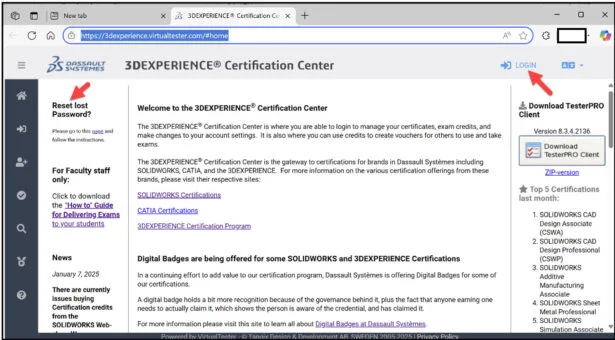
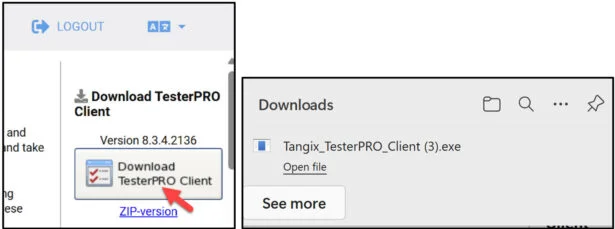
Download the TesterPRO Client to your desktop.
Un-zip the TesterPRO Client.
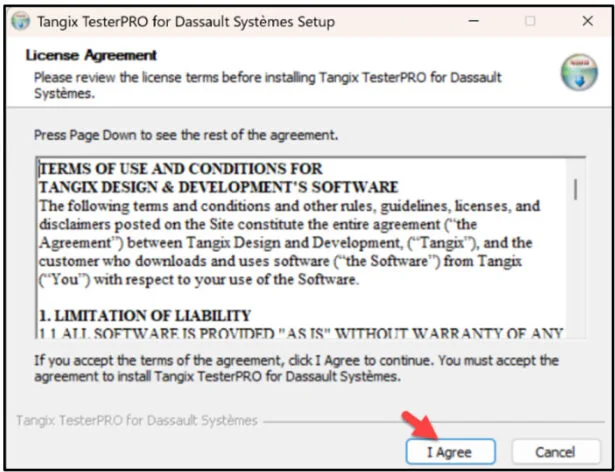
Read the License Agreement.
Agree to the Candidate Conduct Policy.
Click I Agree.
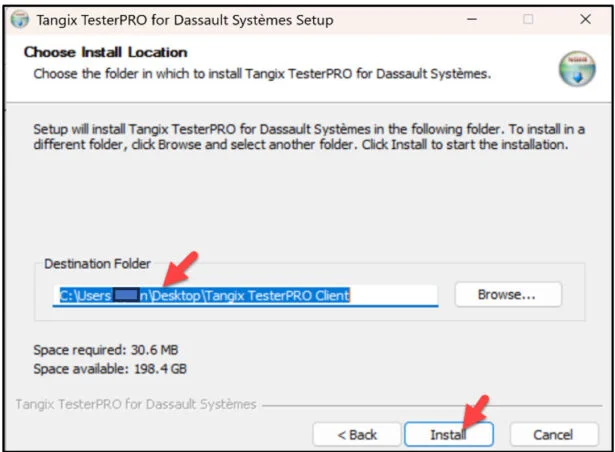
Install the TesterPRO Client.
Click Install.
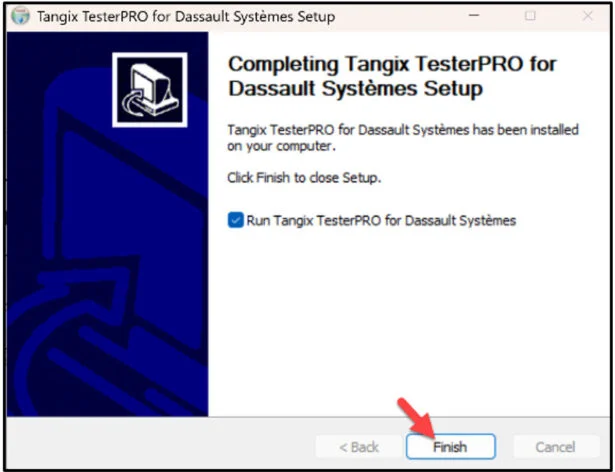
Click Finish.
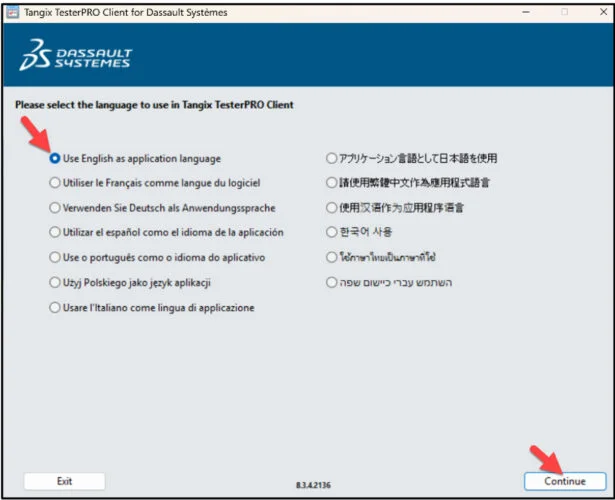
View the available languages. Select Test Language.
Click Continue.
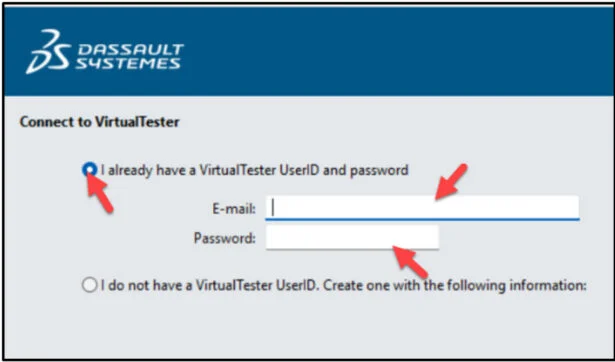
Create an account. If you already have an account, select “I already have a VirtualTester UserID and password”.
Enter your school email address.
Enter password.
Click Continue.
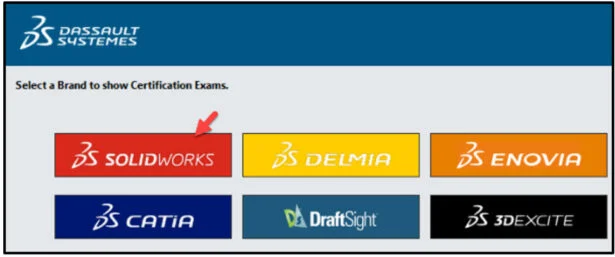
Select SOLIDWORKS.
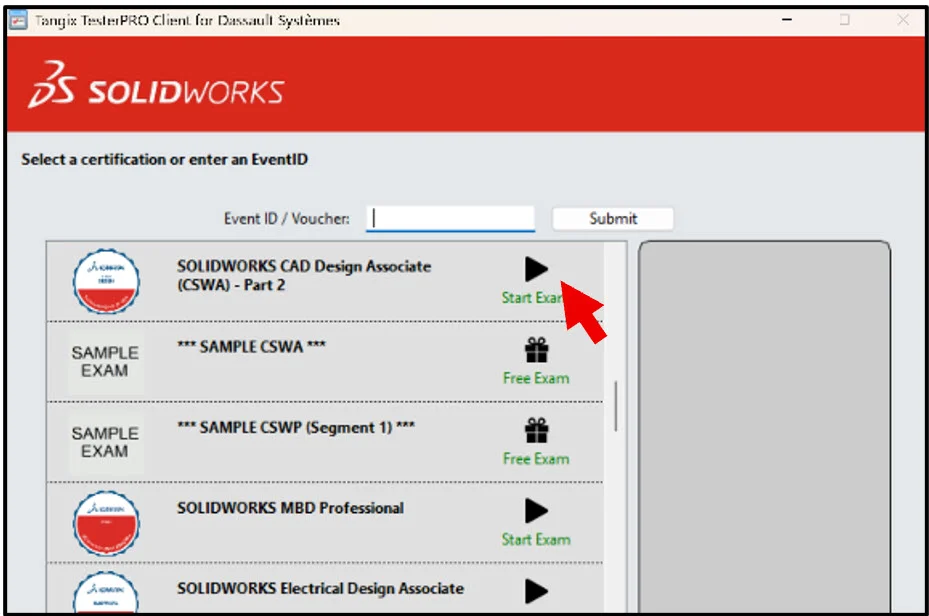
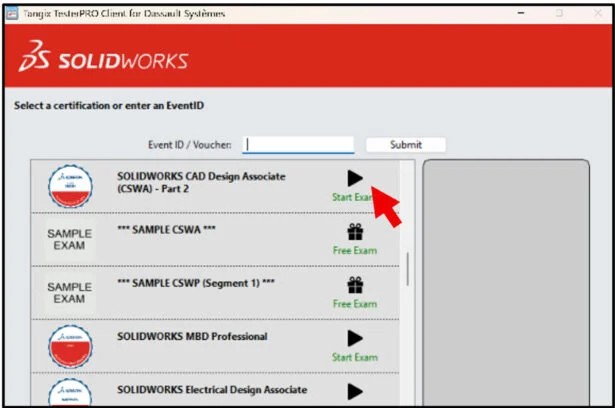
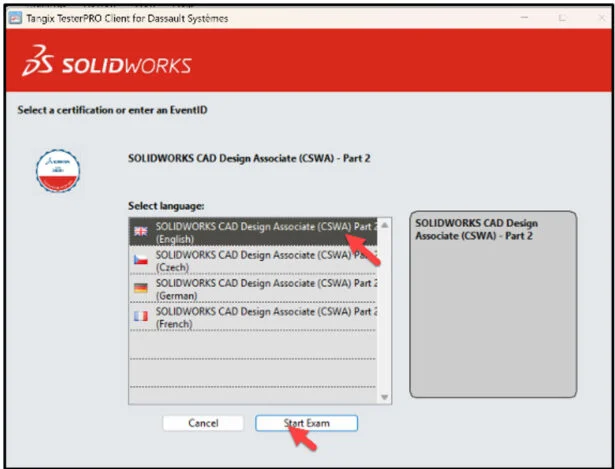
Select SOLIDWORKS CAD Design Associate (CSWA) – Part 2. This will depend on the exam opportunity given by the Academic Provider.
Click Start Exam.
Select language.
Click Start Exam.
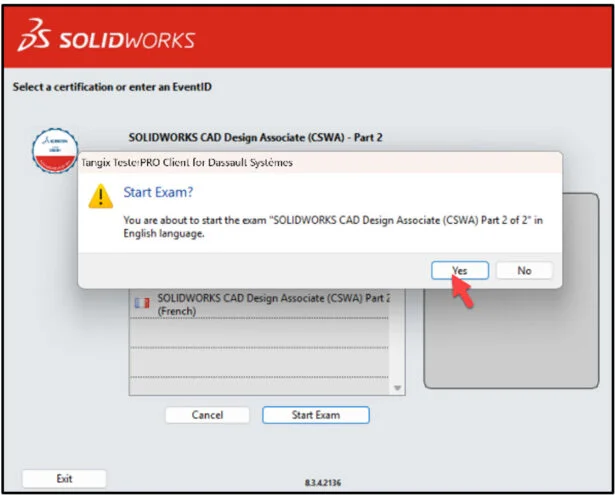
Click Yes.
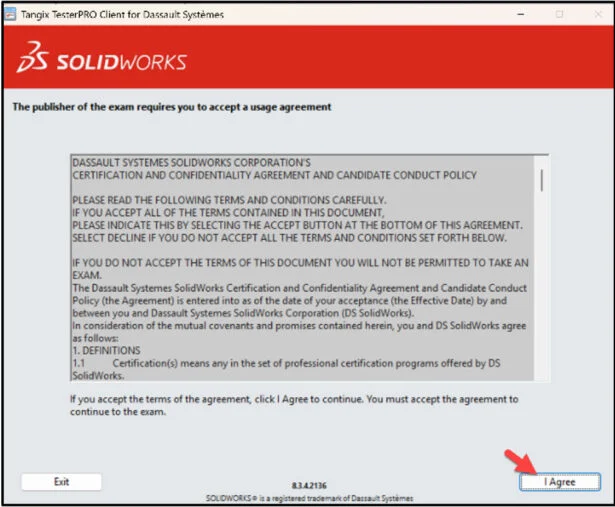
Read the instructions. Agree to the Confidentiality Agreement and Candidate Conduct Policy. Click I Agree.
Click Start Examination.
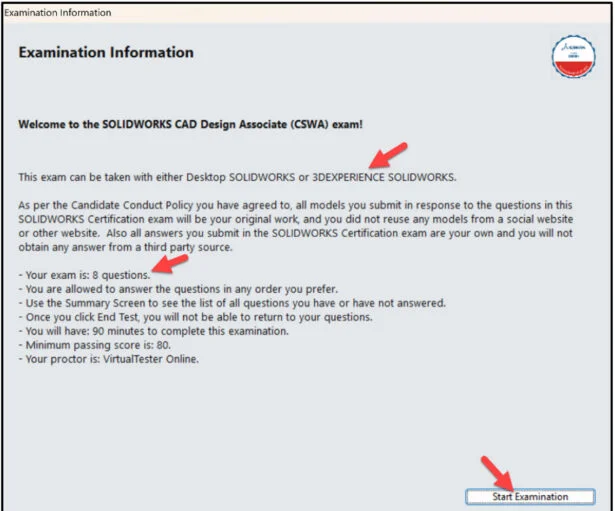
You are allowed to answer the questions in any order.

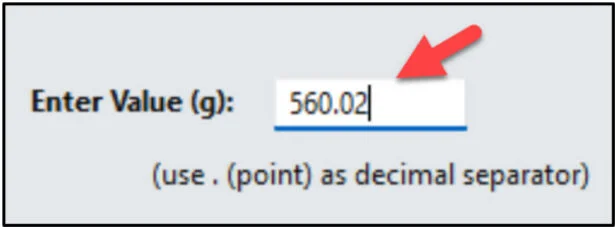
Note: Use a point as a decimal separator on a single answer question.
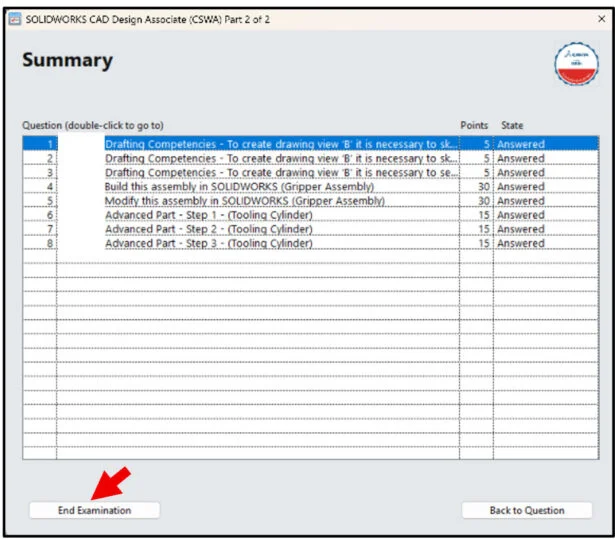
Use the Summary Screen during the exam to view the list of all questions you have or have not answered.
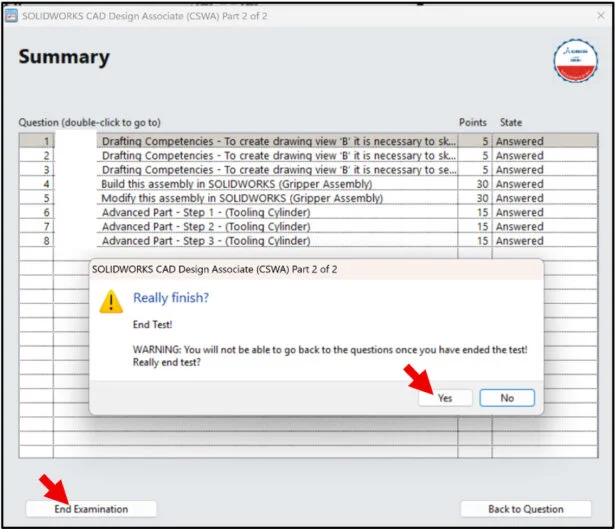
When finished, click End Examination.
Click Yes.
The exam is automatically graded and the final grade is displayed to the student. The exam grade is provided directly to the Academic Provider. Download the class results into an excel spread sheet. Minimum passing score is 80 points. Note: Individual questions results are not provided. The number of wrong and correct questions is displayed. The results will display the strong Topics areas and Topic areas to study.
All candidates that pass both parts of the CSWA certification exam receives an electronic certification, business card logo and optional personal listing in the SOLIDWORKS Certification directory.
If you fail a part, there is a 14-day waiting period before retaking the failed segment.
Additional Resources: Note: A 3DEXPERIENCE ID is required.
Click the following link: Mechanical Design (CSWA–Mechanical Design) | SOLIDWORKS
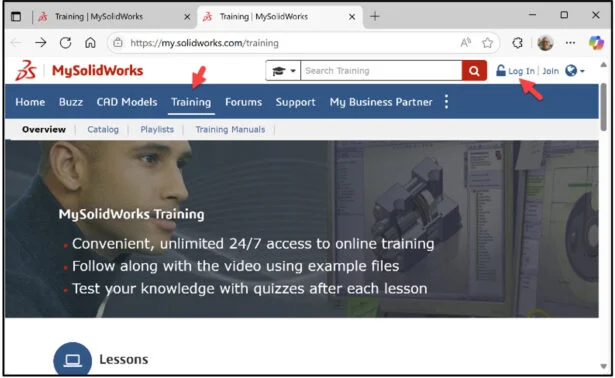
Click the following link: Training | MySolidWorks
Login.
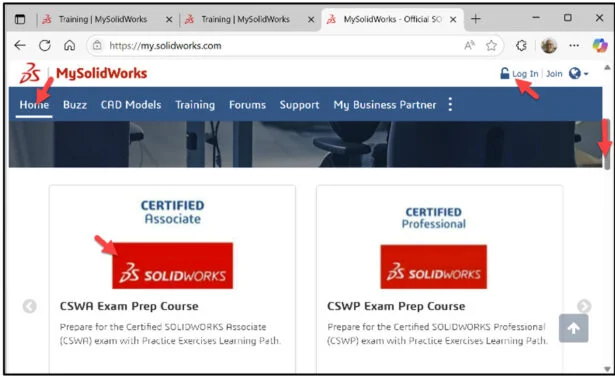
Click the Training tab.
Enter CSWA in the Search box.
Click Search.
Slide the side bar downward.
View the available training videos and tutorials.
Lesson 8 is finished.
Other blogs in this SOLIDWORKS Academic Certification Series
Lesson 1 SOLIDWORKS Academic Certification – What is the Journey?
Lesson 2 SOLIDWORKS Academic Certification – Certification Provider Program for EDU
Lesson 3 SOLIDWORKS Academic Certification 3DEXPERIENCE Certification Center
Lesson 4: SOLIDWORKS Academic Certification – Exam Opportunities
Lesson 5: SOLIDWORKS Academic Certification – Student Needs
Lesson 6: SOLIDWORKS Academic Certification – CSWA Exam Part 1
Lesson 7 covers the on-line proctored SOLIDWORKS Additive Manufacturing Associate (CSWA-AM) exam. Obtaining the CSWA-AM certification indicates a foundation in and apprentice knowledge of today’s 3D printing technology and market. Note: If your school is an Academic Provider, the provider can create a free student CSWA-AM exam opportunity.