
In Lesson 3, we visited the 3DEXPERIENCE Certification Center website. The 3DEXPERIENCE Certification Center is where you are able to login to manage your certifications, create exam opportunities, apply student exam credits, setup exam classes, and modify changes to your account settings.
Lesson 4 covers creating student Exam Opportunities to take a SOLIDWORKS Certification exam. Use the 3DEXPERIENCE Certification Center site https://3dexperience.virtualtester.com or the SOLIDWORKS Certification Program | SOLIDWORKS site.
Educators are busy. We have worked with 100’s of SOLIDWORKS educators to simplify the certification exam process, delivery, automatic grading, exam selection and special requirements for students.
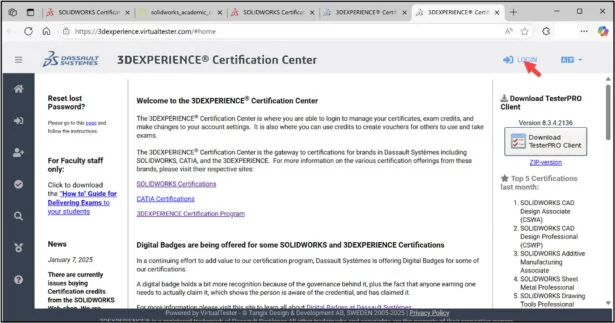
Click the following link: https://3dexperience.virtualtester.com. Note: A 3DEXPERIENCE ID is required.
Click the LOGIN icon as illustrated.
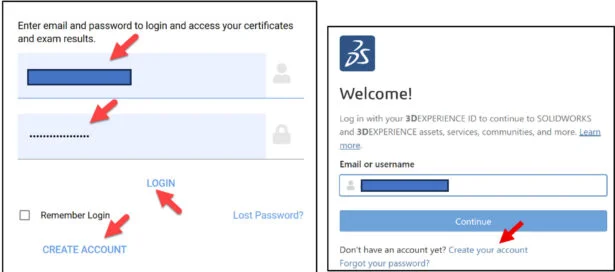
Enter Email or username.
Click Continue.
Enter Password.
Click Login.
Note: If you do not have a 3DEXPERIENCE ID, create an account.
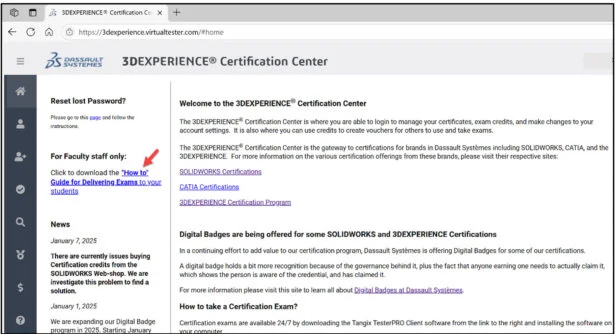
The 3DEXPERIENCE Certification Center is displayed. All certification exams are managed by the SOLIDWORKS Academic Provider.
A key resource for the Academic Provider is the pdf “How to Guide for Delivering Exams to your students”
The pdf provides a step-by-step guide for creating and managing exam opportunities for the Academic Provider.
The How to Guide for Delivering Exams to your students Table of Contents covers the following areas:
- Pre-Exam Day Checklist
- Creating Exam Opportunities (focus of this blog)
- View Exam Opportunity Status
- Modify an Exam Opportunity
- Archive Exam Opportunities
- Accommodating Students Who Need Extra Time
- Troubleshooting Tips
Pre-Exam Day Check list. This Checklist is an important step to ensure your students are ready and capable for testing on exam day. It is highly recommended to go through this list at least 15 days prior to exam day.
Key Highlights of the Pre-Exam Day Checklist:
- Internet connection.
- System requirements are met to download the Tangix TesterPRO Client.
- Ensure each student has been issued a school email address.
- Have a copy of each student’s school email address readily available.
- Each student has their own VirtualTester account registered with their school email address.
- Each student has successfully attempted a free SOLIDWORKS sample exam.
Note: View the instructions for taking the SOLIDWORKS sample exam. Click the PDF link:
Creating Exam Opportunities.
Step 1. Login to your account.
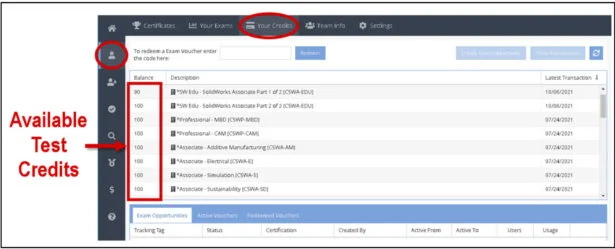
Step 2. Navigate to “Your Credits.” Your account shares a set number of available test credits according to your School or District seat count quantity.
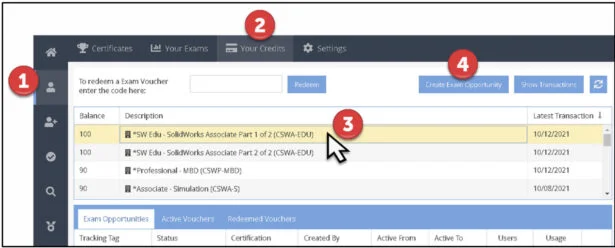
Step 3. Click on the exam you wish to deliver.
Step 4. Click on “Create Exam Opportunity” button.
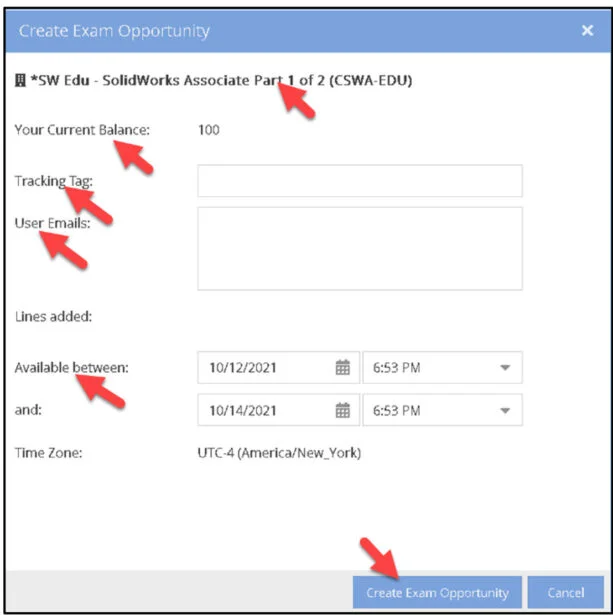
Step 5. Fill in the required fields below. When finished, click “Create Exam Opportunity” button. Note: A Tracking Tag is required by default to organize test results.
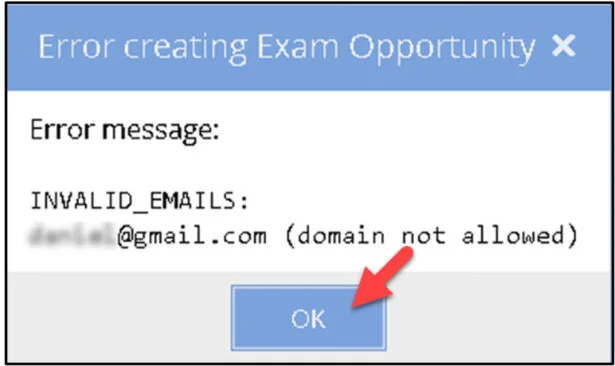
Only student emails issued by the school are accepted. No other email accounts can be used. An Error message will pop up if the email account is not allowed.
Lesson 4 is finished.
Lesson 5 will cover accommodating student’s needs. We will first address the student password recovery procedure and then the Academic Provider procedure in obtaining extra exam time for students.
Other blogs in this SOLIDWORKS Academic Certification Series
Lesson 1 SOLIDWORKS Academic Certification – What is the Journey?
Lesson 2 SOLIDWORKS Academic Certification – Certification Provider Program for EDU
Lesson 3 SOLIDWORKS Academic Certification 3DEXPERIENCE Certification Center
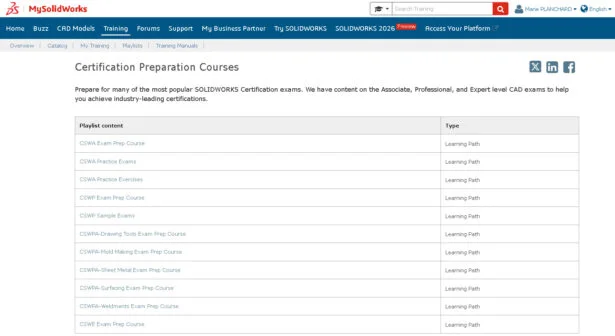
Learning Materials for educators and students to help achieve SOLIDWORKS Certification are available at MySolidWorks.
Design well, Marie