It was great connecting with many of you at 3DEXPERIENCE World this year. I hope you came away as energized and excited as I was by all the innovation shared throughout the event. One of the biggest announcements was our virtual companions, AURA, LEO and MARIE. If you weren’t able to attend, make sure you catch up through session replays.
While those announcements highlighted exciting progress in AI-powered design, this blog focuses on another important area of innovation: the latest updates in SOLIDWORKS Machining roles and how they help strengthen the connection between design and manufacturing.
Manufacturers continue to face pressure from multiple directions simultaneously: tighter delivery expectations, growing product complexity, ongoing cost pressure, and the need to do more with limited skilled resources. At the same time, machining remains central to production across automotive, aerospace, industrial equipment, medical devices, and precision engineering. The broader market is still growing as demand rises.
Technavio projects the global CNC machine tools market will increase by USD 23.1 billion from 2026 to 2030, driven by rising demand for high-precision, multi-axis machining centers, with AI and digital technologies helping shape that evolution.
To help machining teams work more efficiently in this environment, SOLIDWORKS offers three dedicated computer-aided manufacturing (CAM) roles, we introduced last fall, tailored to different machining needs:
•SOLIDWORKS Milling Professional
• SOLIDWORKS Turning Professional
• SOLIDWORKS Milling + Turning Premium
These CAM roles connect design and manufacturing by extending your SOLIDWORKS data into downstream machining workflows, making it easier to move from engineering definition to production-ready NC programming.
Starting with SOLIDWORKS Milling Professional, this solution is suited for mold, core, and cavity machining. It streamlines programming with capabilities such as automated feature recognition, AI-driven reuse, high-speed roughing, 3- to 5-axis toolpath conversion, collision detection, and optimized feeds.
SOLIDWORKS Turning Professional is a CAM solution designed for lathe and mill-turn programming, offering advanced, intuitive programming for milling and turning within a unified platform. Key features include intelligent automation, built-in feature recognition, and full 3D simulation to reduce errors and save time. It also supports multi-channel mill-turn machines and customizable post processors, ensuring compatibility with your shop floor.
For more advanced requirements, SOLIDWORKS Milling and Turning Premium CAM software extends support to five-axis mills and complex mill-turn machines.
As a reminder, all SOLIDWORKS Design roles include NC Shop Floor Programmer CAM capabilities, enabling users to create and validate 2.5- and 3-axis NC programs, generate wire EDM operations, and identify potential production issues through machine simulation.
Here is a breakdown of the latest enhancements delivered in the R2026x FD01 update for SOLIDWORKS Milling Professional, SOLIDWORKS Turning Professional, and SOLIDWORKS Milling + Turning Premium CAM solutions.
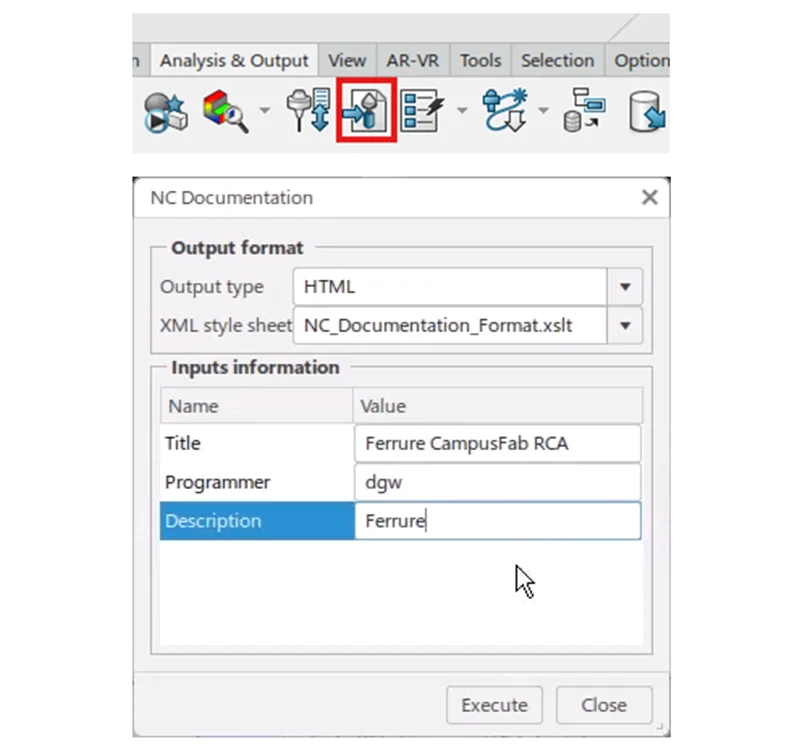
Compare Toolpaths
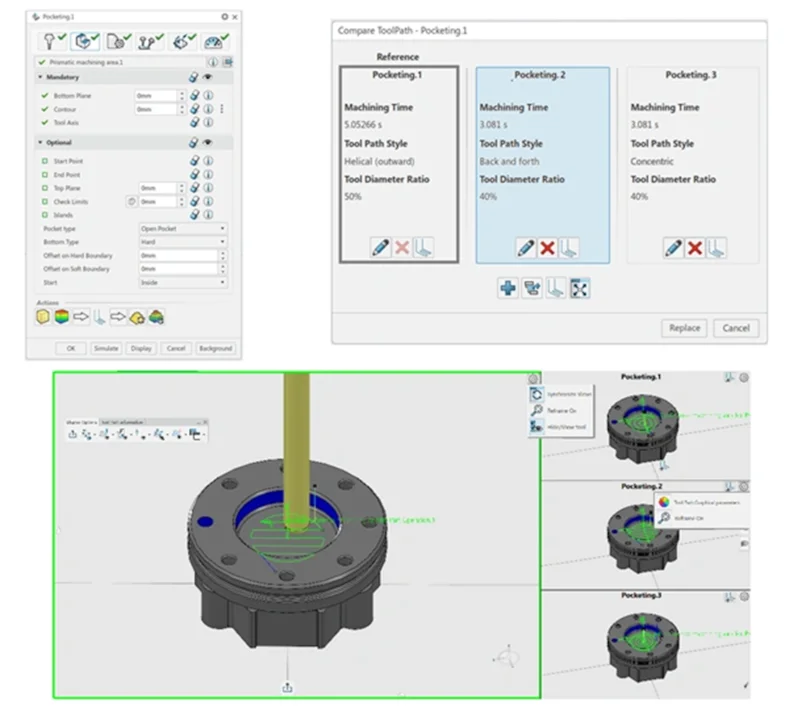
This enhancement makes it easier to compare toolpaths between releases and when changing key parameters. With multi-view mode, programmers can review differences between two machining activities, compare the same activity after release migration, or evaluate how parameter changes affect the result. Users can review revisions more confidently and catch unintended changes earlier in the process.
Cutting Tool Selection
Finding the right cutting tool is now more streamlined. Users can search with history, populate values from measured geometry, choose search locations from libraries or collaborative spaces with the Where filter, and view resources across open tabs, using the “All tabs” option in the Session Panel. This makes tool selection faster and more contextual, helping programmers find the right tool with less searching and fewer interruptions.
Sequential Axial Operation Improvement
Increase the flexibility and efficiency of sequential axial operations by simplifying the selection of bottom and top planes and adding circular motion. The axial plane of a sequential axial activity can reference the stock top plane, stock bottom plane, hole top plane, hole bottom plane, and other axial planes. Users can define a sequential axial activity more generically and build a chain of planes using another axial plane as a reference. This is a more adaptable way to define axial-machining logic, especially useful when part geometry evolves or when similar features need to be programmed consistently.
AI-Powered Alternate Toolpath Strategy and Parameters
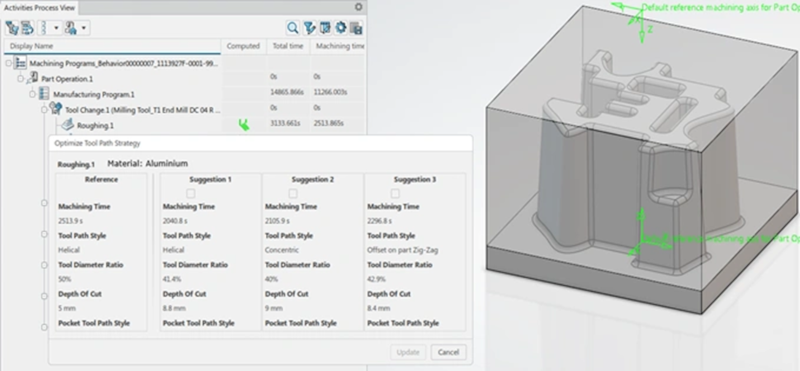
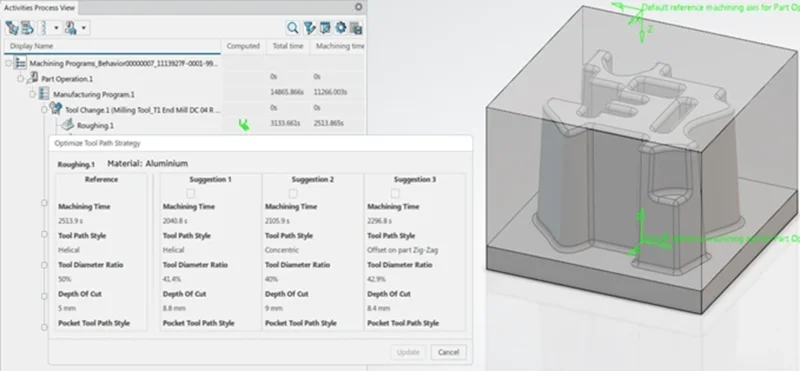
Minimize roughing machining time by leveraging AI to automatically generate alternative toolpath strategies and parameters. The system suggests a preferred toolpath strategy and parameters for the selected geometries in Roughing and Prismatic Roughing Operations. Ultimately, this enhancement helps to reduce some of the trial and error that often comes with roughing optimization, making it easier to move toward better machining performance with less manual tuning.
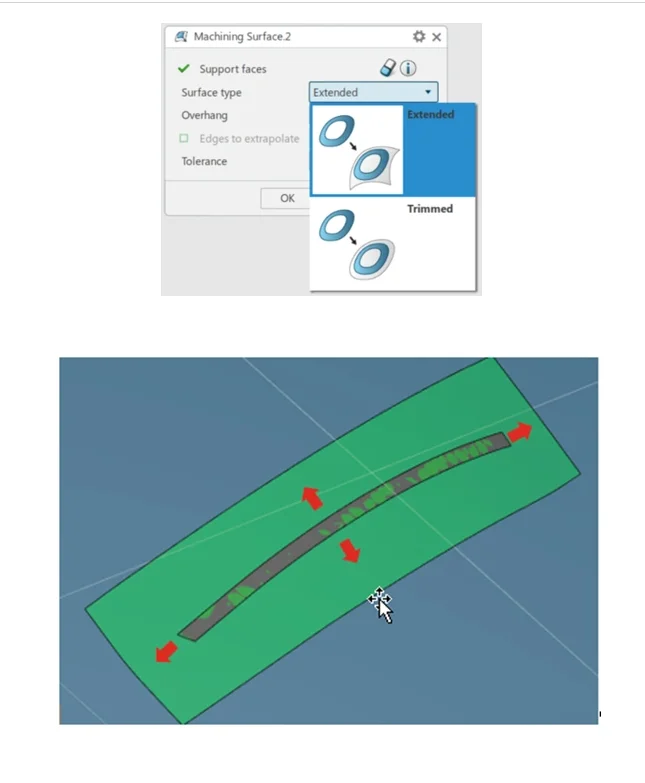
Surface Creation as Additional Geometry
CAM Programmers can now create extended or trimmed surfaces directly within the machining workflow, without first going back to the CAD model. By selecting faces, setting an overhang, optionally choosing extrapolation edges, and previewing the result before validation, users have more control over machining geometry in context.
These new CAM solutions are all integrated and deployed from the 3DEXPERIENCE platform, so you also benefit from real-time collaboration and data management capabilities. SOLIDWORKS Machining solutions provide users with a complete set of tools to meet you where you are today, tomorrow, and into the future. Learn more about SOLIDWORKS CAM extended machining solutions here.
You may also be interested in these manufacturing blogs for more on SOLIDWORKS machining roles, CNC programming best practices, CAD/CAM integration, machining simulation, AI in manufacturing, and more.
Bridging the Gap between Design and Manufacturing: A Collaborative Approach
Revolutionizing Manufacturing: the Critical Role of SOLIDWORKS CAM Solutions
And see my last blog on the selective loading functionality in SOLIDWORKS design here.
