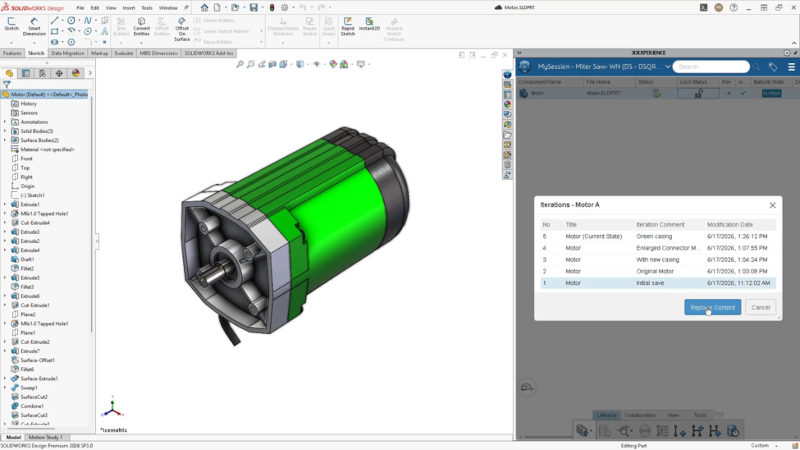

Today’s design and manufacturing teams face a host of challenges related to effectively managing product design and manufacturing data – not just within product development and manufacturing departments but across the entire organization. The new collaboration and data management capabilities in SOLIDWORKS Design help eliminate everyday challenges, boosting productivity and facilitating collaboration amongst teams. For example, in SOLIDWORKS Design R2026x FD03, you can access drawings faster by linking them to the physical product, set up recommended platform settings in one click, share data more easily, and much more!
Let’s take a look at the top ten enhancements in the latest functional delivery of SOLIDWORKS Design 2026x FD03 below.
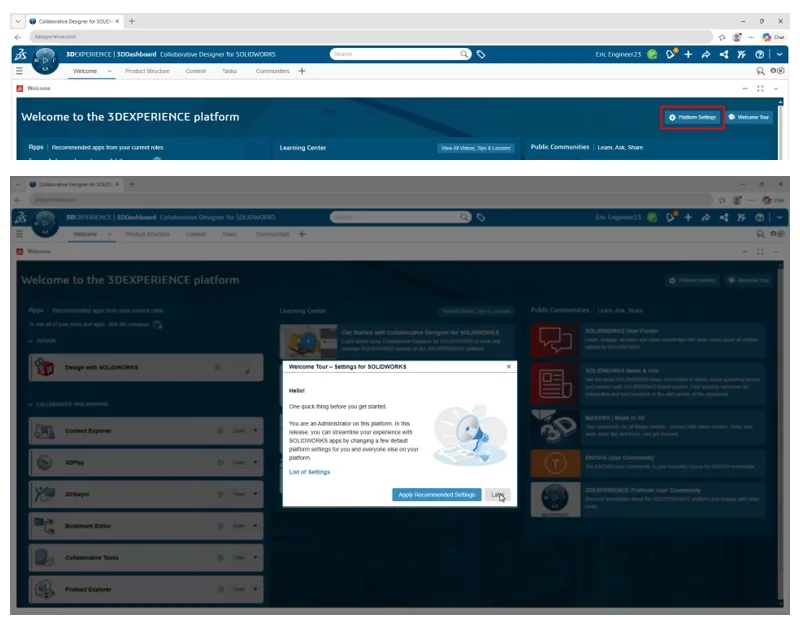
One-Click Recommended Platform Settings – save time on setup and getting started with the platform.
In FD03 you can apply SOLIDWORKS-recommended platform settings for new tenants in a single step from the Welcome app. This will reduce onboarding time and ensure consistent configuration across new SOLIDWORKS deployments on the 3DEXPERIENCE platform.
Cross-Company Collaboration Improvements – accelerate collaboration across design and project teams.
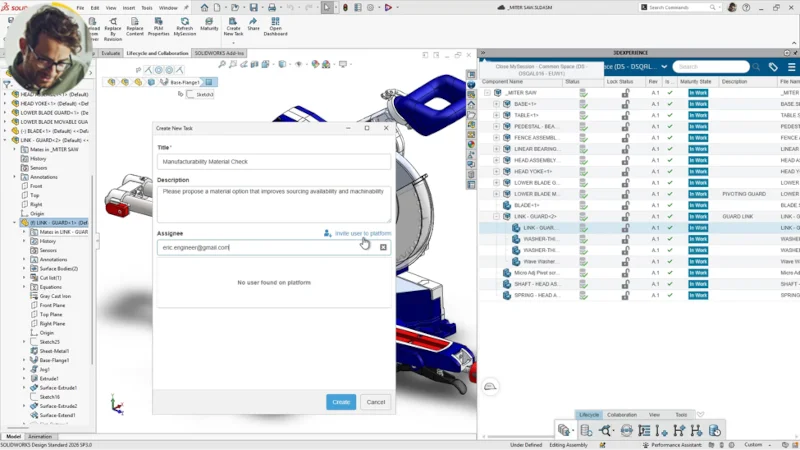
We’ve made it easier to share data, manage access, and work with external partners who have the 3DEXPERIENCE platform. Administrators can invite external members to join your platform to work on your projects.
You can also create tasks directly from within SOLIDWORKS Design, without switching to a separate project management environment. You can then send partners the task including parts, assemblies and markups without having to export/import.
Stay tuned for more on this functionality coming soon.
Composed Drawings in MySession – access drawings faster and simplify lifecycle management.
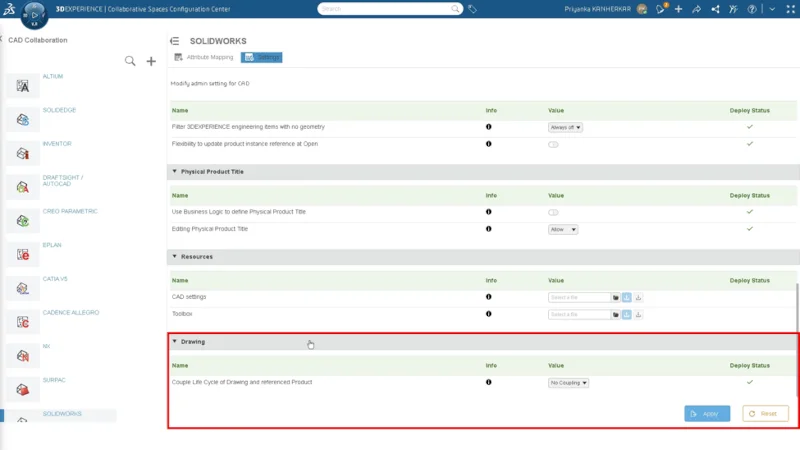
Access drawings faster by linking drawings directly to their physical product files through a composed or aggregated representation relationship, simplifying cross-referencing and lifecycle management.
Administrators can enable this under CAD Collaboration> SOLIDWORKS> Settings under the Drawing section, by choosing the option: Couple Life Cycle of Drawing and referenced Product. By default, this setting is set to No Coupling.
Auto Save to the 3DEXPERIENCE Platform – keep your data in sync.
Be confident that your data stays in sync in the local cache and on the platform. Now every time you save a local file it will automatically sync up to the platform in the background, with no extra clicks or PLM dialog interruptions. Just enable the auto-save option in MySession> Options, lock your file once, and from there when you hit Ctrl+S your platform data will instantly sync.
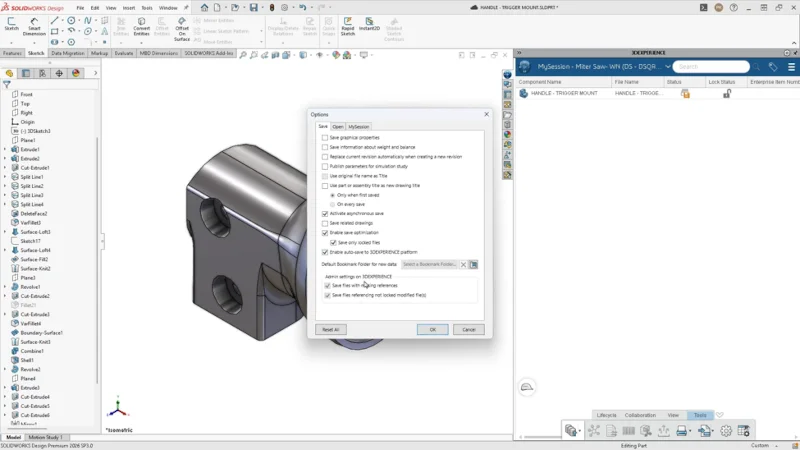
Duplicate Reference Detection on the 3DEXPERIENCE Platform – prevent conflicts before they affect downstream work.
Now, when you go to save on the 3DEXPERIENCE platform, you’ll get a notification if a title is not unique. You can then replace the duplicate reference with existing content before saving.
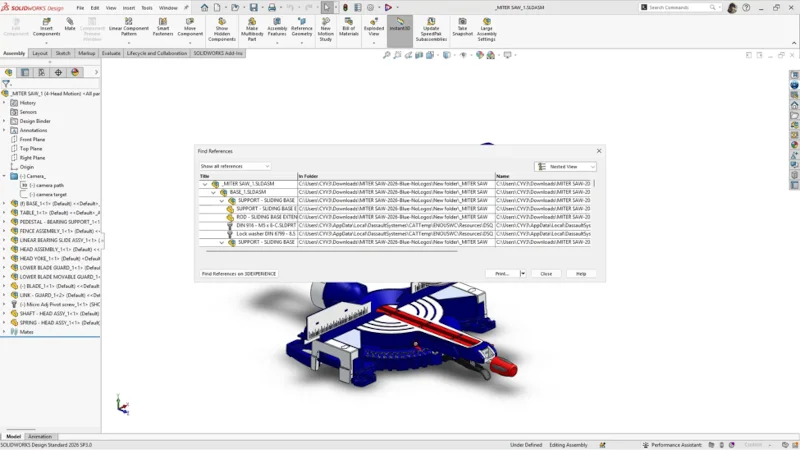
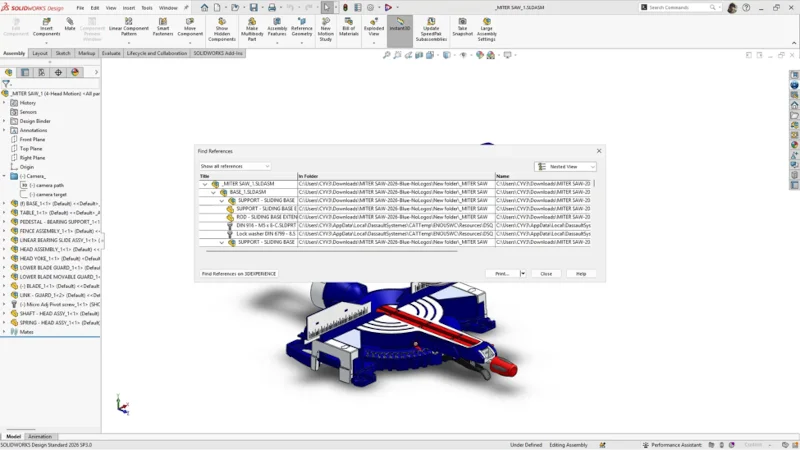
Missing Reference Replacement with Platform Files – find and replace missing files.
Restore assembly references and reduce design interruptions without manually relinking, with the ability to find and replace missing components using existing files on the 3DEXPERIENCE platform.
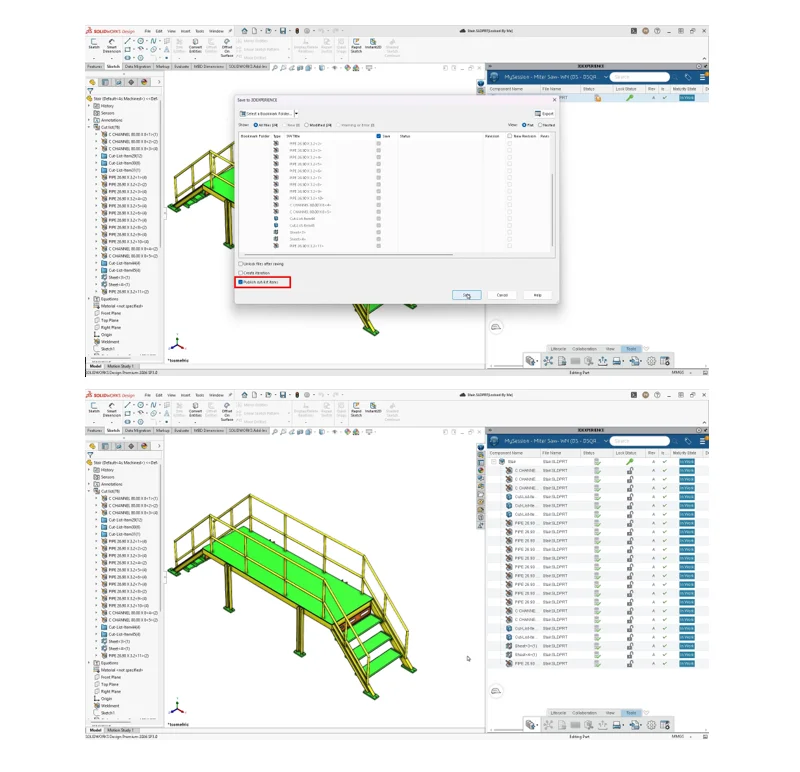
Publish Cut List for Multiple Physical Products – reduce manual repetitive work.
Publish weldment cut list items across multiple physical products (with the CAD family) simultaneously on the 3DEXPERIENCE platform, expanding manufacturing data coverage without repeating the process for each product.
To publish cut list items on the 3DEXPERIENCE platform, the part must be saved as a weldment, and the cut list item must have a cut list ID. The weldment part with cut list items can then be saved to the 3DEXPERIENCE platform as engineering items and added as children to the physical product.
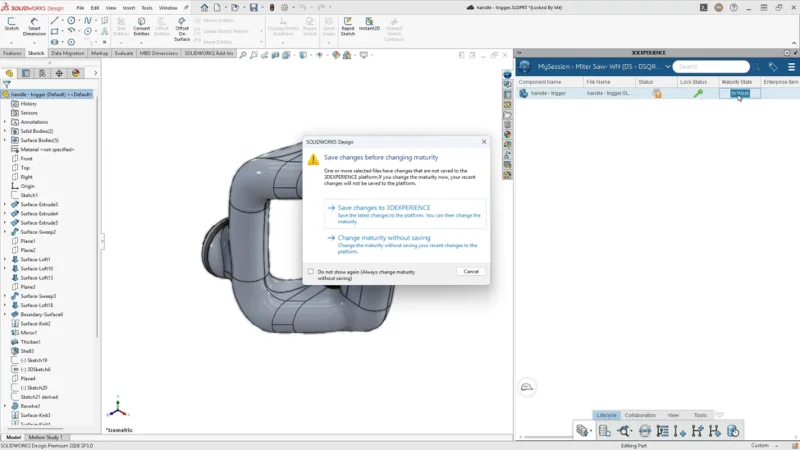
Maturity Change Save Prompt – prevent data loss during lifecycle transitions.
Protect design integrity with automatic prompts to save local, unsaved work before changing your maturity state. If one of your files has changes that are not saved to the platform, you’ll get a notification asking if you’d like to save the files before updating your maturity state.
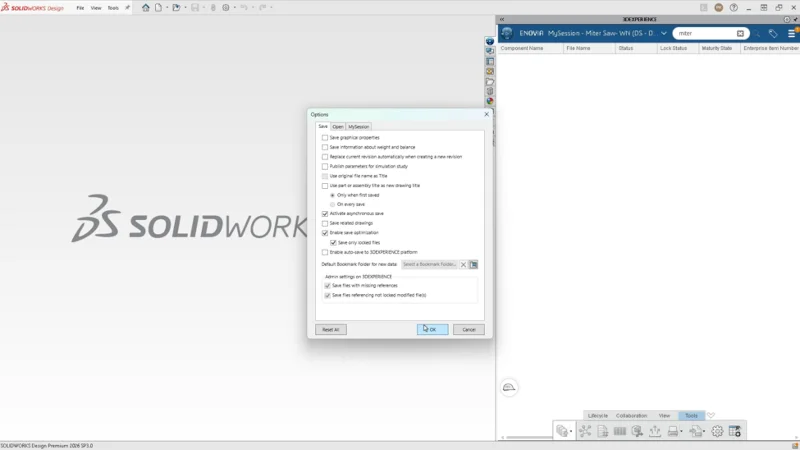
Save Only Loaded Files – improve performance when saving.
Accelerate design iterations by saving only the files you have locked. This will eliminate unintended modifications to unrelated assembly files.
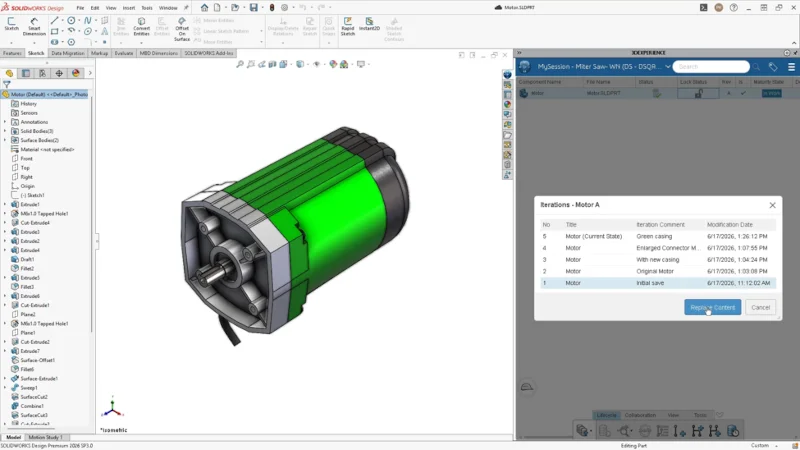
Iteration Comment Management – find and compare design changes faster.
Iteration comments will stay attached to their respective file iterations, ensuring accurate search, sorting, and comparison across the lifecycle.
To see the new FD03 enhancements in action check out the What’s New Wiki page here. And learn about FD02 here.
Cloud-based collaboration and data management tools can have a big impact on modern product development. They offer real-time collaboration, efficient feedback across the entire company, and effective communication with external partners, all while keeping your data accessible and secure.
For more information about SOLIDWORKS Design packages, visit https://www.solidworks.com/product/solidworks-design.