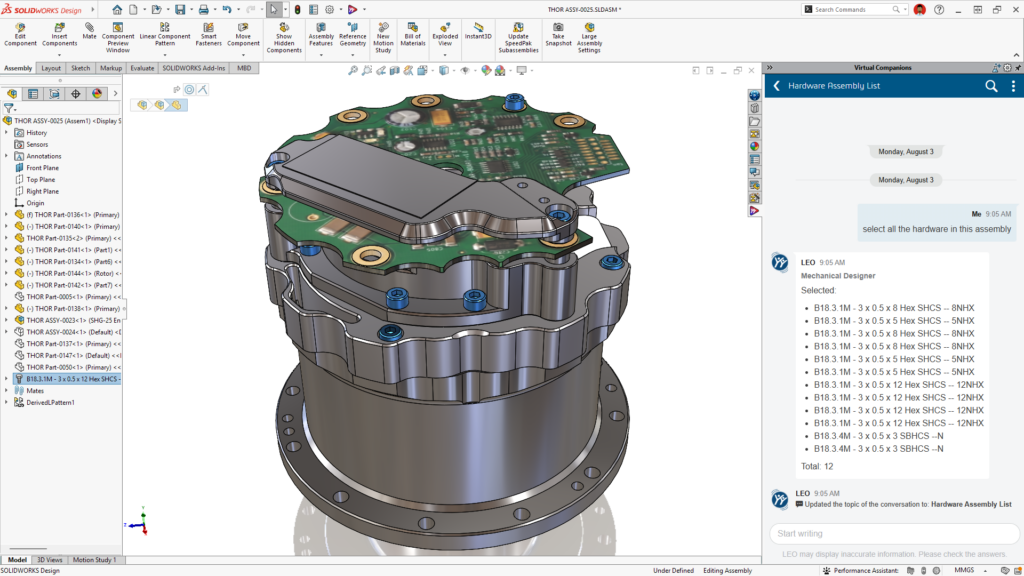

What if you had your own personal design assistant? With SOLIDWORKS AI you have access to artificial intelligence (AI) virtual companions like LEO. Certainly, you’ve heard of LEO by now, the engineering virtual companion right at your fingertips in SOLIDWORKS Design.
LEO is designed to automate repetitive tasks, accelerate design workflows, and assist with complex engineering decisions. LEO turns prompts, images, and legacy drawings into SOLIDWORKS geometry and production-ready documentation, as well as speeds assembly structure generation, drawing creation and validation, and much more.
In this blog, I’ll discuss the top enhancements from functional delivery updates delivered this year so far. The following enhancements apply to SOLIDWORKS Design Standard/Professional/Premium/Ultimate and SOLIDWORKS Design Standard/Professional/Premium/Ultimate with Cloud Services.
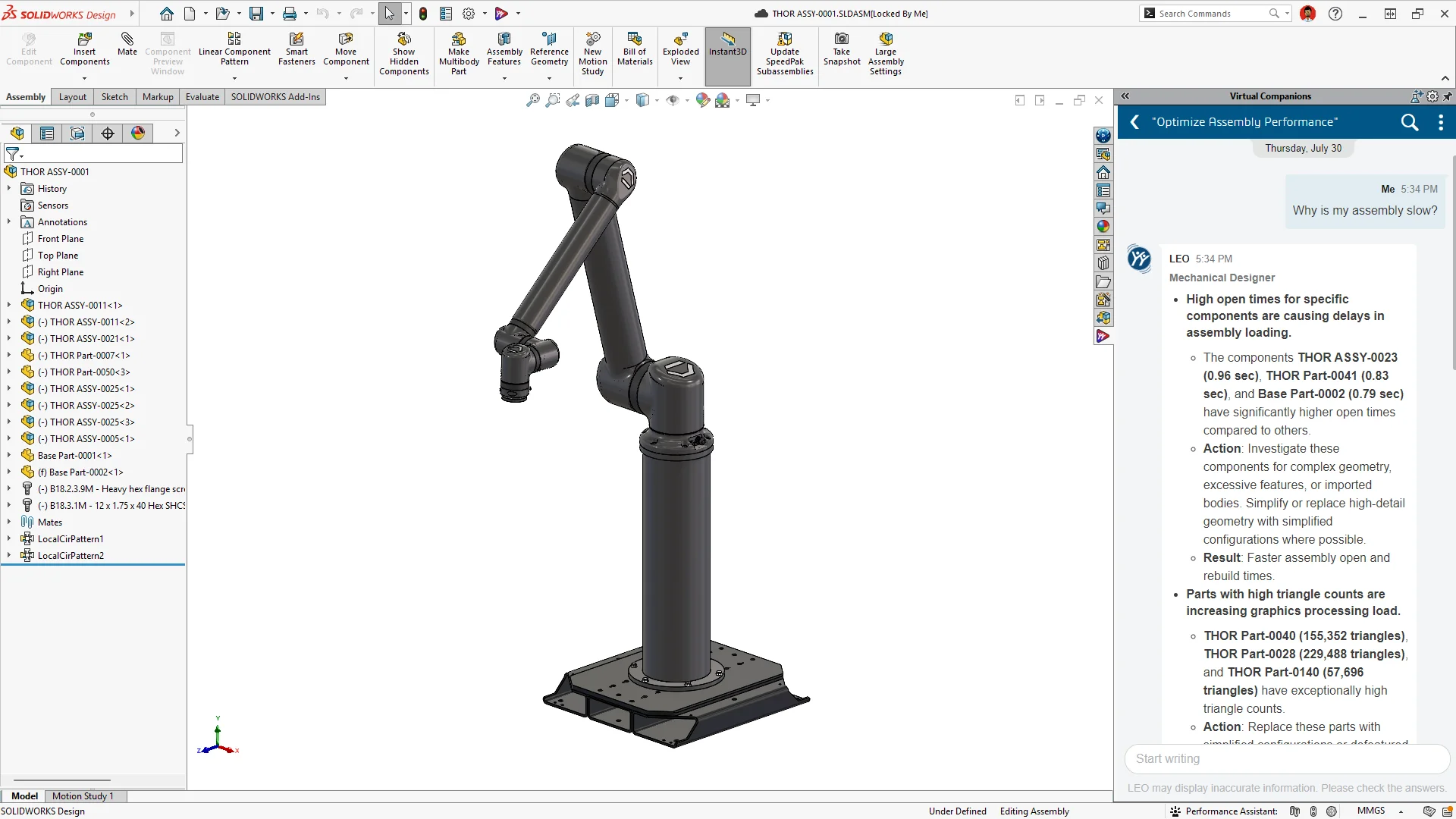
Automated Performance Optimization – get expert guidance, improving slow assemblies.
Ask LEO to pinpoint performance bottlenecks in your assembly, based on structure, component complexity, rebuild behavior, and graphics load. LEO can analyze open time, rebuild time, graphics load, and structural complexity, and translate the results into a clear, prioritized breakdown of which issues will have the greatest impact.
LEO can also improve performance by creating SpeedPaks. Create SpeedPak configurations at the top level or as sub-assembly configurations through a conversational workflow, improving large-assembly performance without navigating SpeedPak menus.
In addition, LEO can convert modeled threads on imported fasteners and other components.
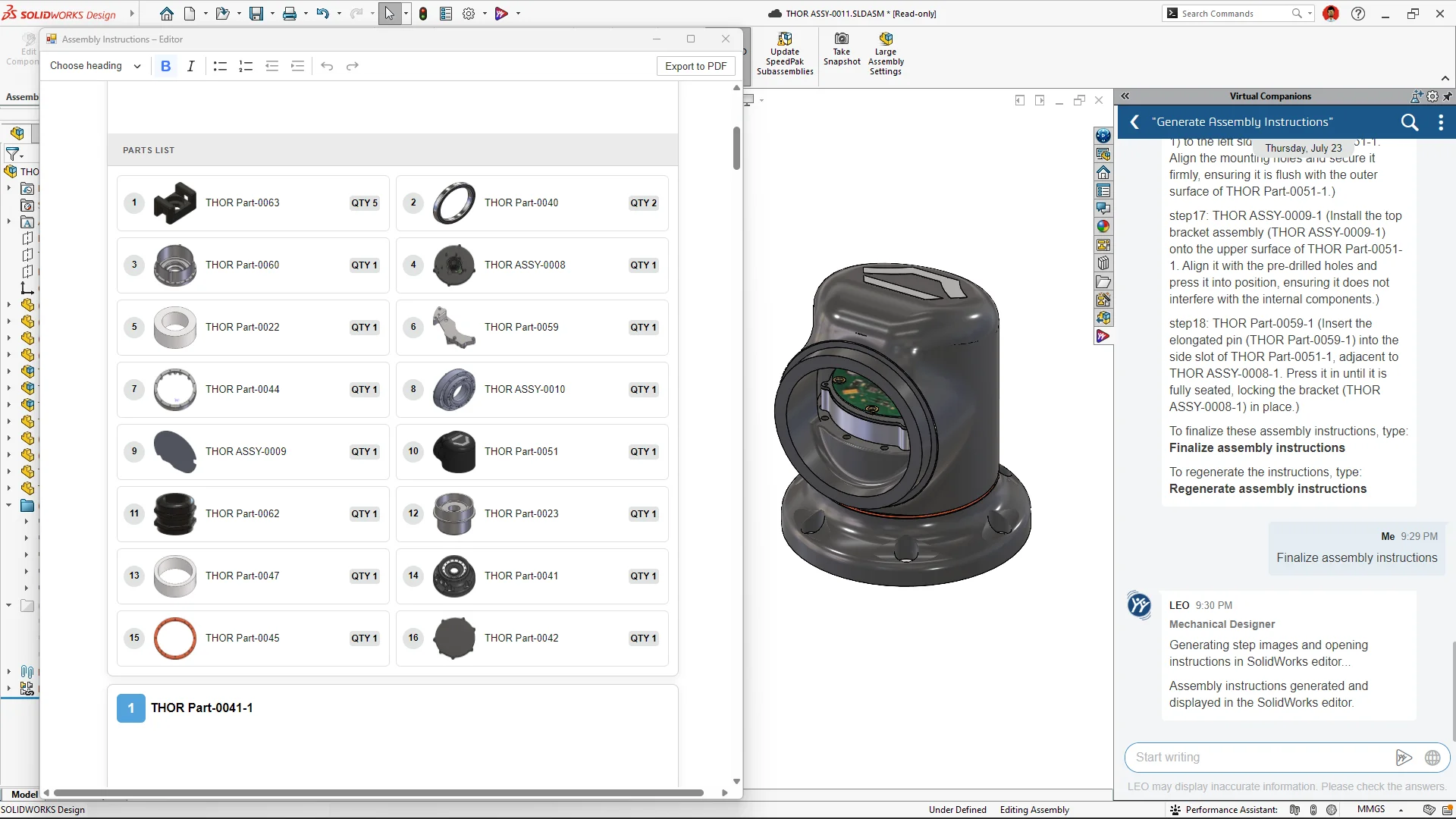
Automated Assembly Instructions – reduce manual effort in preparing shop-floor-ready assembly guides.
Ask LEO to generate step-by-step assembly instructions, complete with visual snapshots, directly from your assembly. Automatically select the base or starting component when generating assembly instructions, reducing the need for follow-up input and making the overall experience more streamlined. Spend less time deciding how the assembly sequence should begin while still receiving clear, step-by-step instructions that are easy to follow across fabrication, assembly, training, and customer use cases. Benefit from improved visuals with consistently appropriate zoom levels throughout generation and in the exported PDF, helping each step remain clear and easy to interpret. Generate more complete and intuitive assembly documentation with less interaction and fewer manual decisions.
Review, edit, and regenerate the steps before exporting a printable or shareable PDF.
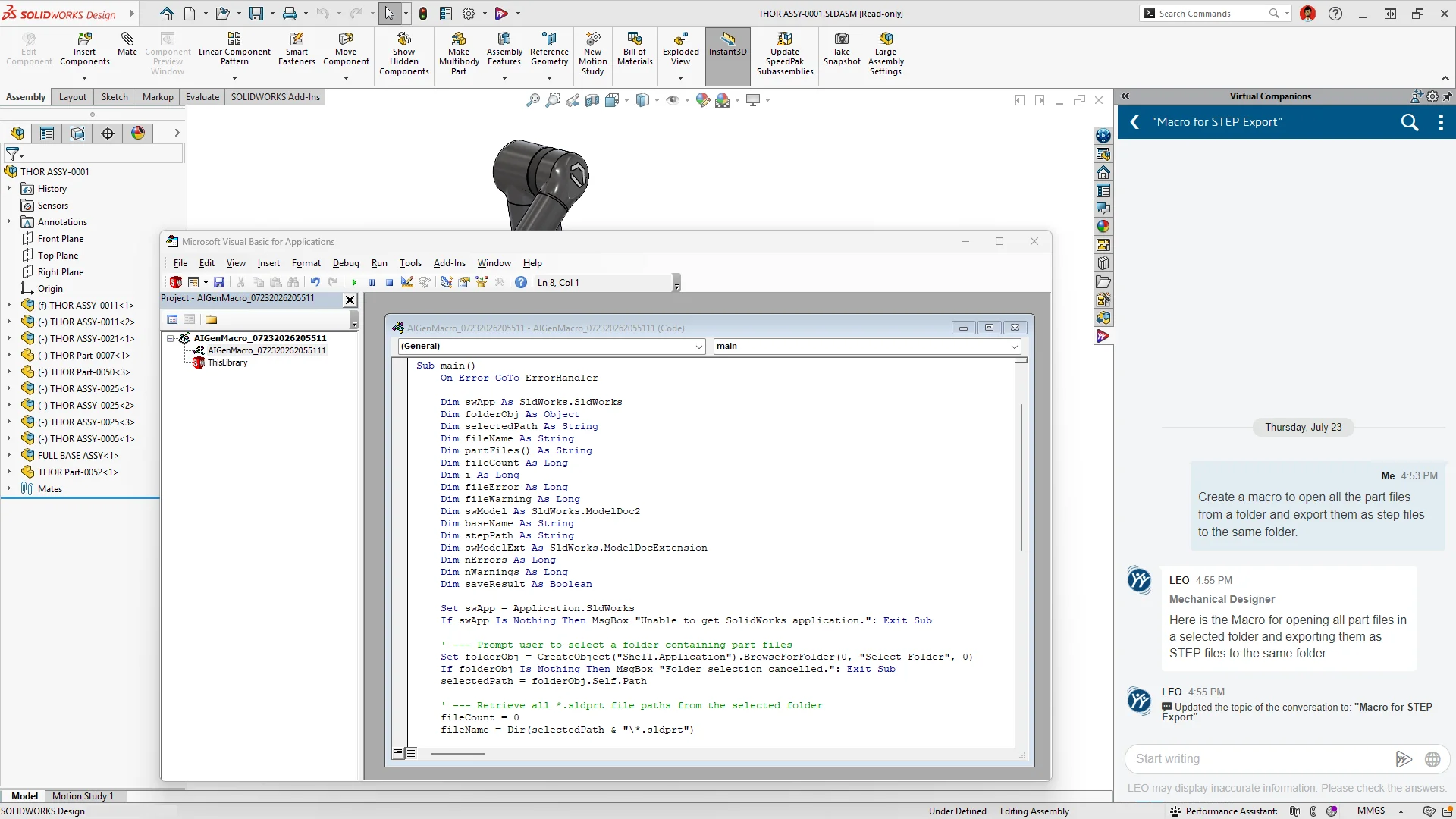
Natural Language Macro Generation – automate repetitive tasks without writing or debugging code.
Describe the automation you want, and let LEO generate working macro logic instantly. For example, ask LEO to create a macro for tasks such as renaming files, exporting deliverables, applying company standards, or updating model properties, and LEO will generate the macro and open it directly in the editor for review. Run the automation immediately or continue the conversation to refine its behavior and account for additional requirements.
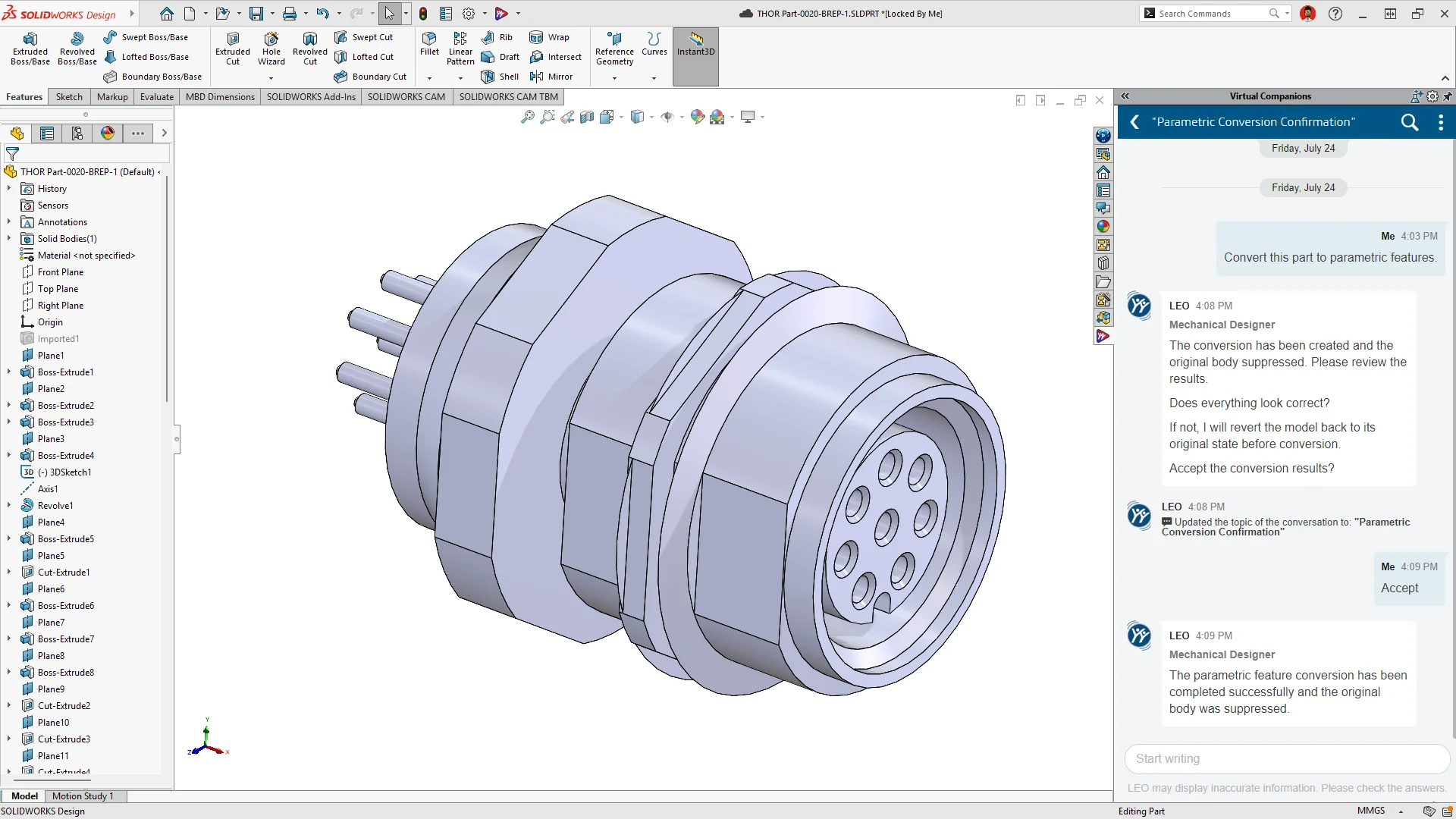
BREP-to-Parametric Conversion – turn imported geometry into a fully editable feature-based SOLIDWORKS parts using AI.
Ask LEO to convert imported STEP or IGES geometry into a native, editable SOLIDWORKS geometry. Eliminate the need to rebuild from scratch when bringing supplier or legacy geometry into your design workflow.
BREP-to-parametric conversion now recognizes additional features, such as circular patterns and contextual draft, and uses them to rebuild the model. The result is a cleaner feature tree that more accurately captures design intent.
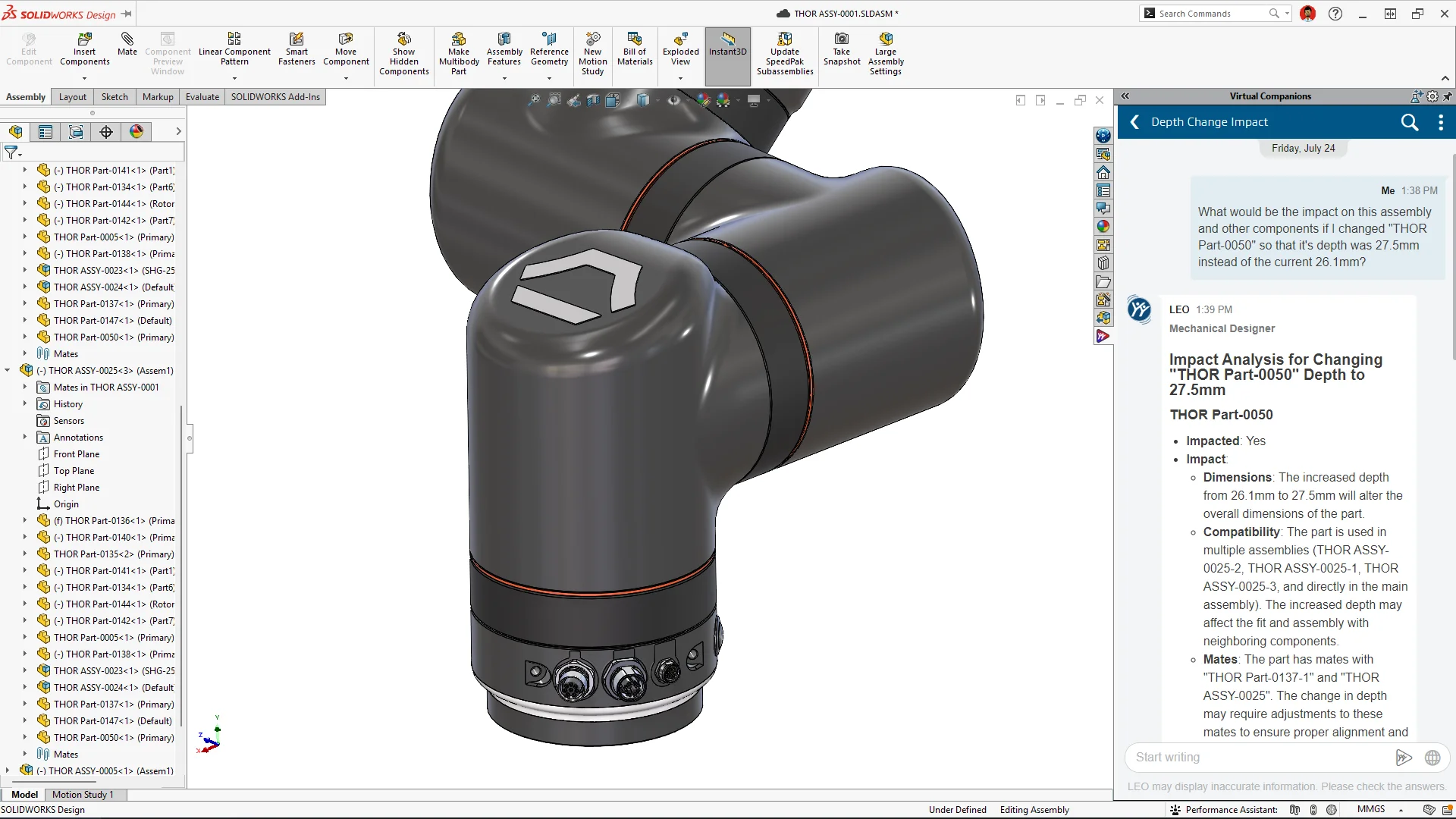
Change Impact Analysis – catch costly dependency issues before you commit to a change.
Ask LEO to flag which components and subassemblies a change affects before you make the change. Understand the full impact of a design change before committing it, including affected parts, assemblies, and downstream dependencies, so you can make informed decisions before modifying the model.
Get a message from LEO if a geometry change in any part causes fit issues.
In addition, you can review models, assemblies, and drawings automatically against your company-specific or industry-standard release checklists. Get components flagged that don’t meet requirements before release, replacing a manual, error-prone review process with guided validation.
Ask what’s wrong with your sketch and get an analysis of underdefined and over-defined entities, open contours, and intersecting geometry. Let LEO guide you through fixing nearby open contours, trimming intersecting entities, and applying the necessary relations or dimensions to repair the sketch.
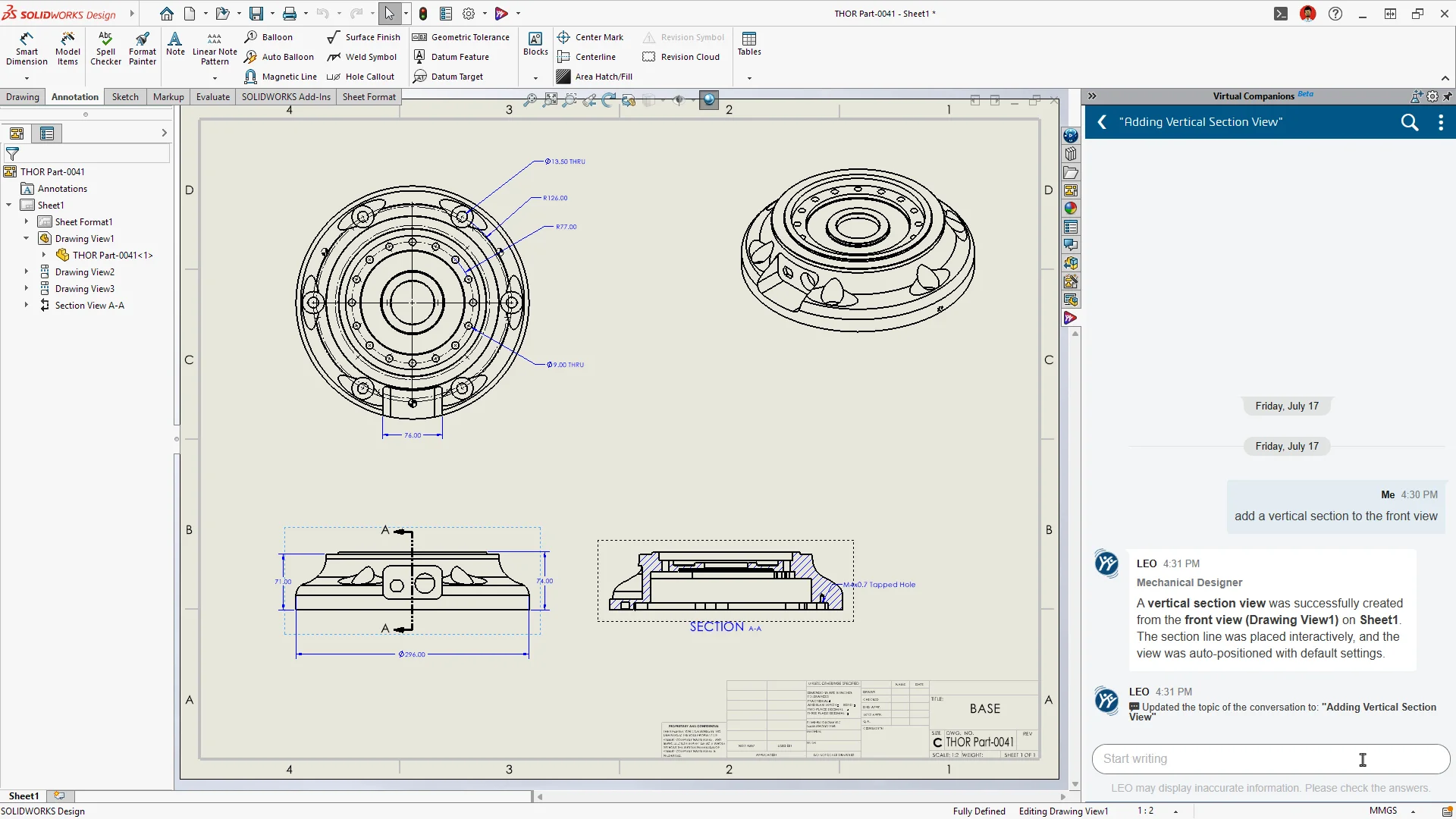
Automated Drawing Generation – reduce setup time when creating drawings.
Describe your design intent, and let LEO generate views, dimensions, annotations, and sheet layout automatically from your SOLIDWORKS model. Use the improved PropertyManager to generate drawings with greater control over sheet size, dimensioning scheme, and tolerancing while reducing the effort needed to prepare production-ready documentation. Choose automatic settings to let LEO apply the most appropriate options to each drawing in a bulk generation request, or enforce preferred standards, such as ordinate dimensioning, across all selected drawings for greater consistency. Select from supported dimensioning and tolerance approaches or generate drawing views only when dimensions are not required, giving you the flexibility to match different documentation needs.
Review the preview, refine with prompts until the output matches your intent, and save directly to your chosen location.
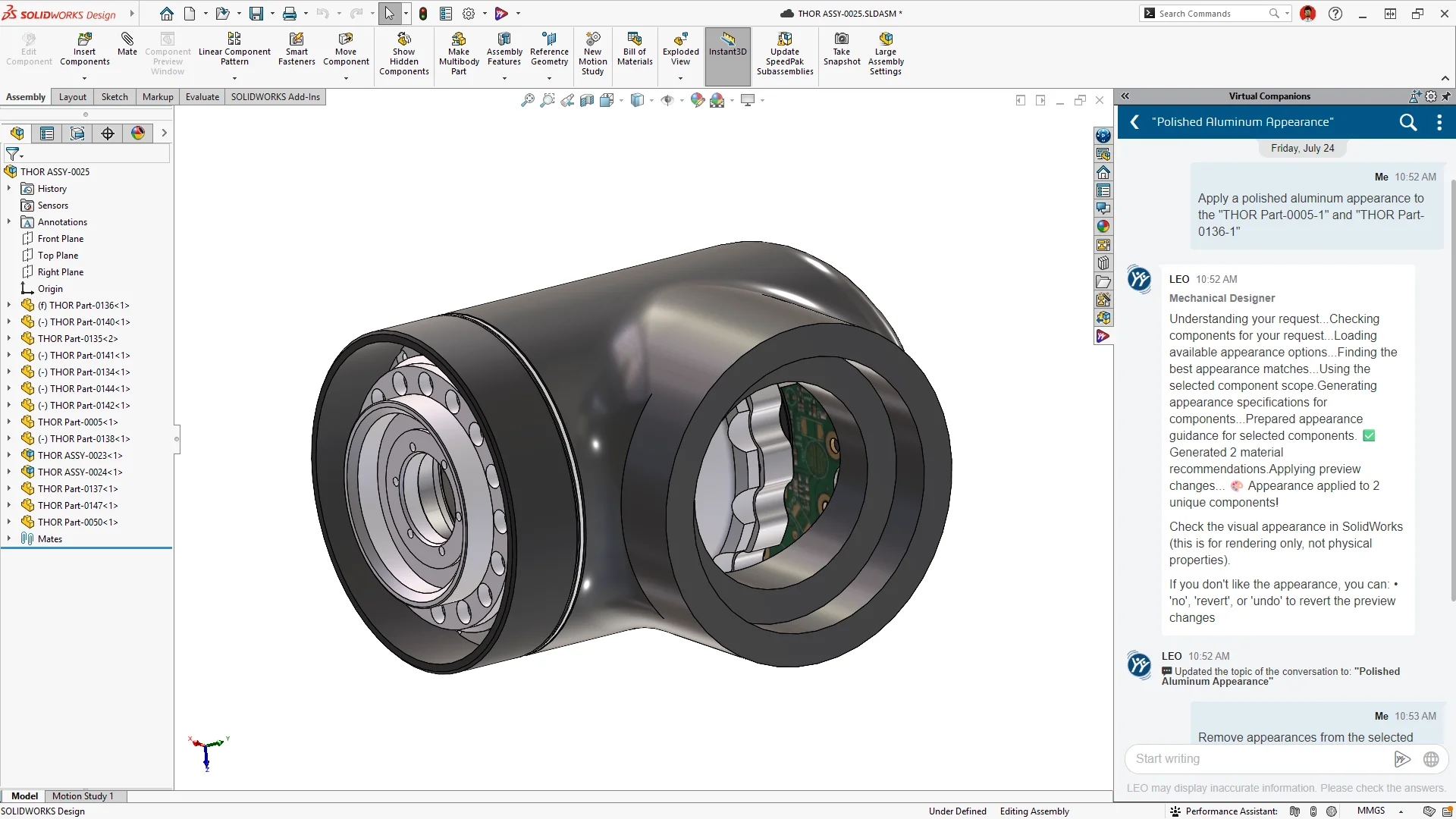
Automated Material Appearances – save time on repetitive material assignments and keep visual consistency.
Ask LEO to apply or update material appearances across your assembly with a simple prompt. LEO can apply, remove, and update material appearances and colors across assembly components, selected parts and assemblies.
SOLIDWORKS Guidance – get best-practice guidance without leaving your modeling session.
Ask LEO modeling questions and get relevant SOLIDWORKS best practices as you work. For example, you could ask, “What are some of the best practices I should review to make sure this part is modeled correctly?” LEO will then generate a list of answers such as “fully define sketches, use reference geometry,” etc.
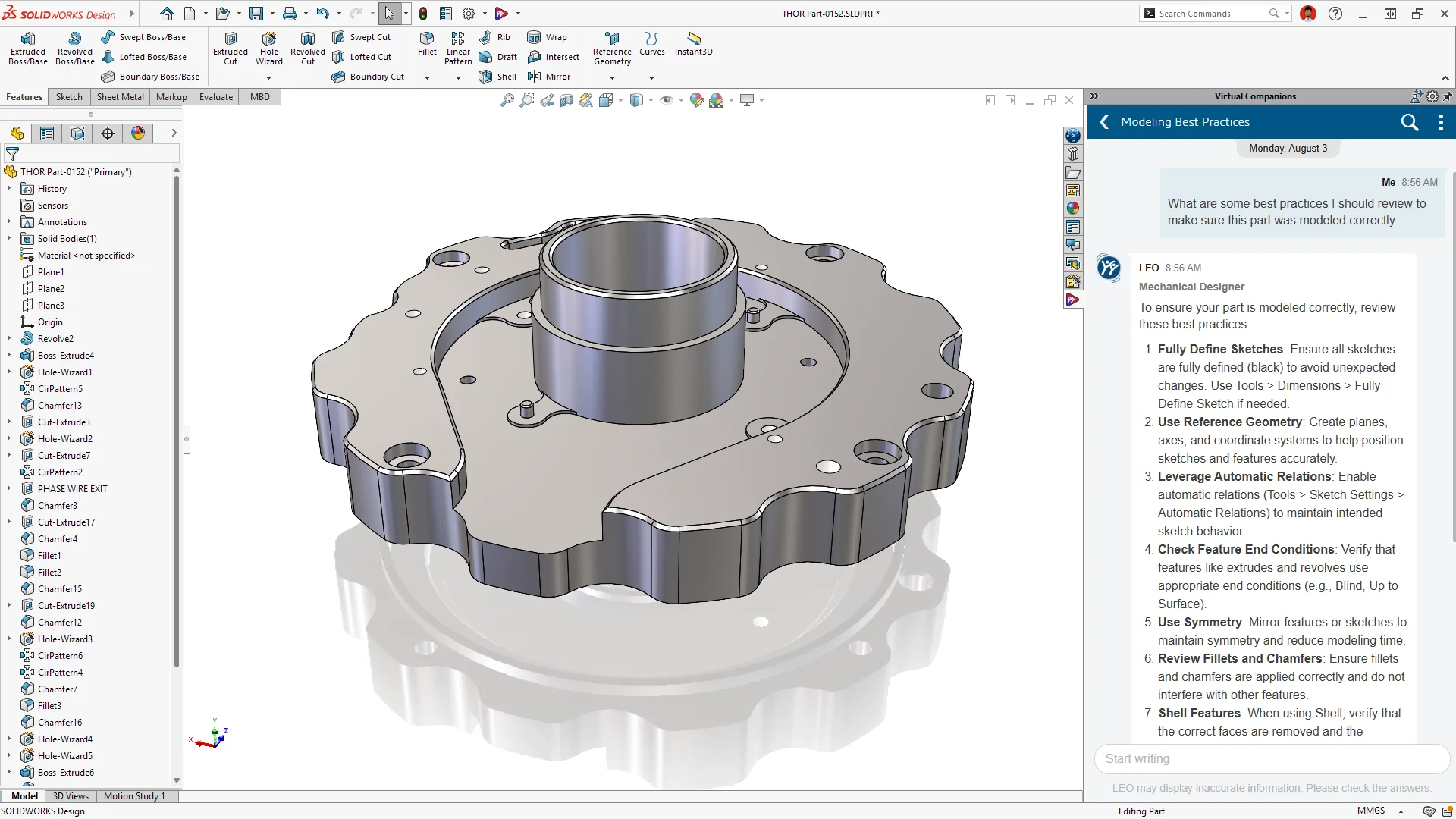
LEO also uses integrated command guidance, helping you solve SOLIDWORKS modeling problems faster and avoid rework by getting step-by-step guidance on the right features, mates, evaluation tools, and drawing methods for your design.
PLM insights – get PLM answers instantly, without switching tools.
Ask LEO about a file’s configurations, open tasks, and change history. See revision context, pending approvals, and configuration details without leaving SOLIDWORKS.
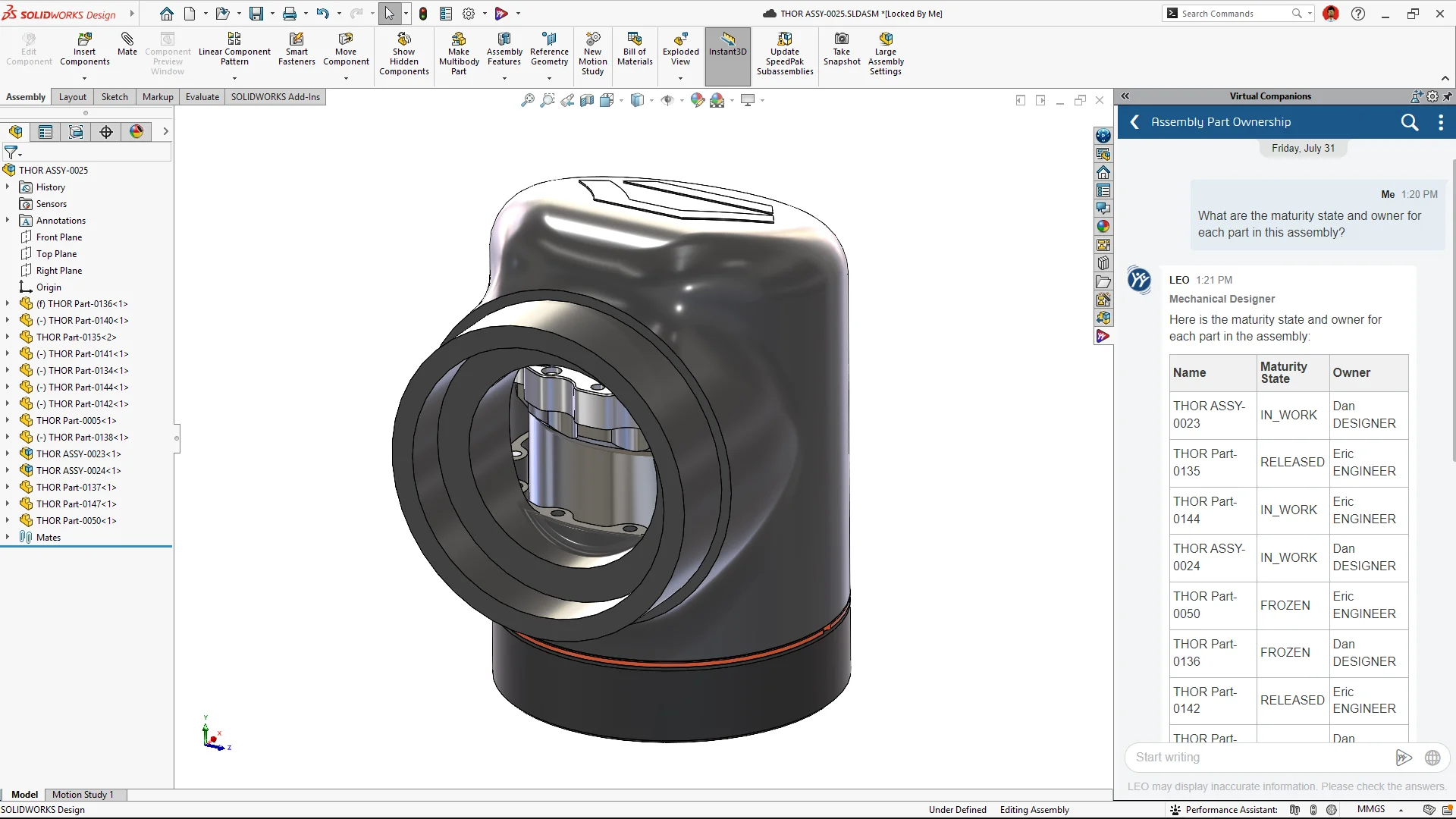
Natural Language Selection – select faster and more accurately, with fewer clicks and errors.
Work faster by telling LEO what you’d like to select, instead of manually picking items one by one. Quickly isolate the design elements you need across parts, sketches, assemblies, and drawings, then continue your workflow with fewer clicks, less searching, and fewer selection mistakes.
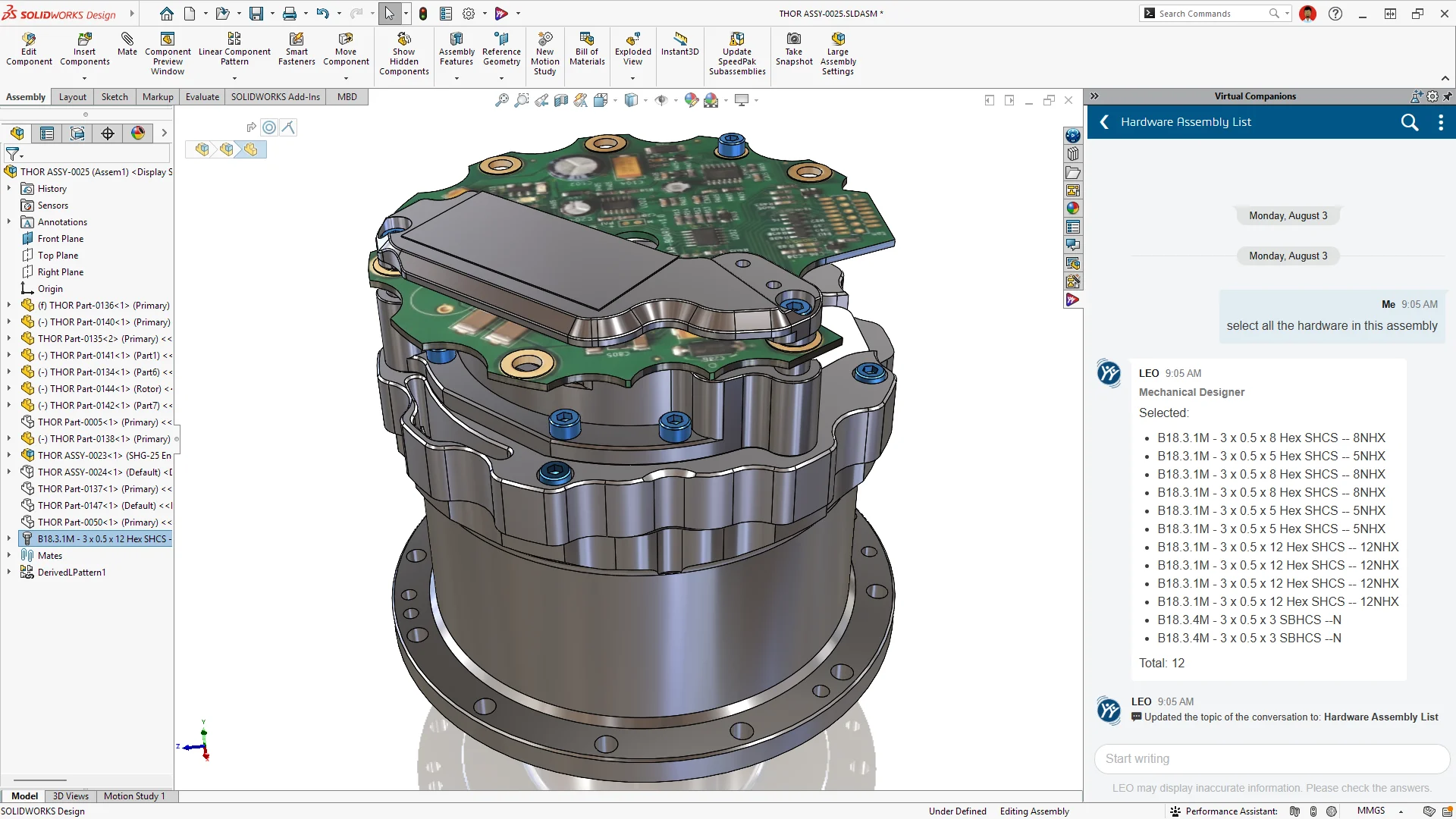
These capabilities are available now! New to SOLIDWORKS AI? Get started by checking out the new Prompt Library available directly from the SOLIDWORKS interface Home tab. In the Prompt Library you can browse the full library of SOLIDWORKS AI capabilities, skills and example prompts, while also accessing FAQs, learning resources, and more.
To see what else is new in SOLIDWORKS Design 2027 for CAD, collaboration and data management, visit the what’s new page. To learn more about SOLIDWORKS AI and the latest SOLIDWORKS AI tools, see the virtual companions web page here and check out these related blogs:
SOLIDWORKS AI 101: Understanding How Tokens Work