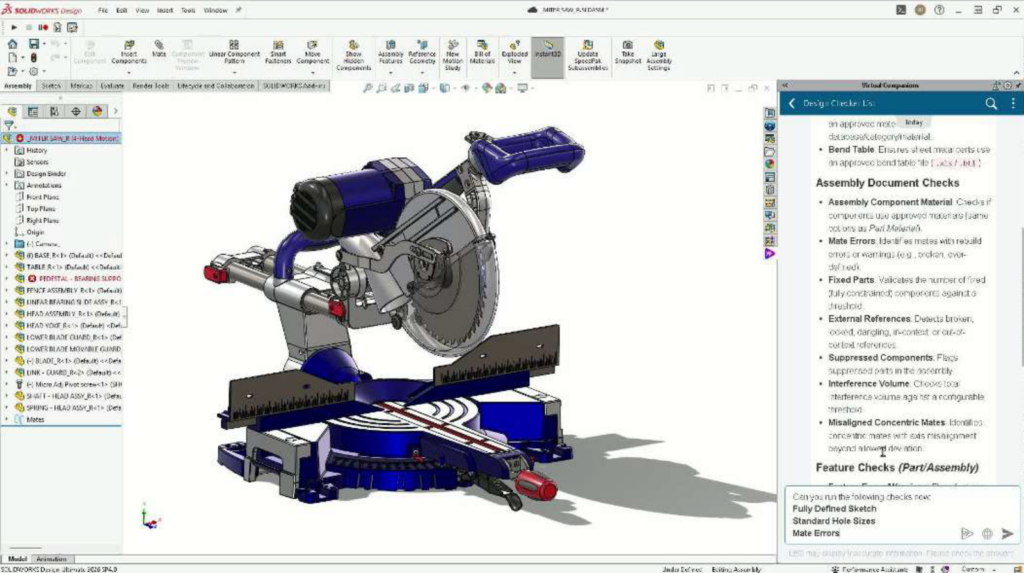

Engineering teams are being asked to deliver better products faster, without sacrificing quality, accuracy, or control. That is where SOLIDWORKS AI delivers practical value. Purpose-built for engineers and embedded directly in the design environment, it works in the context of the model, assembly, drawing, and task at hand. Rather than adding another destination to your workflow, it helps remove friction from the tools and processes you already know.
By handling repetitive setup, utilizing relevant knowledge, and turning design intent into a useful first pass, SOLIDWORKS AI gives you more time for the work that requires engineering expertise. More time to explore alternatives. More time to validate performance and manufacturability. More time to refine the decisions that distinguish a good product from a great one. The result is not simply faster CAD, it is a faster, more confident path from idea to value.
AI does not replace engineering judgment. You remain in control, responsible for design intent, validation, and the final decision, while our virtual companions work alongside you to automate, assist, and accelerate.
As SOLIDWORKS AI continues to expand with each functional delivery (FD) update, the goal remains simple: reduce low-value work, improve consistency, and help you focus on solving meaningful engineering challenges. The latest SOLIDWORKS AI tools are delivered in the R2026x FD04 update, showing this value in action. Here is a look at what’s new in SOLIDWORKS AI R2026x FD04, including a new Prompt Library showcasing all the AI capabilities, learning resources, and more; in addition to the ability to automatically arrange flat patterns, automatic explode views, and much more.
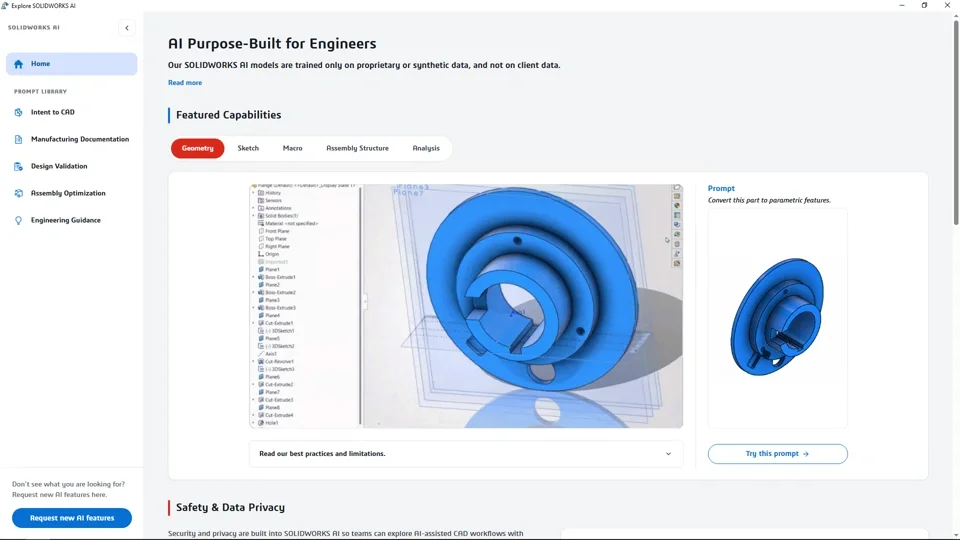
- Explore SOLIDWORKS AI
Discover, explore, and learn all about the AI capabilities in the new Prompt Library. Browse the full library of skills, capabilities, and example prompts, while also accessing FAQs, learning resources, blogs, articles, safety information, and data privacy guidance.
This one-stop resource makes it easier to understand what LEO can do, learn how to get the most from its capabilities, and quickly find the information you need. The Prompt Library is available directly from the SOLIDWORKS interface.
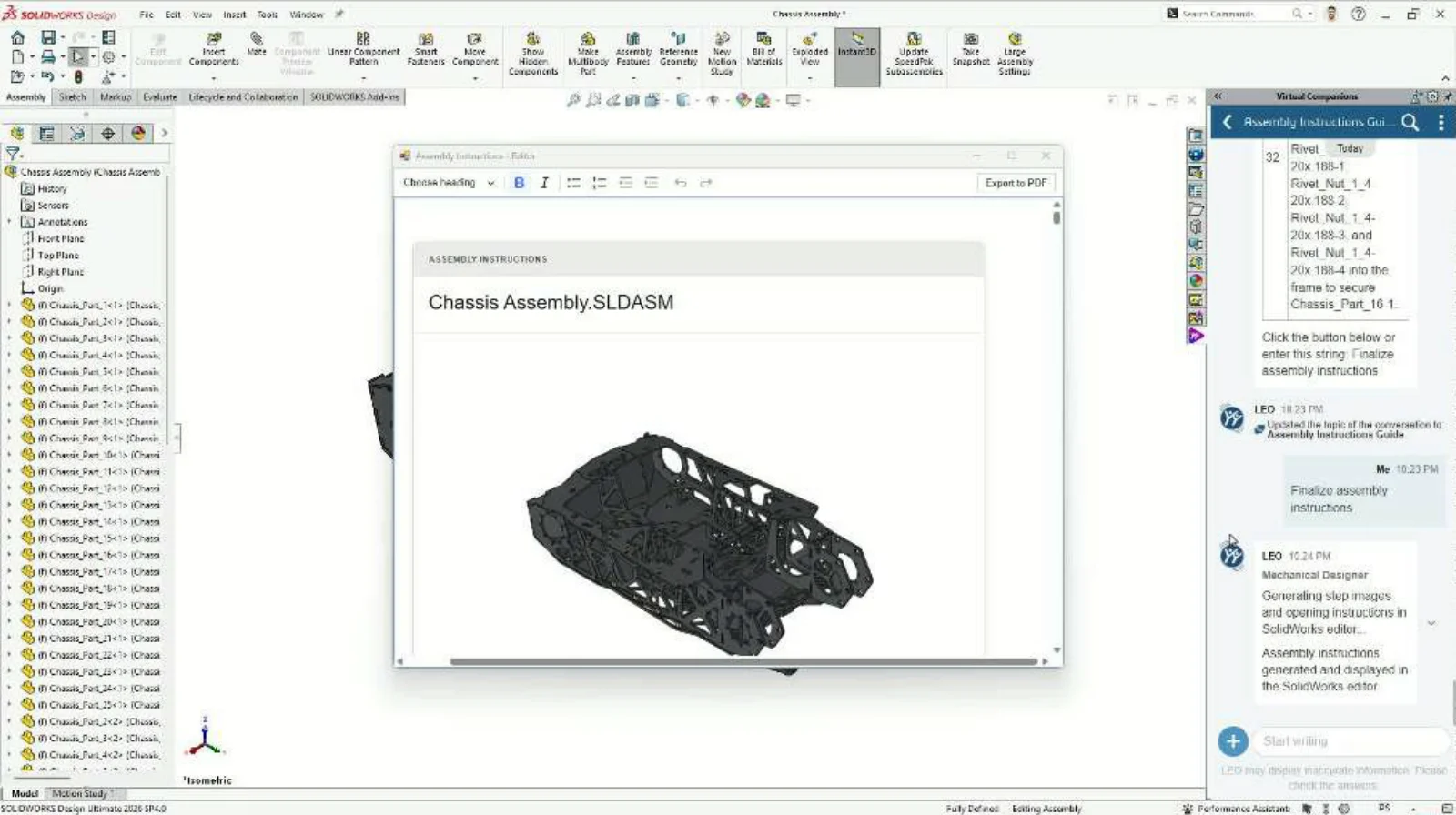
- Enhanced Assembly Instructions Generation
In FD03, we introduced the ability to have LEO generate the assembly sequence directly from the 3D model. In FD04, LEO can automatically select the base component when generating assembly instructions, reducing the need for follow-up input and making the experience more streamlined. Spend less time deciding how the assembly sequence should begin, while still receiving clear, step-by-step instructions that are easy to follow across fabrication, assembly, training, and customer use cases.
Benefit from improved visuals with consistent, appropriate zoom levels throughout generation and in the exported PDF, helping each step remain clear and easy to interpret. Generate more complete and intuitive assembly documentation with less interaction and fewer manual decisions.
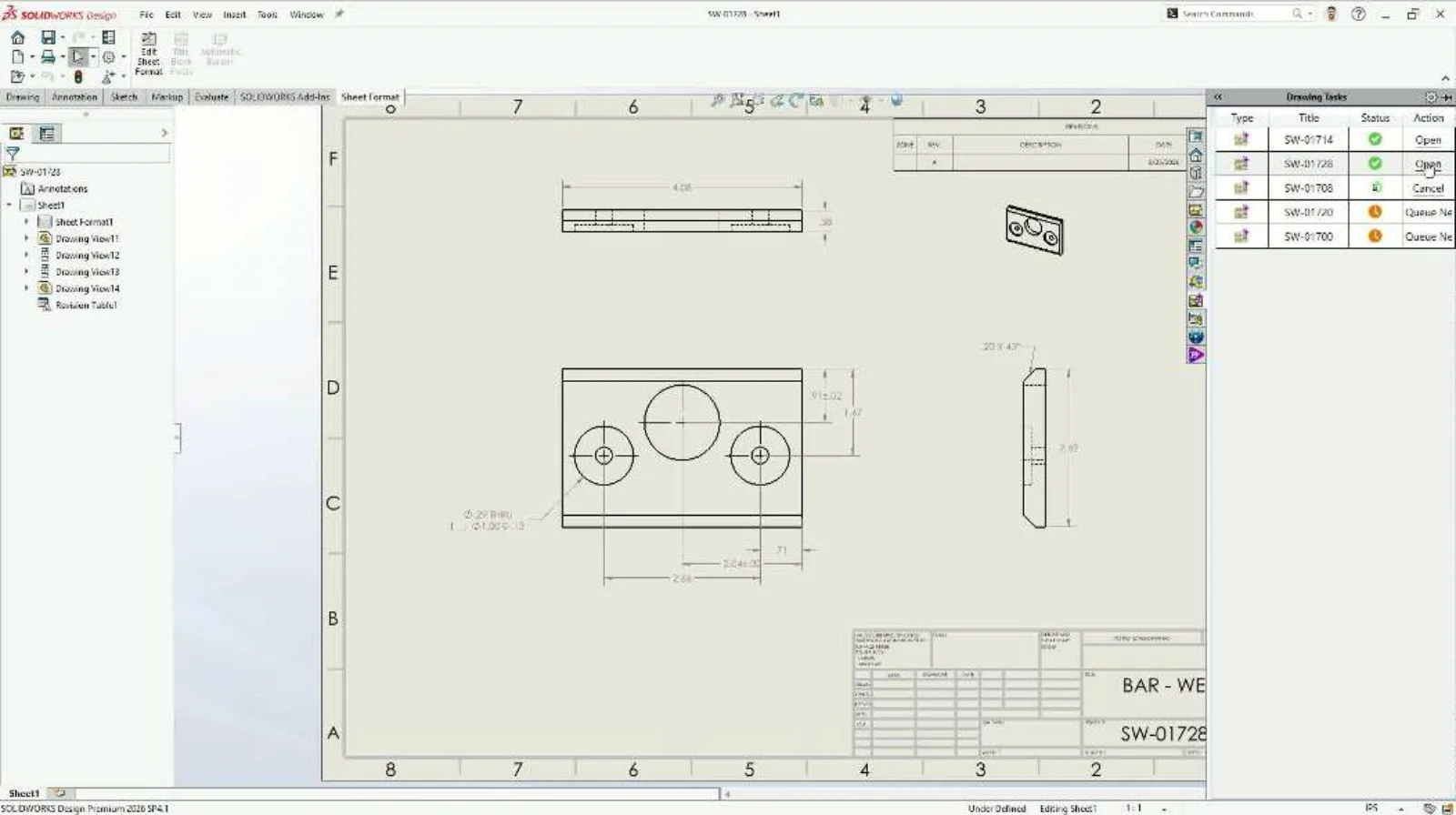
- Enhanced Drawing Generation
Use the improved PropertyManager to generate drawings with greater control over sheet size, dimensioning scheme, and tolerancing, while reducing the effort needed to prepare production-ready documentation. Choose automatic settings to let AI apply the most appropriate options to each drawing in a bulk generation request, or enforce preferred standards, such as ordinate dimensioning across all selected drawings, for greater consistency. Select from supported dimensioning and tolerance approaches or generate drawing views only when dimensions are not required, giving you the flexibility to match different documentation needs.
You can also switch to Ask LEO at any time to refine requirements through natural language and customize drawings before or after generation with less manual setup.
- Maximize Material Utilization for Sheet Metal Components
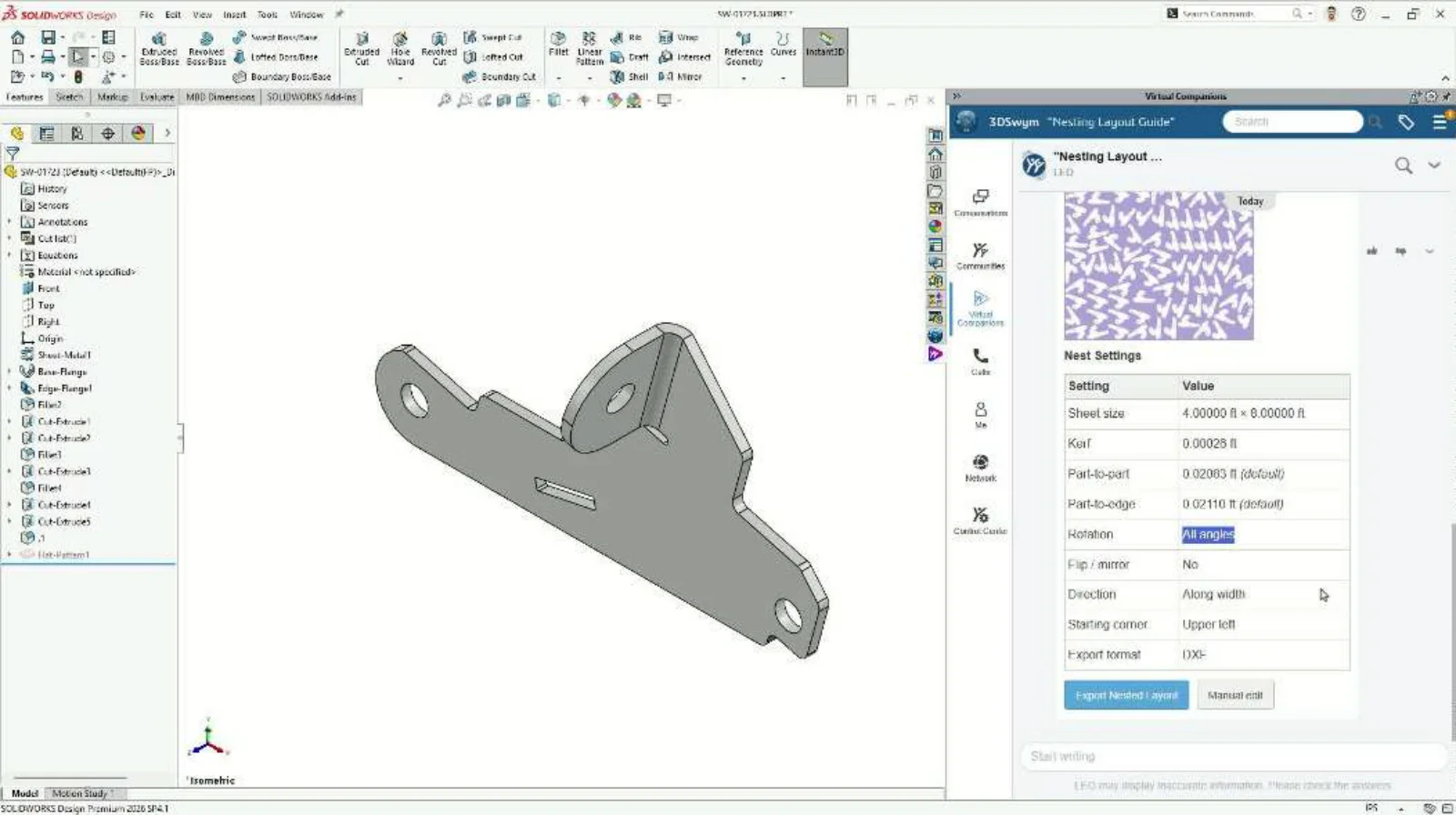
Engineers and designers in consumer electronics, HVAC, aerospace, automotive, and industrial machinery rely heavily on sheet metal capabilities. SOLIDWORKS sheet metal is one of the most widely adopted tool sets by SOLIDWORKS users. With that in mind, we’ve added the ability to automatically arrange flat patterns to maximize material utilization, reduce scrap, and prepare efficient sheet layouts faster.
You can create optimized layouts using standard or custom sheet sizes and quantities, then preview and refine results with precise control over spacing, kerf, rotation, flipping, starting position, and nesting direction. Simply describe the changes you want LEO to adjust the nesting settings without navigating complex controls. Export the finalized layout to DXF and move confidently from design to fabrication, with less setup effort and greater control over material usage.
- Quality Check and Guidance for Sketch Error Analysis
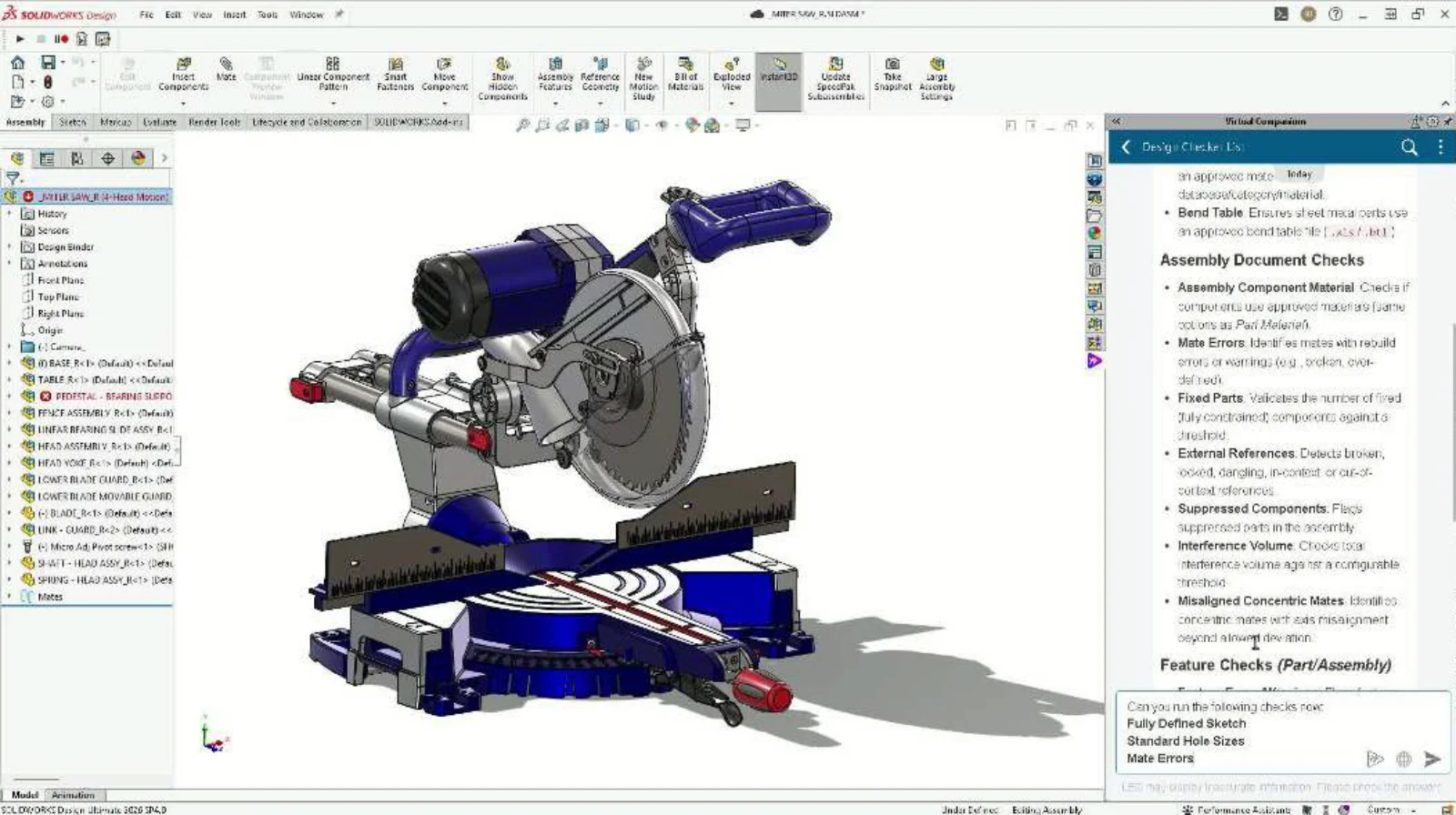
Save time on downstream manufacturing errors with the ability to review models, assemblies, and drawings automatically against your company-specific or industry-standard release checklists. Get components flagged for not meeting requirements before release, replacing a manual, error-prone review process with guided validation. Ask what’s wrong with your sketch, and get an analysis of under-defined and over-defined entities, open contours, and intersecting geometry. Let LEO guide you through fixing nearby open contours, trimming intersecting entities, and applying the necessary relations or dimensions to repair the sketch.
- Automatic Explode Views
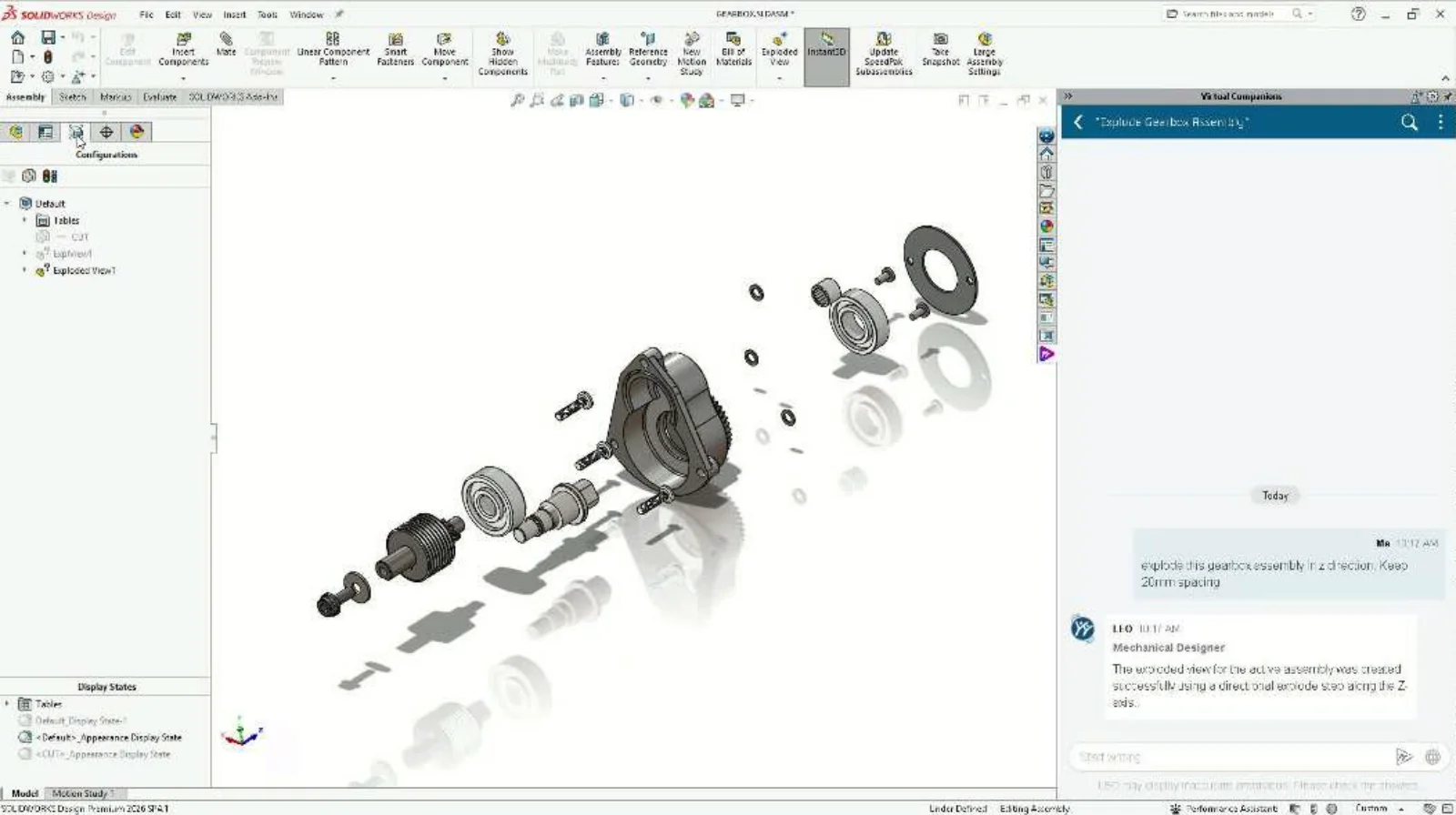
Ask LEO to create exploded assembly views, specifying the desired explode direction and spacing between components, and LEO will automatically generate editable explode steps for the assembly.
This is useful for assemblies, as you can just ask LEO to explode a view, and it will create your exploded configuration for you that you can then add to a drawing.
- Hole Creation
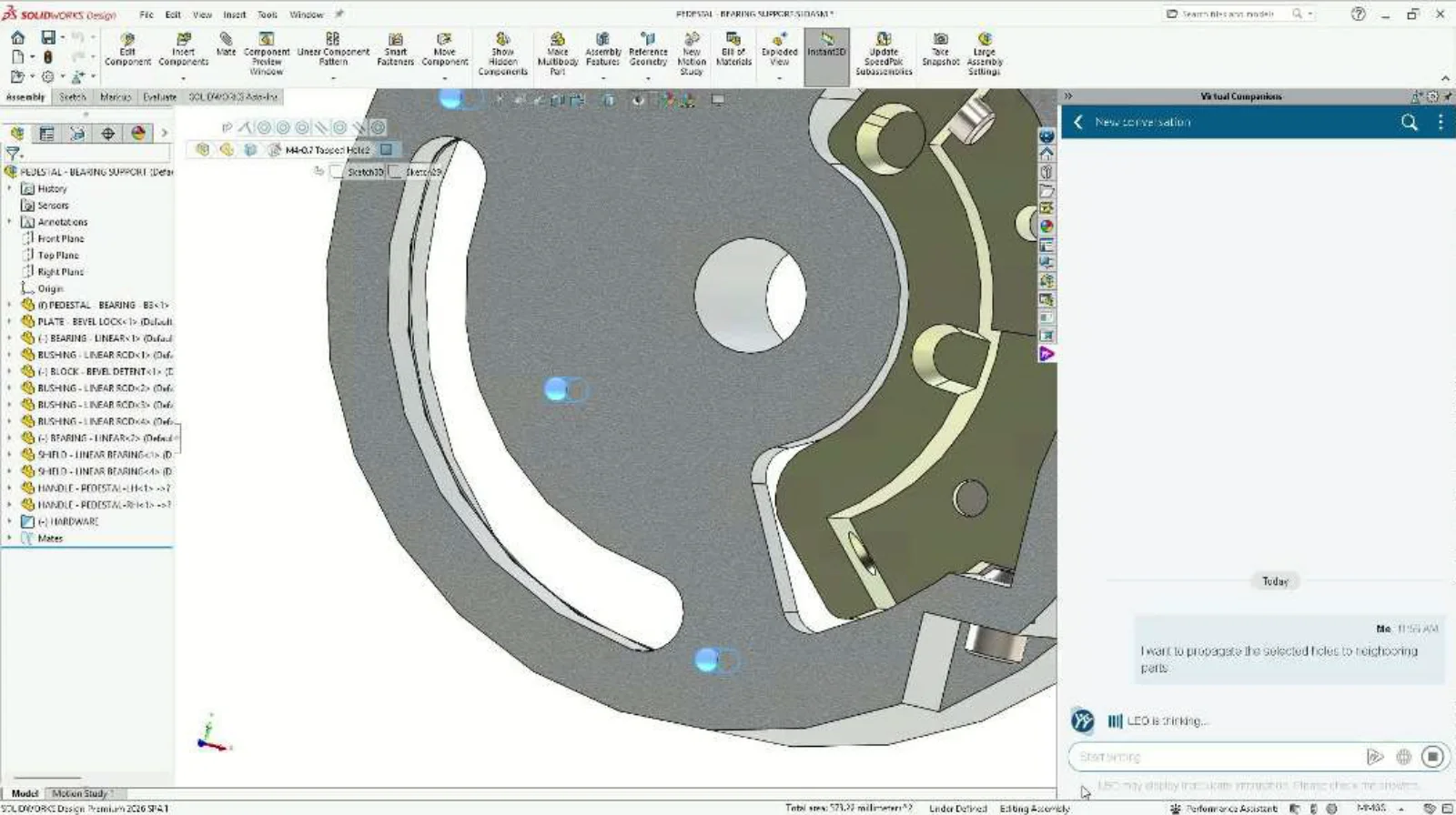
Create and propagate aligned Hole Wizard holes across assembly components using natural language prompts. Reference an existing hole or describe the required hole specifications, and LEO creates corresponding hole features directly in the affected parts.
Save manual effort and ensure your assembly goes together properly by making sure holes are aligned in advance.
- Image Generation
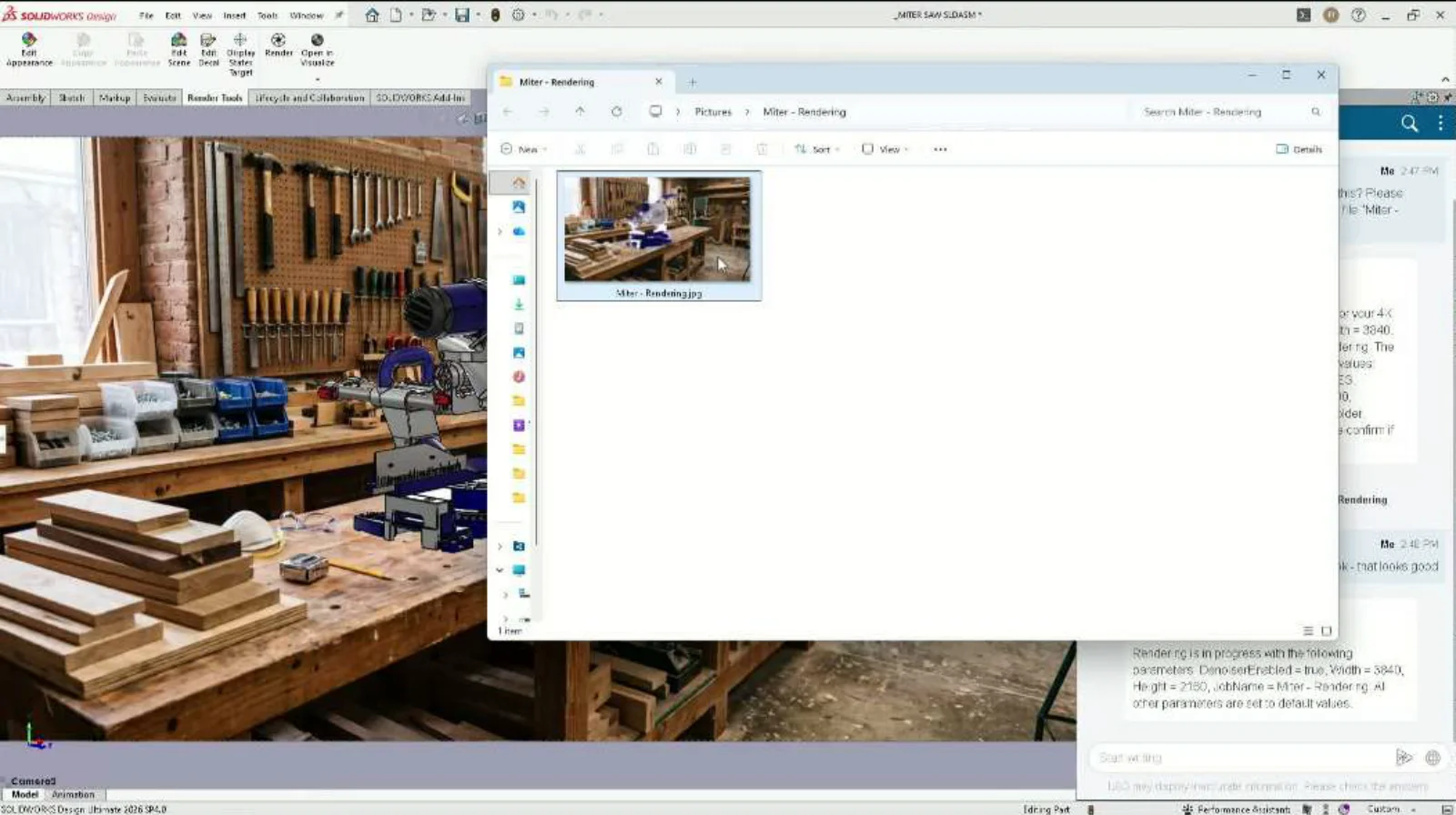
Create renderings from your current SOLIDWORKS model through natural language, describing the output you want without manually navigating rendering settings. Describe your desired render settings to LEO in natural language, including job name, denoiser status, resolution, and others. LEO leverages SOLIDWORKS Visualize to create photorealistic renderings without manually configuring each setting. The SOLIDWORKS Visualize add-in must be enabled to create the rendering.
- Integrated Command Guidance
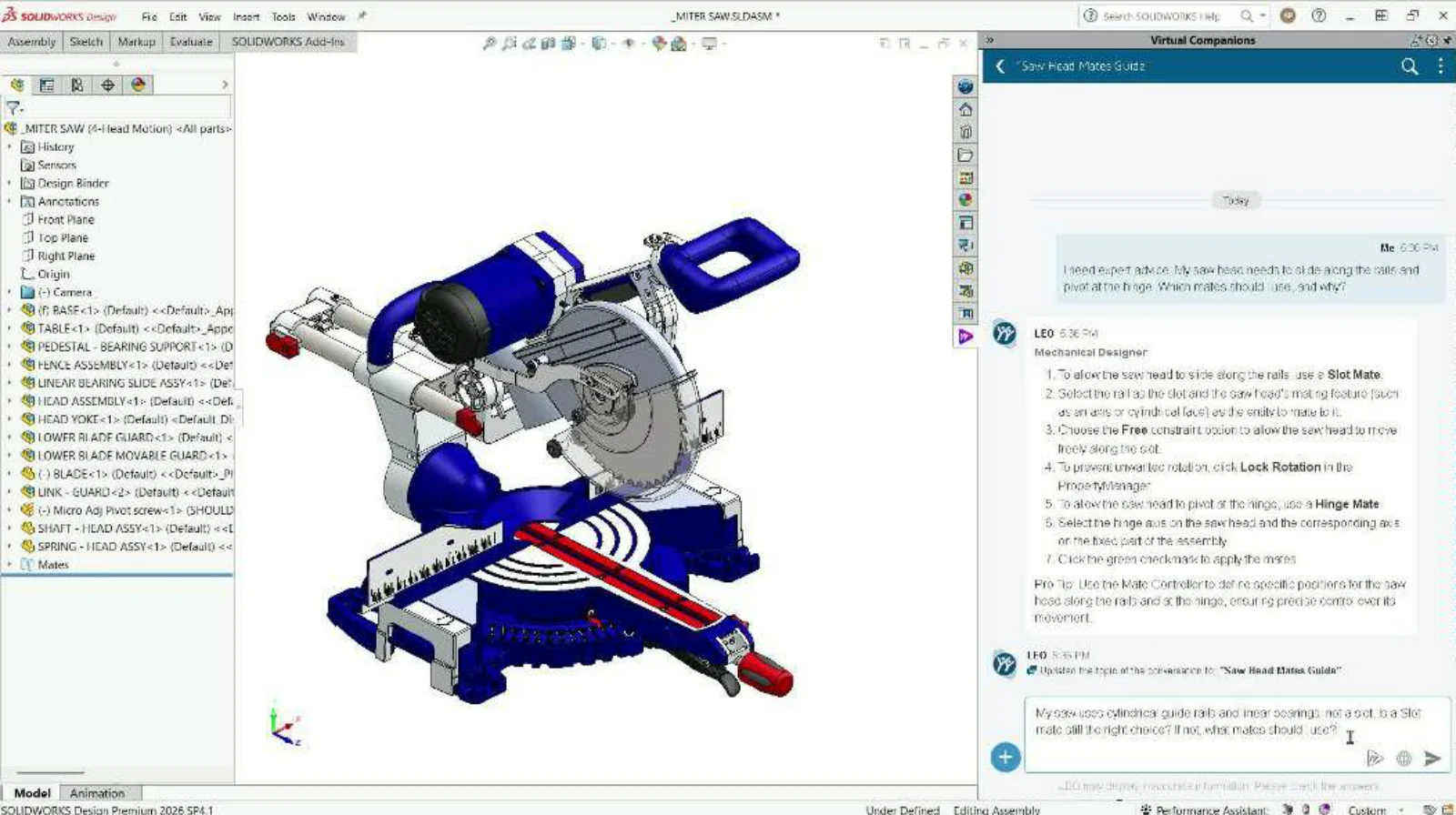
This is useful for anyone new to SOLIDWORKS, as it provides step-by-step guidance on the right features, mates, evaluation tools, and drawing methods for your design. This feature will help you solve SOLIDWORKS modeling problems faster and avoid rework.
- Design Parameterization
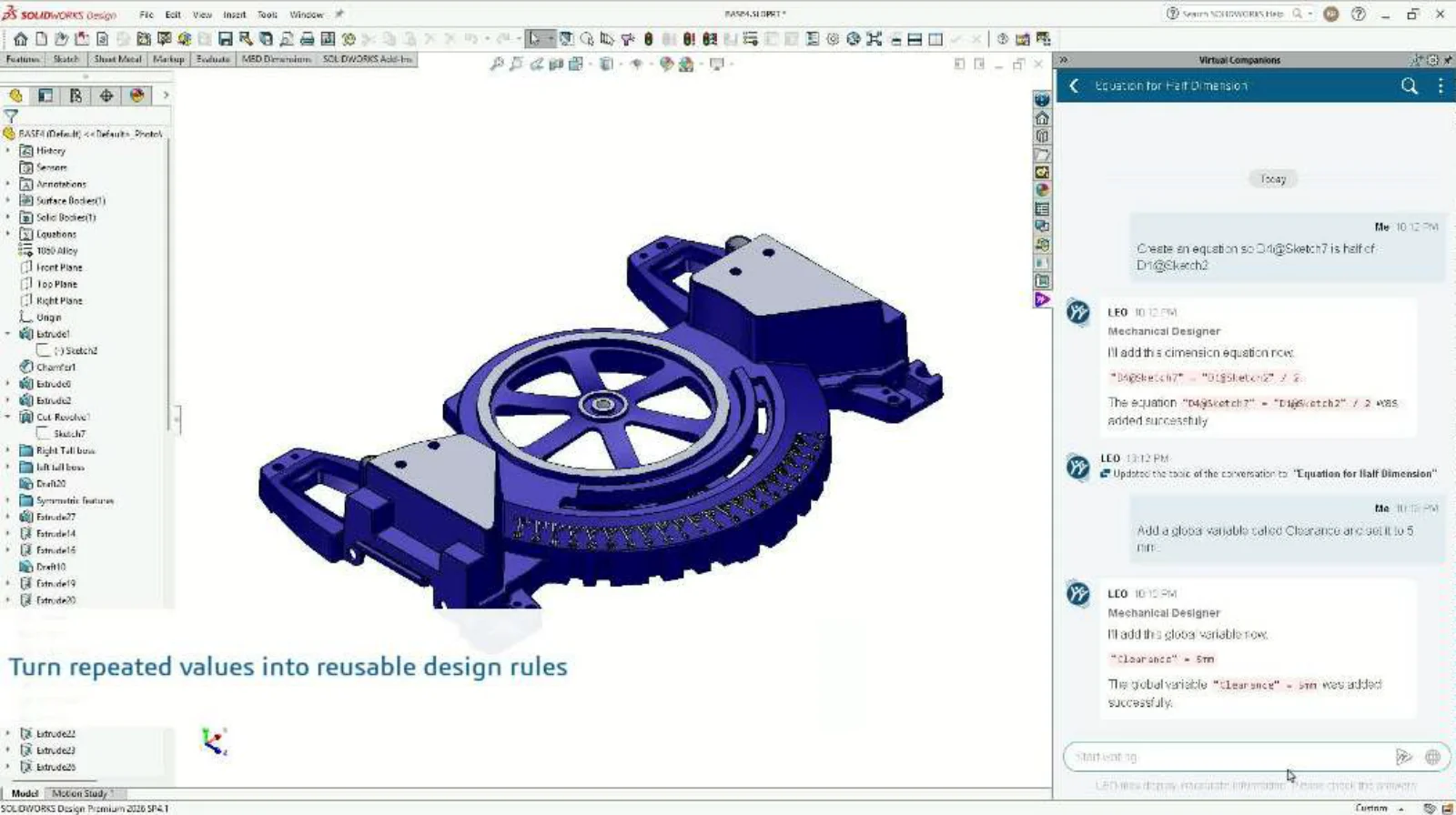
Creating equations to set up your model can be time-consuming. Now you can design more robust models by creating equations, relationships, parameters, and conditional design behaviors using natural-language-driven workflows, instead of consulting reference documentation, reducing manual effort.
To see the SOLIDWORKS AI capabilities in action and learn more about what’s new in SOLIDWORKS Design visit the What’s New Wiki page here.
AI in engineering is here to stay! Don’t miss out on the latest SOLIDWORKS performance improvements and SOLIDWORKS AI integration benefits available now in FD04. New to SOLIDWORKS AI? Visit this help page for more information on how to get started.