
Releasing a design is a critical step that transforms engineering work into deliverables that suppliers, manufacturers, and downstream teams can use with confidence.
These deliverables, including contractual PDFs, manufacturing-ready STEP files, and production-ready DXF or DWG files, must accurately represent the final approved design. The 3DEXPERIENCE SOLIDWORKS Task Host, which is included with the SOLIDWORKS Design offerings, now automates the generation of these Derived Outputs. Once configured by your administration, your SOLIDWORKS installation acts as a converter within the Derived Format Management, automatically producing STEP, PDF, DXF, and DWG files from the native SOLIDWORKS design. This leverages the same SOLIDWORKS output fidelity you already know and trust, helping ensure downstream teams receive consistent, accurate, up-to-date deliverables, while reducing manual effort and the risk of sharing outdated files.
The new Task Host functionality for generating derived outputs was delivered in the latest functional delivery update for SOLIDWORKS Design R2026x, FD04, in September and is now available! In this blog, I’ll discuss why it’s important, how it works, and how administration can enable it.
Why It Matters
For starters, outputs are generated automatically when you use Save from Connector in MySession, during a Status change or on demand, removing the need for a manual export.
The new Task Host offers an alternative to using the derived format converter in the cloud, eliminating tokens and enabling you to use your SOLIDWORKS installation as your conversion engine.
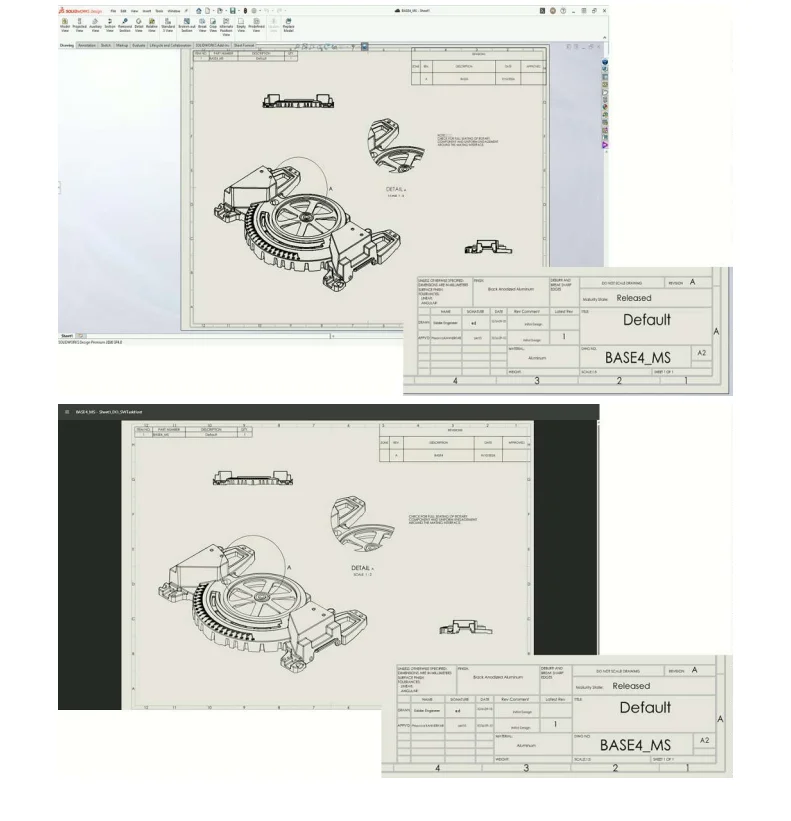
With the Task host, you can expect output fidelity that matches your source model, including accurate drawing stamping, with notes, annotations, and title-block date information preserved correctly when Derived Outputs are generated.
How It Works
The setup requires an admin to activate the Task Host, and after the admin logs in, users can generate tasks without additional steps.
Here are the steps for the admin to follow to set up.
Step 1
Add the SOLIDWORKSTaskHost (Asynchronous) Converter. Then launch 3DEXPERIENCE SOLIDWORKS Task Host located here: < Install Dir>\win_b64\code\bin\SWTaskHost\SWTaskHost.exe.
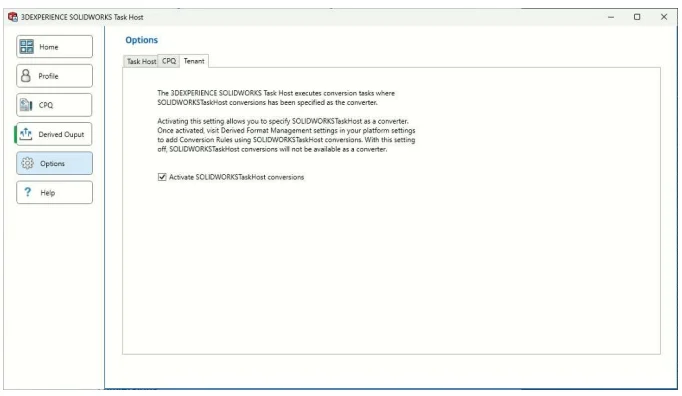
Next, to enable SOLIDWORKS Task Host conversions, log in to the 3DEXPERIENCE SOLIDWORKS Task Host using Platform Admin credentials, then click Options> Tenant and select Activate SOLIDWORKSTaskHost conversions.
Step 2
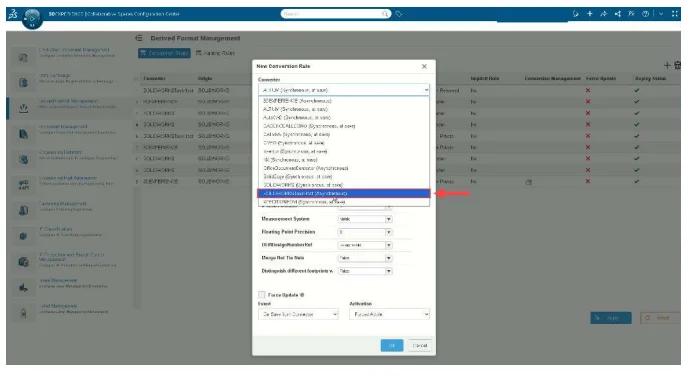
Set the Conversion Rule. Under Platform Management, in Derived Format Management, create a Conversion Rule and set the Converter to SOLIDWORKSTaskHost (Asynchronous) for a content type. You’ll notice it’s available alongside the other CAD converters already offered today.
Step 3
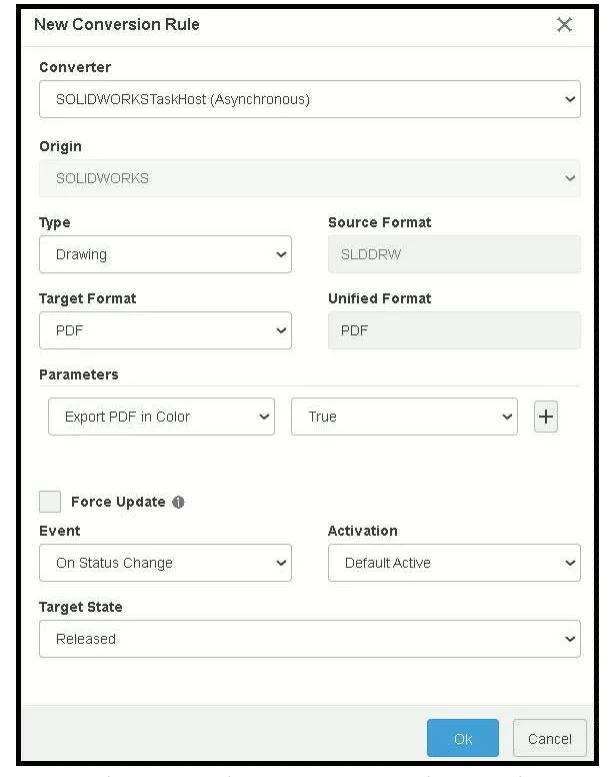
Configure the rule. Define the source/target format, the triggering Event, such as On Save from Connector, On Status Change, or On Demand, and the resulting Target State.
Then add Task Host nodes.
Step 4
Launch 3DEXPERIENCE SOLIDWORKS Task Host on the device(s) available to run conversions:
Double click SWTaskHost.exe from < Install Dir>\win_b64\code\bin\SWTaskHost \SWTaskHost.exe.
Log in to the 3DEXPERIENCE SOLIDWORKS Task Host using “SOLIDWORKS Design” or “SOLIDWORKS Design Device-Based license (aka: Collaborative Designer for SOLIDWORKS”) credentials.
Then click on Enable Tasks.
Step 5
Monitor the status of the task. Status, errors, and history are visible in the Task Host dashboard and its local log.
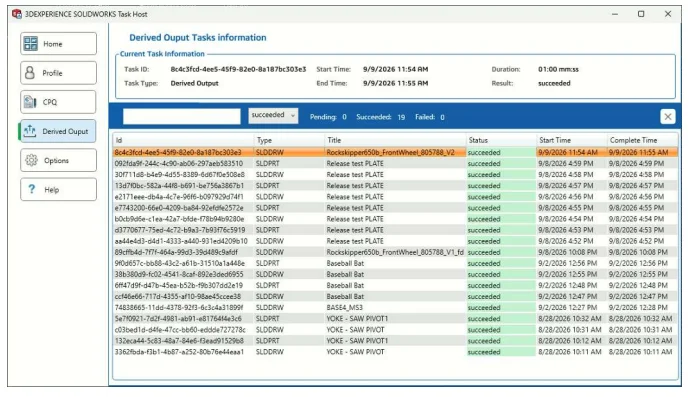
Step 6
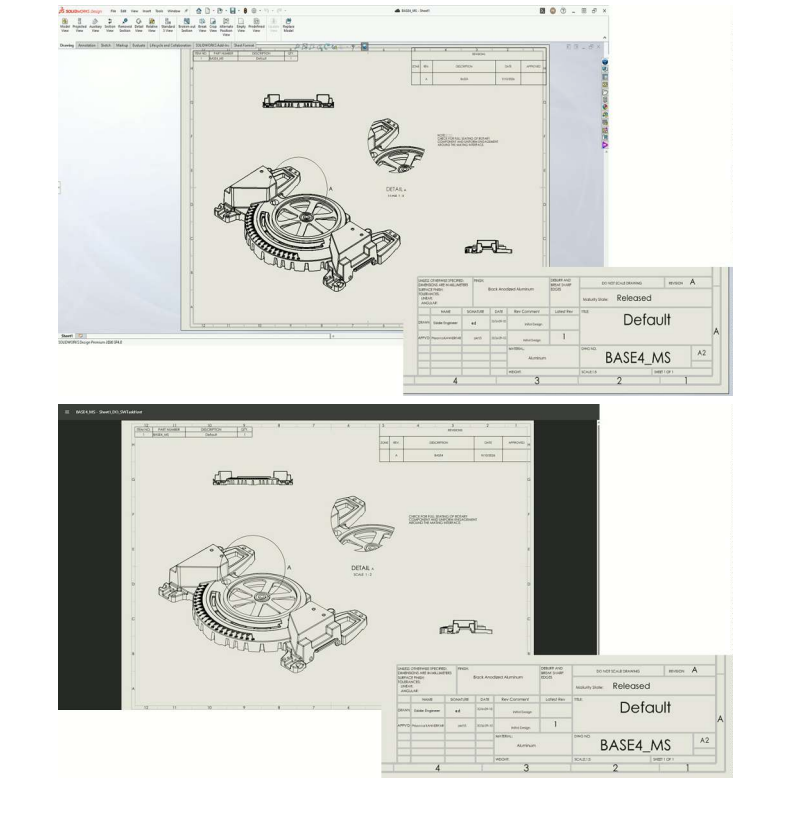
The Task Host runs the conversion. When the triggering event fires, Task Host launches SOLIDWORKS, opens the model or drawing, runs the conversion, and writes the result back to the platform. No one has to open the file manually. Title-block details, notes, and annotations carry through accurately in the resulting Derived Output. See the example below comparing the SOLIDWORKS Drawing to the generated PDF, which includes the accurate drawing stamp and date.
Recommendations
The task host should run on a separate Windows machine. I recommend running it on a dedicated machine, separate from a user’s SOLIDWORKS Design installation.
To summarize, the 3DEXPERIENCE SOLIDWORKS Task Host is available as a converter in Derived Format Management on the 3DEXPERIENCE platform. The 3DEXPERIENCE SOLIDWORKS Task Host senses tasks from the platform and uses SOLIDWORKS Design to process Derived Output automatically and accurately during Save from Connector in MySession, during a Status change, or on demand.
But that’s not all for the R2026x FD04 update. The following collaboration and data management enhancements are also available now:
- The Content tab displays either Bookmark Editor or Content Explorer, depending on which app you selected as your preference.
- When you install SOLIDWORKS Design from the 3DEXPERIENCE platform, the eDrawings installation files are also downloaded. You can use these files to install eDrawings registration free or create an administrative image to deploy eDrawings throughout your organization.
To learn more about what’s new in this update, including AI enhancements, check out this blog, and watch the videos for CAD, collaboration and data management enhancements on the What’s New Wiki page here.