
If you were anywhere near the main stage at 3DEXPERIENCE World, you probably felt it. Tribal drums, cinematic music touches, and just enough office absurdity to make you wonder if HR was watching. This year’s Don’t Miss This Demo was not just a demo; it was a full parody of reality TV culture wrapped around real, meaningful SOLIDWORKS enhancements.

The skit, 3DSurvivor, dropped our tech marketing team into a Survivor-style showdown where design engineers had to outdesign, outbuild and outthink their competition. The humor landed hard, the challenges escalated quickly, and the finale delivered both laughs and a glimpse into some upcoming enhancements for SOLIDWORKS CAD.
SOLIDWORKS What’s New | FD01 Highlights
During the season recap of Survivor, contestants had to show off some of the latest enhancements available in FD01. These enhancements are out and available today in SOLIDWORKS 2026 FD01 (SP1.1) release. I should note that not all the enhancements were shown, just a few highlights. Take a moment and check out this blog on some of the AI enhancements available in FD01 as well, and check out the community wiki page for a list of new enhancements in the most recent release.
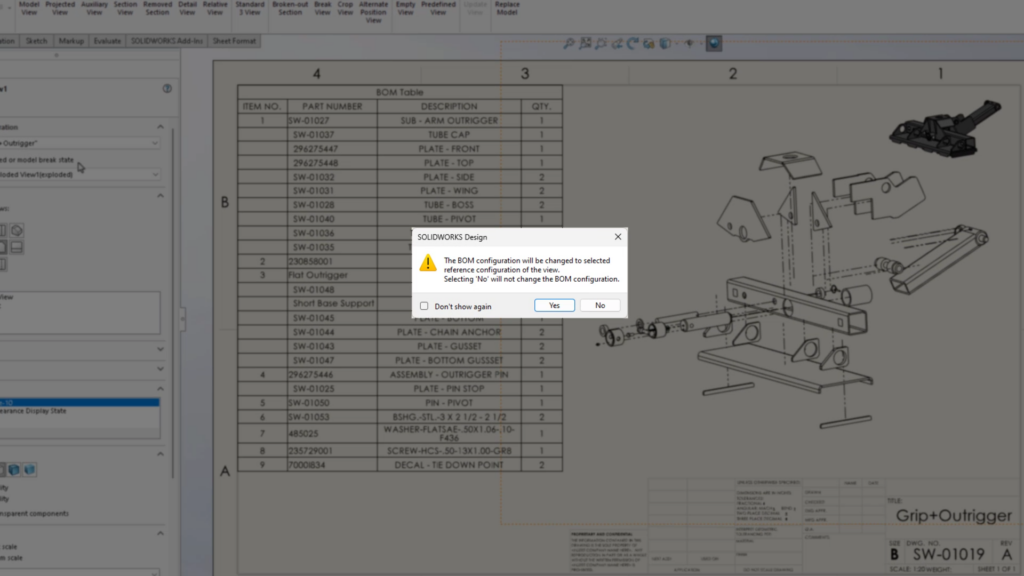
FD01 Highlight: Automatic BOM Updates with Configuration Changes
Managing configurations in assemblies just became easier. When you change the referenced configuration in a drawing view, the Bill of Materials now updates automatically to match.
Your drawings stay accurate as configurations evolve, making multi-configuration projects faster, safer, and more efficient.
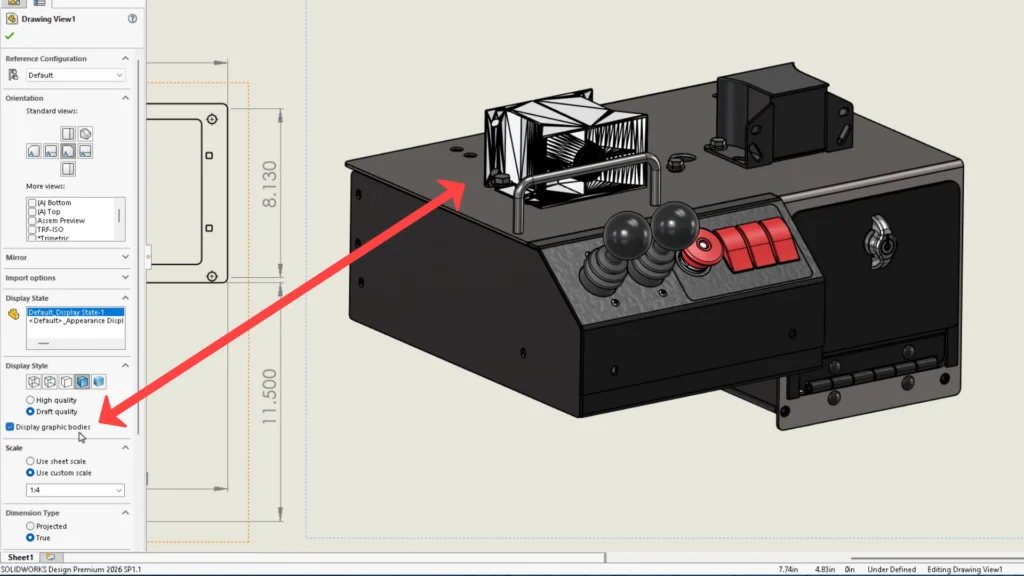
FD01 Highlight: Display Graphic Bodies Directly in Drawings
If you work with imported or scanned data, this is a significant improvement.
Graphic bodies can now be displayed directly in drawing views without converting them into solid or surface bodies. That means less preparation, faster documentation, and a smoother workflow from concept to detailing.
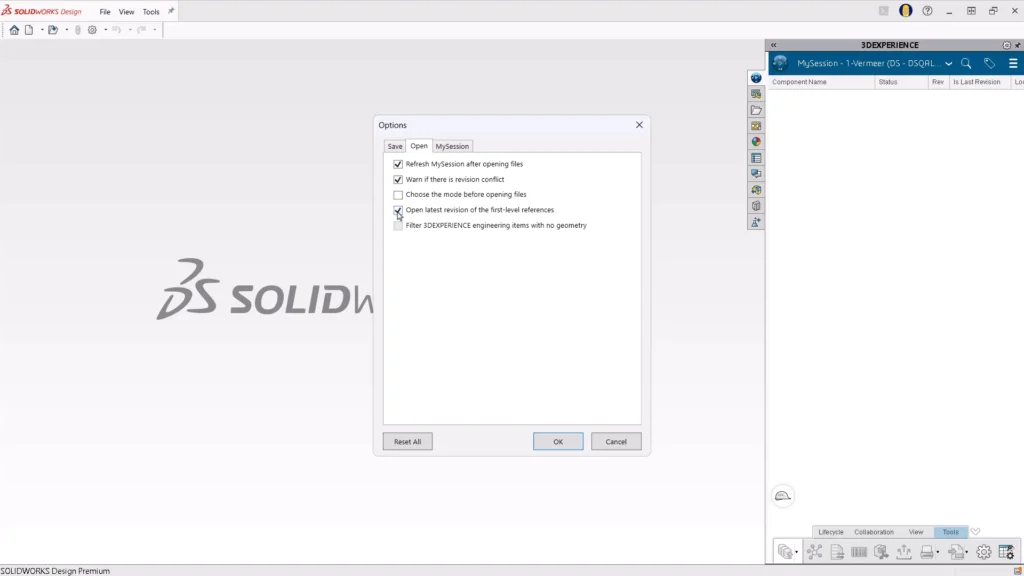
FD01 Highlight: Open the Latest Revision Automatically
Referencing the correct revision is critical to lifecycle management. A new server setting allows users to automatically download the latest revision of all first-level references during the open operation.
Once enabled, users control the behavior directly in their session options. When opening from the 3DEXPERIENCE platform, you can choose which components load as the latest revision. Manual replacements are eliminated, and the update is ready to save back to the platform.
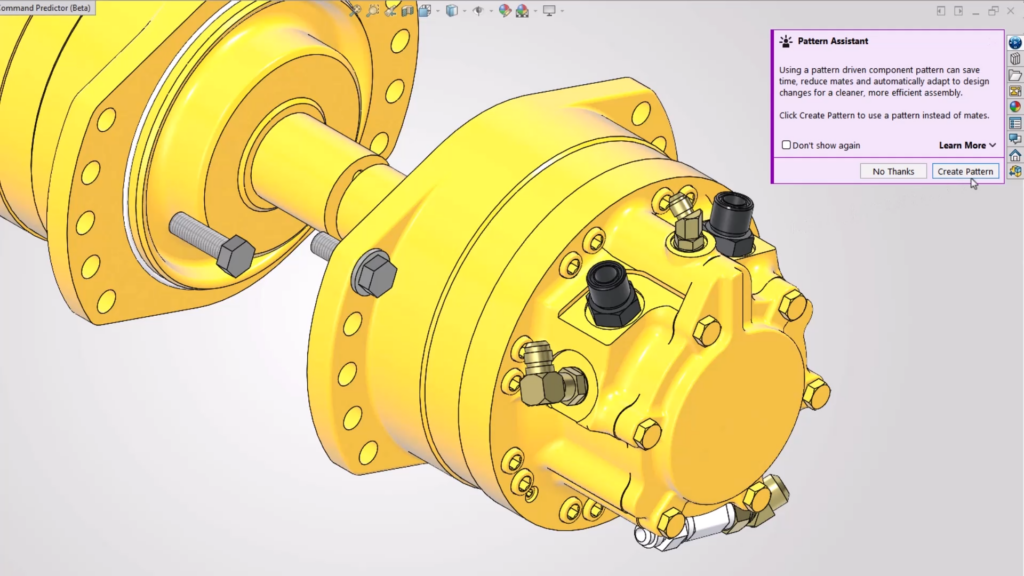
FD01 Highlight: Pattern Assistant for Smarter Component Placement
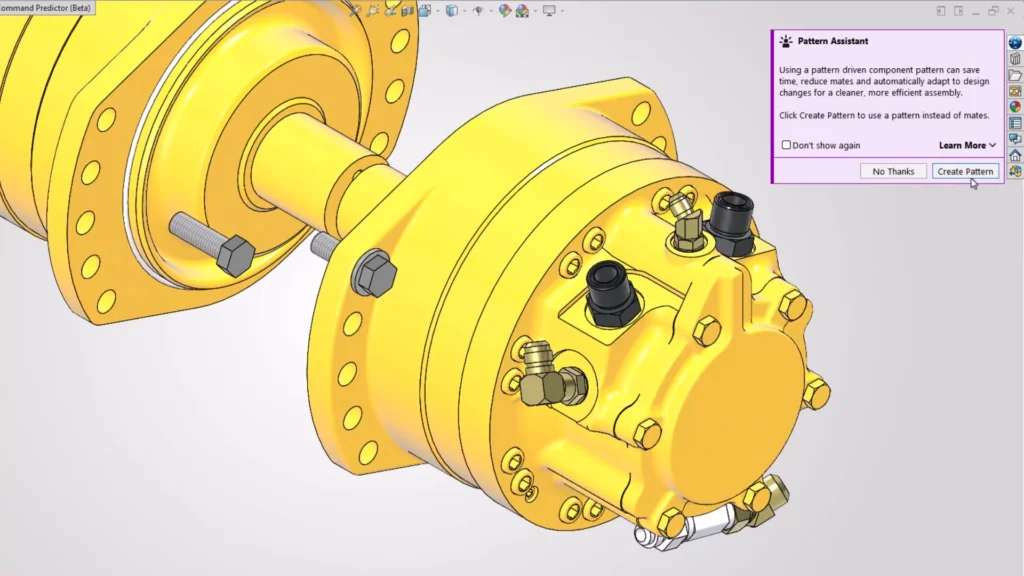
Pattern-Driven Components already offer advantages over manually mating components. Now they are even easier to use.
When mating a second instance of a component to patterned geometry, such as feature patterns or Hole Wizard features, the new Pattern Assistant suggests using Create Pattern instead of mates and can launch the command for you. The component and driving feature are preselected, so you can immediately benefit from improved solve performance and automatic updates.
FD01 Highlight: Sketch Relation Groups for Better Design Control
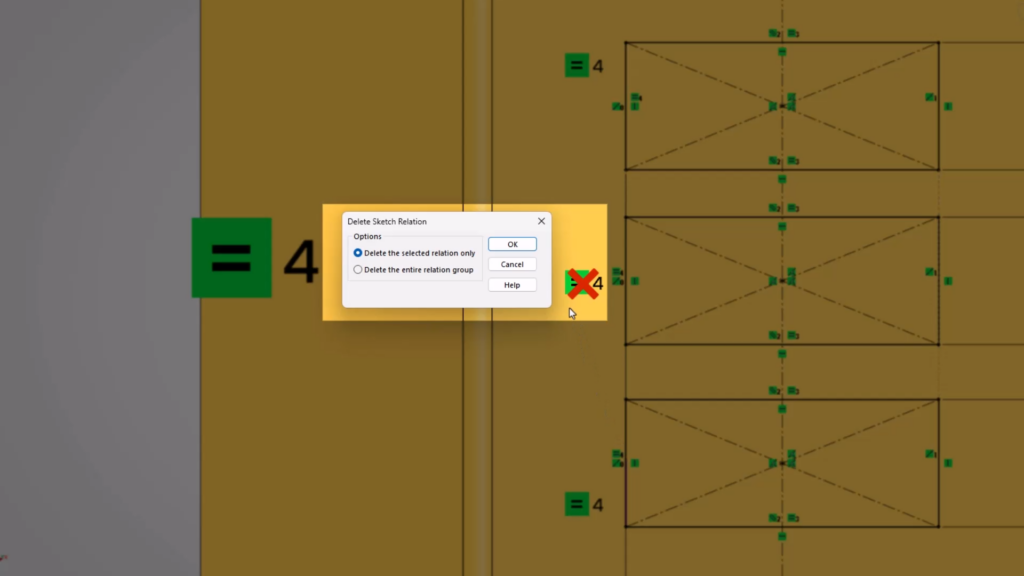
Sketch relations receive a powerful enhancement with Relation Groups.
When applying relations such as collinear, parallel, equal, or co-radial to multiple entities, SOLIDWORKS automatically creates a group. Each entity displays a matching identifier and hovering over one highlights the entire group.
If you need to modify a single relation, you can delete just that relation while maintaining the design intent between the remaining entities.
FD01 Highlight: Link BOM Columns to PLM Attributes
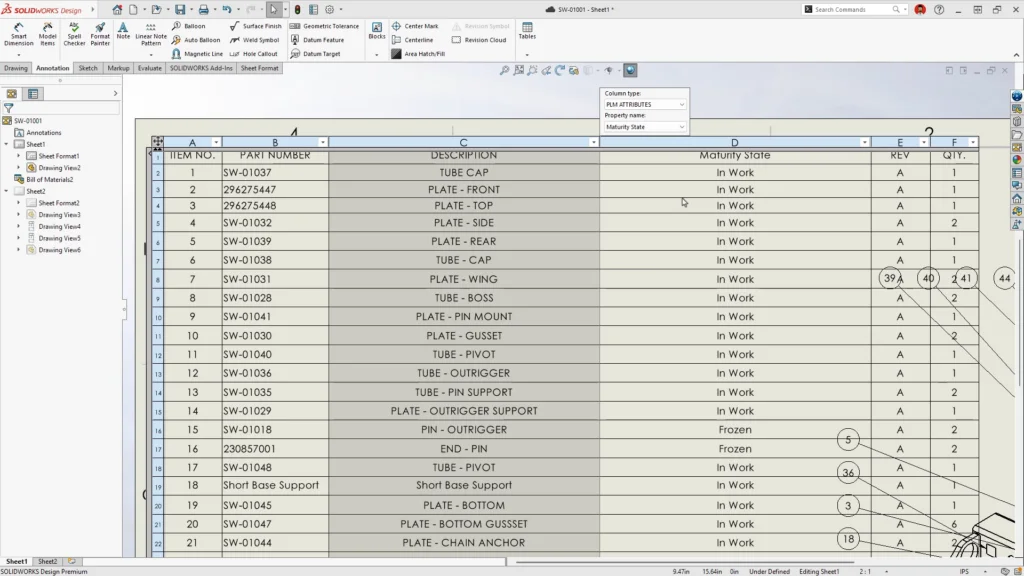
Drawings now support linking Bill of Materials columns directly to PLM attributes from the 3DEXPERIENCE platform. Historically, the PLM attribute needed to be tied to the part or assembly’s custom properties. This enhancement allows users to bypass creating those properties.
When adding a new column, the property drop-down displays both default and custom-mapped attributes. Once connected, BOM data updates automatically. These columns can also be saved within your BOM template for future use.
This creates stronger alignment between engineering documentation and PLM properties.
FD01 Highlight: Full Thread Descriptions in Hole Callouts
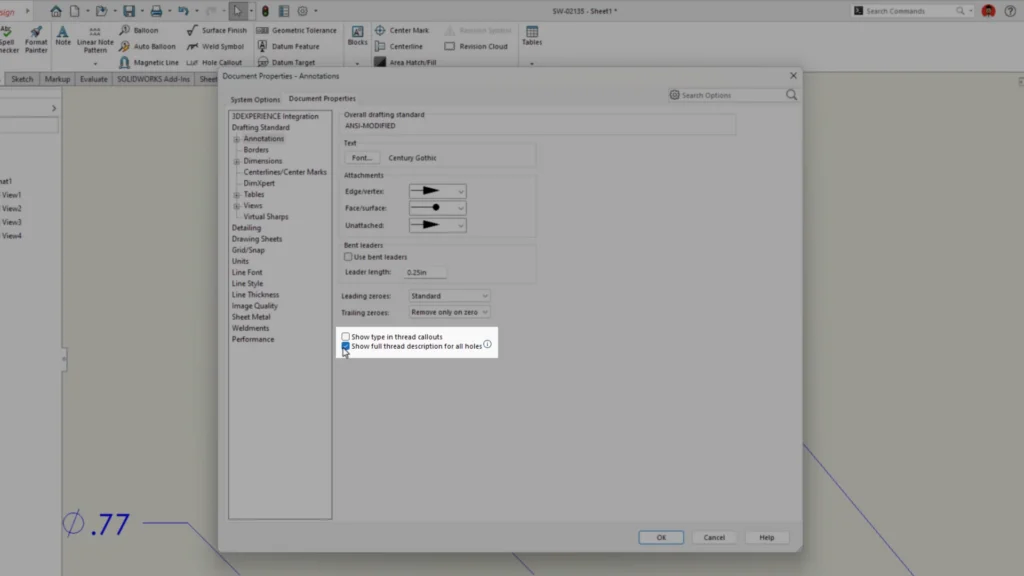
Working with threads is now clearer. A new option lets you display the full description of threaded hole callouts directly in your drawings.
Clearer documentation leads to fewer shop-floor questions, faster interpretation, and greater manufacturing confidence.
The Final Four
The Final Four had made it to the last day. After a season of challenges that tested skill, strategy, and SOLIDWORKS expertise, only one would become the sole 3DSurvivor.
With immunity secured, Mark chose Thiago to join him in the final round, leaving Andrew and Mike to battle for the last spot in the Final Three.
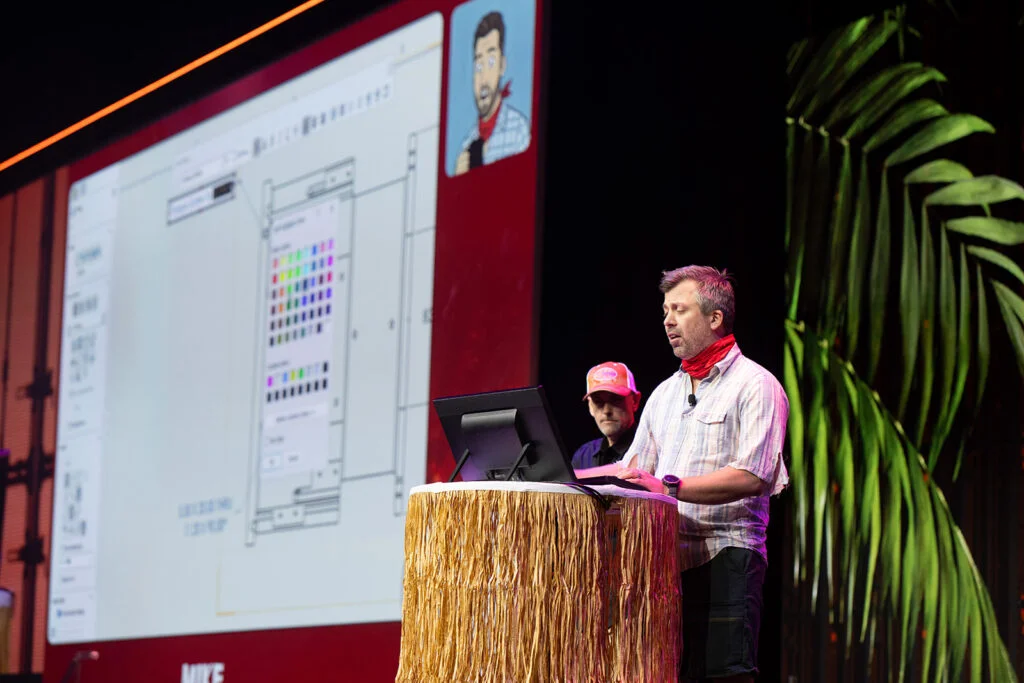
Their challenge was simple in concept, but critical in impact: demonstrate potential future SOLIDWORKS enhancements. Just as fire is essential for survival in the wild, mastering the latest innovations is essential for survival in engineering. The stronger the demo, the bigger the flame, and the first to burn through the rope would raise their flag and claim victory.
With the stakes set, it was time to shift from competition to capability and explore the enhancements shaping the future of SOLIDWORKS CAD, Collaboration and Simulation.
*These are proposed enhancement projects and are subject to change.
Demo Highlight: Powerful New Drawing Enhancements
Exciting updates are on the way for SOLIDWORKS drawings, focused on improving clarity, speed, and manufacturing readiness for everyday users. Drawings will continue to see AI features evolve as well, which were not highlighted during ‘Don’t Miss This Demo.’
Bringing Model Intent into Drawings
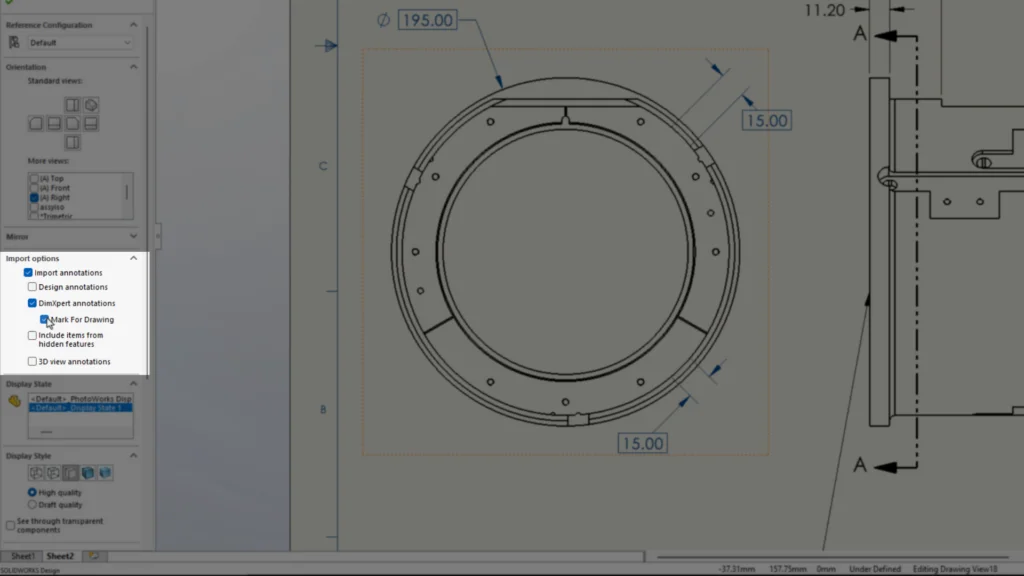
As Model-Based Definition continues to gain momentum in manufacturing, it is now easier than ever to carry that design intent directly into your drawings. When importing model items, you can quickly mark DimXpert dimensions for use on the drawing. This creates a smoother connection between the 3D model and 2D documentation, reducing rework and improving accuracy.
Make Critical Notes Stand Out
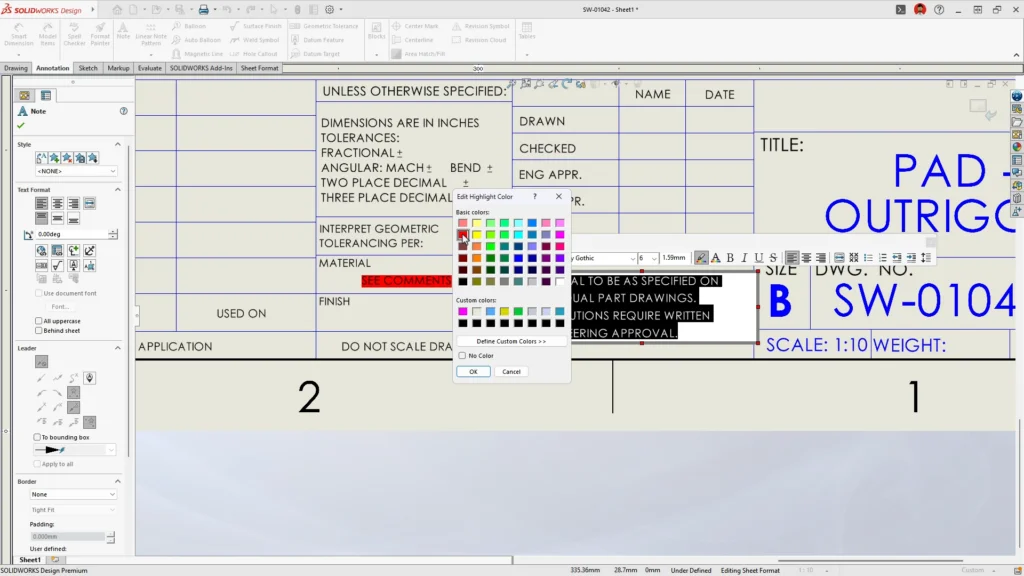
Clear communication on a drawing is essential. You can now highlight individual notes by selecting the text and choosing a highlight color. This makes key callouts stand out instantly and ensures critical information does not get overlooked on the shop floor.
Simplified Slot Dimensioning
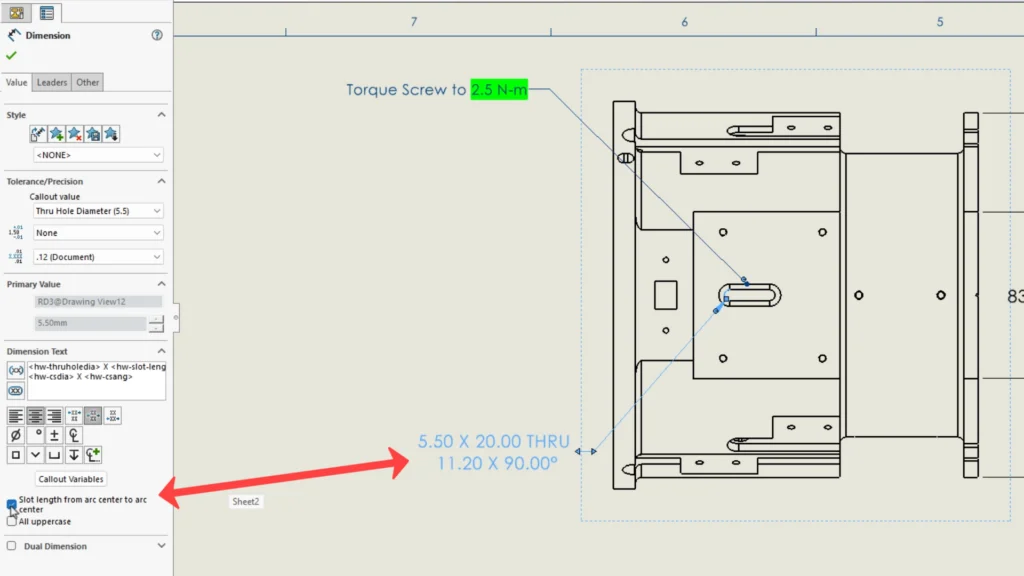
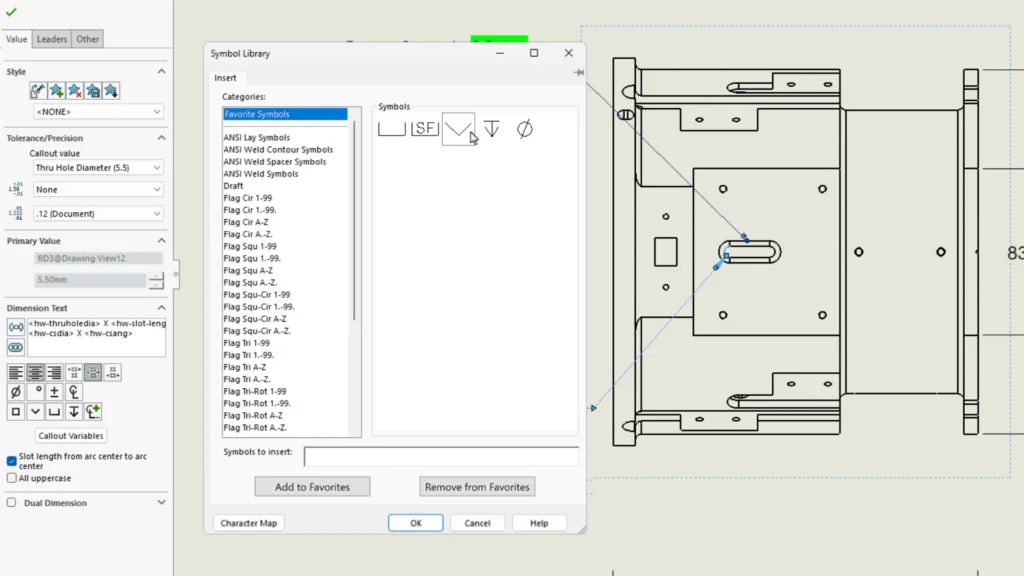
Slot dimensioning has also been improved. With a new option to dimension slot length from arc center to arc center, you get a cleaner and more consistent definition. This eliminates unnecessary workarounds and provides a more intuitive way to document slot geometry.
Faster Access to Your Most Used Symbols
Applying the correct symbols is critical for manufacturing clarity. Managing them just became easier with the new Favorites category. You can now pin your most used symbols so they are always right at your fingertips, saving time and reducing repetitive searching.
Demo Highlight: Locking in Designs with Freeze and Save
Design changes are inevitable. What is not inevitable is losing control of them.
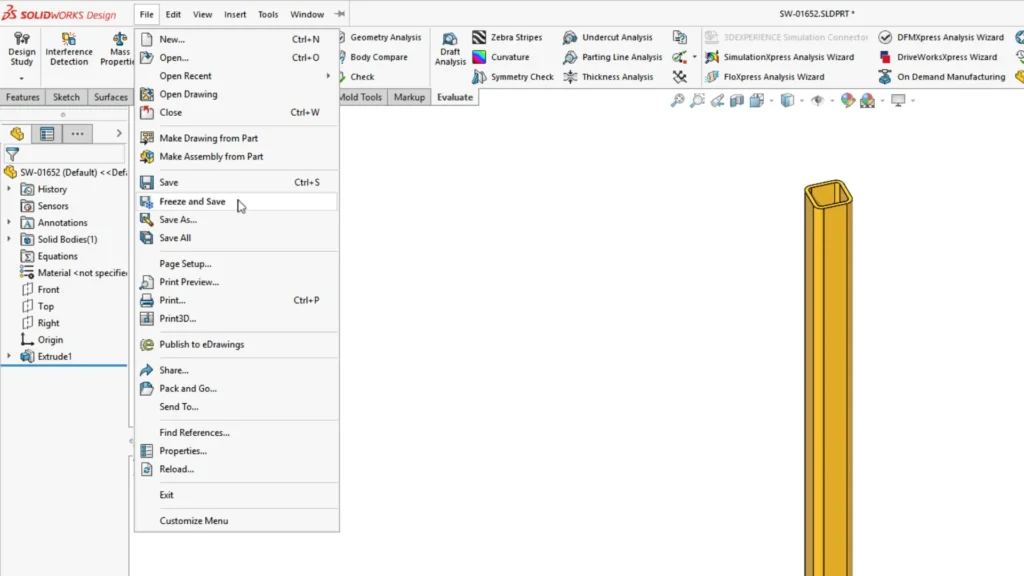
The upcoming Freeze and Save enhancement in SOLIDWORKS is designed to help teams protect their work from unintended updates caused by rebuilds or configuration changes. Once a file is frozen, it is clearly marked with a freeze icon, signaling that the part or assembly is protected. The freeze process also forces complete rebuilds of the feature tree, any configurations and external references before freezing the file. Certain tools in the CommandManager are limited, reinforcing that the design is locked down.
Assembly Level Protection
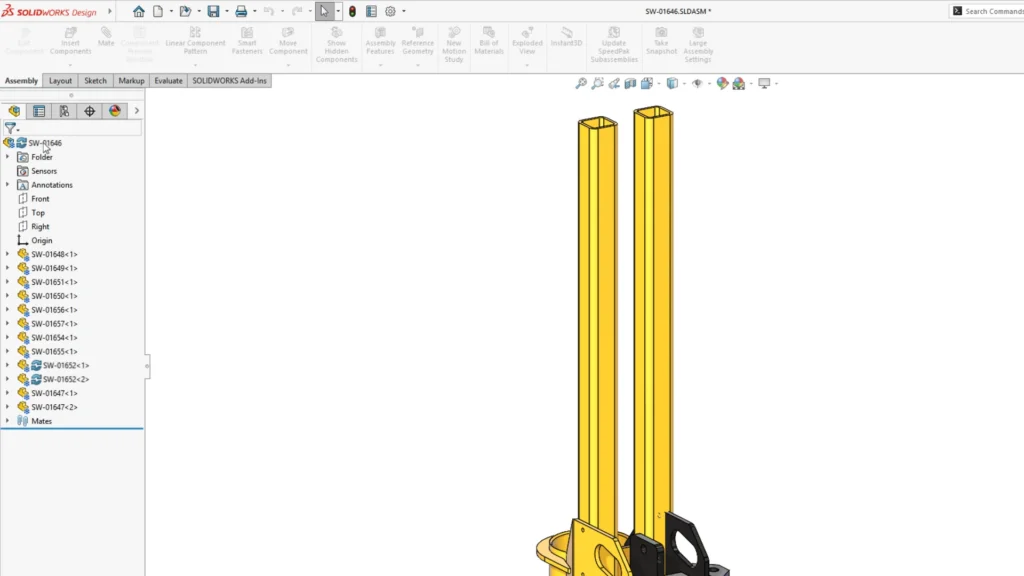
Freeze and Save can also be applied at the top-level assembly. Before freezing, SOLIDWORKS performs a complete rebuild of all components, configurations, and mates to ensure everything is fully up to date. Once frozen, the entire structure is stabilized and safeguarded.
Controlled Flexibility
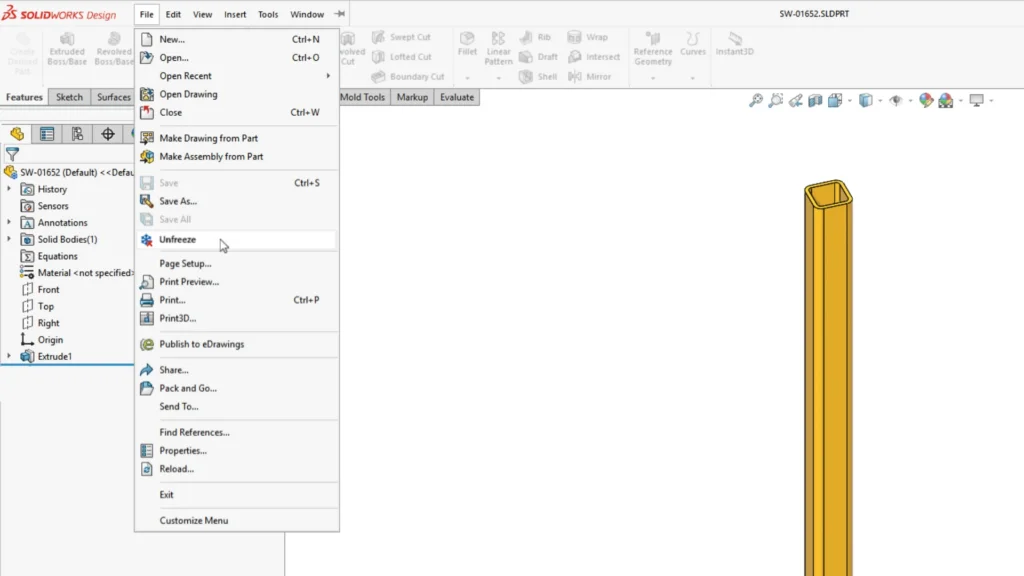
If a change is required, the file can be manually unfrozen, updated, and then frozen again. Any modifications are clearly identified in the FeatureManager tree, making it easy to review and confirm updates before locking the design back in place.
Freeze and Save enhances performance, prevents unintended design changes, and delivers built-in PLM style protection directly within SOLIDWORKS Design.
Demo Highlight: Parts and Sketching
As the competition heats up, so does the need for smarter tools.
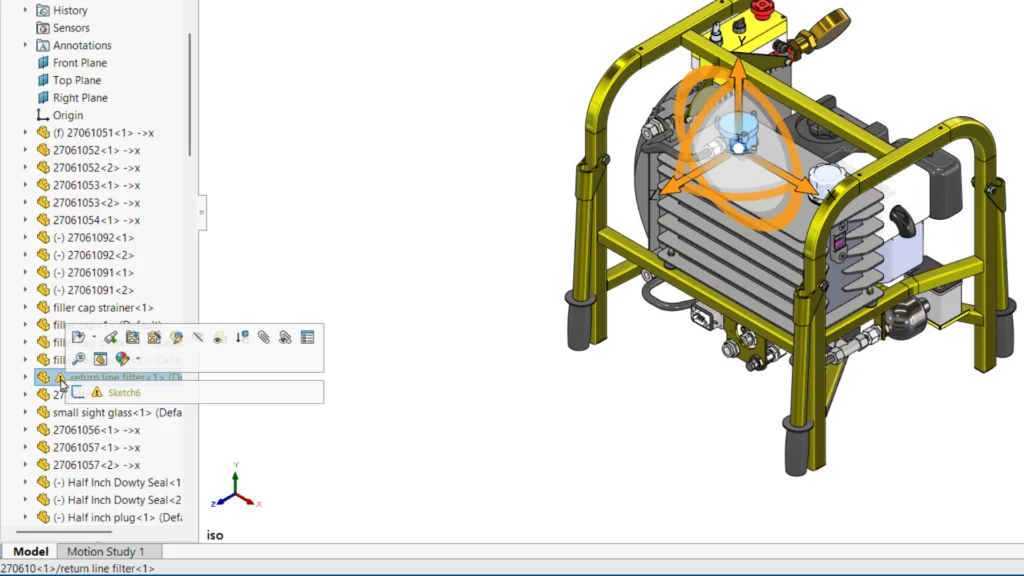
It starts with a familiar scenario: a warning appears in the FeatureManager tree. You open the part and find the issue. A deleted sketch plane has caused a feature to lose its reference. It is a classic modeling problem that can slow anyone down.
Intelligent Reference Repair
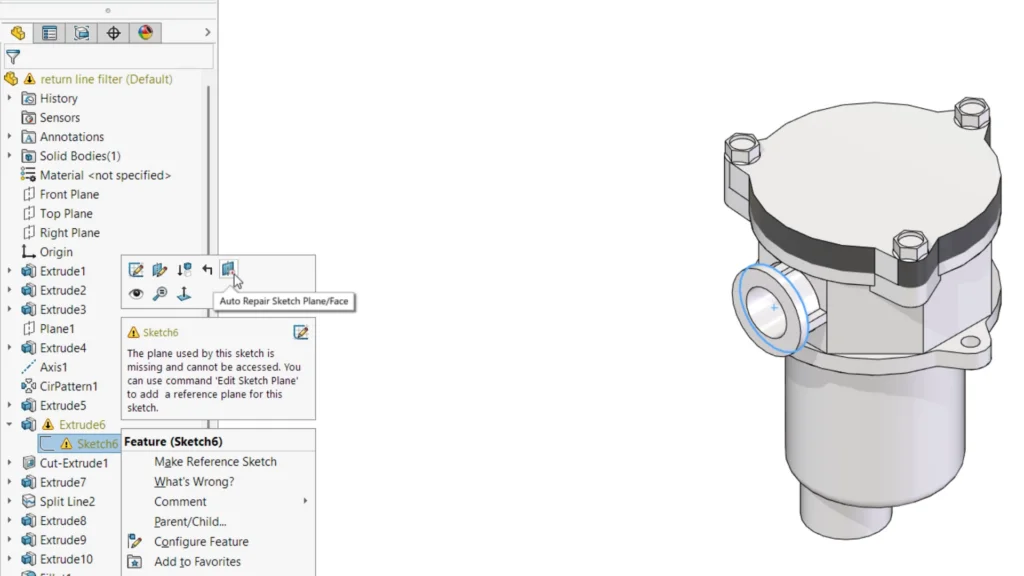
Coming soon to SOLIDWORKS, repairing lost references becomes far easier. Instead of manually hunting for the correct plane or face, SOLIDWORKS will examine nearby geometry and suggest the best replacement. With an Auto Repair option, you can quickly restore the feature using the most logical substitute.
Instant Design Insight with Section Modulus
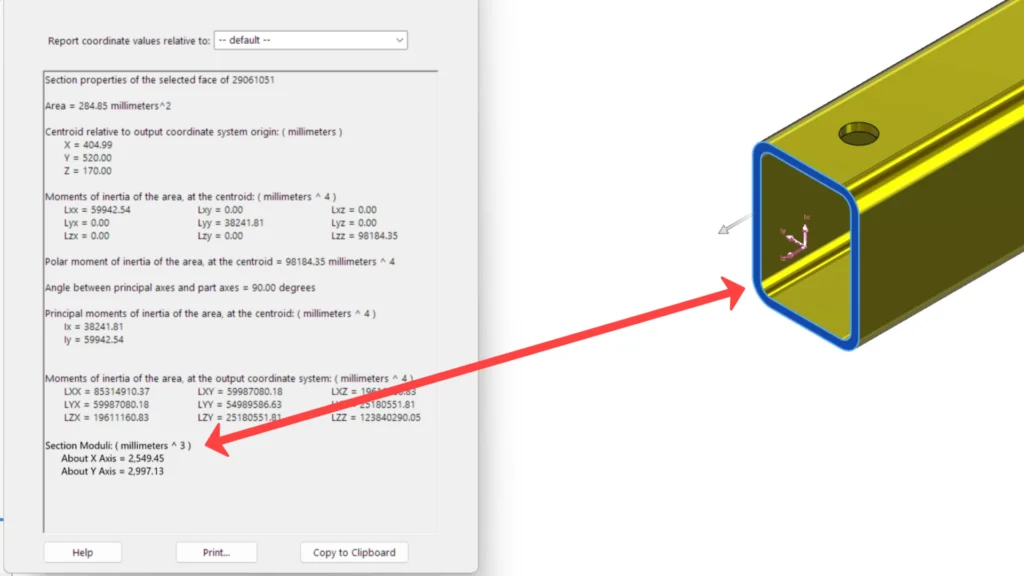
Early design decisions often require quick structural judgment calls. Soon, you will be able to view section modulus directly within SOLIDWORKS. This key measurement indicates how well a beam resists bending, giving you immediate feedback on structural performance without setting up a full simulation. It is fast, practical guidance right when you need it.
Faster Rebuilds for Complex Cut Patterns
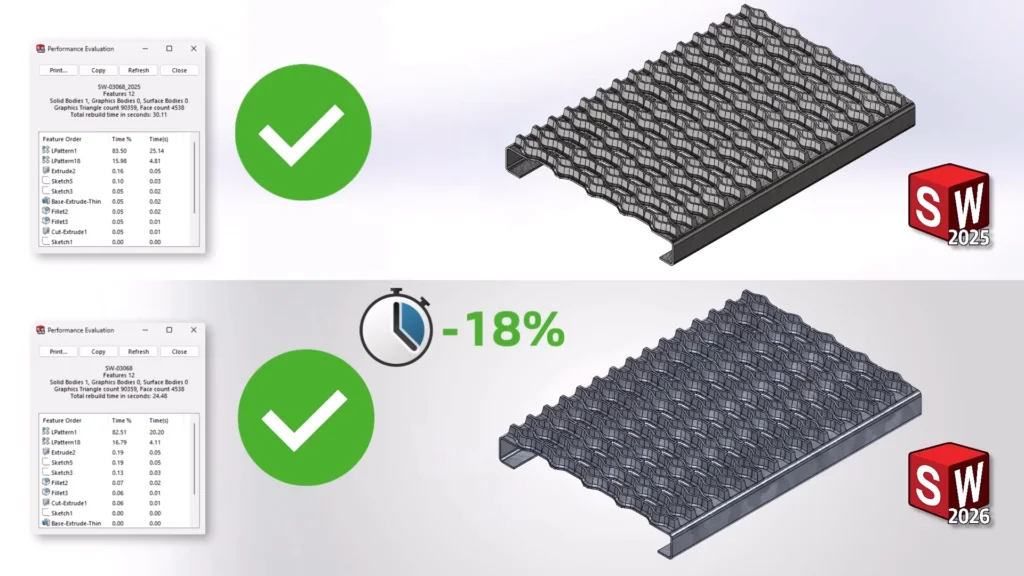
Performance also gets a boost. Pattern features that include large numbers of cuts will rebuild significantly faster. That means less waiting during updates and more time focused on designing.
Together, these enhancements reduce friction in everyday workflows, provide better design intelligence upfront, and keep performance moving at the speed of your ideas.
Demo Highlight: Assemblies
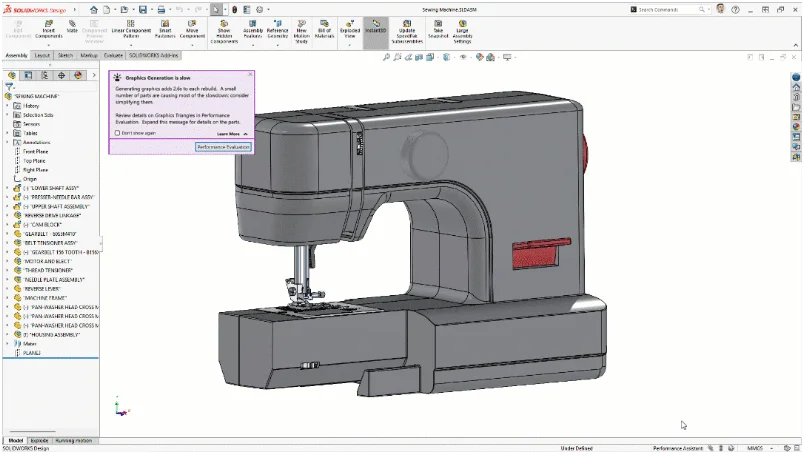
Everyone appreciates faster assembly performance. And soon, SOLIDWORKS will make it even easier to understand what is slowing you down and what to do about it.
Real-Time Performance Monitoring
A new set of status bar icons will continuously monitor your assembly and flag opportunities to improve performance.
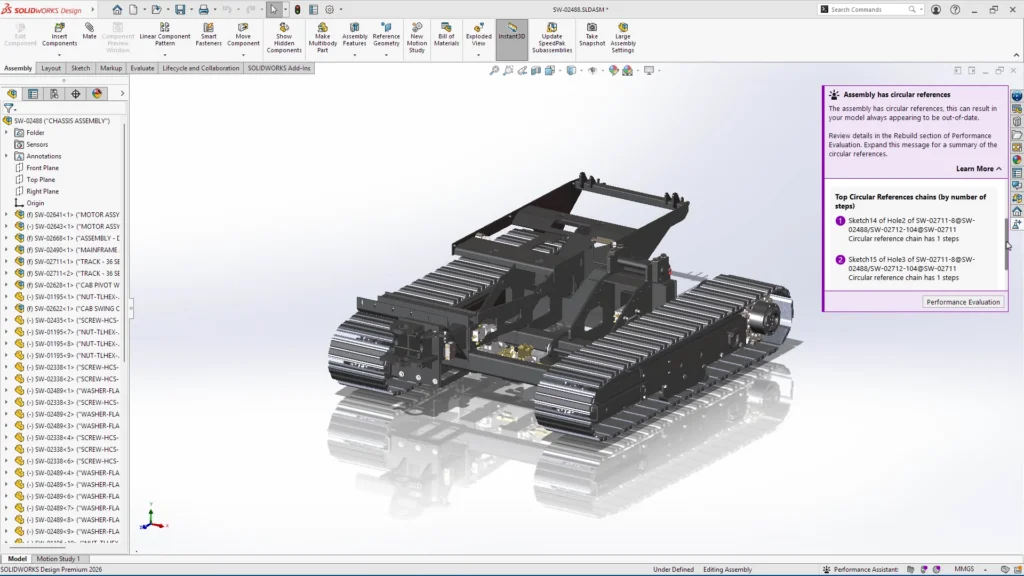
But it does more than just alert you. Assembly Performance Design Guidance helps explain why issues are happening, whether it is circular references, mate errors, or overly complex geometry, and points you toward the right corrective action.
Isolate Within an Isolated View
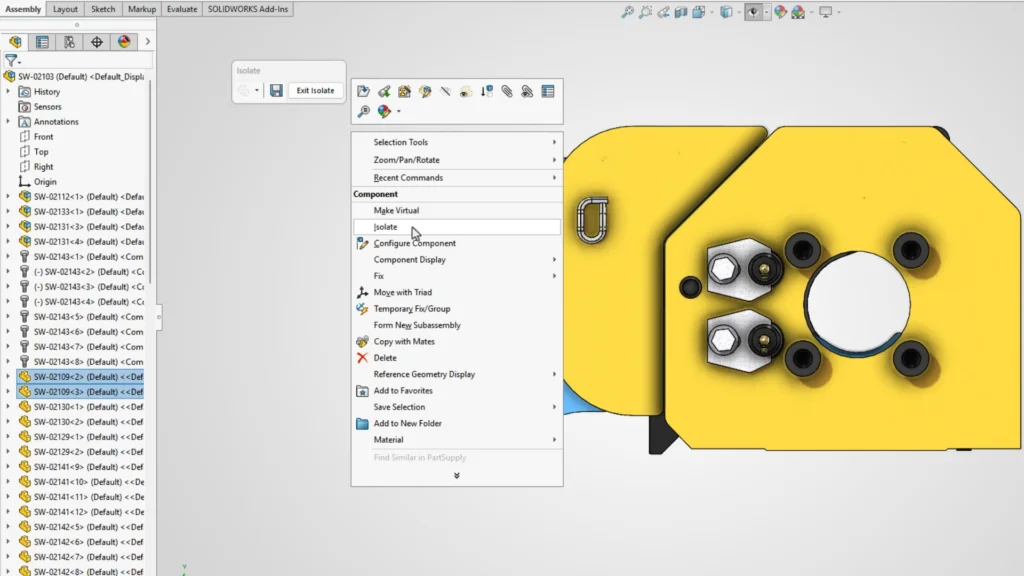
Display States have long been a simple and effective way to compare configurations and prepare assemblies for review. Isolate has also helped users focus on specific components or subassemblies without distraction.
Now, Isolate is getting a major upgrade.
Coming soon, you will be able to isolate within an isolate as many times as needed, without backing out to the full assembly. These focused views can still be saved as Display States and recalled later for design reviews or used directly in drawing views. It is a more flexible way to explore, present, and communicate complex assemblies.
Smarter Hardware and Thread Simplification
Working with downloaded hardware is common, and detailed threads can often slow performance. SOLIDWORKS already recognizes hardware on insertion and helps position it automatically.
Soon, it will go a step further by detecting detailed threads and prompting you with design guidance to simplify the component. With a single action, the part can be optimized for performance, keeping your assembly lightweight and responsive.
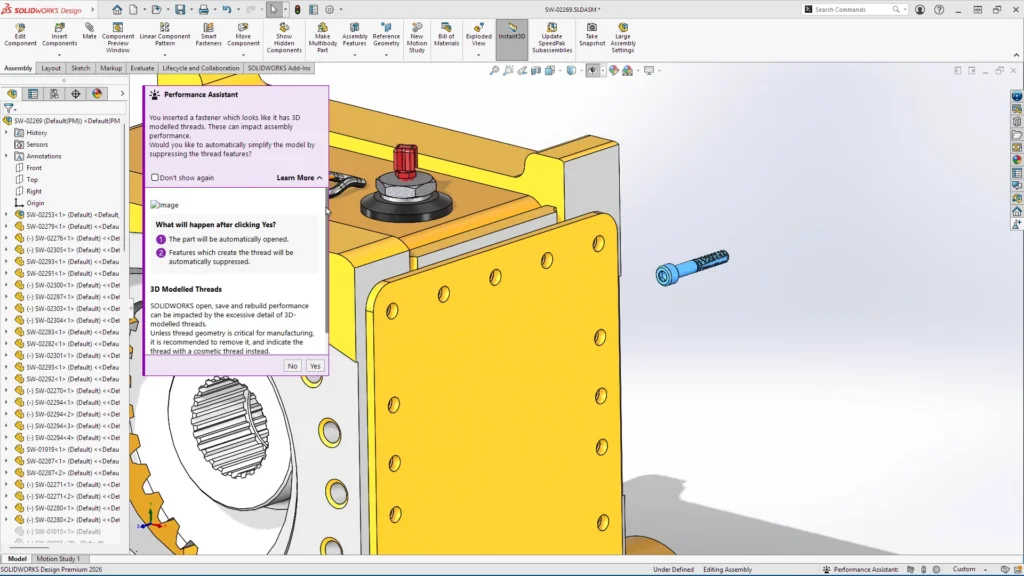
Together, these enhancements deliver smarter diagnostics, more flexible visualization tools, and automated simplification, all focused on one goal: keeping your assemblies fast and efficient.
The Final Selection
With the challenges behind us, the focus shifted from competition to reflection.
On the main stage, the story was no longer about surviving individual rounds. It was about the bigger picture. Each contestant had a chance to show the judges why they should be crowned the next 3DSurvivor Champion.

Demo Highlight: Collaboration
Thiago’s case was simple: strong collaboration wins.
Engineering is a team sport, and the tools we use should make teamwork seamless, not fragmented. That was the focus of this demo segment, showing how upcoming enhancements further connect SOLIDWORKS with the 3DEXPERIENCE platform experience.
Faster Access to Comments
Comments and markups are already central to modern design collaboration. Soon, they will be even easier to access directly from a new CommandManager button inside SOLIDWORKS. No digging through emails. No switching applications. Just immediate visibility into feedback and design discussions.

Review Markups
Another key enhancement keeps everything in one place. Existing markups can be reviewed directly inside SOLIDWORKS, eliminating the need to open a browser or shift context. Engineers can evaluate feedback, make informed decisions, and act immediately, all within their modeling environment.
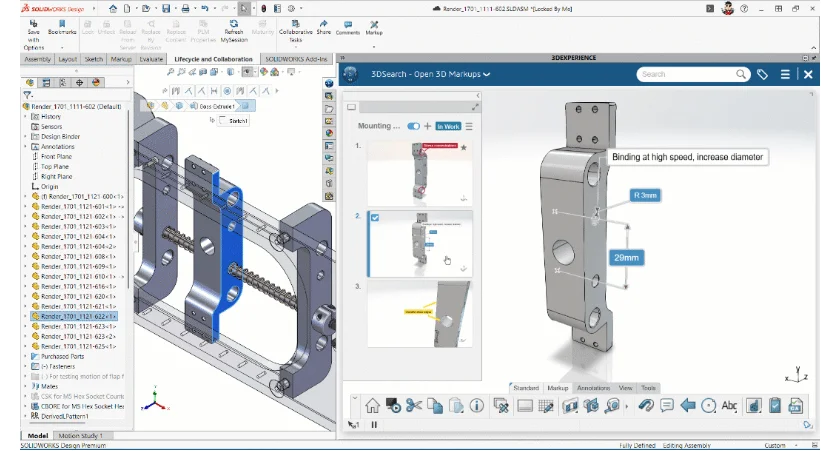
Create and Assign Tasks Instantly
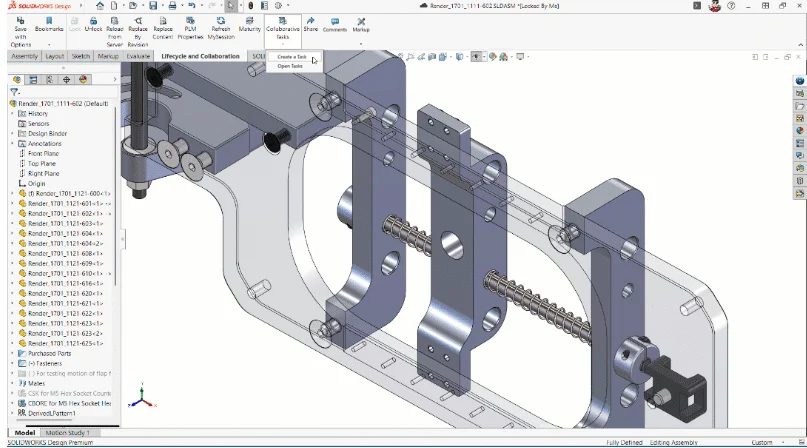
Task creation is also becoming more streamlined. Users will be able to generate tasks directly from the CommandManager, assign them to teammates, and even include external collaborators when needed. Components can be attached to tasks with a simple drag and drop, keeping communication tied directly to the design.
All tasks remain accessible within SOLIDWORKS, creating a closed loop between feedback, action, and resolution.
3D Markups and Visual Comparison
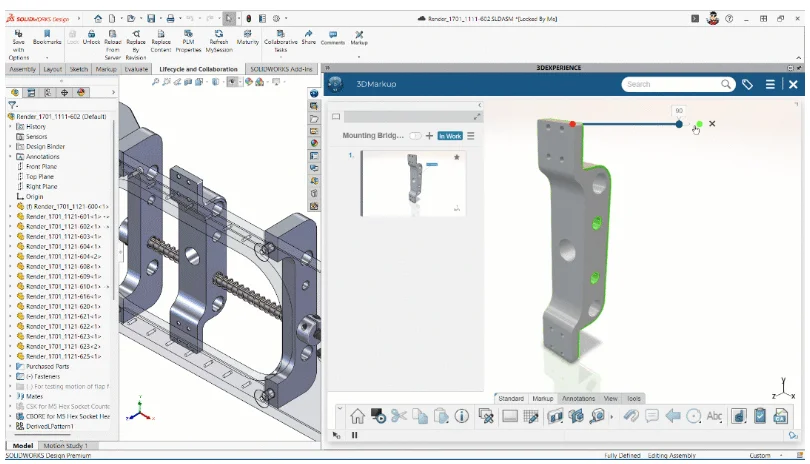
The collaboration story continues with the ability to create 3D markups directly inside SOLIDWORKS. Combined with visual comparison tools, teams can quickly evaluate before and after changes—whether it is geometry updates, edge refinements, or dimensional adjustments.
The result is faster reviews, clearer communication, and fewer delays.
Demo Highlight: Drawings
Mark made his case the same way he approached every challenge: efficiency wins.
After completing design updates at the assembly level, the next step is often the most time-consuming: ensuring every related drawing reflects those changes. Traditionally, that means opening each drawing, rebuilding it, and saving the file. It is necessary work, but it interrupts design flow.
Automatic Drawing Updates
Coming soon to SOLIDWORKS, that process becomes automatic.
When components are modified, SOLIDWORKS will identify the affected drawings and update them in the background. Each drawing is rebuilt and saved without requiring the user to manually open and manage every file.
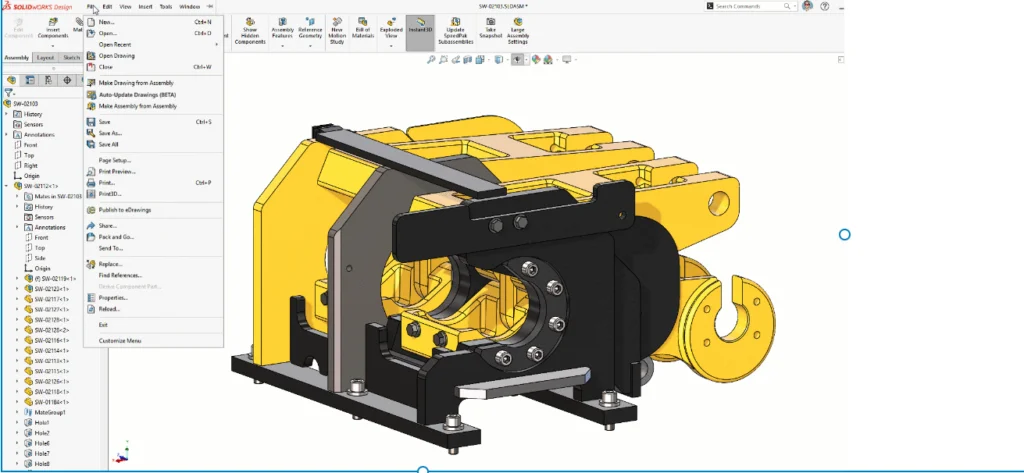
The impact is simple but powerful: designers can continue working while documentation catches up behind the scenes.
It is the kind of productivity enhancement that saves real time across projects – reducing bottlenecks, maintaining accuracy, and keeping engineering teams moving forward.
Demo Highlight: Smarter Sheet Metal and Smarter Validation
The final demo segment focused on giving Andrew a chance to shine, but showing how he is working smarter, from design automation to validation.
AI-Assisted Sheet Metal Design
The future of sheet metal in SOLIDWORKS centers on the Design Assistant, which helps reduce repetitive, tedious modeling tasks.
As a part is being created, the Design Assistant can suggest opportunities to add features like Weld Beads or Tab and Slot. Using machine learning, it identifies logical locations and automates much of the setup process, such as selecting edge pairs or generating tab and slot groups.
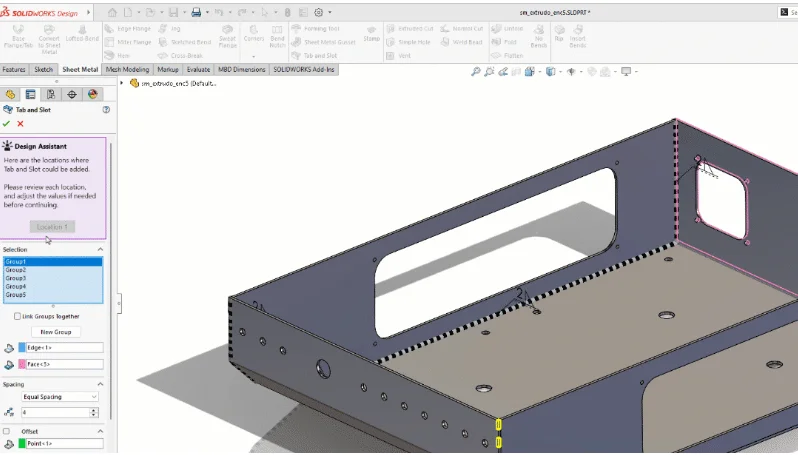
Designers still maintain full control over sizing, spacing, and parameters, but the heavy lifting is dramatically reduced. The result is faster modeling with fewer manual selections and less repetitive work.
More Realistic Simulation with Gradual Bolt Preload
Design does not stop at modeling. Validation is critical, especially when components must seal under load.
An upcoming enhancement to SOLIDWORKS Simulation allows bolt preloads to be applied gradually instead of all at once. This provides better insight into how contact and deformation develop throughout the study.
For applications such as pipe clamps or sealing surfaces, engineers can now observe how components close gaps and form a proper seal as preload approaches its target value. It is a more realistic representation of real-world behavior and leads to more confident design decisions.
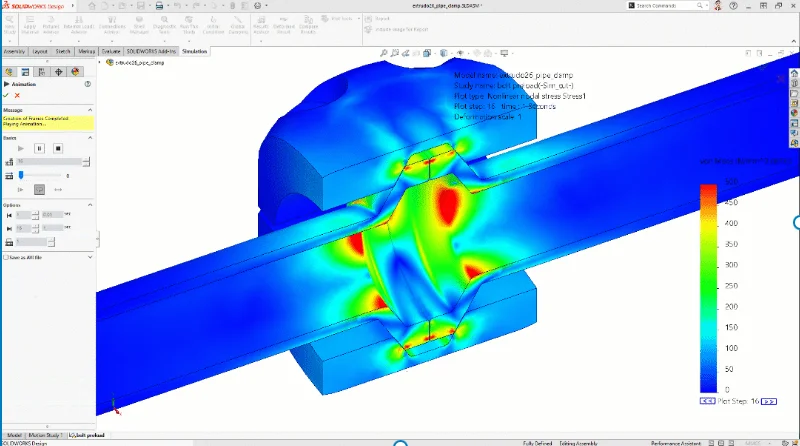
Together, these enhancements showcase a clear direction: intelligent automation during design and deeper insight during validation, helping engineers move from concept to confidence faster than ever.
That’s a Wrap!
After a full season of challenges, head-to-head demos, and main-stage moments, the jury made its decision.
Thiago takes the title of Sole 3DSurvivor.
The skit may have been themed around outlasting the competition, but the real story was about thriving in a rapidly evolving engineering landscape.
The future of SOLIDWORKS is not defined by one breakthrough feature. It is shaped by hundreds of thoughtful enhancements that improve performance, strengthen collaboration, protect design intent, and provide smarter guidance at every stage of development.
In the end, Thiago won because he embraced that full ecosystem—leveraging collaboration, efficiency, and innovation to stay ahead.