
When customer-driven improvements and new capabilities are ready, we deliver them immediately through continuous functional delivery (FD) updates throughout the year, rather than holding them for a single milestone. In the latest release cycle, DraftSight has expanded its core capabilities to boost everyday drafting speed, improve visual consistency, and streamline enterprise collaboration. Below is a recap of the top ten DraftSight enhancements delivered throughout this cycle—spanning FD01 through FD04 of 2026—highlighting key production upgrades available today and laying the foundation for new features in 2027.
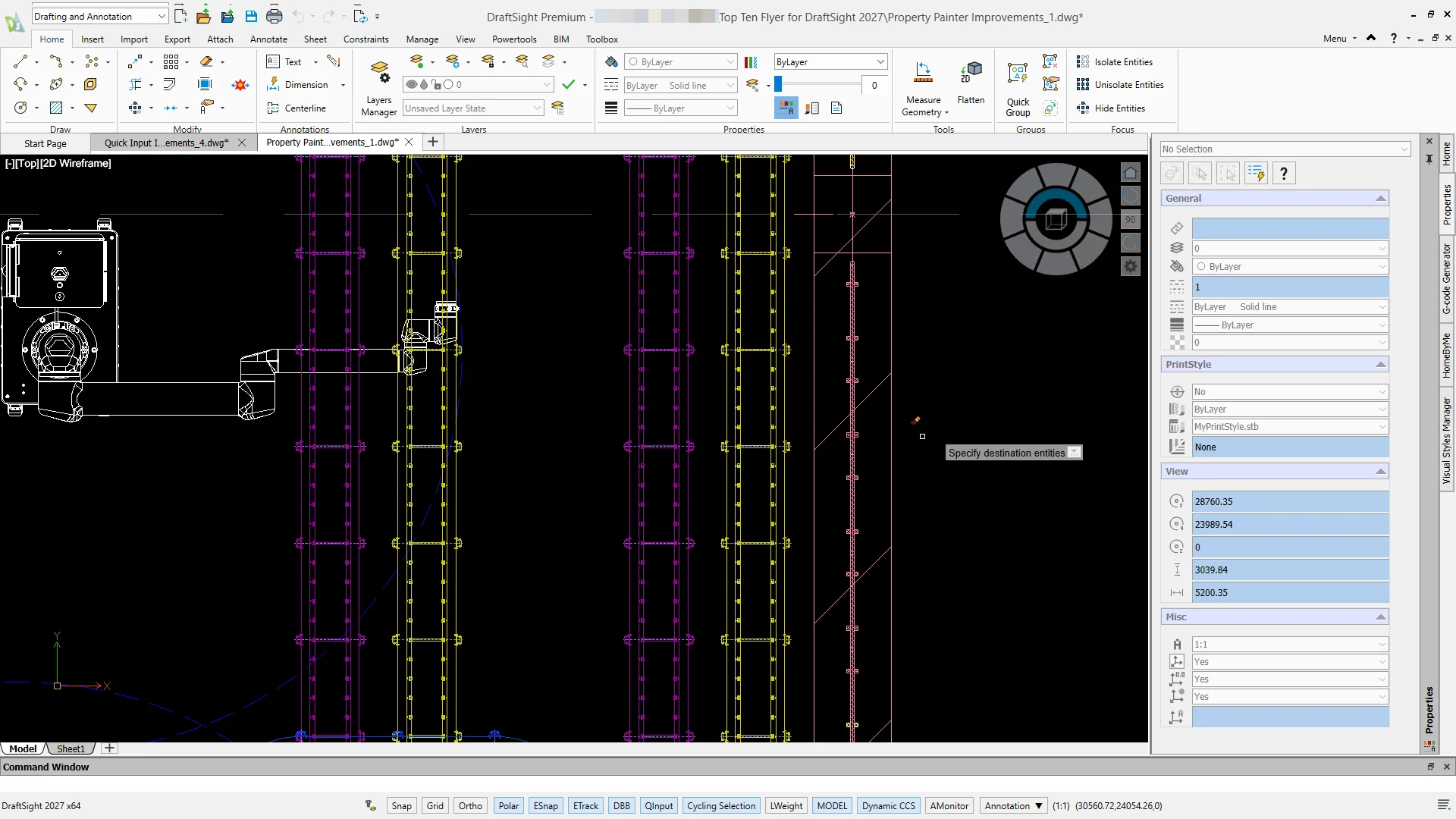
PROPERTYPAINTER Improvements – ensure project-wide consistency.
Keep visual standards consistent across drawings and speed up detailing with the improved Property Painter, which lets you copy dimension styles, text styles, plot styles, materials, transparency, and hatch properties between any open drawings.
BIM Material Library – match construction documentation to your firm’s drawing standards.
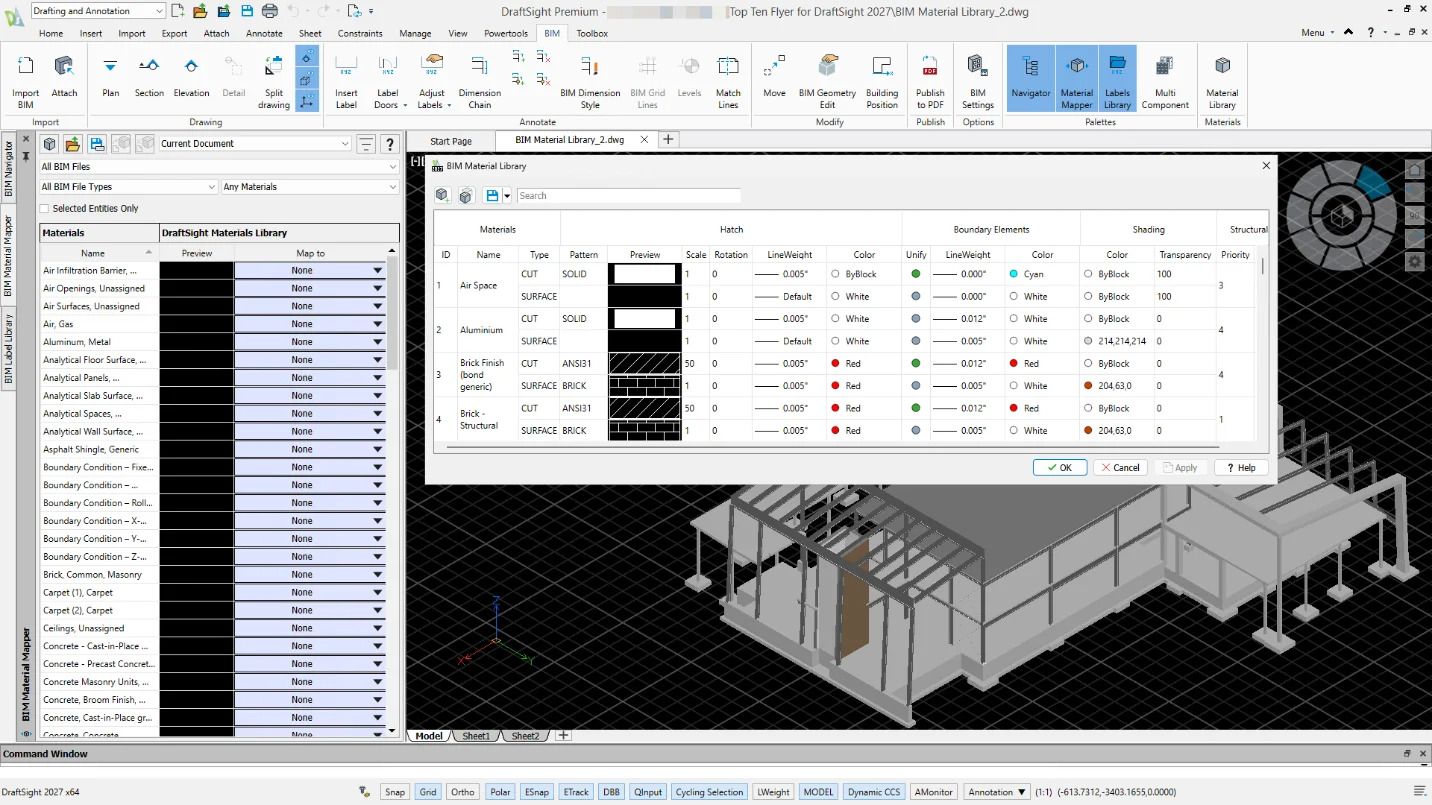
Access a library of standardized BIM materials with physical properties to apply to 2D documentation, improving accuracy in architectural drawings and ensuring consistency across multi-discipline project coordination.
You can also customize the BIM Material Library to set colors, hatch patterns, and boundary edges for cut and projected elements.
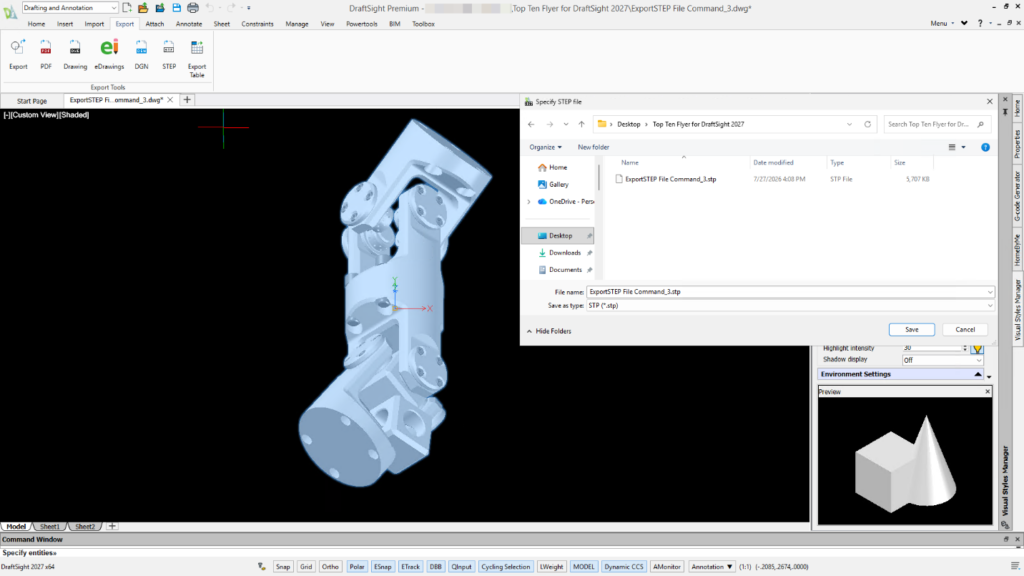
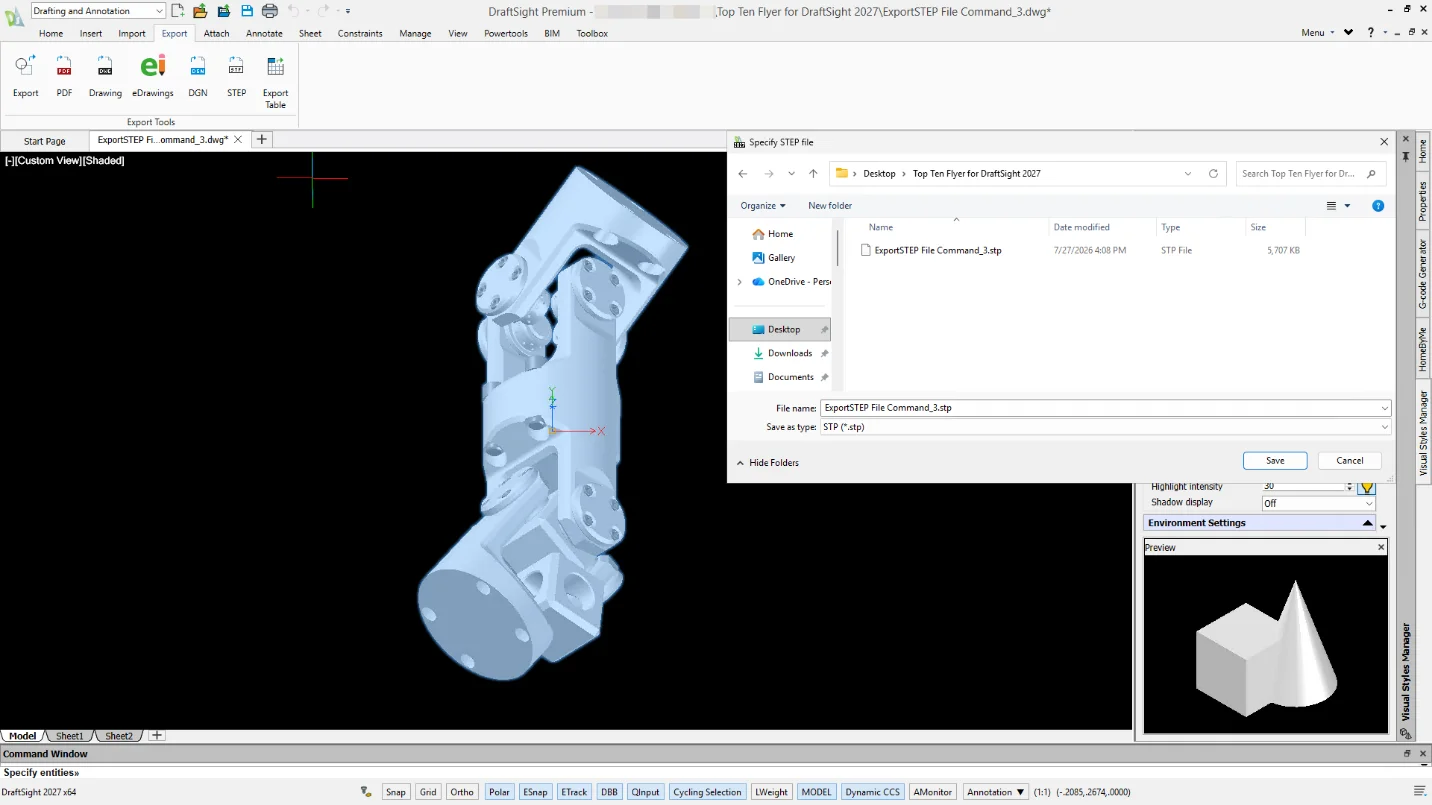
EXPORTSTEP Command – speed up downstream CAE and CAM workflows with direct 3D format export.
DraftSight now includes the ability to export 3D geometry directly to STEP format for use in CAM and CAE workflows, providing downstream teams with a standard exchange format sourced from the authoritative 2D CAD product.
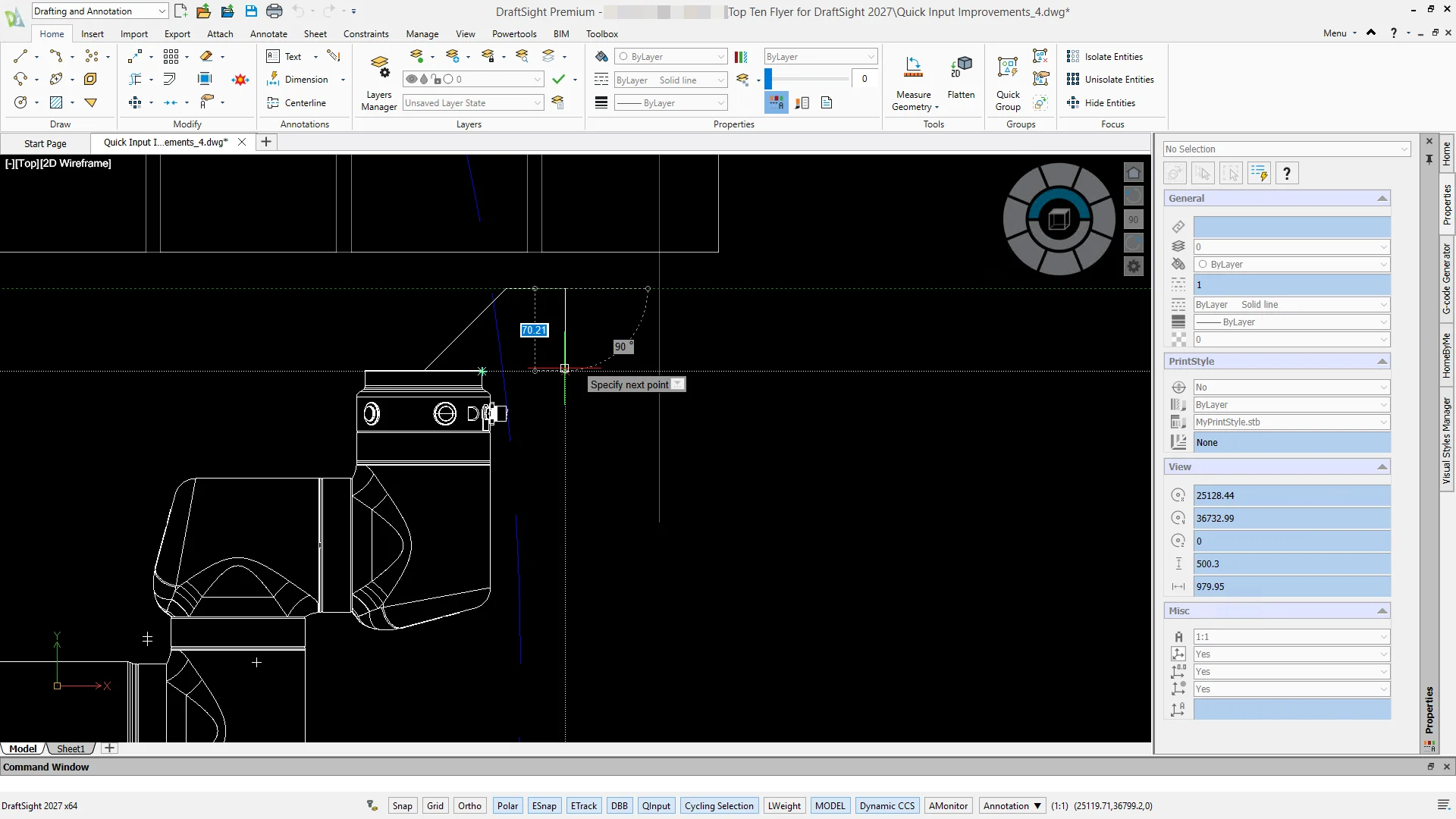
Quick Input Improvements – boost drafting speed by keeping your focus on the cursor.
Stay focused on your geometry with a cursor-side command-entry interface that uses dynamic tooltips as both prompts and live input boxes for coordinates, distances, lengths, and angles. As you move your pointer, Quick Input tracks positions in real time and displays construction lines for accurate point placement—allowing you to draft comfortably with the Command Window hidden (while keeping it available for error messages and file lists).
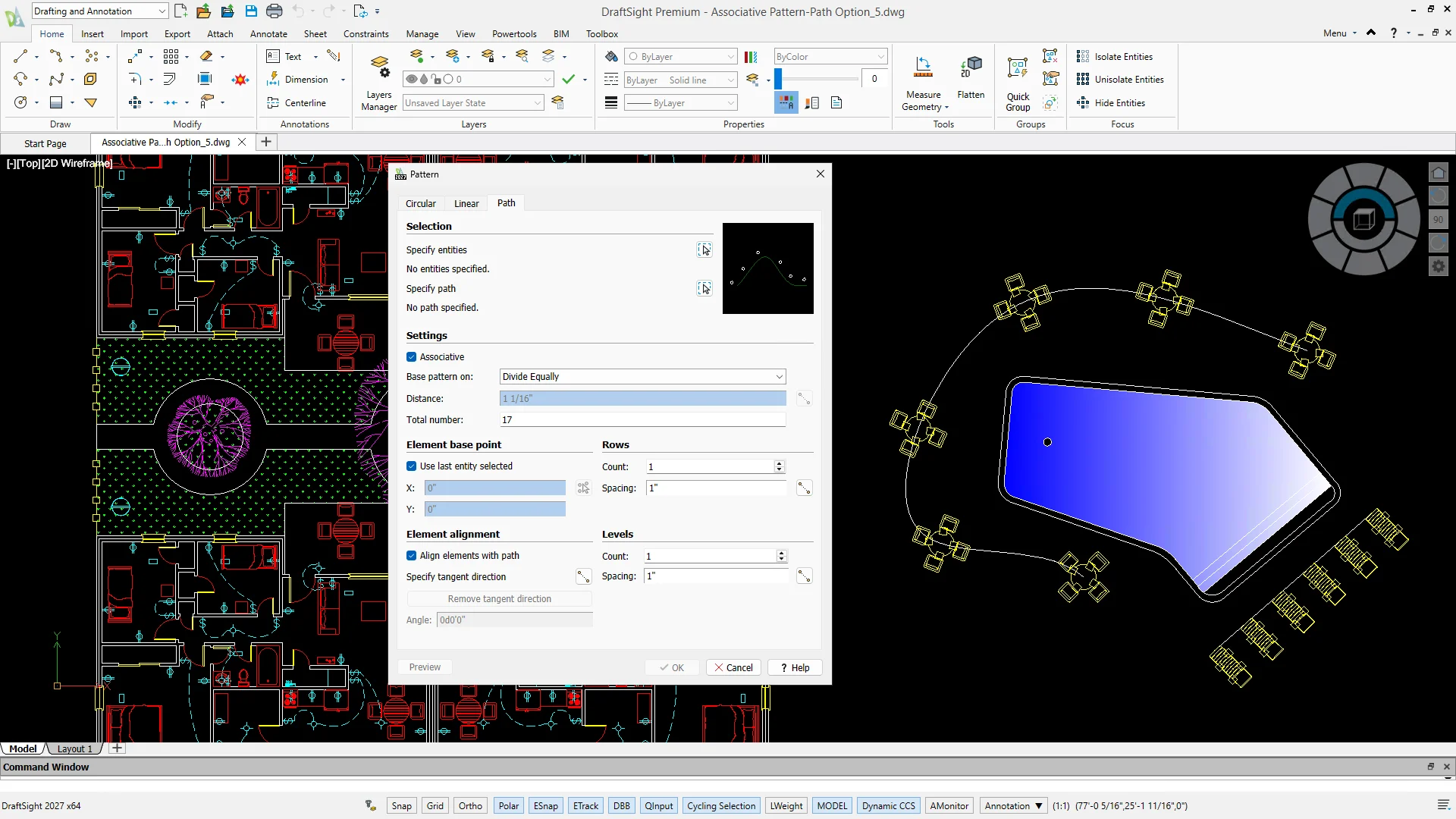
Associative Pattern Path Option – eliminate manual rework by keeping path-based patterns fully associative.
Distribute entities evenly or at fixed intervals along arcs, poly-lines, or splines using the Associative option in Path Patterns. Modifying the parent path geometry or adjusting pattern parameters—such as item count, spacing, rows, or tangent alignment—updates the entire array automatically without rebuilding it.
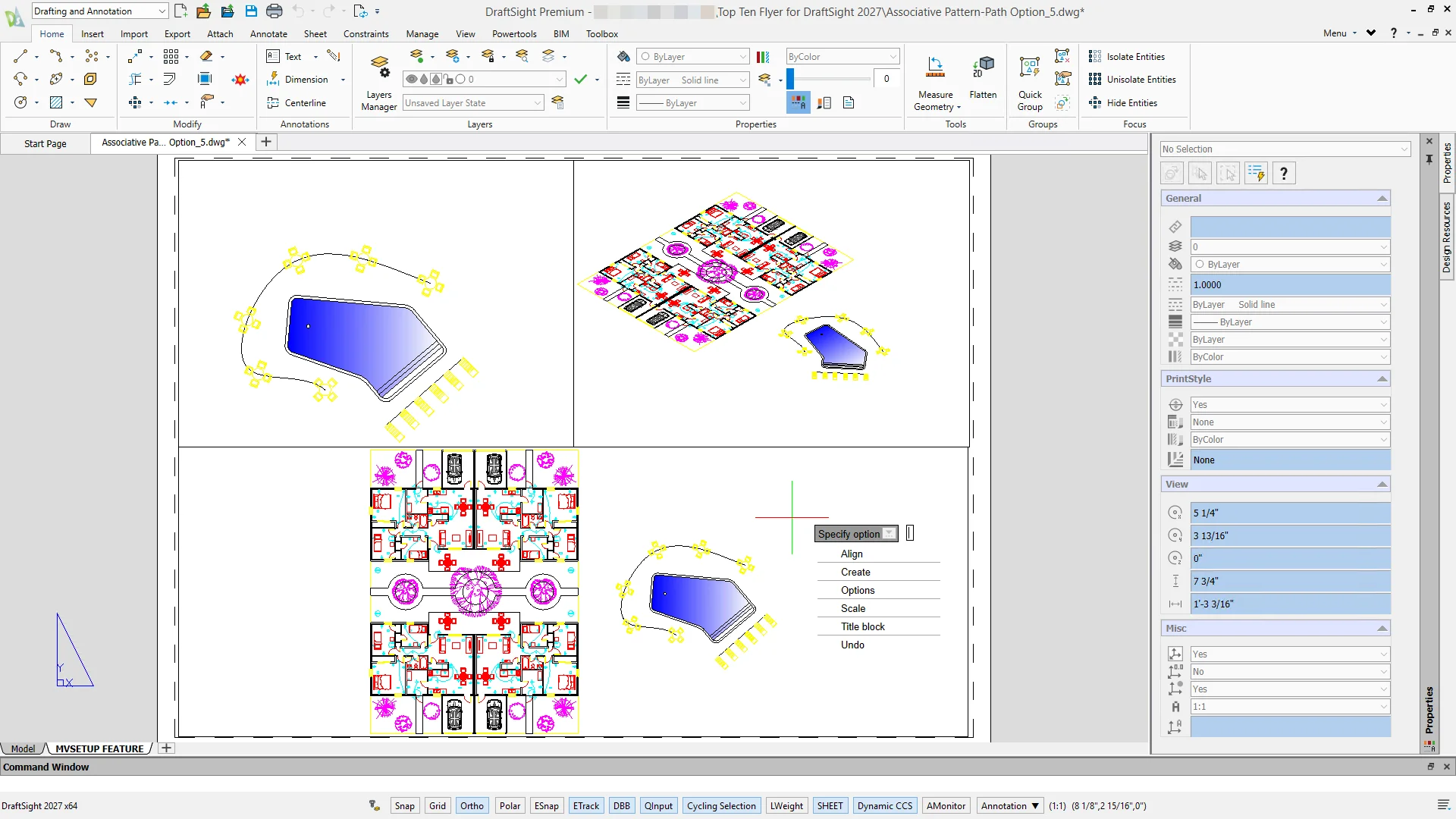
MVSETUP Command – simplify sheet preparation and scale layouts automatically.
Configure drawing units, insert title blocks, generate standard viewport arrays, and precisely align or scale views across layout viewports through a guided setup with the MVSETUP command. Familiar to veteran AutoCAD users, this command eliminates tedious manual viewport alignment when preparing multi-view engineering sheets.
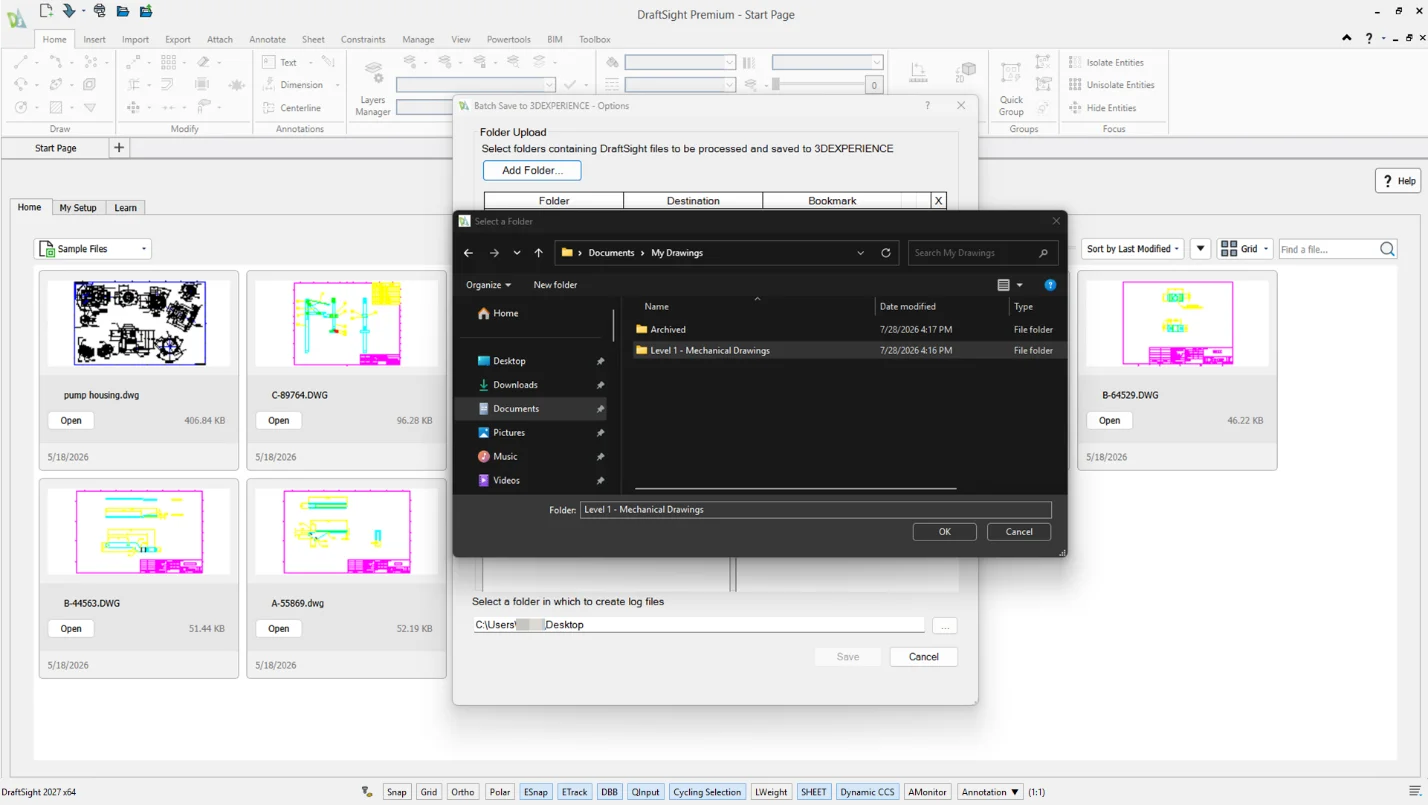
Batch Upload with Folder-to-Bookmark Structure Sync – boost drafting speed by keeping your focus on the cursor.
Upload multi-level folder structures to the cloud and place files into bookmark hierarchies that match the original folder layout, preserving the organizational structure without manual reorganization after upload.
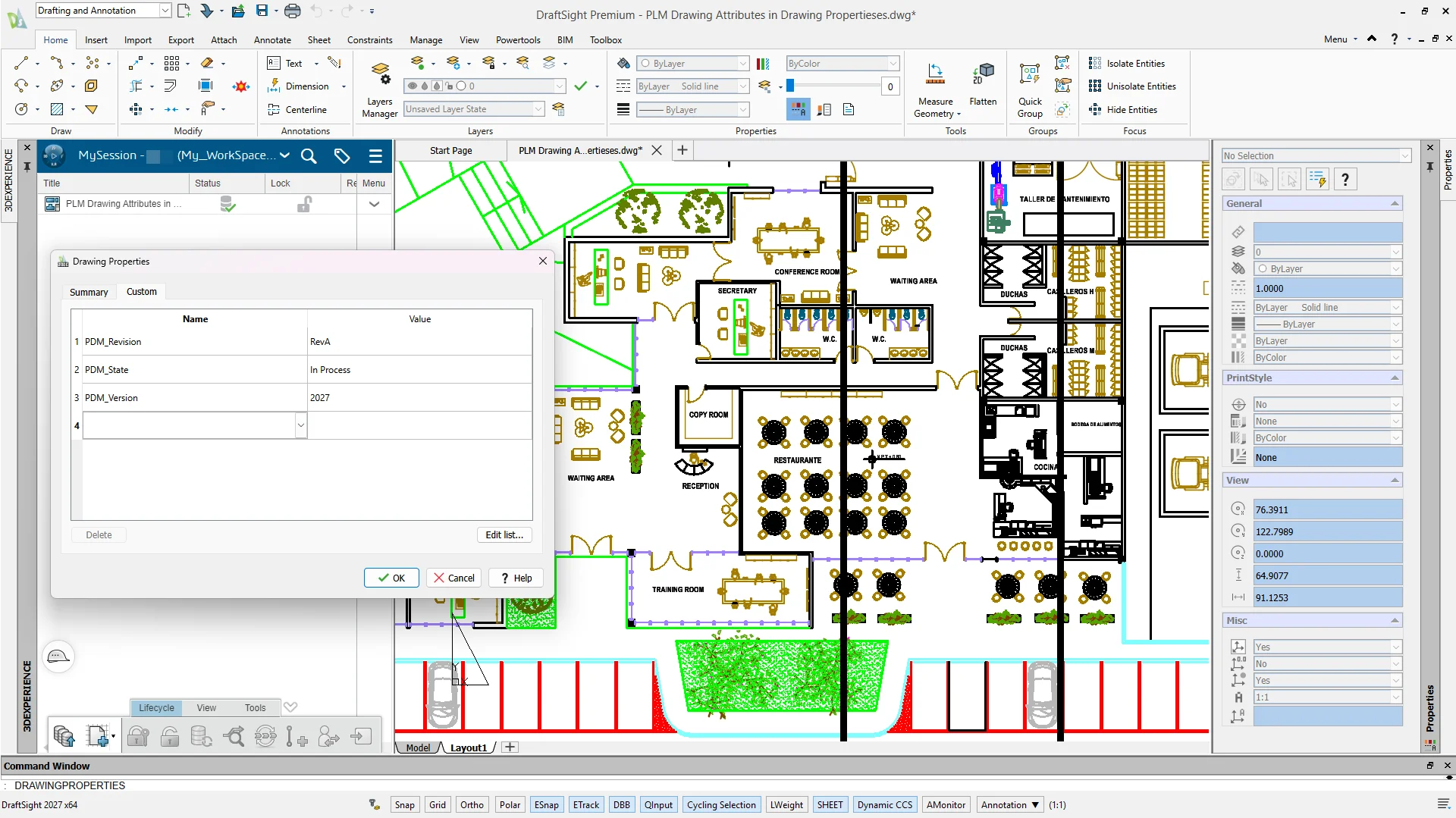
PLM Drawing Attributes in Drawing Properties – speed up metadata syncing without leaving DraftSight.
View and edit PLM metadata directly in the Drawing Properties dialog, keeping drawing attributes and product lifecycle data synchronized from within the familiar authoring environment.
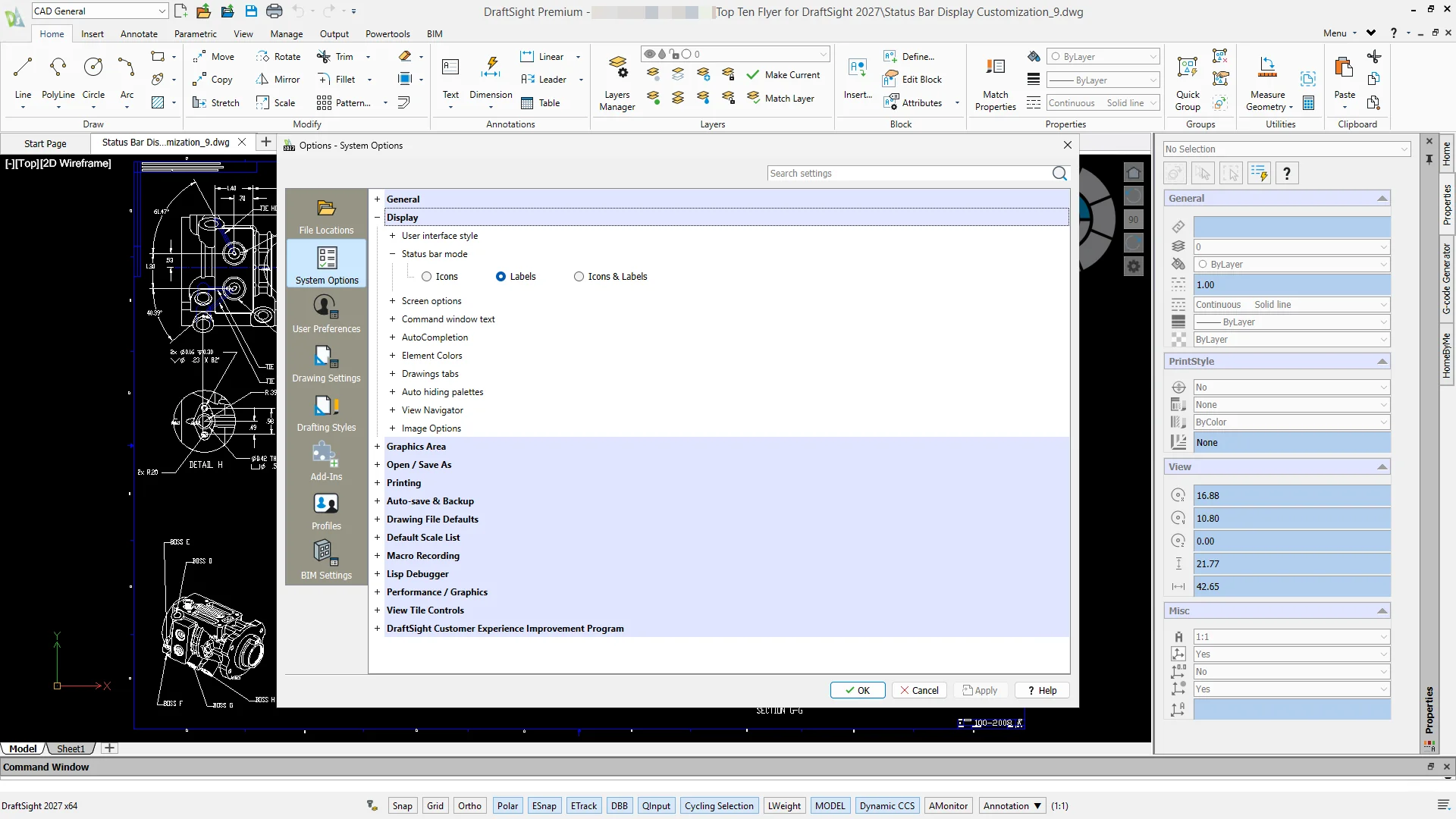
Status Bar Display Customization – adapt the interface to maintain a clean workspace tailored to your personal usage preferences.
Alongside ongoing DraftSight performance improvements, new UI customization options under System Options > Display allow you to switch status bar buttons between Icons, Labels, or Icons & Labels modes—giving you more flexibility than icons-only CAD interfaces while adapting cleanly to any screen resolution.
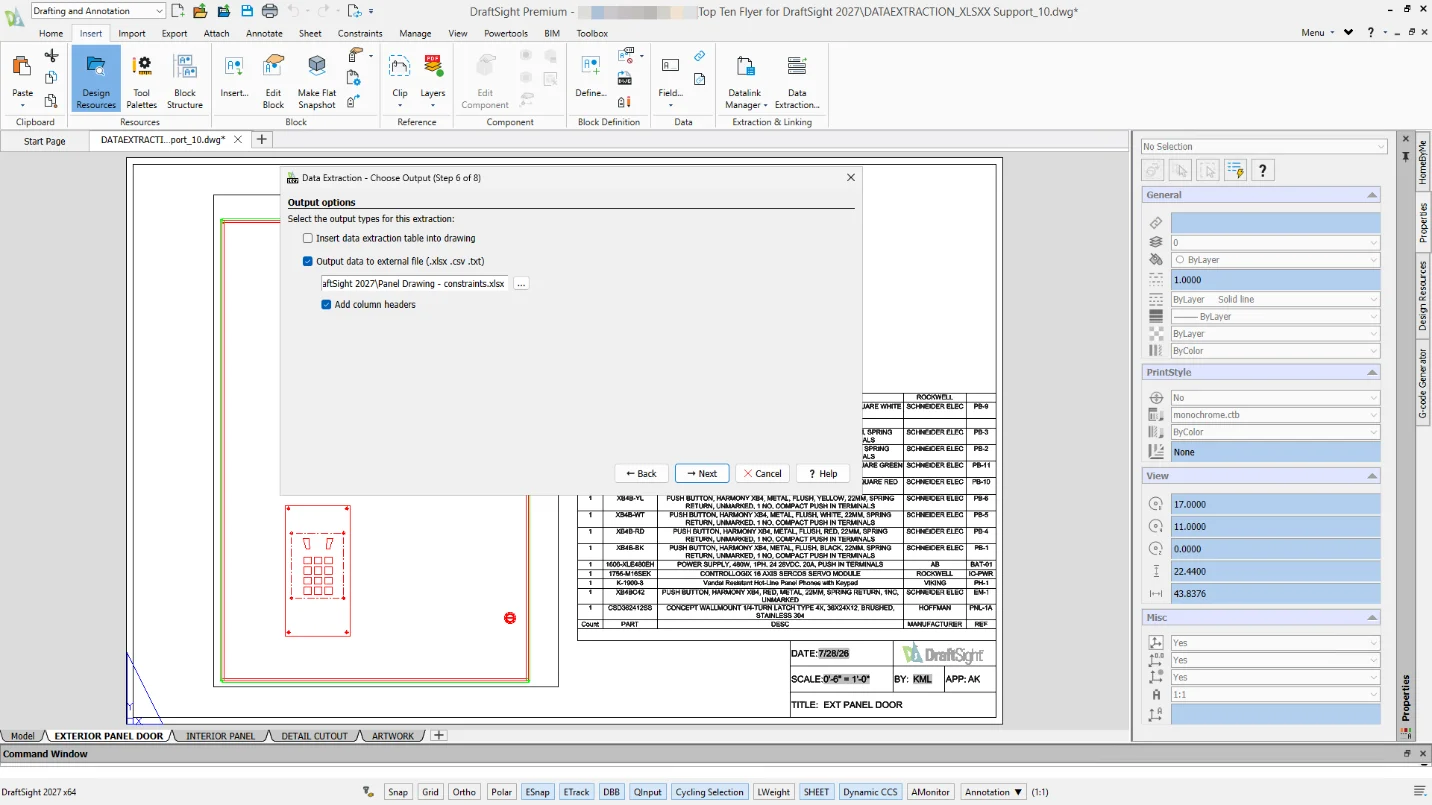
DATAEXTRACTION: XLSX Support – simplify data sharing with Excel exports.
Use the DATAEXTRACTION command to extract specific information from drawing entities, and create schedules, parts lists, or bills of materials. You can export that drawing data directly to native Excel (.xlsx) files.
Looking Ahead & Continuous Improvement
These top 10 DraftSight features represent just a fraction of the performance and productivity enhancements introduced across this year’s functional deliveries, as we pave the way for next-generation features and functionalities.
To explore these capabilities in depth, review the dedicated release breakdowns for each update cycle:
What’s New in DraftSight R2026x FD01
What’s New in DraftSight R2026x FD02
What’s New in DraftSight R2026x FD03
What’s on your wish list? Help steer upcoming DraftSight updates by submitting your feedback and enhancement requests directly through the DraftSight User Community. You can also download the top 10 DraftSight Features Flyer to explore the latest tools and integrate them into your production workflow today!
To learn more about what’s new in DraftSight 2027, check out the website here.