Last month DraftSight celebrated 15 years. Since its launch, DraftSight has been a trusted 2D drafting and 3D modeling solution for CAD professionals in mechanical and architectural design, as well as for students. DraftSight offers a highly cost-effective, professional-grade 2D CAD solution with a familiar user interface that makes transitioning from software like AutoCAD seamless. It is favored for its full DWG file compatibility, robust productivity tools, and flexible, lower-cost licensing options for businesses of all sizes.
The DraftSight R2026x FD02 update includes new tools for PLM and nesting directly in the DraftSight environment, enhancing the user experience, in addition to many new features that improve downstream workflows and manufacturing. Enhancements include the ability to view and mange PLM data in the Drawings Properties, automated part nesting, and many new dimension tools that eliminate manual work.
The following enhancements apply to DraftSight applications with a named-user license and a device term license, unless stated otherwise.
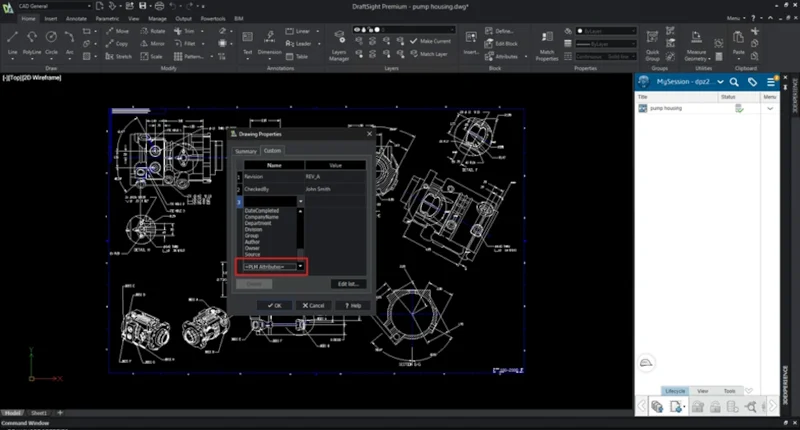
PLM Drawing Attributes in Drawing Properties – update your PLM properties on the fly.
View and manage PLM metadata directly in the Drawing Properties dialog without leaving DraftSight. The new PLM Drawing Attributes option keeps designers in their 2D drafting environment, reducing context switching and ensuring data integrity across the 3DEXPERIENCE platform.
Applicable to DraftSight Premium and Mechanical with a named-user license, and Collaborative Designer for DraftSight
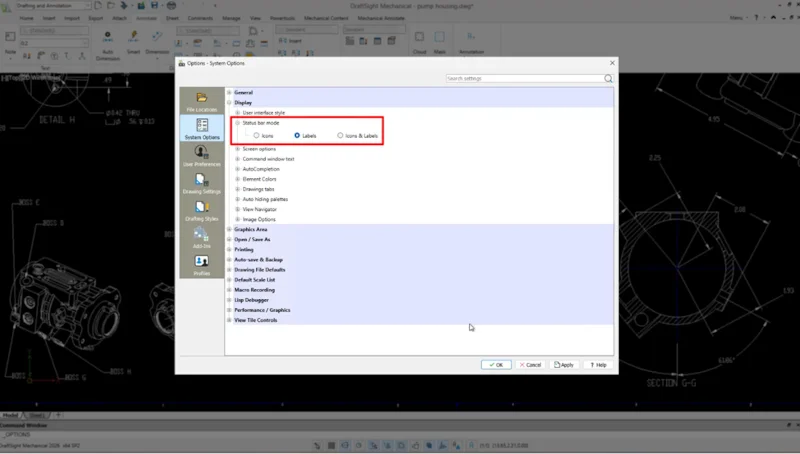
New Modular Status Bar – choose icons or labels that best suits your needs.
Change the status bar to icon-only, labeled text, and dual icons and label modes to match your display environment and experience level. New users get descriptive labels for faster orientation; experienced users can switch to a compact icon view to maximize screen space.
Applicable to DraftSight Professional, Premium, Mechanical, and Collaborative Designer for DraftSight.
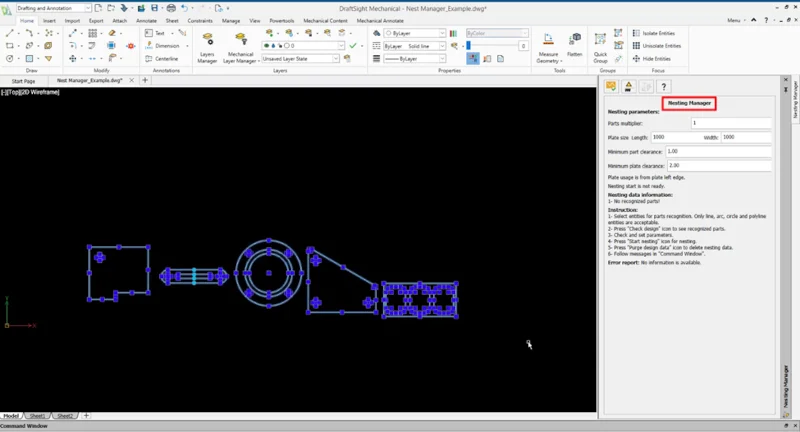
Automated Part Nesting – improve efficiency in material usage and accelerate manufacturing workflows.
The new Nesting Manager task pane in DraftSight R2026x FD02 is designed to minimize material waste and eliminate manual layout calculations for manufacturing. Define parts and sheet materials and generate automated nesting layouts directly from a dedicated space.
Applicable to DraftSight Mechanical.
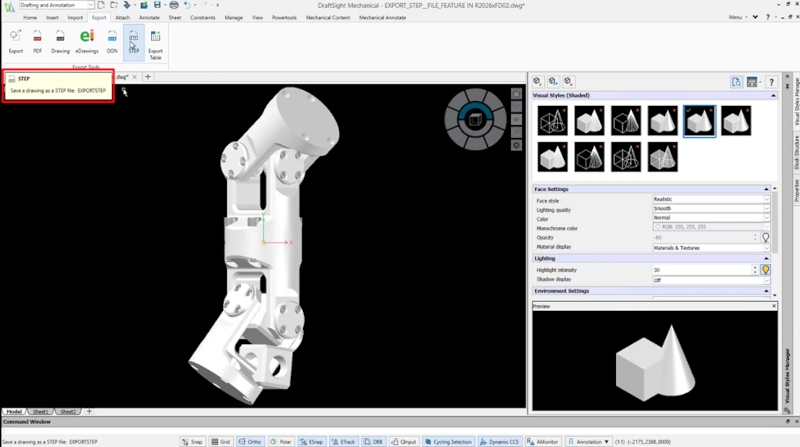
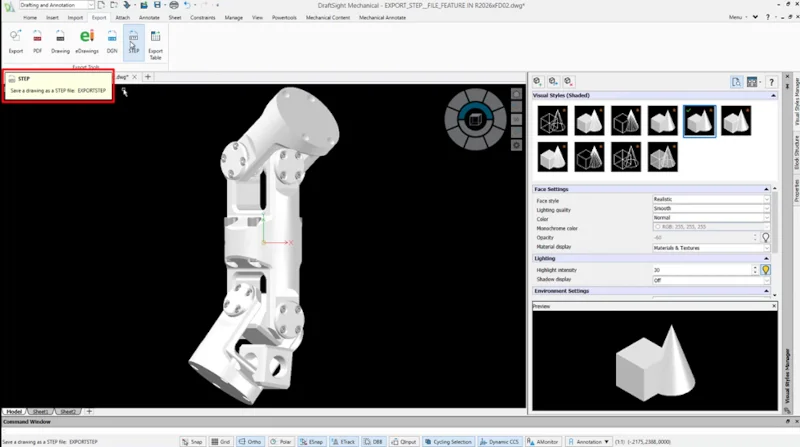
High-Fidelity STEP Export – ensure readability for downstream workflows.
Export your 2D DraftSight drawings directly to the popular STEP format for use in CAM and CAE workflows for downstream production.
Applicable to DraftSight Premium, Mechanical, and Collaborative Designer for DraftSight.
The following dimensioning enhancements apply to DraftSight Mechanical.
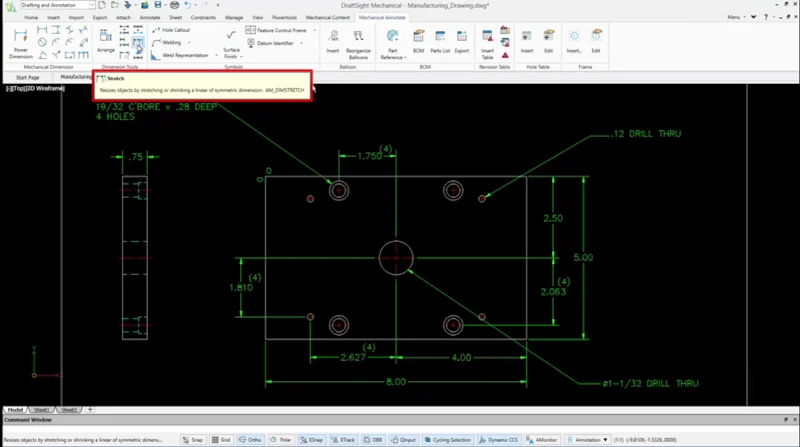
Resize Entities by Stretching Dimensions – eliminate manual redrawing.
The new Dimension Stretch (AM_DIMSTRETCH) command enables you to adjust entities when you stretch or shrink an associated linear or symmetric dimension.
This command provides a value-driven workflow that instantly updates geometry, ensuring 100% accuracy between design intent and physical output.
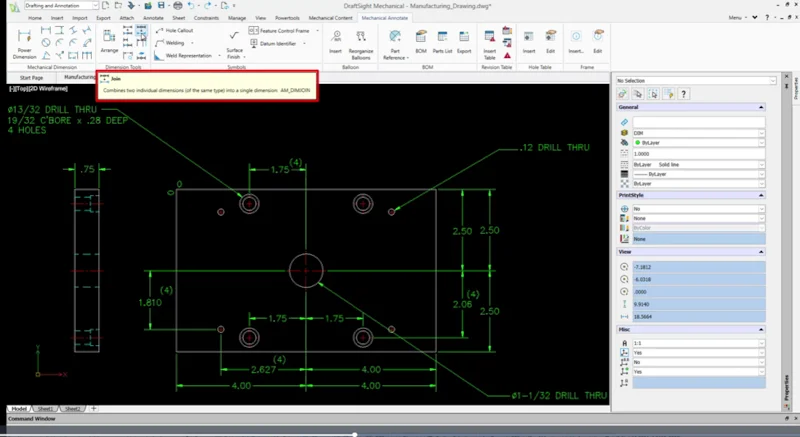
Merging Dimensions – reduce cleanup time and improve drawing readability.
Merge dimension chains into a single, unified annotation with the Dimension Join (AM_DIMJOIN) command. Use this new command to merge two or more adjacent dimensions of the same type into one single cohesive dimension.
This is a great command for streamlining the editing of chain or baseline dimensions. Simply select a base dimension, then select the adjacent dimension(s) to join with it.
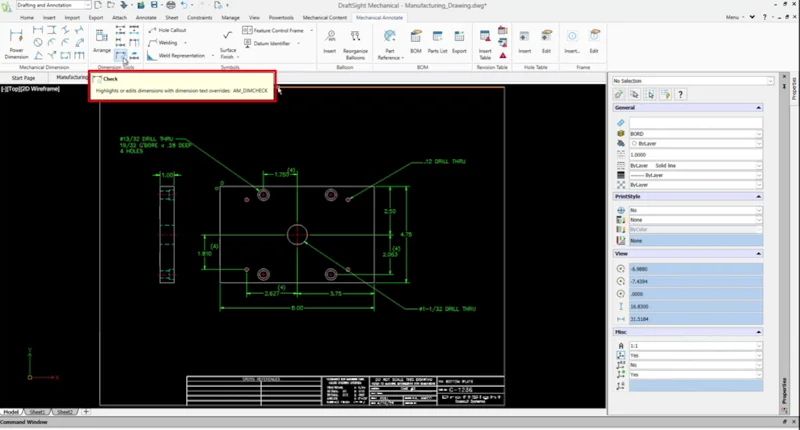
Locating Dimensions with Overridden Text – reduce errors with the spellcheck command.
Catch dimension errors before they reach production with the Dimension Check (AM_DIMCHECK) command. The engineering spellcheck automatically flags text overrides and technical inconsistencies in your drawings, reducing costly downstream manufacturing defects.
Global Dimension Edit – edit multiple dimensions simultaneously.
Update multiple dimensions simultaneously with surgical precision using the Dimension Edit (AM_DIMMEDIT) command and its unified ribbon interface. Apply targeted changes to your entire drawing in a single operation, rather than editing annotations one by one — reducing revision time on complex drawings.
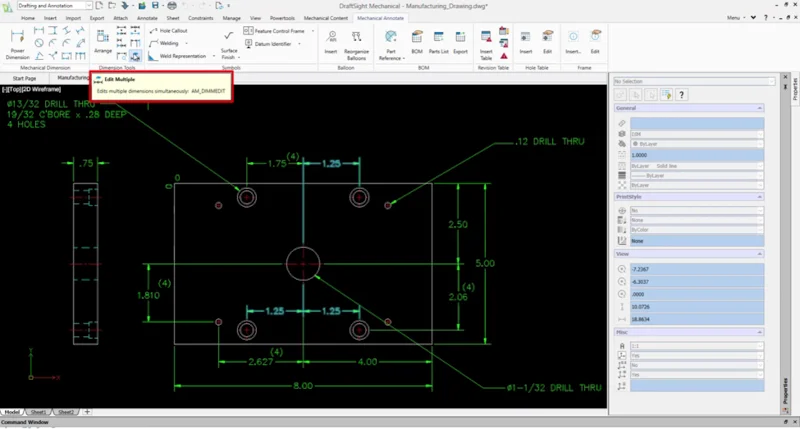
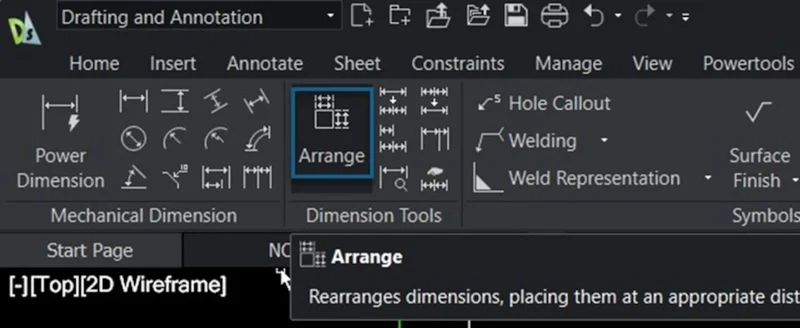
Arrange Dimensions Command – gain more control over complex layouts.
You can use the Dimension Arrange [AM_DIMARRANGE] command to automatically or manually rearrange existing dimensions with consistent spacing from the surrounding geometry.
Arrange dimensions faster with automated spacing and manual fine-tuning backed by real-time feedback, producing clean, professional drawing layouts without time-consuming manual adjustments.
You can find all these new dimensioning tools under the Mechanical Annotations tab under Dimension Tools, or type the commands, i.e., AM_DIMARRANGE, in the model space to enable.
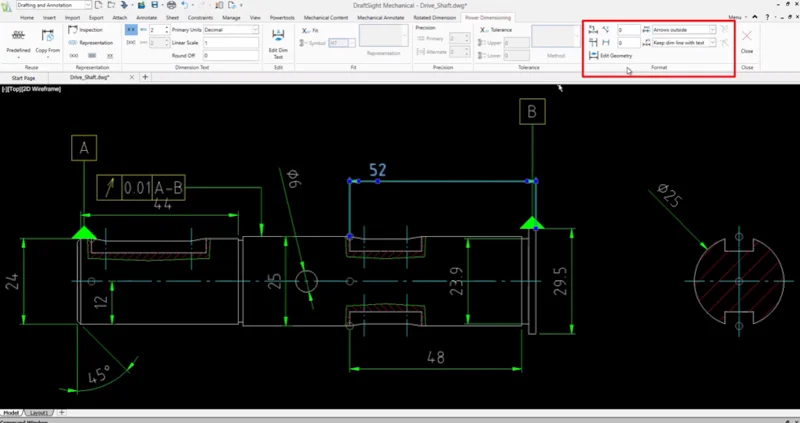
Format Panel for Power Dimensioning – edit and control the geometry and presentation of selected dimensions.
Apply geometry edits and text-fit controls directly from the new Format panel in the Power Dimensioning contextual ribbon — no nested menus required. Keep crowded drawings clean and precise without interrupting your annotation workflow.
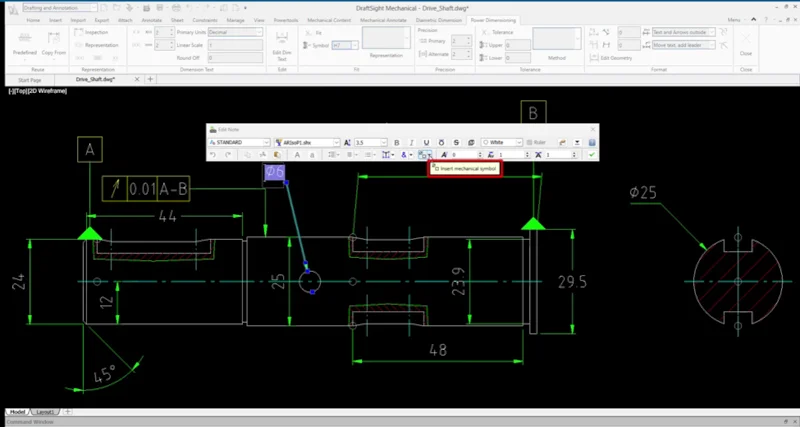
Mechanical Symbol Library – quickly insert standardized mechanical symbols and ensure GD&T compliance.
Insert GD&T (Geometric Dimensioning and Tolerancing) and machining symbols directly into drawing notes from the new Mechanical Symbol Library in the Edit Note dialog. Symbols are centralized in a single location, keeping annotations standards-compliant and eliminating inconsistencies across drawings.
To see these enhancements in action, check out the What’s New Wiki page here and take advantage of these DraftSight advanced features today!
Keep in mind that not all these enhancements are available in Desktop versions or without access to the cloud-based 3DEXPERIENCE platform. When a new functional delivery is available, upgrading is simple; platform users will be prompted to update, and they will have two weeks before the update is pushed automatically.
Ready to step up to the cloud? Talk to your local VAR and visit the DraftSight website here to see what other customers are saying, learn about licensing options and frequently asked questions. If you’re new to DraftSight, no problem, check out the EDU Space learning portal for training resources.
