
In Lesson 19 we focused on the contents of the SOLIDWORKS CAD Design Professional (CSWP), Segment 3 certification exam.
In this lesson we cover taking the on-line proctored SOLIDWORKS CAD Design Professional (CSWP) Segment 3 certification exam. Segment 3 focuses on assemblies and modifications.
The exam is 80 minutes long with fourteen (14) questions divided into three categories. The format is either multiple-choice or single fill in the blank. A total score of 77 out of out of 109 points is required to pass.
The first question is an instructional page. Read the instructions. Agree to the Candidate Conduct Policy. Click Yes. It’s a free 5 points. Click the link to download the components and sub-assemblies. Save the downloaded files to a working folder, (Extract All).
For question 2, create an assembly from the extracted folder. Questions 2, 5, 8, 10 and 12 are in a multiple-choice format. You should have the exact answer (within 0.5% of the stated value in the multiple-choice section) before you move on to the next question. If you don’t have the exact answer, you will most likely fail the following question. This is crucial as there is no partial credit.
For questions 3, 4, 5 and 6 modify the original assembly geometry and coordinate system by inserting components and sub-assemblies. During the exam, you will be asked to refer to various images, to ensure that you have the correct orientation and the assembly is fully constrained.
For question 7, create a new assembly from the extracted folder. Questions 3, 4, 6, 7, 9, 11, 13 and 14 are in a single fill in the blank format.
For question 8, 9, 10, 11, 12, 13 and 14 modify mates to address require movement, insert additional component and sub-assembly, insert and remove components, address rebuild issues and recover from errors.
The CSWP exam can be taken with either Desktop SOLIDWORKS or 3DEXPERIENCE SOLIDWORKS.
Taking the on-line proctored CSWP Exam (Segment 3)
Click the provided link: https://3dexperience.virtualtester.com/#home.
The 3DEXPERIENCE Certification Center Home page is displayed.
The 3DEXPERIENCE Certification Center is where students are able to login to take their certification opportunities, manage their certificates, address their digital badges, and make changes to their account settings.
If your school is an SOLIDWORKS Academic Certification Provider, the provider can allocate free student CSWP Segment 1, Segment 2 and Segment 3 exam opportunities.
Login to 3DEXPERIENCE Certification Center Home page. Note: A 3DEXPERIENCE ID is required.
Click the LOGIN icon
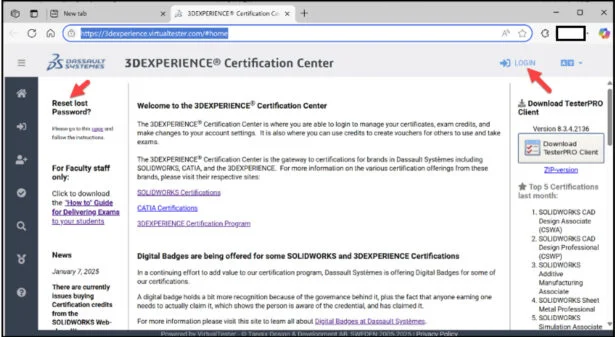
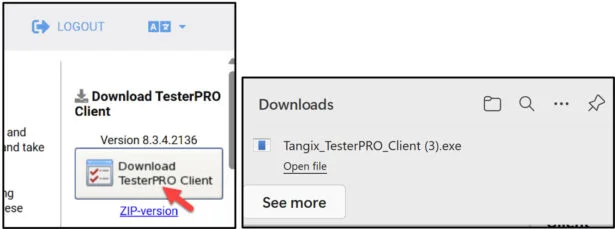
Download the TesterPRO Client to your desktop.
Un-zip the TesterPRO Client.
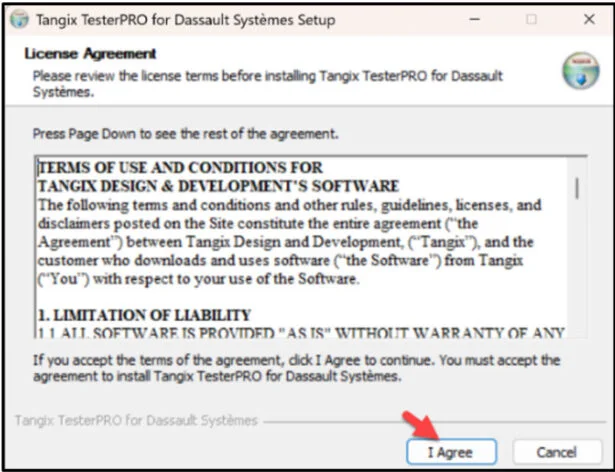
Read the License Agreement.
Agree to the Candidate Conduct Policy.
Click I Agree.
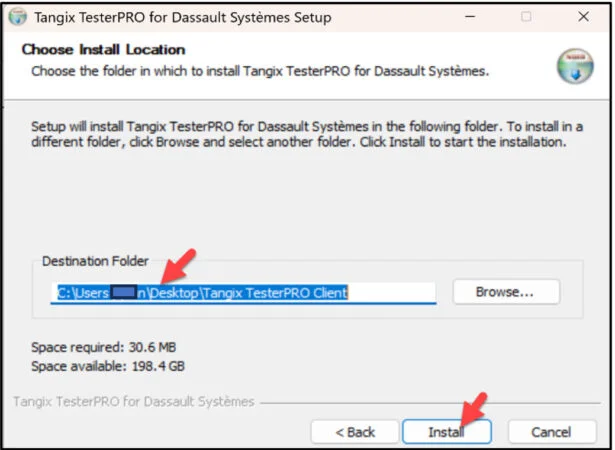
Install the TesterPRO Client.
Click Install.
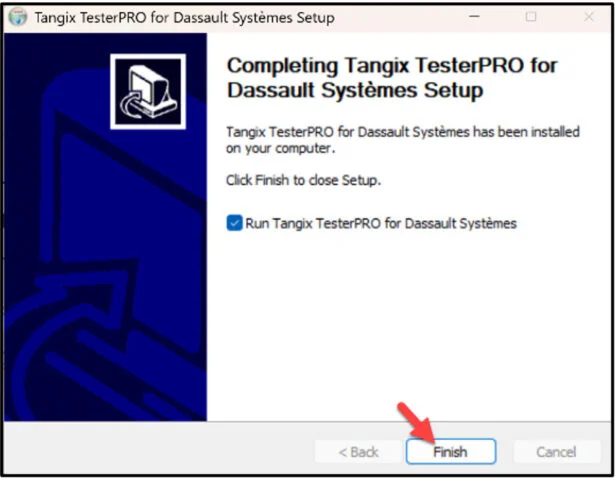
Click Finish.
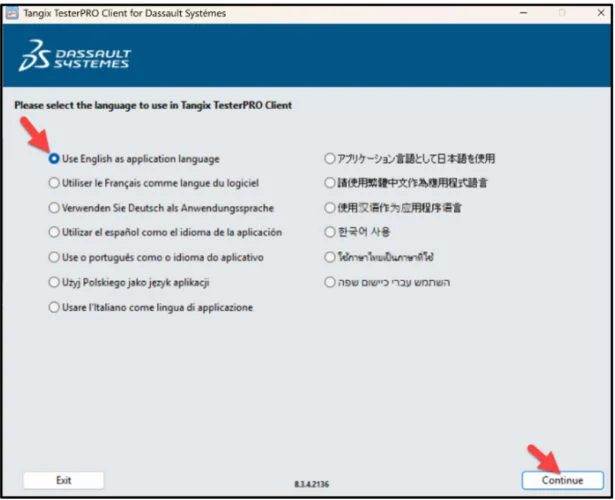
View the available languages.
Select Test Language.
Click Continue.
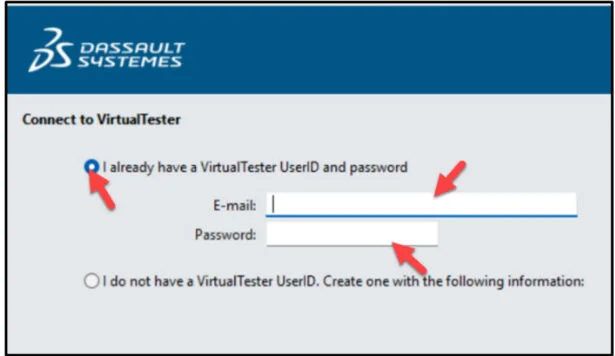
Create an account. If you already have an account, select “I already have a VirtualTester UserID and password”. Enter your school email address. Enter password. Click Continue.
Select SOLIDWORKS.
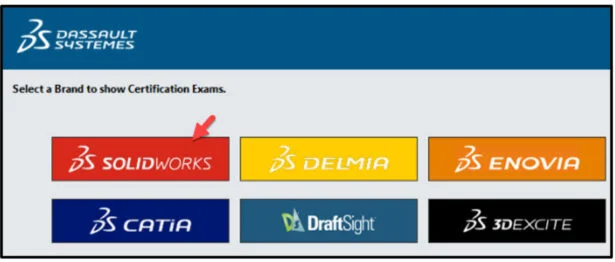
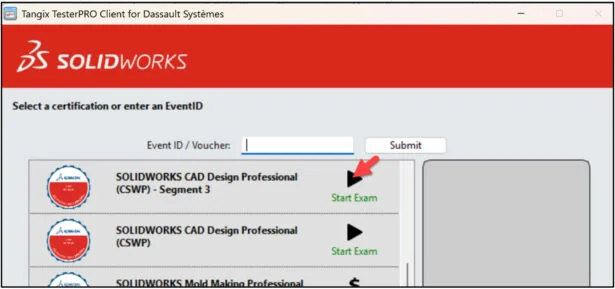
Select SOLIDWORKS CAD Design Professional (CSWP) – Segment 3.
This will depend on the exam opportunity given by the Academic Provider.
Click Start Exam.
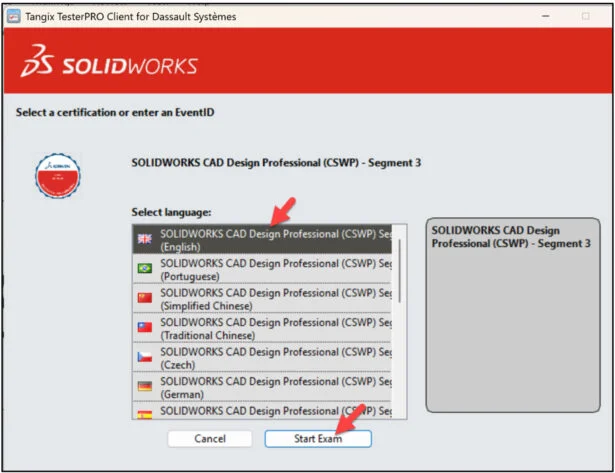
Select language.
Click Start Exam.
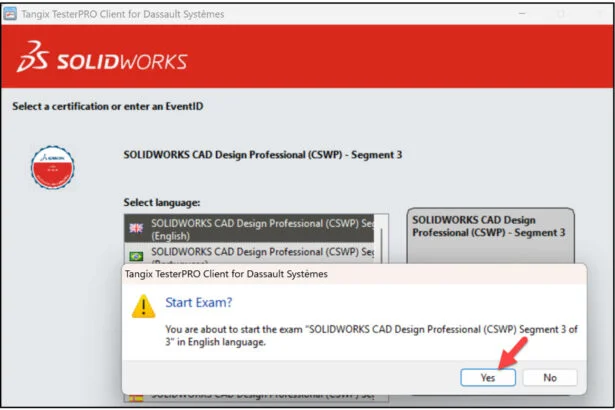
Click Yes.
Read the instructions. Agree to the Confidentiality Agreement and Candidate Conduct Policy.
Click I Agree.
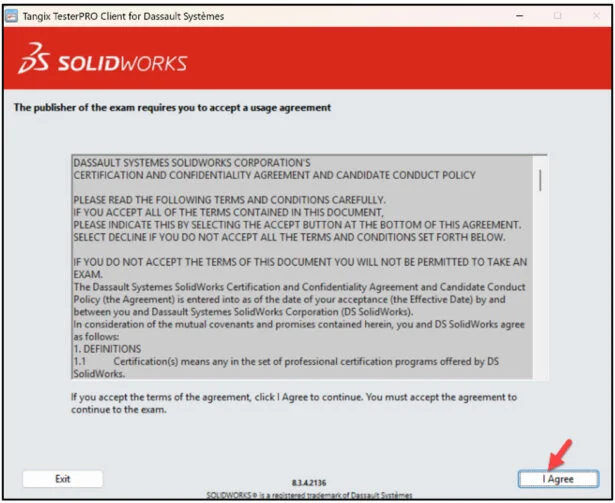
Click Start Examination.
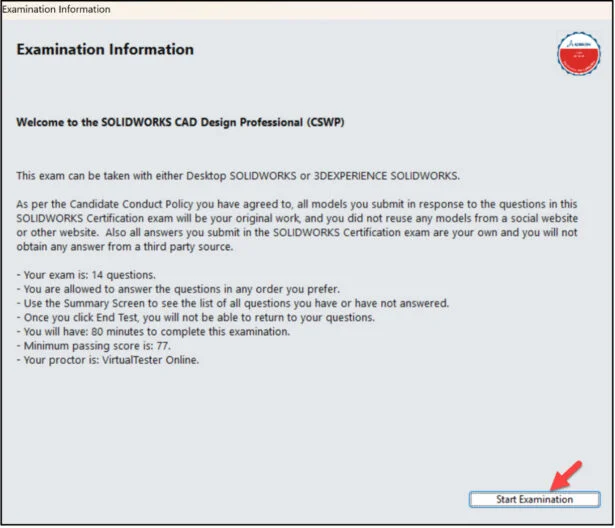
Segment 3 is 80 minutes long with fourteen (14) questions divided into three categories. The format is either multiple-choice or single fill in the blank. A total score of 77 out of out of 109 points is required to pass.
The first question is an instructional page. Read the instructions. Agree to the Candidate Conduct Policy.
Click Yes. It’s a free 5 points. Download the Zip folder. Extract all.
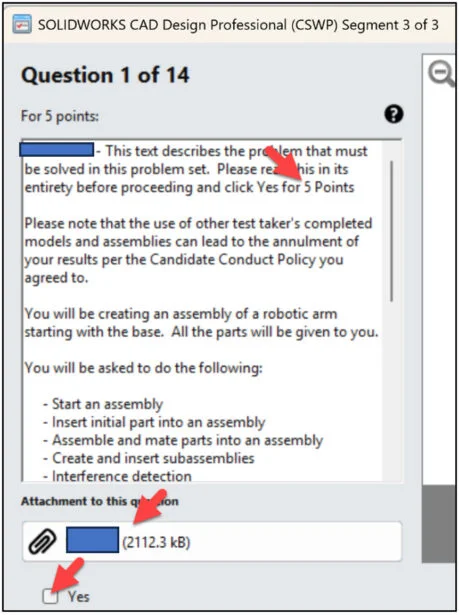
Questions 2 – 14 are worth 8 points each.
The second question is a multiple-choice format. You should have the exact answer (within 0.5% of the stated value in the multiple-choice section) before you move on to the next question. If you don’t have the exact answer, you will most likely fail the following question. This is crucial as there is no partial credit.
Save the assembly after each question in a different file in case it must be reviewed.
You are allowed to answer the questions in any order you prefer.

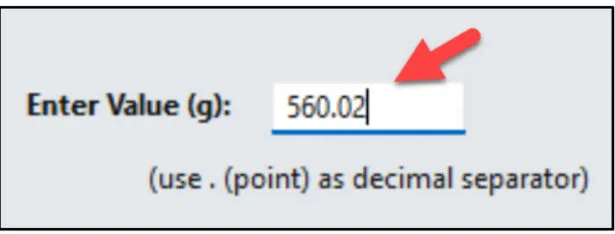
Note: Use a point as a decimal separator on a single answer question.
Note: During the exam, it may state: Roll Control: Free. Pitch/Yaw Control: Free. This means you can rotate freely about X, Y and Z in the assembly.
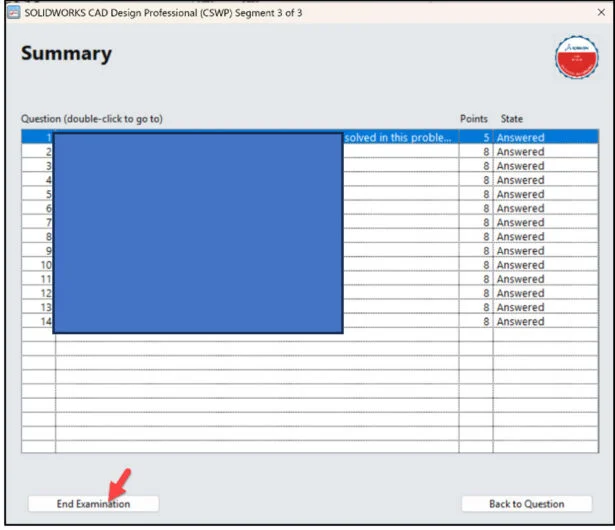
Use the Summary Screen during the exam to view the list of all questions you have or have not answered.
When finished, click End Examination.
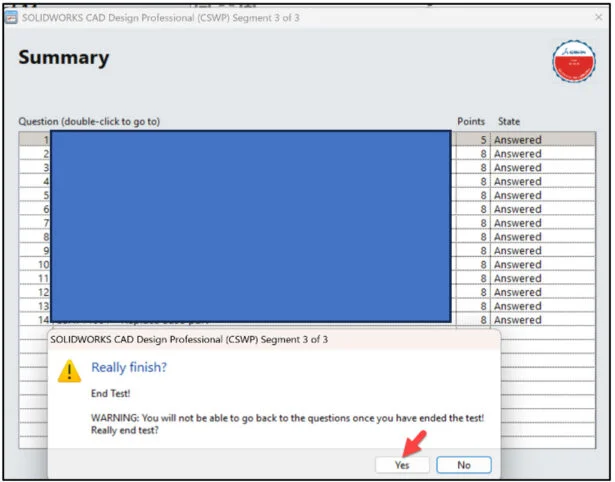
Click Yes.
The exam is automatically graded and the final grade is displayed to the student. The exam grade is provided directly to the Academic Provider. Download the class results into an excel spread sheet. Minimum passing score is 77 or better is required to pass.
Note: Individual questions results are not provided. The number of wrong and correct questions is displayed. The results will display the strong Topics areas and Topic areas to study.
You need to pass all three segments to obtain your CSWP certification. Once you pass a segment, you will not have to take it again. You can take any segment in any order.
If you fail a part, there is a 14-day waiting period before retaking the failed segment. Note: Individual questions results are not provided. The number of wrong and correct questions is displayed. The results will display the strong Topics areas and Topic areas to study.
Additional Resources: Note: A 3DEXPERIENCE ID is required.
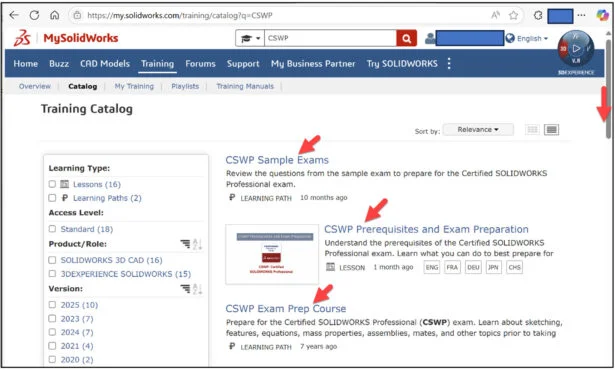
Click the following link: Training | MySolidWorks
Login.
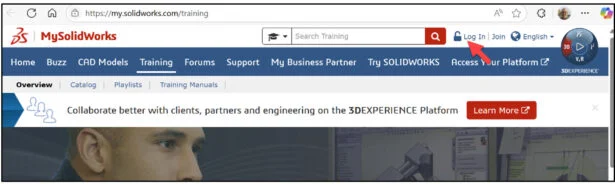
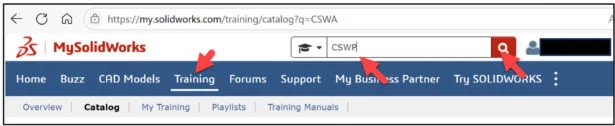
Click the Training tab.
Enter CSWP in the Search box.
Click the Search icon.
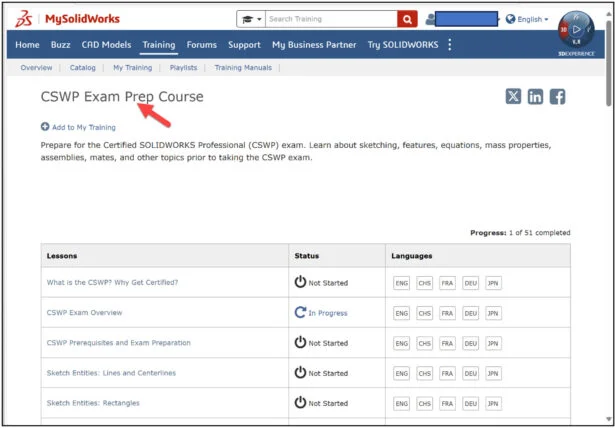
Slide the side bar downward.
View the available training videos and tutorials.
All candidates that pass the three segments of the CSWP certification exam receives an electronic certification, digital badge, business card logo and optional personal listing in the SOLIDWORKS Certification directory.
Lesson 20 is finished.
Other blogs in this SOLIDWORKS Academic Certification Series:
Lesson 1 SOLIDWORKS Academic Certification – What is the Journey?
Lesson 2 SOLIDWORKS Academic Certification – Certification Provider Program for EDU
Lesson 3 SOLIDWORKS Academic Certification 3DEXPERIENCE Certification Center
Lesson 4: SOLIDWORKS Academic Certification – Exam Opportunities
Lesson 5: SOLIDWORKS Academic Certification – Student Needs
Lesson 6: SOLIDWORKS Academic Certification – CSWA Exam Part 1
Lesson 7: SOLIDWORKS Academic Certification – CSWA Exam Part 2
Lesson 10: SOLIDWORKS Academic Certification – SOLIDWORKS Simulation Associate (CSWA-S) Exam
Lesson 13: SOLIDWORKS Academic Certification – SOLIDWORKS Electrical Design Associate (CSWA-E) Exam
Design well, Marie