
SOLIDWORKS 2026 is here, and I’m excited to tell you what’s new in SOLIDWORKS Visualize rendering software. For starters, you can leverage Visualize directly from SOLIDWORKS. Learn more about the latest enhancements below!
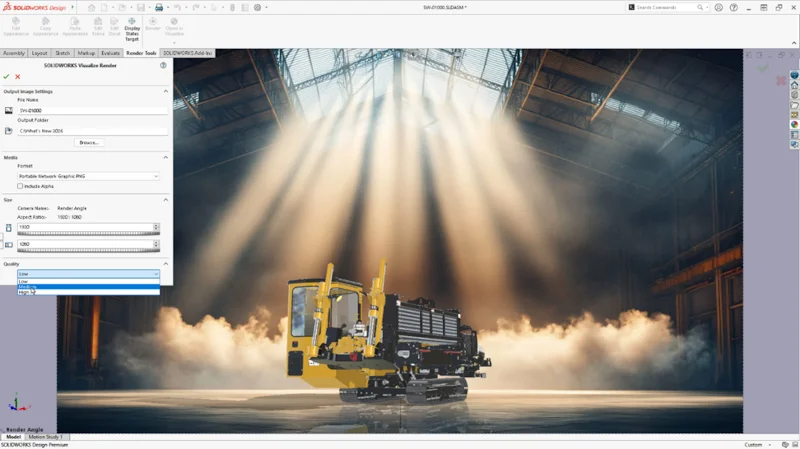
Render with Visualize from SOLIDWORKS Design – quickly produce photorealistic renderings from within SOLIDWORKS Design.
As I mentioned, you can access the power of Visualize directly within SOLIDWORKS Design to quickly produce photorealistic renderings, enhancing design presentation and decision-making with high-quality visuals.
To render with SOLIDWORKS Visualize, first, you will need SOLIDWORKS Visualize installed on your machine. Once installed, you need to enable the Visualize Add-in in SOLIDWORKS Design by clicking Tools > Add-ins > and checking the Box to activate the add-in. Once you have the add-in enabled in SOLIDWORKS Design, simply go to the CommandManager and click Render in the Render Tools tab. You can specify options for the output image settings, such as size and quality, in the PropertyManager. Once you click OK, your rendering creation will begin.
This is a great enhancement, as you can produce photorealistic renderings without stepping outside of SOLIDWORKS Design.
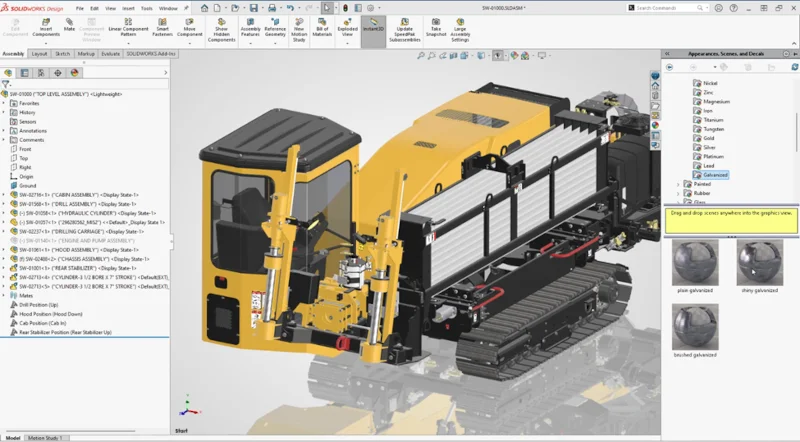
Support for DSPBR Appearances – gain more control over appearances.
Create more realistic models in SOLIDWORKS Design with greater control over appearance parameters using the new Dassault Systèmes Physically Based Rendering (DSPBR) appearances. This creates a seamless transition from design to rendering by ensuring visual consistency.
In addition, SOLIDWORKS Scenes now feature Image-Based Lighting (IBL) to increase realism and provide real-world lighting, along with background and reflections, based on the scene.
All parameters from SOLIDWORKS Design map directly to Visualize. To use the tab, select under Appearance Visual Style in Tools > Options > System Options > Display.
Support Stellar Fast Render Mode on AMD GPUs – experience real-time interactive rendering performance with support for AMD and NVIDIA GPUs.
SOLIDWORKS Visualize now supports native GPU acceleration on AMD hardware using the 3DS Stellar Fast rendering mode, providing real-time, interactive rendering performance for both the Visualize viewport and offline renders with AMD GPUs, as well as NVIDIA GPUs.
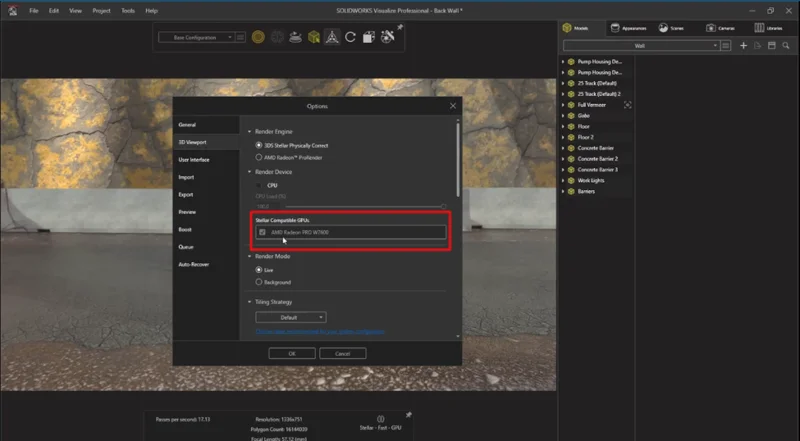
AMD GPU support for Stellar Fast Render Mode provides you with more options for hardware while still benefiting from real-time rendering within SOLIDWORKS Visualize.
To see these enhancements in action and see what else is new in SOLIDWORKS R2026x GA, check out the What’s New Wiki page here.
That’s just a glimpse of the latest enhancements available now. See my last two blogs on what else has been added this year:
What’s New in SOLIDWORKS Visualize 2025x FD01
What’s New in SOLIDWORKS Visualize R2025x FD02
To learn more about what’s new in SOLIDWORKS 2026 solutions, visit https://www.solidworks.com/product/whats-new.
That’s a wrap. Happy holidays, everyone! I hope to see you at 3DEXPERIENCE World in Houston, Texas, from February 1-4, 2026. Catch me in the following presentations:
- Turn Your CAD Models into Interactive Product Web Experiences
- Efficient Design with xDesign: Mastering Contextual Tools and Shortcuts
- Extended Reality Meet-Up