
After exploring the Rocky Mountains in Canada, I’m back, refreshed, and excited to share the latest enhancements with you! The R2025x FD03 update is here, and in this blog, I’ll walk you through the collaboration and data management improvements for 3DEXPERIENCE SOLIDWORKS and SOLIDWORKS with Cloud Services.
This update brings exciting new features, including selective loading of assemblies with advanced filtering, along with improvements to drawing stamping, task scheduling, and more!
Selective Loading of Assembly Components – work more efficiently and collaboratively on large assemblies.
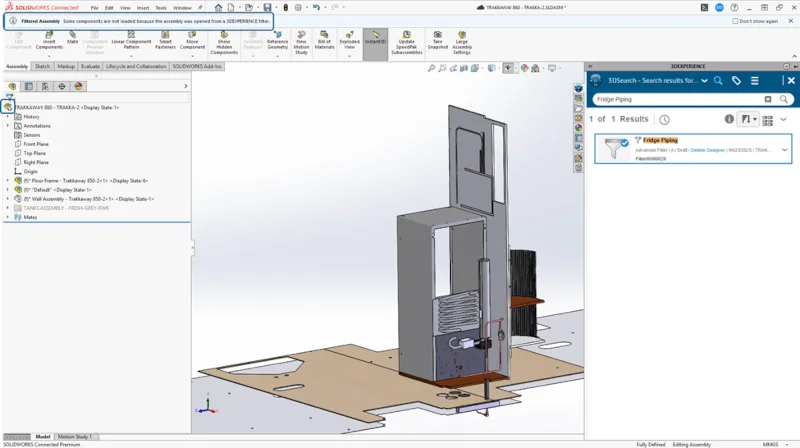
Today, there are many different ways users handle opening large assemblies, like Large Design Review (LDR), Lightweight, etc. We’re introducing a new capability that allows you to open a selective section of your design structure, also known as a partial open, using the 3DEXPERIENCE platform.
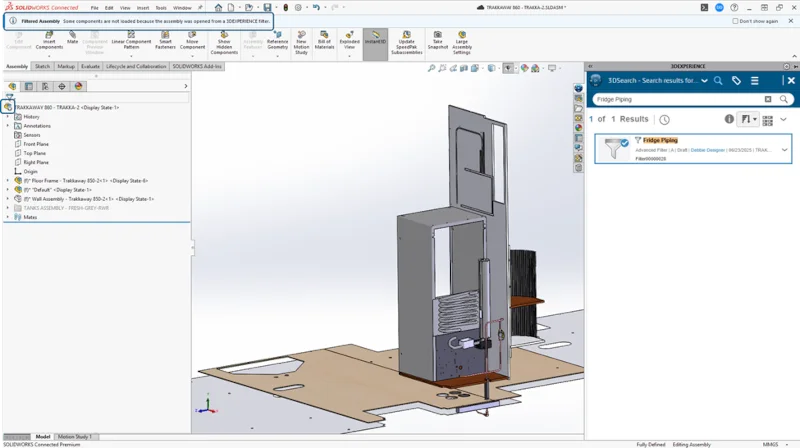
With the Product Explorer app, you can visually manipulate the design structure through finding relationships among components, sub-assemblies, assemblies, etc. and leverage advanced filtering capabilities. After filtering to a specific desired set of components, you can save this structure as a Filter and open just these components in SOLIDWORKS. You’ll notice a filtered icon next to the top-level assembly in the FeatureManager tree and a banner indicating it is a Filtered Assembly. Changes made to these selected components can be saved back onto the 3DEXPERIENCE platform and are reflected in the top-level assembly.
This also allows multiple users to work on the same large assembly collaboratively. For instance, if one user is focused on the fitment of a specific component in a large assembly, they can filter by volume to isolate components within a specified bounding box and work only on those parts. Similarly, for a user working on wiring of an entire system, they can use a filter to only open electrical/wiring components.
Task Scheduling for 3DEXPERIENCE SOLIDWORKS – run tasks at a later time or on a recurring schedule.
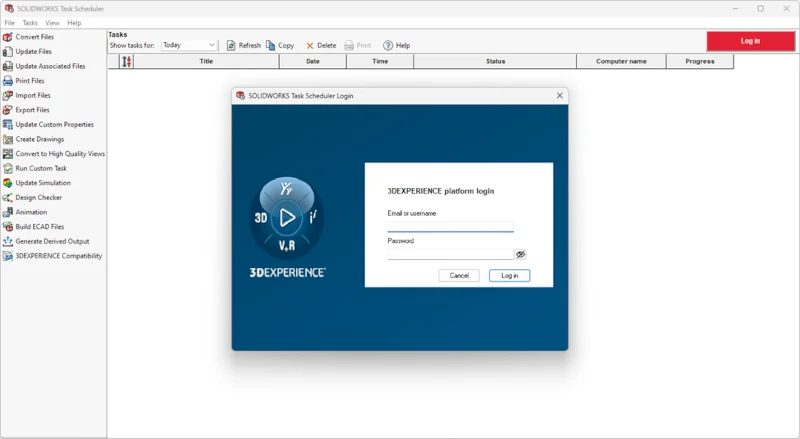
With the latest update, we’re reintroducing the ability to schedule tasks to run at a later time or on a recurring basis using SOLIDWORKS Task Scheduler. You can now run tasks in the background with local files, even when you’re away from your machine, allowing you to stay productive without being tied to your desk. Once you’re logged in, your credentials are saved, and scheduled tasks can run without needing to input them again. We’ve also simplified the Generate Derived Output task by removing the username and password fields.
This enhancement adds flexibility to your workflow, letting you automate routine tasks and free up your time for other priorities, whether it’s after hours or during breaks.
Dynamic Tree Expansion In MySession –open and navigate large assemblies easily.
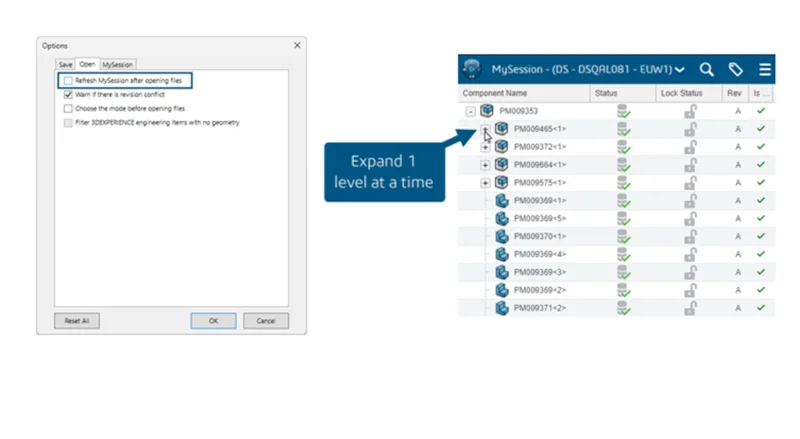
Experience better performance when opening large models with complex assembly structures. As you already know, when you open an assembly, the entire tree structure in MySession is completely expanded and updates on each file are fetched from the 3DEXPERIENCE platform. Now when you disable “Refresh MySession after opening files” in Options from the Tools tab of the MySession Action bar, opening the file will load only the first level of child components. Subsequent expansion only opens one level at a time, helping reduce load times and improving file structure browsing.
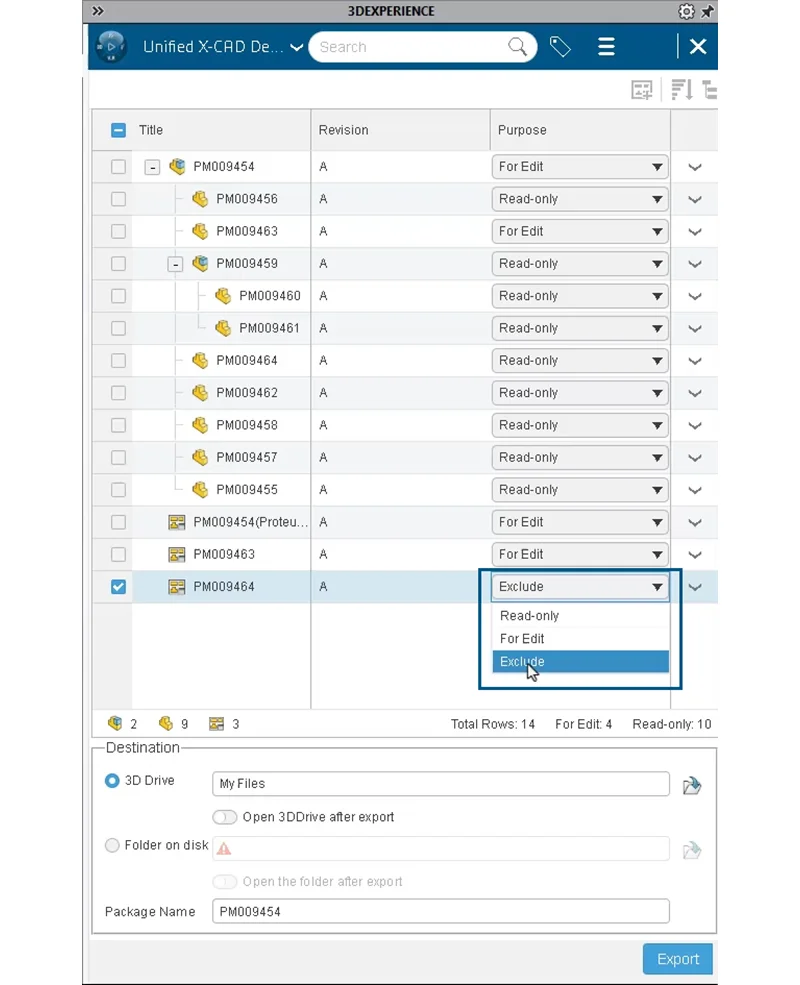
Exclude Drawings in an Export Package – include or exclude specific drawings.
Control which drawings you’d like to include or exclude when exporting data packages. When using the Export as Package tool, located in the Collaboration tab of the MySession Action bar, after adding drawings, you can choose whether or not to include specific drawings. The Exclude option helps you avoid exporting unnecessary or outdated drawings and reduces the size of the exported package.
Stamping Drawings with User Names and Email Addresses – Improve collaboration and traceability.
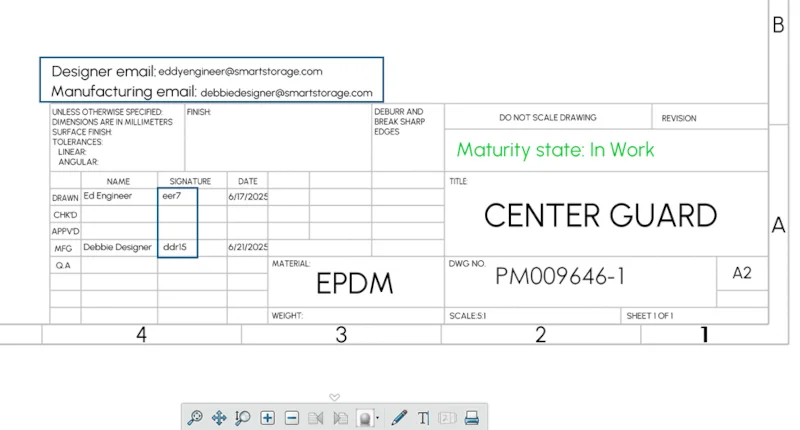
Earlier this year, we enhanced drawing stamping with the ability to include maturity status of a drawing through the Change Status or Change Action commands.
Now we’ve further extended the attributes to include user names or email addresses. You can stamp the user names or email addresses of the users who participated in the drawing release process. This information will also display in 3DPlay and other Dassault Systèmes web viewers.
This enhancement will help add clarity to your drawings and ensure stakeholders in the drawing release process can be easily contacted by including email addresses.
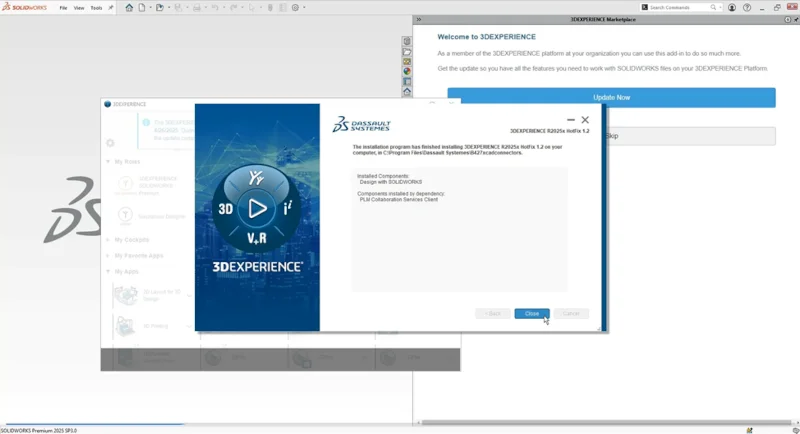
Install 3DEXPERIENCE Add-in from 3DEXPERIENCE Marketplace – save time by installing the add-in directly within SOLIDWORKS.
For those using SOLIDWORKS with Cloud Services, you can install the 3DEXPERIENCE add-in directly from 3DEXPERIENCE Marketplace from the SOLIDWORKS Task Pane.
To access this functionality, simply load the 3DEXPERIENCE Marketplace from the SOLIDWORKS Add-In dialog box under the Tools menu.
To see these enhancements in action, visit the What’s New Wiki page here.
See my last blog on FD02 here.
For more information on SOLIDWORKS offerings, visit https://www.solidworks.com/product/solidworks-3d-cad