
The latest functional delivery update of xDesign for Students is here, and I’m excited to fill you in on what’s new.
Since xDesign for Students is a cloud-based design solution, you can access it remotely from any device and start using the latest features available in the FD01 update. It includes many of the same features as the xDesign for professionals version, offering powerful capabilities for 3D modeling, parametric design, assembly design, and collaboration.
There are three new enhancements to help you stay focused and on top of your assignments, including an updated landing page, an alert for new class content and assignments, and a save as pop-up option to save read-only models shared by your teacher so you can work with them and save changes.
Streamlined Assignment Access
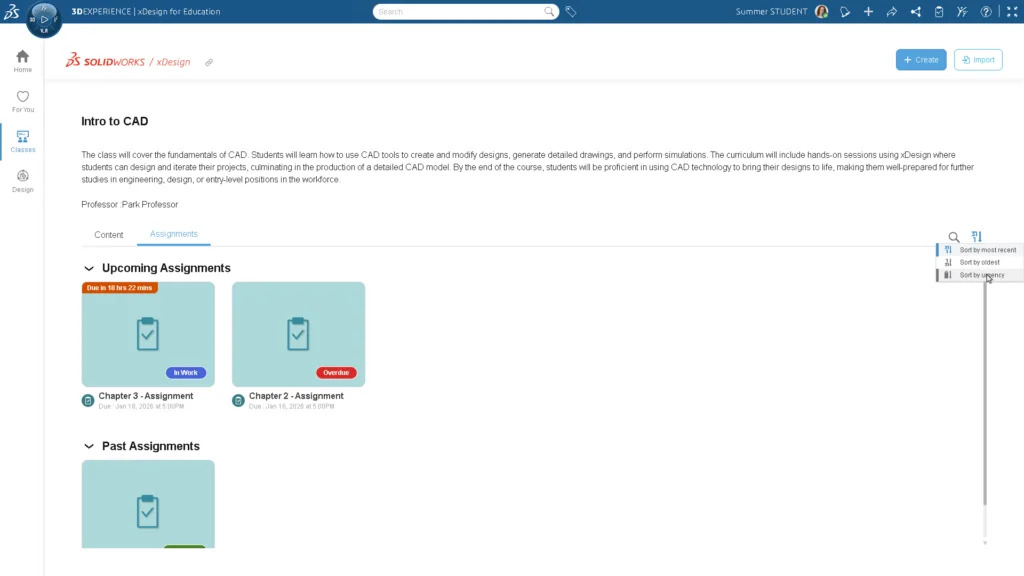
Easily stay on top of coursework with a clean, intuitive interface that keeps all class content and assignments organized and accessible. The xDesign landing page has been updated so you can more easily access your assignments and content, such as lectures, chapters, videos, and other resources, through a designated Content tab and an Assignments tab.
Using the View All option, you can access your assignments in the Assignments tab, where you can sort them by most recent, oldest, or urgent ones. You can easily track the status of each assignment, which is labeled “To Do,” “In Work,” “Overdue,” or “Completed.” By hovering over an individual assignment, you can see additional details such as the exact due date. Assignments can be opened in the side panel for quick access.
When viewing content, you can also filter by 3D Model, Drawing, or Video.

Refresh Button for New Content
Stay on top of your assignments with a new Refresh button that appears next to the class title whenever a professor adds new material.
You can check for new content by clicking the blue Refresh button. This action updates only the content on the Classes tab and does not disrupt or close any active design sessions in the Design tab or side panels.
Additionally, newly added items in the Classes tab are marked with a “New” flag to help you identify them easily.

Save As for Read-Only Assignments
Never lose your assignment work by clearly seeing when a component is read-only. If it’s read-only, you can easily create your own editable copy by doing a Save As on the model before you begin.
Previously, you could begin working on a model assigned by the teacher without realizing it was read-only, leaving you unable to save your changes. Now, xDesign displays a message that both notifies you that the model is read-only and offers a Save As option. You can name the assignment model and save it to your chosen Collaborative Space right away. All assignment components dragged in from Collaborative Tasks become editable, allowing you to start your work smoothly and without interruption.

That’s just a glimpse of what’s new specifically for students. To see what else is new in xDesign R2026x FD01, check out this blog. See our last blog on xDesign R2025x FD03 here.
Why choose xDesign? Not only do you get all the tools for parametric design, subdivision modeling, sheet metal design, collaboration, and more, but you’ll boost your employability by being skilled in the leading SOLIDWORKS cloud-based solution xDesign.
For more information, visit https://www.solidworks.com/product/students.