
Want to spend more time doing actual engineering and design work? With new AI enhancements, you will accelerate time-consuming tasks like creating drawings and get instant advice on things like improving assembly performance or the effect a design modification will have on the rest of your assembly.
The 2026x FD02 update of SOLIDWORKS Design is going to help you take greater control of your drawings with new generative design enhancements, give you the ability to convert STEP and IGES models into parametric feature-based SOLIDWORKS models, and get advice on improving assembly performance. All this is with LEO, your virtual advisor, who can assist you with your CAD needs. Below, we’ll discuss these new AI capabilities that use LEO, along with other enhancements.
Here’s a look at what’s new in SOLIDWORKS Design and SOLIDWORKS Design with Cloud Services.
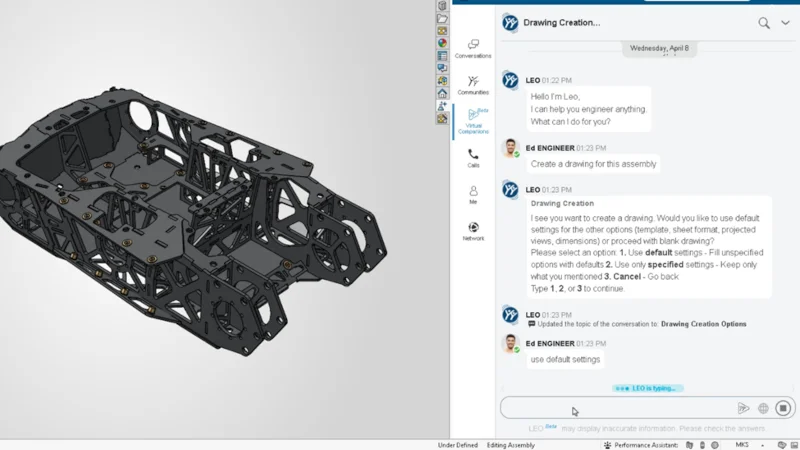
- Improved Customization for Automatic Drawing Generation (Beta) – improve manufacturing documentation with artificial intelligence.
In 2026x FD02, we’ve added more generative drawing capabilities, with the ability to customize your drawings and drawing tables through text prompts. A new button in the Auto‑Generate Drawing Property Manager provides direct access to the Drawing Creation functionality. Just hit the Ask Virtual Companion, and you can converse with LEO using text prompts, thereby allowing you to modify and customize your drawing as required, at any time.
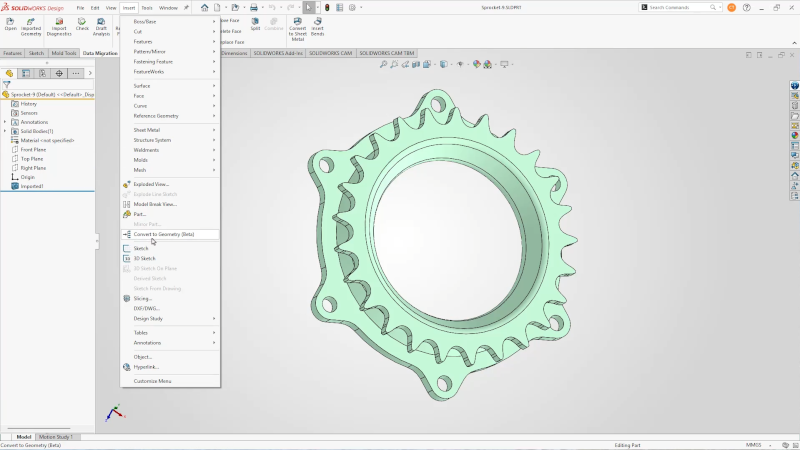
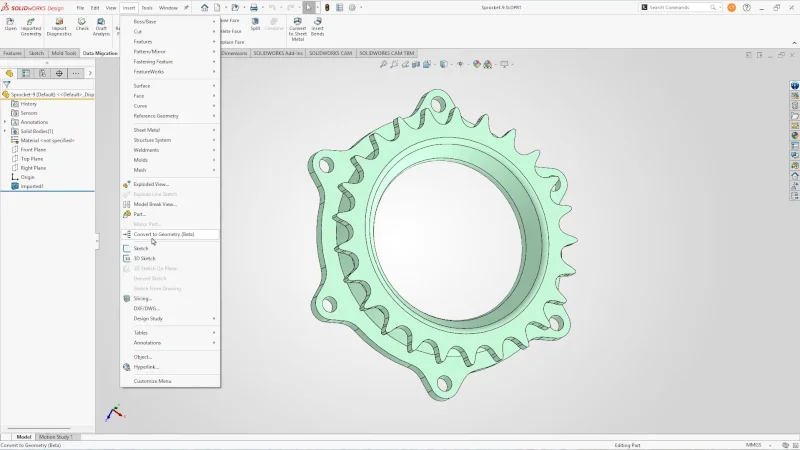
- Convert CAD Neutral File Formats to SOLIDWORKS Geometry (Beta) – save time on model conversions.
Using the new AI-powered Convert to Geometry command, you can automatically convert STEP and IGES models into parametric, feature-based models so you can easily modify and customize them to your liking without having to rebuild the model from scratch.
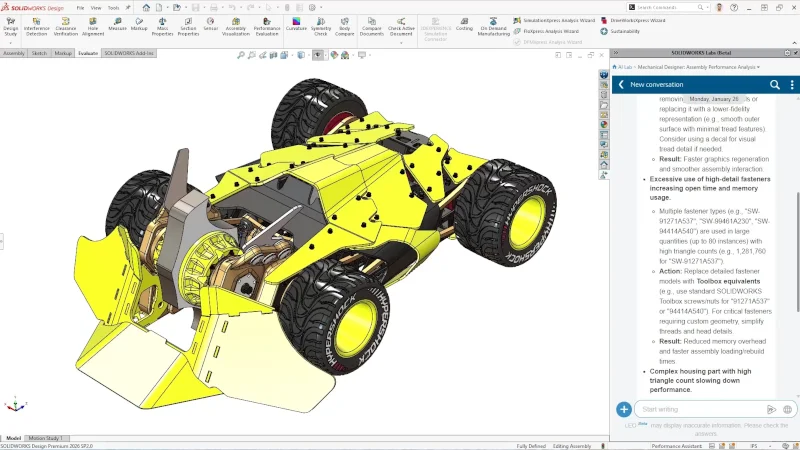
- Assembly Performance Evaluator (Beta) – get real-time advice on how to speed up assembly performance.
Gain insights on how to improve assembly performance by asking LEO questions about your assembly. Leo’s AI-powered assembly performance analysis will provide detailed insights into your assembly performance and offer recommendations for improvement. LEO analyzes your specific assembly and provides recommendations to improve its performance.
- Material Appearance Manager (Beta) – simplify and speed up the application of material appearances.
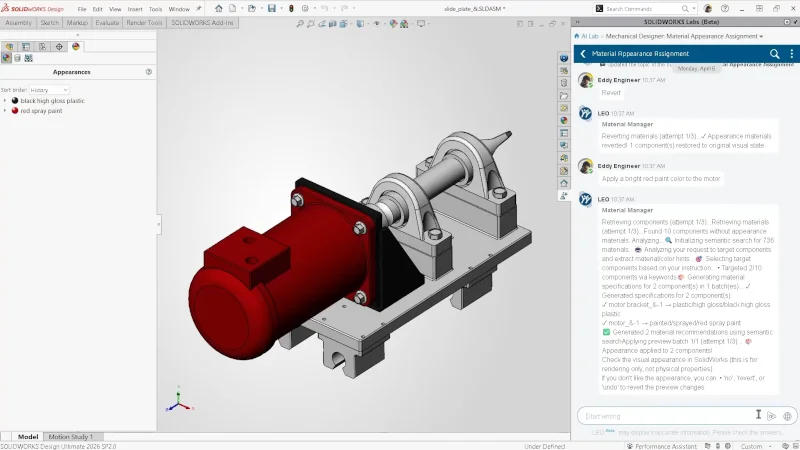
Often, you might forget to assign materials needed later for downstream simulation, or you might just want to change the color and appearance of your assembly to improve how it looks.
Now with the AI-powered Material Appearance Manager, you can use text prompts and let LEO apply and update material appearances across an assembly, intelligently suggesting appearances based on part context, names, and usage.
Let’s say you want to apply the color red to a motor or assign stainless steel to a shaft. LEO has you covered and is intelligent enough to help converse with you when there are discrepancies, such as multiple components that appear to be shafts.
- Assess Changes with Design Change Impact (Beta) – make more informed design decisions.
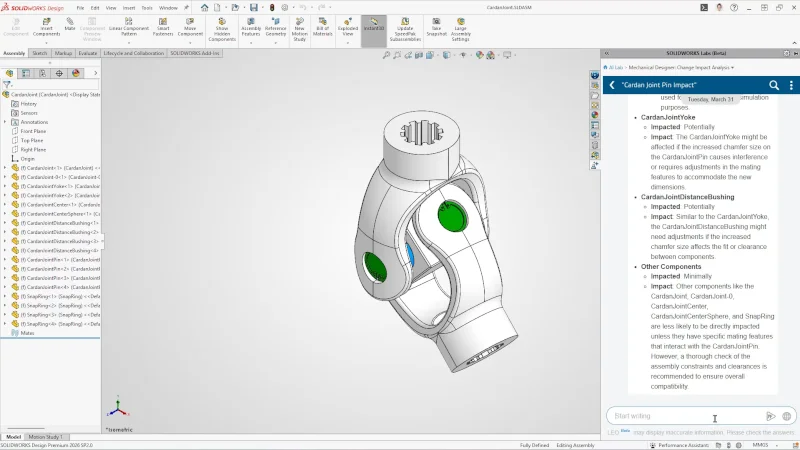
Reveal which parts, assemblies, and downstream dependencies will be affected before making a design change, so teams can assess risk earlier, avoid unintended disruptions, and update designs with greater confidence.
LEO can provide an analysis showing the impact of a design change before you commit, including which other components will be affected and who will be affected.
- Get Engineering Guidance Using the PLM Model Insights (Beta) – gain important information for better decision making.
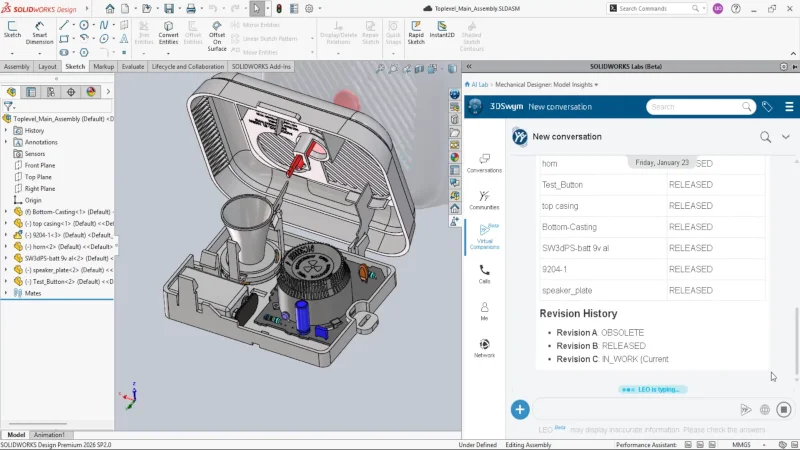
Easily find related PLM data, such as revisions, maturity state, ownership, related files, and change actions. Also, compare revisions so you can make faster decisions, reduce clicks, and stay aligned with the latest product definition.
LEO can generate a report on everything that has happened to a specific file, including who worked on it, the most valuable contributor, the number of edits and the distribution of edits over time, giving you insights about your design history through conversation.
Ready to try out all these cool AI features? You can access this Beta functionality in the SOLIDWORKS AI Labs tab of your task pane menu.
In addition to these great AI-powered enhancements, we continue to enhance your modeling experience – here are a few of my favorites below.
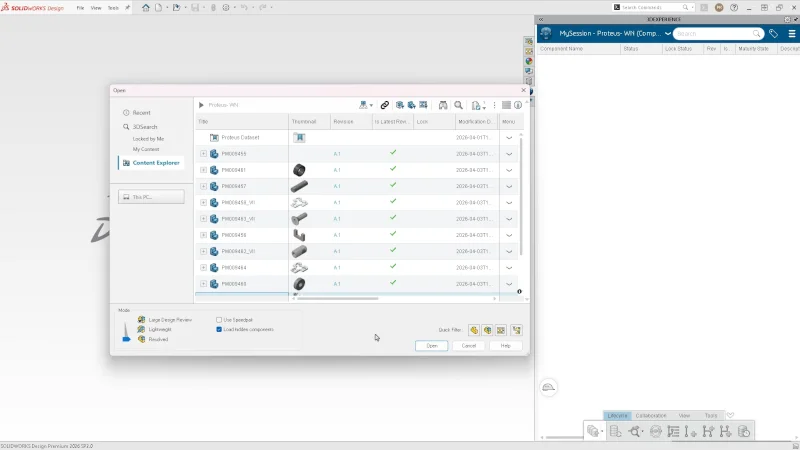
- Access Content Explorer in SOLIDWORKS Design Open Dialog Menu – open and browse platform files faster.
Access your content faster with the ability to open the Content Explorer right from SOLIDWORKS. We introduced the Content Explorer app in R2026x FD01 to help you more easily access, organize, and manage your SOLIDWORKS files on the 3DEXPERIENCE platform.
The Content Explorer contains the same bookmark folders and content as the Bookmark Editor, but it offers a different approach to organizing and sharing content within Collaborative Spaces.
Stay tuned for a blog post from my colleague Priyanka about upcoming enhancements to collaboration and data management.
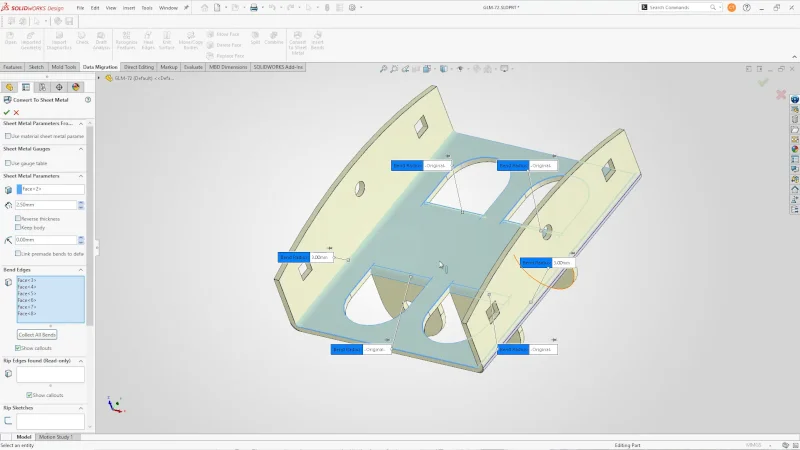
- Edit Bend Radius for Imported Bend Faces – speed up sheet metal import and conversion edits.
When using the Convert to Sheetmetal functionality, you can now modify any bend radius of pre-existing bend faces on imported parts both during and after conversion.
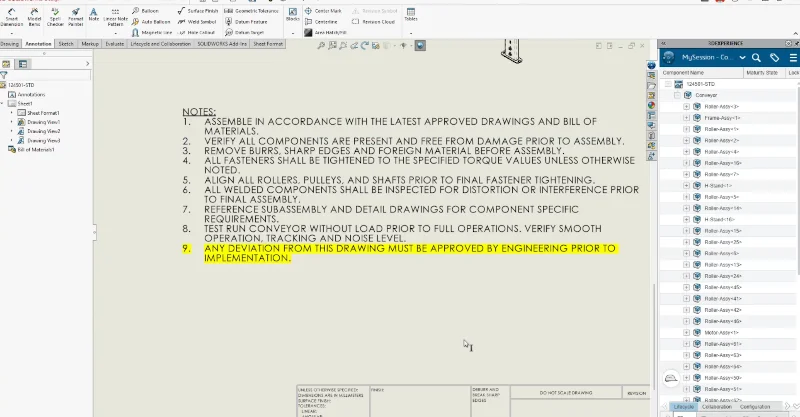
- Add Color Highlighting to Notes – emphasize important details.
You now have the ability to highlight text in drawing notes using a selectable color palette. This makes it easier to emphasize notes, callouts, and other important drawing information.
- Get Guidance from the Performance Assistant When Applying Fasteners – Improve assembly performance with automatic 3D thread suppression.
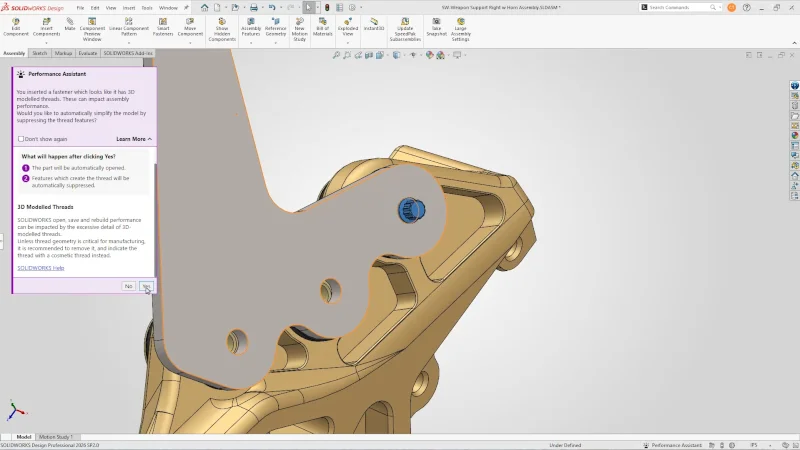
Keep large assemblies running smoothly with automatic thread suppression suggestions from the in-context Performance Assistant. When you place fasteners with fully modeled 3D threads, the assistant prompts you to suppress them before they impact performance — with the option to ignore or disable the messages if you prefer to manage this manually.
To see these enhancements in action, visit the What’s New wiki page here. Check out my blog post on the FD01 update to stay up to date on the latest functionality.
Whether you are new to SOLIDWORKS Design or a seasoned user, you can gain valuable tools and skills using these new enhancements available now.
Many of these enhancements are only available when connected to the 3DEXPERIENCE platform, so be sure you have activated your subscription to start taking advantage of its capabilities today.
Not yet connected? The 3DEXPERIENCE platform offers a unified, cloud-based environment connecting people, data, and processes, enabling real-time collaboration and a “single version of the truth” for product development. Key benefits include faster innovation via virtual twins, reduced IT costs, improved security, and seamless integration of design, simulation, and manufacturing.
We’ll continue to adapt to evolving design trends through continuous software updates throughout the year, focusing on advanced design and modeling innovations, AI-powered capabilities, cloud integration, workflow automation, user interface enhancements, simulation updates, and more.
Want to learn more? Ask your local reseller for a demo of SOLIDWORKS 2026 and visit https://www.solidworks.com/product/solidworks-design for more information.