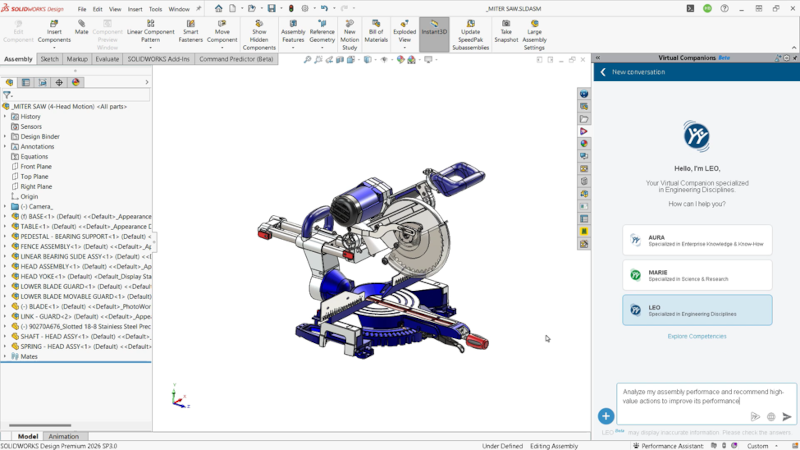

Reducing manual and redundant work has been a goal with each SOLIDWORKS update. That’s where SOLIDWORKS AI can help. What is SOLIDWORKS AI? In the last year, we’ve introduced many artificial intelligence (AI) tools in SOLIDWORKS Design for automatic drawing creation, fastener recognition and automation, assembly guidance, and more.
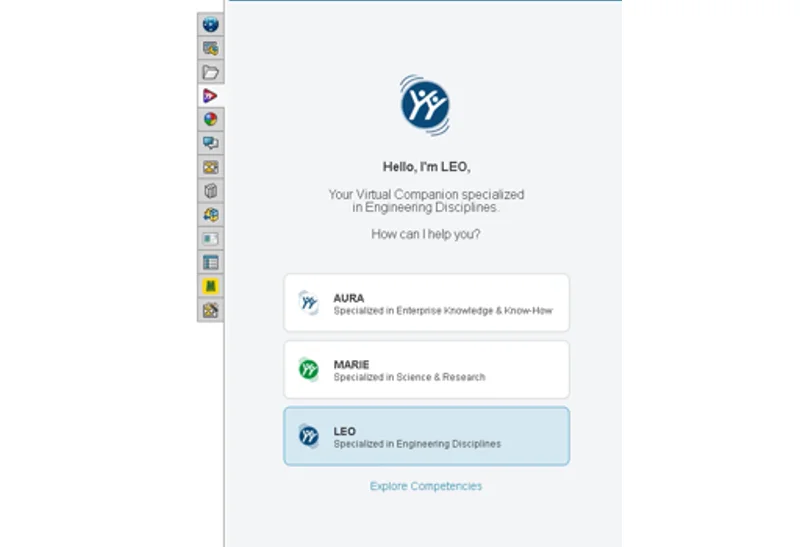
SOLIDWORKS AI is enabled by virtual companions such as LEO, with whom you can communicate to automate workflows and reduce design time. For instance, you can ask LEO to analyze the performance of your assembly, identify potential risks when making design changes, and even automatically generate assembly instructions.
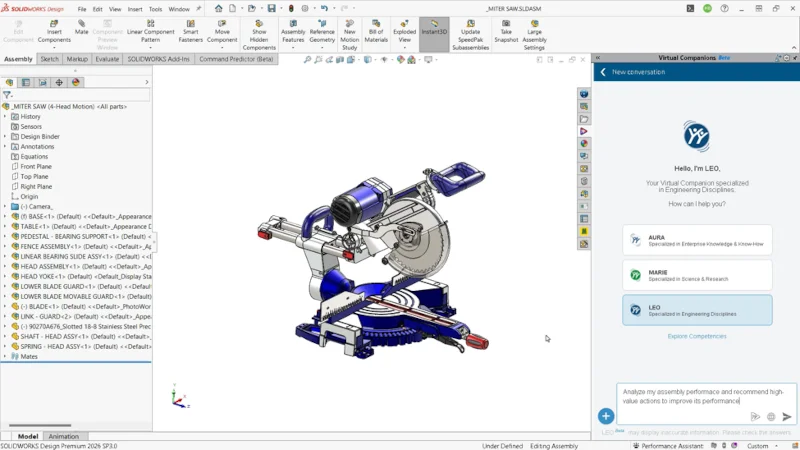
The SOLIDWORKS Design 2026x FD03 update delivers new AI enhancements you can access on the 3DEXPERIENCE platform that speed up and automate time-consuming tasks so you can spend more time designing and focusing on solving important engineering challenges.
Here are some of the top AI enhancements for design automation and assembly design in this update.
Assembly Performance Analysis – optimize large assemblies for increased performance.
Improve large assembly performance by asking LEO why an assembly is slow and how to optimize it, rather than manually inspecting every component and performance setting. LEO analyzes open time, rebuild time, graphics load, and structural complexity, then translates the results into a clear, prioritized breakdown of the issues having the greatest impact.
The easy-to-understand recommendations and insights help users focus their optimization efforts where they will have the greatest effect, reducing open and rebuild times, improving assembly responsiveness, and minimizing the cumulative time engineers spend waiting for large models to load.
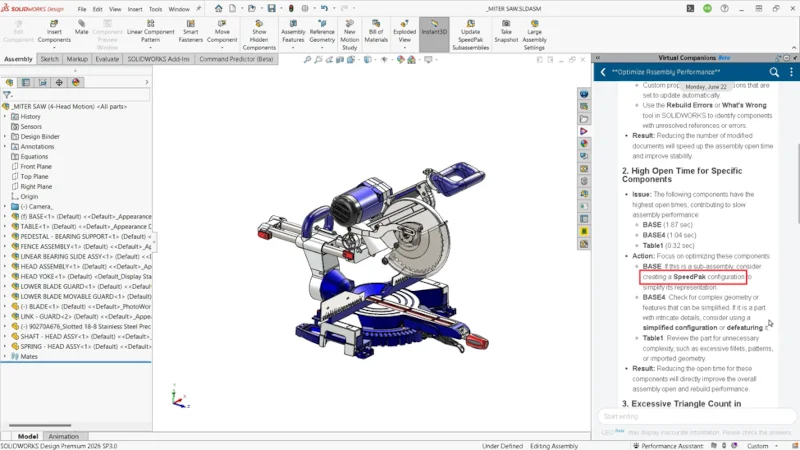
Part & Assembly Simplification – reduce assembly complexity and improve performance.
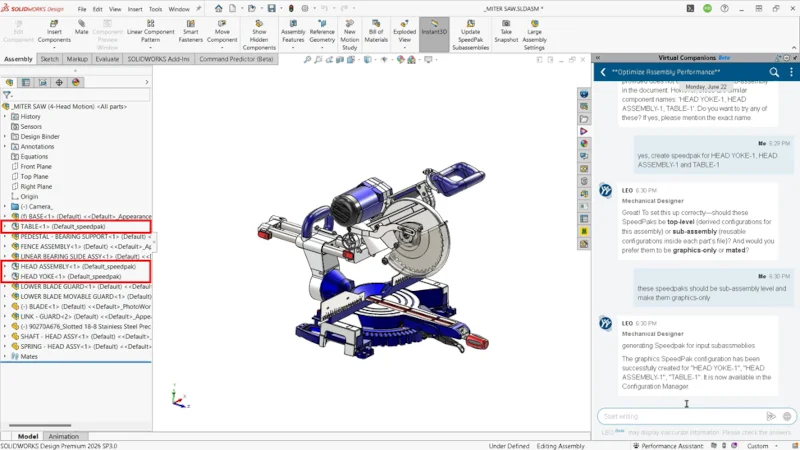
Improve assembly performance by asking LEO to apply targeted simplification strategies rather than manually acting on the suggestions. LEO can convert modeled threads on imported fasteners and other components into cosmetic thread representations across the entire assembly, reducing unnecessary geometric complexity while preserving thread information in drawings.
LEO can also recommend and create the appropriate SpeedPak configurations at the top-level assembly or subassembly level based on assembly structure, component usage, and performance needs. These guided operations help reduce file size, improve open and rebuild times, and create lighter, more responsive assemblies without requiring users to inspect and optimize every component individually.
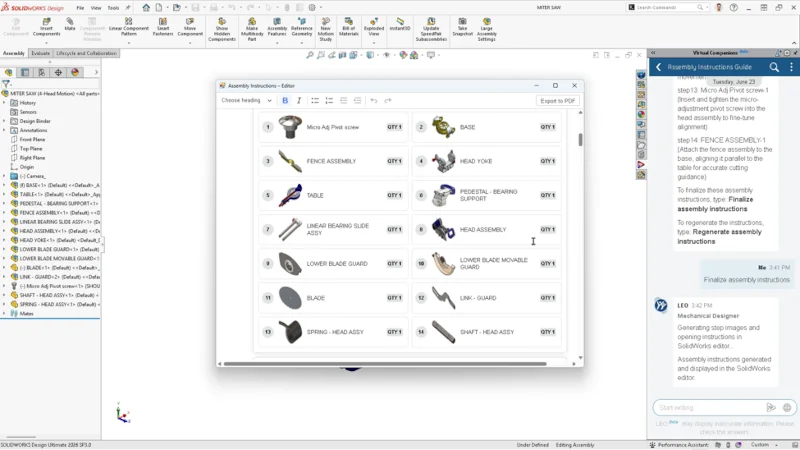
Assembly Instructions Generation – reduce manual work and generate fast, step-by-step instructions with images for downstream use.
Create clear assembly instructions by asking LEO to generate the assembly sequence directly from the 3D model rather than manually building exploded views, arranging components, and capturing each step. LEO analyzes the assembly geometry and produces a structured set of step-by-step instructions with supporting snapshots that show how the product should be assembled.
Easy-to-follow, visual instructions in minutes help teams reduce the time required for manufacturing handoff and service documentation.
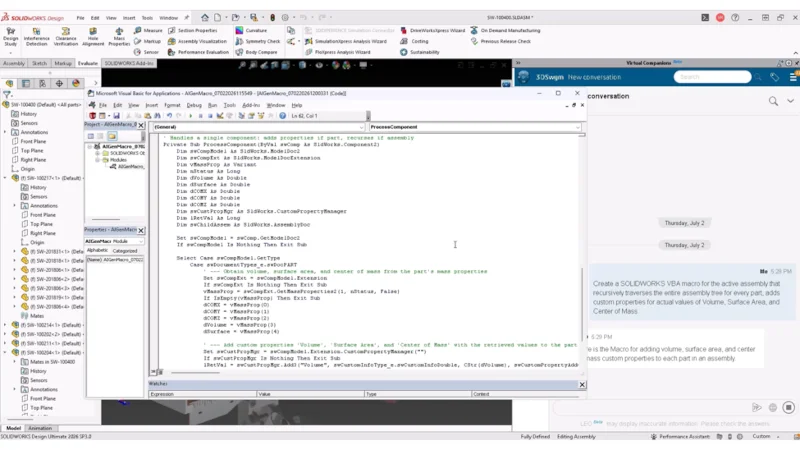
Workflow Automation – automatically generate custom SOLIDWORKS macros.
Automate repetitive SOLIDWORKS workflows by describing the task you want to complete rather than writing and debugging custom code. Ask LEO to create a macro for tasks such as renaming files, exporting deliverables, applying company standards, or updating model properties, and LEO generates the macro and opens it directly in the editor for review.
Run the automation immediately or continue the conversation to refine its behavior and account for additional requirements. This turns repeatable, manual processes into one-click operations, reducing hours of low-value work and making custom workflow automation accessible to users without SOLIDWORKS API or programming experience.
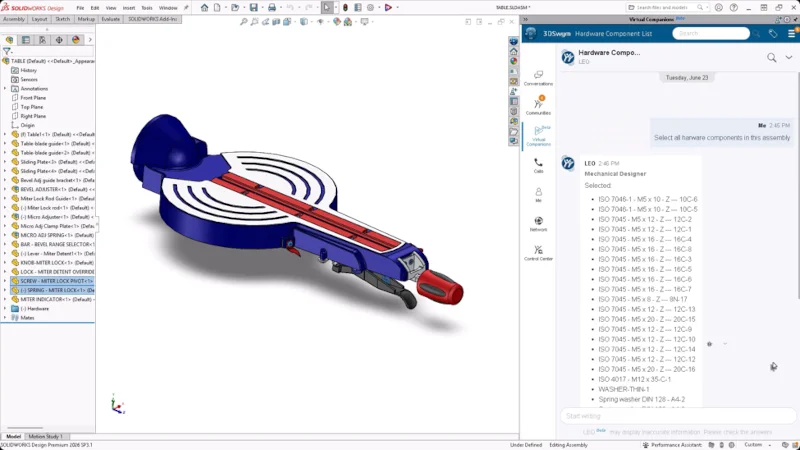
Engineering Guidance – Reduce tedious selections with LEO.
Work faster by telling LEO what you’d like to select by typing it in the conversation box, instead of manually picking items one by one. Quickly isolate the design elements you need across parts, sketches, assemblies, and drawings, then continue your workflow with fewer clicks, less searching, and fewer selection mistakes.
That is a just a glimpse of the latest SOLIDWORKS AI capabilities. Watch the video below for a preview of some of the latest AI enhancements to see how AI can improve your workflow.
To learn more about the latest enhancements in FD03 for AI, design and modeling, and collaboration and data management, check out the What’s New Wiki page here. Learn how artificial intelligence in engineering can have a big impact on product design, transforming CAD workflow and speeding up design time. And remember, with each functional delivery, enhancements become available immediately, so you can start using them now to accelerate your design process.
To learn more about SOLIDWORKS AI, visit: https://www.solidworks.com/product/solidworks-design/ai-virtual-companions.
For more information about SOLIDWORKS Design capabilities, visit:https://www.solidworks.com/product/solidworks-design.