
Virtual Sharps in Sketches
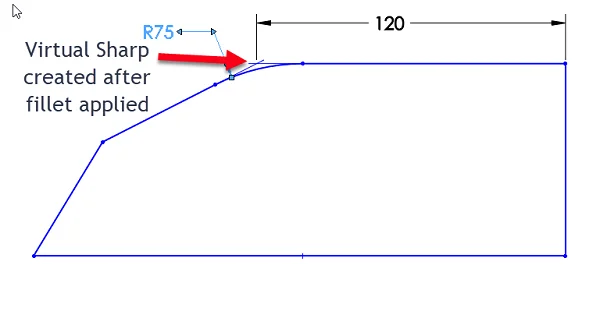
Sometimes you want a point in a sketch that represents the location of 2 lines intersecting, even though they don’t actually share a point. These points can be created and are called virtual sharps in SOLIDWORKS.
Sketch Fillet Scenario
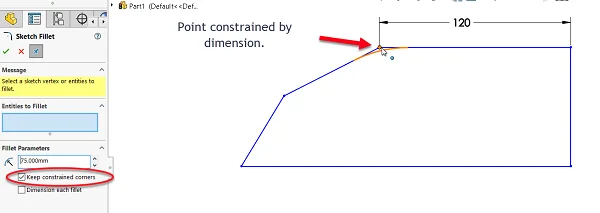
One scenario occurs when using the Sketch Fillet command. Points that are already constrained can be kept as virtual sharps if “Keep Constrained Corners” is active in the PropertyManager of the Sketch Fillet tool, as seen in Visual 1 below.
Alternate Scenario
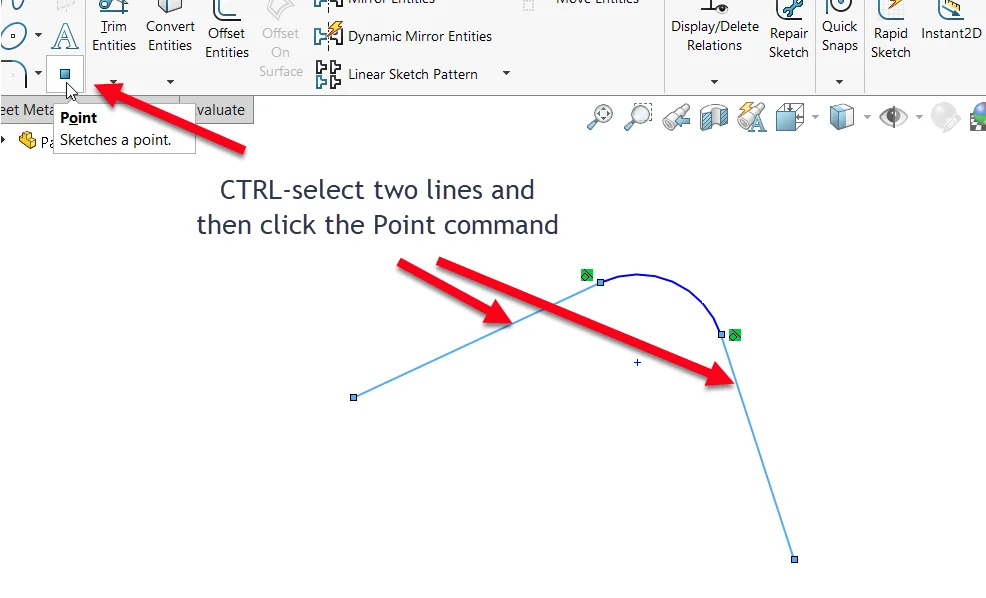
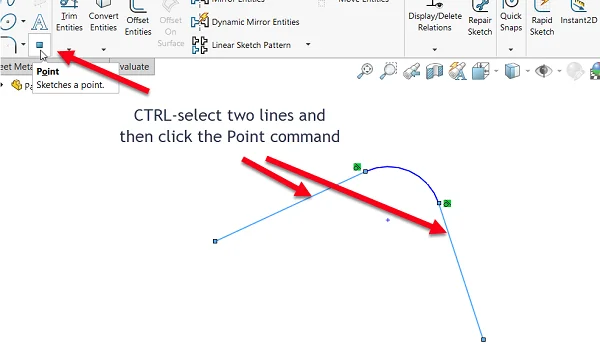
What about virtual sharps where you’re not using Sketch Fillet? The solution is easy: simply select 2 lines that would intersect if extended, then click the Point command on the Sketch tab of the CommandManager while those lines are still selected. Viola! Virtual sharp created. This is shown in Visual 3 below.
Sharing Tips
We hope you found these tips helpful. Feel free to share with other SOLIDWORKS users. Every little improvement helps when it comes to timely sketching.
Visual 1:
Visual 2:
Visual 3:
This blog is authored by John Setzer, GSC’s Training Product Manager. John discovered his love of teaching early in life. He worked his way through college as a youth coach, umpire, and referee before earning his bachelor’s degree in education. As Training Manager at GSC, he has been sharing his SOLIDWORKS wisdom with GSC customers ever since – 21 years and counting! John is a Certified SOLIDWORKS Expert (CSWE), a Certified SOLIDWORKS Instructor, and a Certified SOLIDWORKS Technician. As the only CSWE with a state certification in teaching, John is well-versed is teaching all types of learning styles. John is a regular contributor to the GSC blog, available at www.gsc-3d.com/articles.