

Remastered from SolidWorks Legion article entitled How to overline text on a SolidWorks drawing.

Occasionally, a SolidWorks user may need to state a number or variable as approximate within an annotation note. The mathematical symbol for this is an overline. Overlining text is supported via a trick in SolidWorks. Here is a quick and dirty trick for creating overlined text on SolidWorks drawing:
- Start an annotation note.
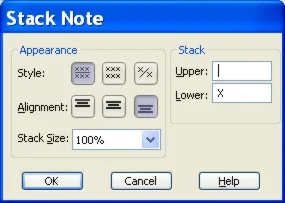
- With the note active and the text cursor placed at the desired location within the note, click on the Stack button from the Annotations toolbar.

- Choose the style with the division line across the center.
- Choose the bottom alignment option.
- Type your overlined text in the Lower text field.
- Select OK.
The one drawback to this trick is that it will force spacing above your line of text. This may only be a concern if one tries to use this technique within the general notes.