
SOLIDWORKS is a user friendly and easy to learn 3D CAD modeling solution. SOLIDWORKS user interface is design to match the native Window Operating System interface providing you a familiar interface to start your daily 3D modeling.
If you are new or just started your SOLIDWORKS learning journey, here are some essential shortcut key that you need to know.
Short Cut key Description
System Short Cut
Ctrl + N New
Ctrl + O Open
Ctrl + W Open from web folder
Ctrl + S Save
Ctrl + P Print
R Browse recent documents
Ctrl + B Rebuild
Ctrl + Shift + B Rebuild all configurations
Ctrl + Q Forced rebuild
Ctrl + Shift + Q Forced rebuild all configurations
W Commands
S Shortcut bar
Ctrl + Tab Moves among open documents
Navigation Short Cut
F11 Full Screen
F Zoom to Fit
Spacebar View Orientation
Ctrl + 1 Front
Ctrl + 2 Back
Ctrl + 3 Left
Ctrl + 4 Right
Ctrl + 5 Top
Ctrl + 6 Bottom
Ctrl + 7 Isometric
Ctrl + 8 Normal to
Ctrl + Arrow Pan the model
Shift + Arrow button Rotate the model 90º
Alt + Arrow Button Rotate the model CW or CCW about the normal axis
Arrow Button Rotate the model
G Magnified Selection
Sketch Short Cut
L Line
Assembly and Multi-body
Tab Hide the Hovered-over Component
Shift + Tab Show the Hovered-over Component
You also have the option to customize your own shortcut. Below are the steps to customize keyboard shortcut keys:
- First open or start a new Part, Assembly or Drawing document
- Click Tools, Customize, or right-click on the window border and select Customize from the shortcut menu as shown below.
- Select the Keyboard tab in the Customize dialog box to view, and edit the shortcut keys.
To Assign Keyboard Shortcuts:
- Select a Category or leave it as All Commands
- Select a Command from the list e.g. Close file
- Press a key or key combination e.g. CTRL + W. The shortcut has been assigned as shown in figure below.
- Pick OK to finish and the command will be assigned to the system
Introduction to SOLIDWORKS Mouse Gestures
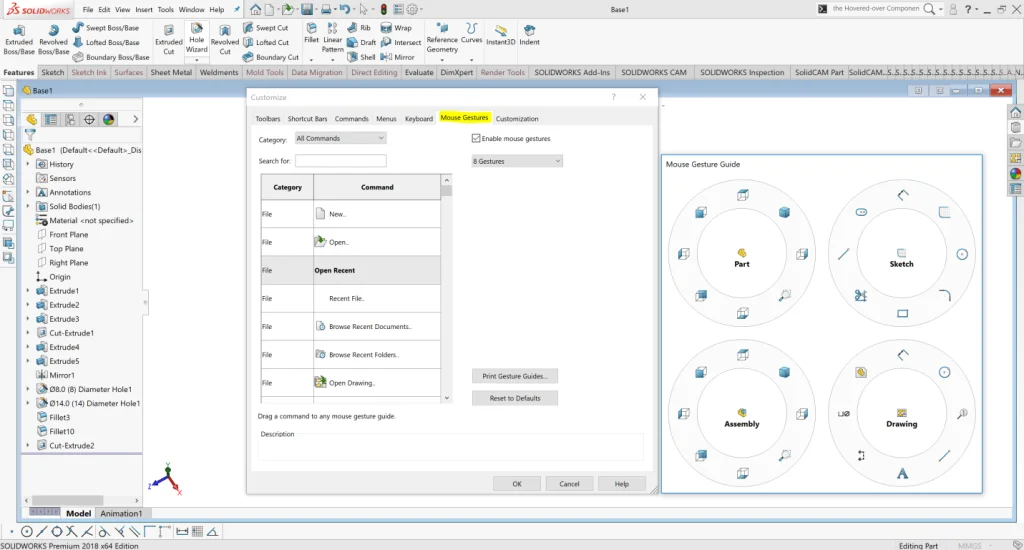
You can use Mouse Gestures as a shortcut to execute a command, similar to a keyboard shortcut.
To view or edit the current Mouse Gestures assignments follow the steps below.
- Click Tools > Customize and from the Customize dialogue box, select the mouse gestures tab. Choose the required shortcut and click OK.
- To activate a Mouse Gesture from the graphics area, hold down your right mouse button, a guide appears and then drag in one of four or eight directions.
Introduction to SOLIDWORKS Copy Settings Wizard
The SOLIDWORKS wizard allows you to back up your essential SOLIDWORKS settings so you can get back up and running quickly.
Below are the steps on how to launch the SOLIDWORKS Copy Settings Wizard.
- Go to Tools > Save/Restore Settings
- In the SOLIDWORKS Copy Settings Wizard you can choose to either Save Settings or Restore Settings from a file you have previously saved.
- i)Save SettingsChoose Save Settings and pick Next.
- Locate the location by Browse to a safe location to save the settings file (.sldreg) and then select which settings you want to back up from the list in the dialog.
- Click Finish and then OK and the .sldreg file will be saved to the specified location.
- ii)Restore Settings
- If you need to recover after a crash, or if you have a new machine with a fresh SOLIDWORKS install, you can restore your personalized settings by simply double-clicking on the .sldreg file or activating the SOLIDWORKS Copy Settings Wizard again from the start menu and picking Restore settings.In the dialog choose which settings you want to restore/be applied to your SOLIDWORKS installation. Note if there are multiple installations of SOLIDWORKS on your machine they will be listed here.
- Choose Next > and you will be presented with three options for the destination of the file.
- Eg; If to apply settings just to your own profile pick the Current User
- Choose Next >, then Finish. When the settings have been applied you will receive a confirmation dialog, choose OK and restart SOLIDWORKS to ensure your settings have been applied.