
Stop Designing Like It Is Day One
When you first start using SOLIDWORKS, the default interface makes perfect sense. The most common commands are collected in the CommandManager, menus provide access to everything else, and after a while, you learn where your favorite tools are located. Many users continue to work with almost the same interface for years.
The problem is that knowing where everything is located is not the same as working efficiently.
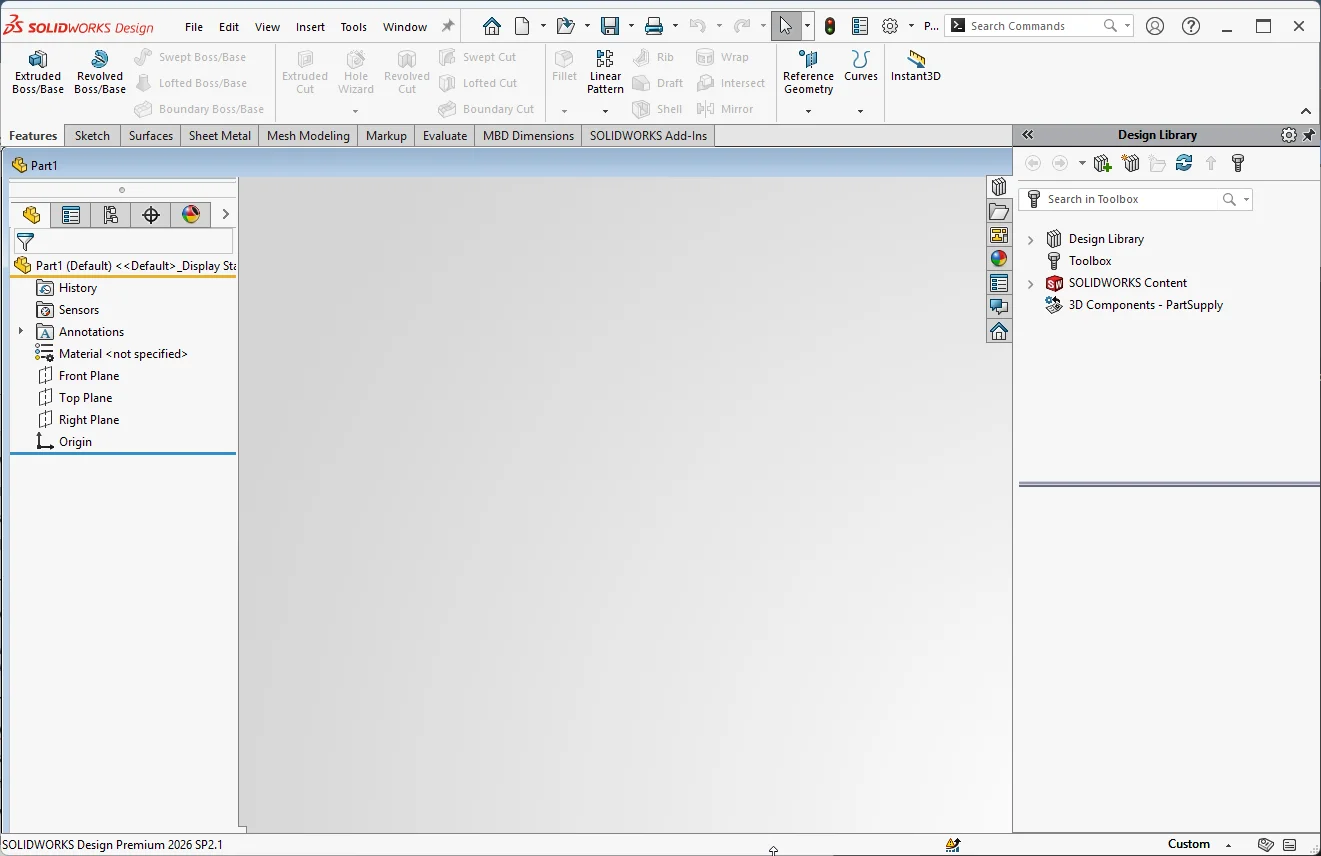
Figure 1. The default SOLIDWORKS work area provides familiar access to commands through the CommandManager, menus and toolbars.
Think about a normal modeling session. You start a sketch, move the cursor to the CommandManager, select a tool, return to the graphics area, create some geometry, and then return to the CommandManager for the next command. Each movement takes only a fraction of a second, but it can be repeated hundreds of times during a working day. On a large or ultrawide monitor, that distance becomes even more noticeable.
This is where customization becomes interesting. The goal is not to change everything or fit as many buttons as possible onto the screen, but to remove friction from the commands you already use. Think of the interface as a production line: every unnecessary movement is waste. Rather than making SOLIDWORKS faster to navigate, let us make SOLIDWORKS require less navigation.
Start With the Commands You Actually Use
There is no single “best” SOLIDWORKS interface. A designer who spends most of the day creating parts needs a different setup from someone who produces drawings, reviews assemblies or manages files in PDM. Before changing anything, look at your own workflow.
Which commands do you use 20, 50 or 100 times a day? A part modeler might choose Smart Dimension, Normal To, Measure, Extruded Boss/Base, Extruded Cut and Fillet. Someone reviewing models may prioritize Measure, Section View and Mass Properties, while a drawing specialist will need a different list.
A command used ten times an hour deserves better placement than one used twice a month. Put frequent commands on shortcuts, gestures or nearby toolbars; leave occasional commands in menus or find them through Command Search.
This distinction prevents a common customization mistake: adding everything. More visible commands do not automatically create faster access. A good interface is selective. It puts YOUR routine tools close at hand and keeps everything else available without allowing it to dominate the screen.
A good starting point is to take one day and note every command you search for, or repeatedly scroll across the screen to reach. That list is your customization priority.
Keyboard Shortcuts: Remove Navigation Completely
Keyboard shortcuts are one of the simplest ways to speed up SOLIDWORKS, and they are easy to underestimate. Instead of moving to the CommandManager, selecting the correct tab, finding a command, and clicking it, you press a key or key combination.
To create a shortcut, open a SOLIDWORKS document and go to Tools > Customize. Select the Keyboard tab, search for the command, click the shortcut field, and press the key combination you want to use. If it is already assigned, SOLIDWORKS will warn you so that you can keep the existing assignment or replace it.
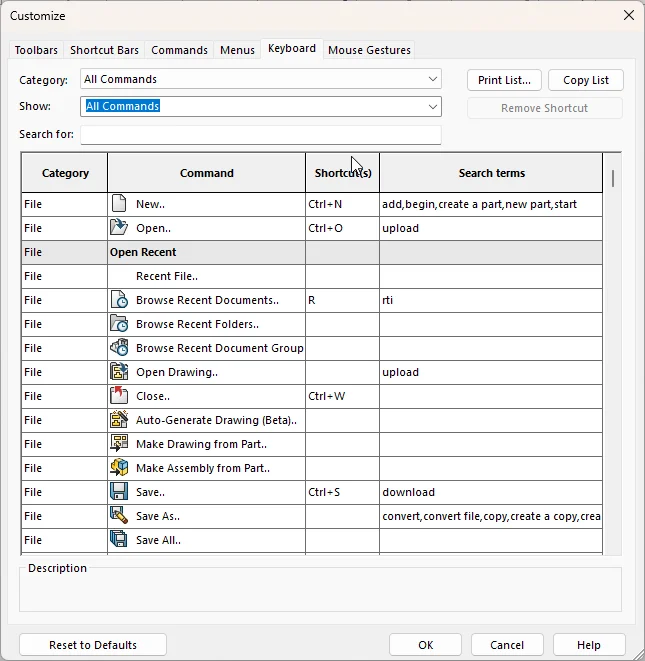
Figure 2. The Keyboard tab lets you assign memorable shortcuts to the commands you use most often.
Some users take this idea considerably further. With enough shortcuts committed to muscle memory, they remove almost every visible button and work with little more than the graphics area and FeatureManager. It is an impressive setup—although perhaps not the best place to borrow a colleague’s workstation.
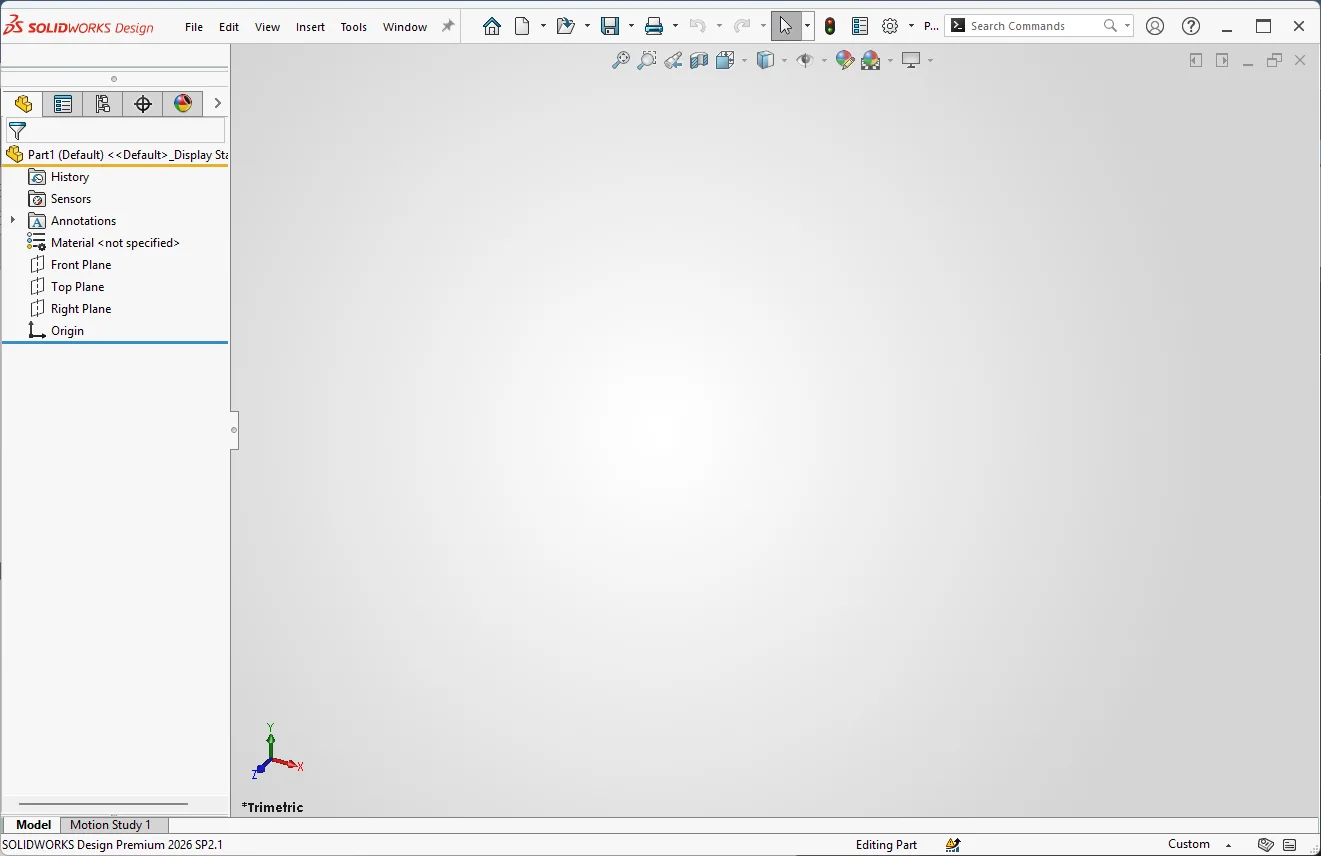
Figure 3. Some users take keyboard efficiency to the extreme, removing almost every button and relying almost entirely on shortcuts.
Do not assign 40 shortcuts in one sitting. Start with five commands you use constantly, such as Measure, Normal To, Section View, Smart Dimension and Zoom to Fit. The exact list should reflect your work.
I prefer combinations that keep my right hand on the mouse and my left on the keyboard. Memorability matters more than the specific letters. Check the defaults before replacing them, so you do not remove a shortcut you already use.
One saved trip to the Command Manager will not revolutionize your day. Saving the same trip hundreds of times is where the benefit appears. Add a few shortcuts, use them for a week, and only then decide whether another command deserves one.
Remember, the best shortcut is not the most ingenious one. It is the one you can use without having to stop to remember it.
Mouse Gestures: Let Commands Follow the Cursor
Keyboard shortcuts keep one hand on the keyboard. Mouse Gestures takes the opposite approach by letting you execute commands while keeping your hand on the mouse. Hold down the right mouse button and move in a direction. A gesture guide appears around the cursor, and the direction of movement activates the assigned command.
You can configure Mouse Gestures through Tools > Customize > Mouse Gestures. SOLIDWORKS allows different gesture sets for parts, assemblies, drawings and sketches, so the same movement can launch a context-appropriate command in each environment.
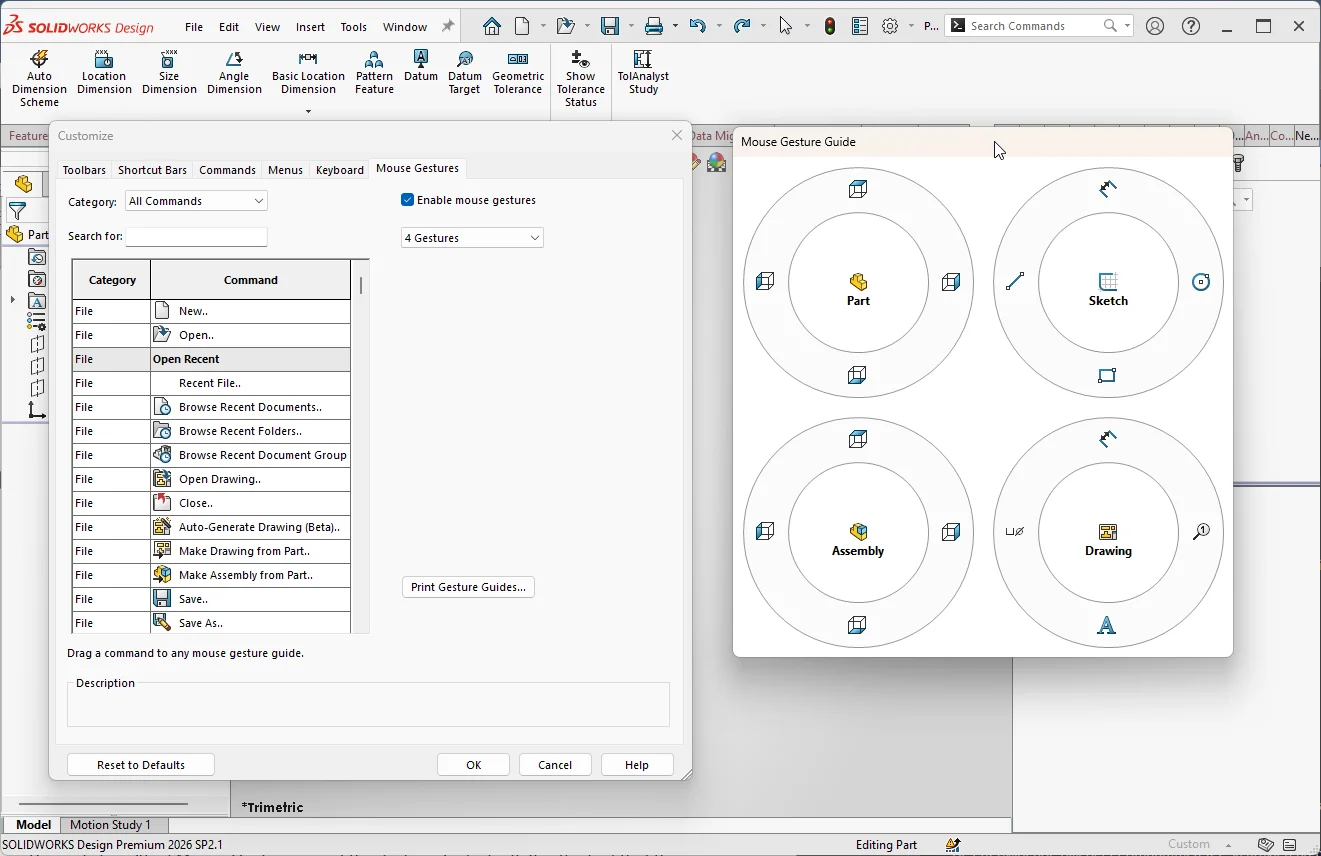
Figure 4. Start with four Mouse Gestures and assign commands that can quickly become muscle memory.
More gestures do not automatically mean more speed. Six commands known by muscle memory are faster than twelve that you must inspect. Start with four main directions and familiar tools—for example, Smart Dimension, Line, Trim Entities and Normal To while sketching.
The real strength of Mouse Gestures is not the gesture guide itself. It is the fact that the command comes to the cursor rather than forcing the cursor to move across the screen. Once the movement becomes automatic, the interruption almost disappears. If you still pause to remember a direction after a week, simplify the set or replace that command with one that feels more natural.
Don’t make the common mistake, and begin with twelve Mouse Gestures. If you have to inspect the guide before moving, the gesture does not yet save time.
The S-Key: Your Personal Command Center
Press ‘S’ in SOLIDWORKS, and a Shortcut Bar appears beside the cursor. Separate bars are available for parts, assemblies, drawings and sketches, allowing you to create a focused toolbox for each working environment.
Normally, selecting a sketch command means leaving the model, finding the correct tab and tool, then returning to the graphics area. With the S-key, the commands come to you.
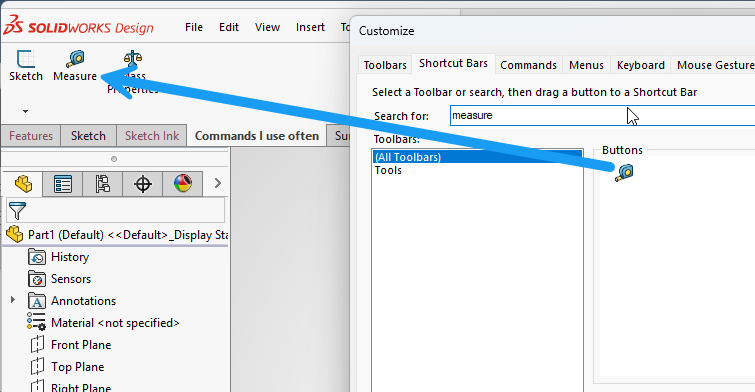
To customize a Shortcut Bar, press the S-key, right-click the bar, and select Customize. You can also use Tools > Customize > Shortcut Bars. Search for a command and drag it onto the bar; drag away anything you do not use.
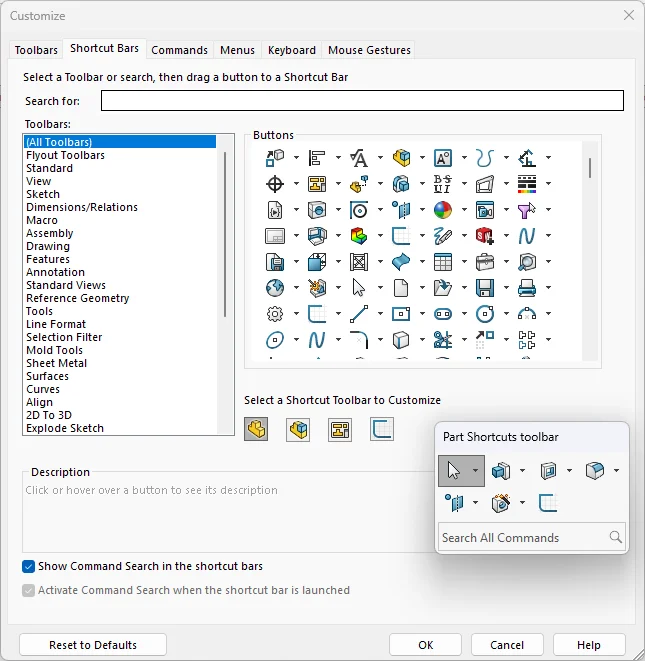
Figure 5. A customized Sketch Shortcut Bar places frequently used tools directly beside the cursor.
Treat the S-key as a small toolbox, not a replacement for the entire interface. Include the tools that cover most of your normal work and access unusual commands elsewhere.
Avoid duplicating every keyboard shortcut on the S-key. Use direct shortcuts for commands you remember instantly, Mouse Gestures for pointer-driven actions, and the S-key for a compact set of context-sensitive tools that you need frequently, but do not want to memorize as individual shortcuts.
Use Command Search for Everything Else
What about commands you use only occasionally? There is little reason to dedicate permanent screen space—or one of your best shortcut combinations—to something you need three times a year. Instead of trying to remember which menu contains it, simply search for it.
Command Search lets you find commands by name, execute them directly, and identify where they are located in the interface. In current SOLIDWORKS versions, command searching is also available through the Shortcut Bar. This makes it useful both as a productivity feature and as a learning tool.
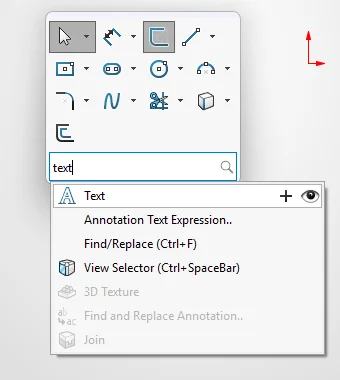
Figure 6. Command Search can either launch a tool directly or reveal its location in the interface.
This is not only for beginners. Experienced users often know what SOLIDWORKS can do, without having to remember the exact location of every tool. Search keeps that knowledge useful without requiring a perfect mental map of the menus.
The search results also give you two useful options. Click the plus icon to add a command directly to the S-key Shortcut Bar, or click the eye icon to see where the command is located in the SOLIDWORKS interface. If you repeatedly search for the same command, adding it to the S-key may save time the next time you need it.
Create Toolbars Around Tasks
Conventional toolbars still have value, particularly when they are built around a workflow instead of a software category. SOLIDWORKS lets you display toolbars and add, remove or reposition their buttons. The key is to avoid simply reproducing the structure already existing in the CommandManager.
If you frequently inspect other people’s models, a compact toolbar could contain Measure, Section View, Mass Properties and Interference Detection. Other task-based groups might cover sheet metal, drawing annotation or PDM file management.
Open Tools > Customize, select the Commands tab, find the required command, and drag it onto the appropriate toolbar.
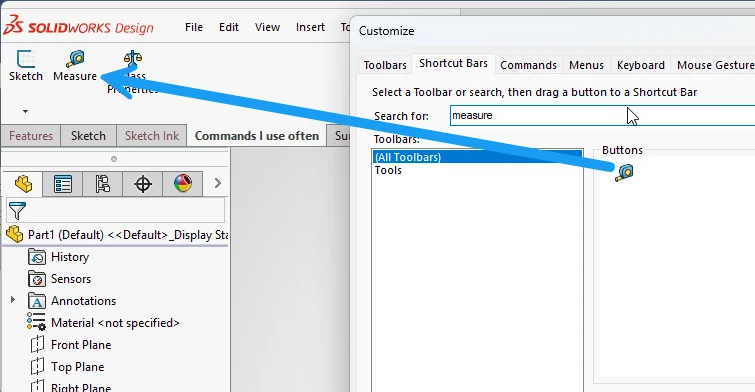
Figure 7. A task-based inspection toolbar groups evaluation commands around a specific workflow.
A toolbar becomes useful when its logic matches the way you work. “Commands I use while reviewing a model” is a stronger organizing principle than “commands SOLIDWORKS happens to place in the Evaluate category.” Think in tasks, not product categories, and keep the toolbar small enough that every button remains immediately recognizable.
Organize the CommandManager
The CommandManager is one of the main ways we interact with SOLIDWORKS, but its default arrangement is only a starting point. You can hide tabs you never use, display the relevant ones, rearrange commands and create a custom tab containing tools from several categories.
If Reference Geometry is part of your daily work, keeping the Plane, Axis and Coordinate System together can remove repeated menu navigation. If you constantly move between Features, Sketch and Evaluate, create a tab called My Tools and collect the commands that support your actual sequence of work.
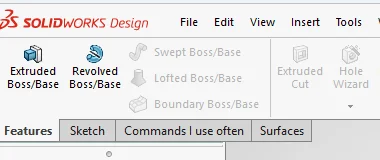
Figure 8. A simplified CommandManager removes unused tabs and brings everyday commands together in a custom tab.
Removing commands can be as valuable as adding them. Irrelevant tabs create visual noise, while suitable labels and button sizes depend on your experience and screen space.
Look at every permanent interface element—the CommandManager tabs, Task Pane, Heads-Up View toolbar, standalone toolbars and other controls—and ask one question: Do I use this often enough that it needs to be visible all the time? If the answer is no, there is probably a better way to access it.
A cleaner interface is not about minimalism; it is about reducing competition for your attention, so the model and engineering problem remain central.
Try the 15-Minute SOLIDWORKS Speed Makeover
You do not need to spend an afternoon rebuilding the entire interface. In fact, that usually creates too many changes to remember. Instead, give yourself 15 minutes and make a small, controlled improvement.
- Identify five commands you use constantly, and assign memorable keyboard shortcuts.
- Configure four Mouse Gestures for one environment, such as sketches or parts.
- Customize the S-key with the commands you use most often in that same environment.
- Hide one or two CommandManager tabs that you never use.
- Find one command you normally struggle to locate, and use Command Search instead.
Then stop customizing and return to normal work for a week. Notice which shortcuts become automatic, which gestures you forget, and which commands still interrupt your flow. At the end of the week, make one more adjustment.
Gradual change helps build muscle memory and prevents an enthusiastic redesign from becoming a complicated setup. Let real work show which tools deserve faster access.
Repeat the exercise for different document types: sketches first, then assemblies and drawings. Small experiments are easy to reverse and successful changes are easy to keep.
Protect the Setup That Works
Once your interface proves useful, protect it. A tuned setup represents many small decisions and is frustrating to rebuild after a computer replacement or software reinstallation.
Use the SOLIDWORKS Copy Settings Wizard to export your settings and keep the backup somewhere safe. It can preserve items such as keyboard shortcuts, menus, toolbars and system options, allowing you to restore your working environment or transfer it to another installation.
Review the configuration occasionally. Remove unused shortcuts, simplify crowded gesture sets, and update task-based toolbars as your responsibilities change. Preserve a reliable starting point without freezing the interface forever.
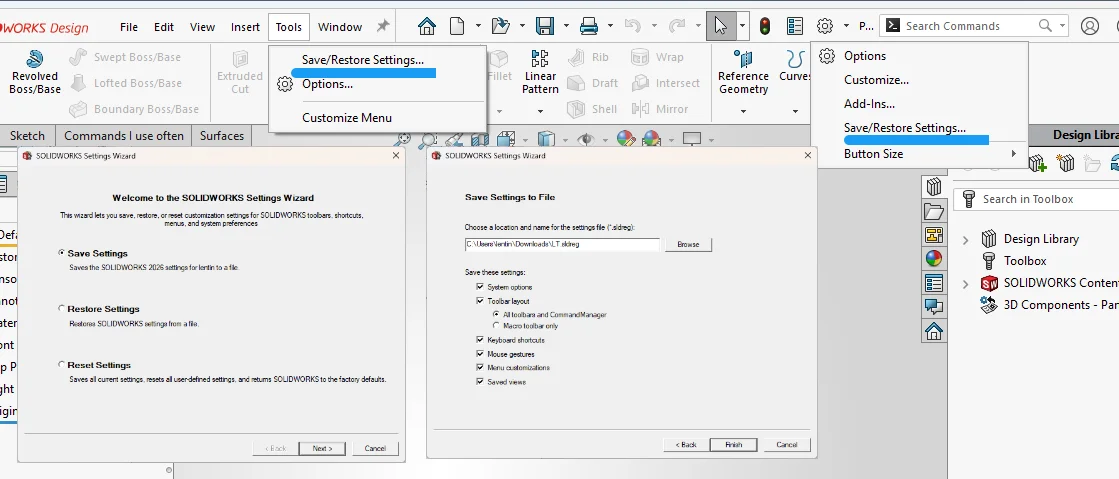
Figure 9. The Copy Settings Wizard saves a proven SOLIDWORKS setup for backup or transfer to another installation.
Small Changes Add Up
None of these customizations will turn a two-hour modeling task into a 30-minute task. A shortcut may save one movement, a Mouse Gesture one trip to the CommandManager and Command Search a hunt through menus.
Individually, those gains are tiny. CAD work, however, is repetitive. Remove a small interruption from an action performed hundreds of times every week, and the benefit begins to accumulate. More importantly, every time you avoid searching for a button, you stay focused on the model and engineering problem in front of you.
The most efficient SOLIDWORKS users are not necessarily the ones who know the most commands. Often, they are the people who can reach the commands they need with the least effort. Their interface supports the way they think, instead of demanding attention of its own.
Do not customize SOLIDWORKS merely to make it look different. Start with the commands you use every day, choose the access method that suits each one, remove controls that create noise, and let real experience guide the next adjustment. In short, do not get faster at navigating the software. Make the software require less navigation.