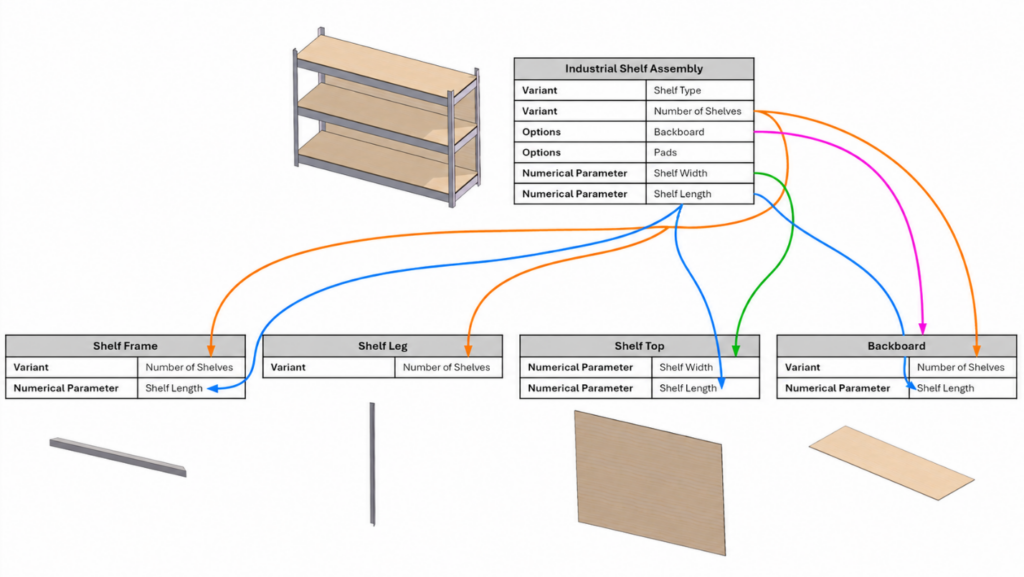

One design. Dozens of ways to build it. Change a size, swap a component, or add an optional feature, and the number of possible combinations grows quickly. You could create SOLIDWORKS configurations to represent each combination. However, as more choices are added, managing those configurations across the assembly and its components becomes increasingly difficult.
The latest functional delivery for SOLIDWORKS Design R2026x FD04 introduces a brand-new Model Variability functionality as another way to define and create these product configurations. Define inputs at the top-level assembly and connect them to dimensions, features, states, SOLIDWORKS configurations, and mates throughout the model. When an input changes, the assembly rebuilds to reflect the new product variation.
Let’s walk through a simple shelving example to see how it works.
Define Your Product’s Variability
Suppose you’re designing a shelving unit that can be offered in different materials, dimensions, shelf counts, and optional features. To get started, right-click the top-level assembly in the FeatureManager design tree and select Model Variability. This adds the Variability folder and Variability Table to the assembly.
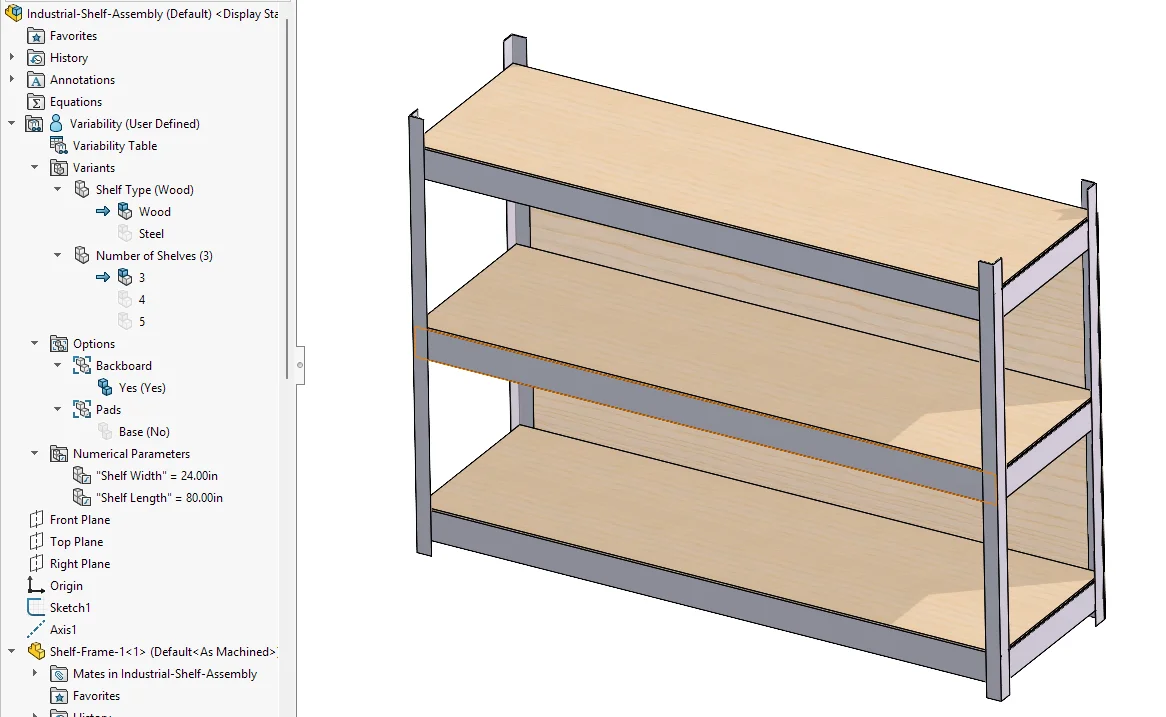
Model Variability allows you to define three types of inputs:
- Variants: Select from a set of predefined values.
For example, you could create a Shelf Type variant with Wood and Metal values. Each value can be linked to an existing SOLIDWORKS configuration of the shelf component. You could also create a Number of Shelves variant with values of 3, 4, and 5. Each value can control the height of the frame and the number of instances in the shelf pattern.
- Numerical Parameters: Enter a value within a defined range and unit.
For example, numerical parameters for length and width can update the shelf panels and frame to match the required dimensions
- Options: Turn optional components or features on or off.
An option group could control whether the shelving unit includes a backboard or base pads. It could also control a feature within a component, such as chamfered corners.
Together, these inputs define the choices available for the shelving unit.
Control the Entire Assembly from the Top Level
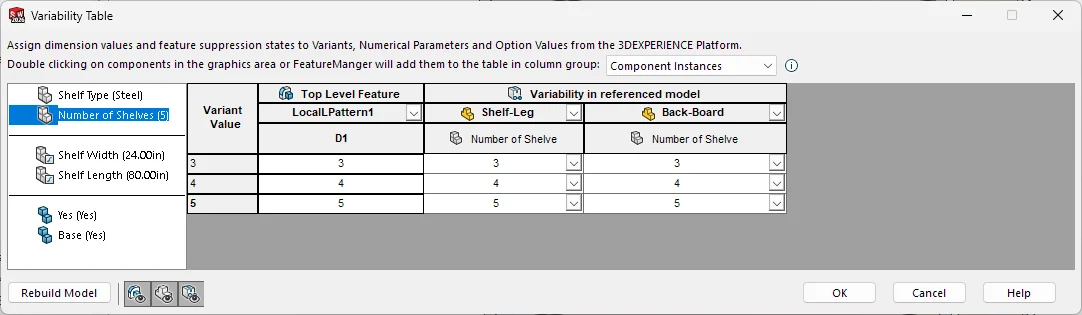
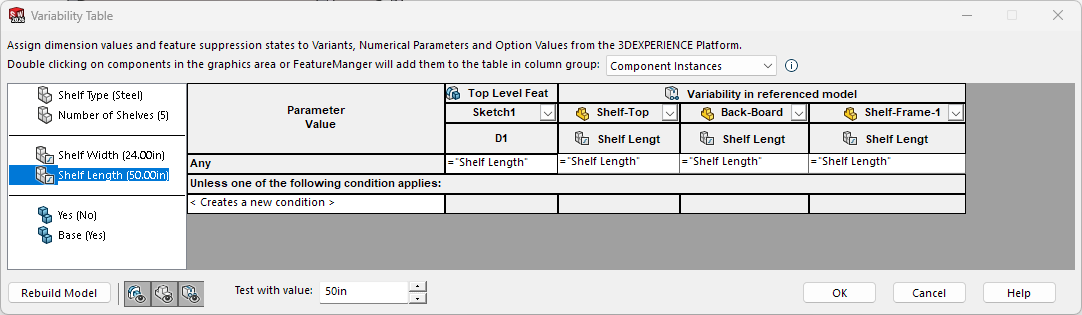
After defining the inputs, use the Variability Table to connect them to parameters in the assembly, subassemblies, and parts. These inputs can cascade down to the parameters in the underlying parts and subassemblies, allowing product-level changes to propagate throughout the assembly structure.
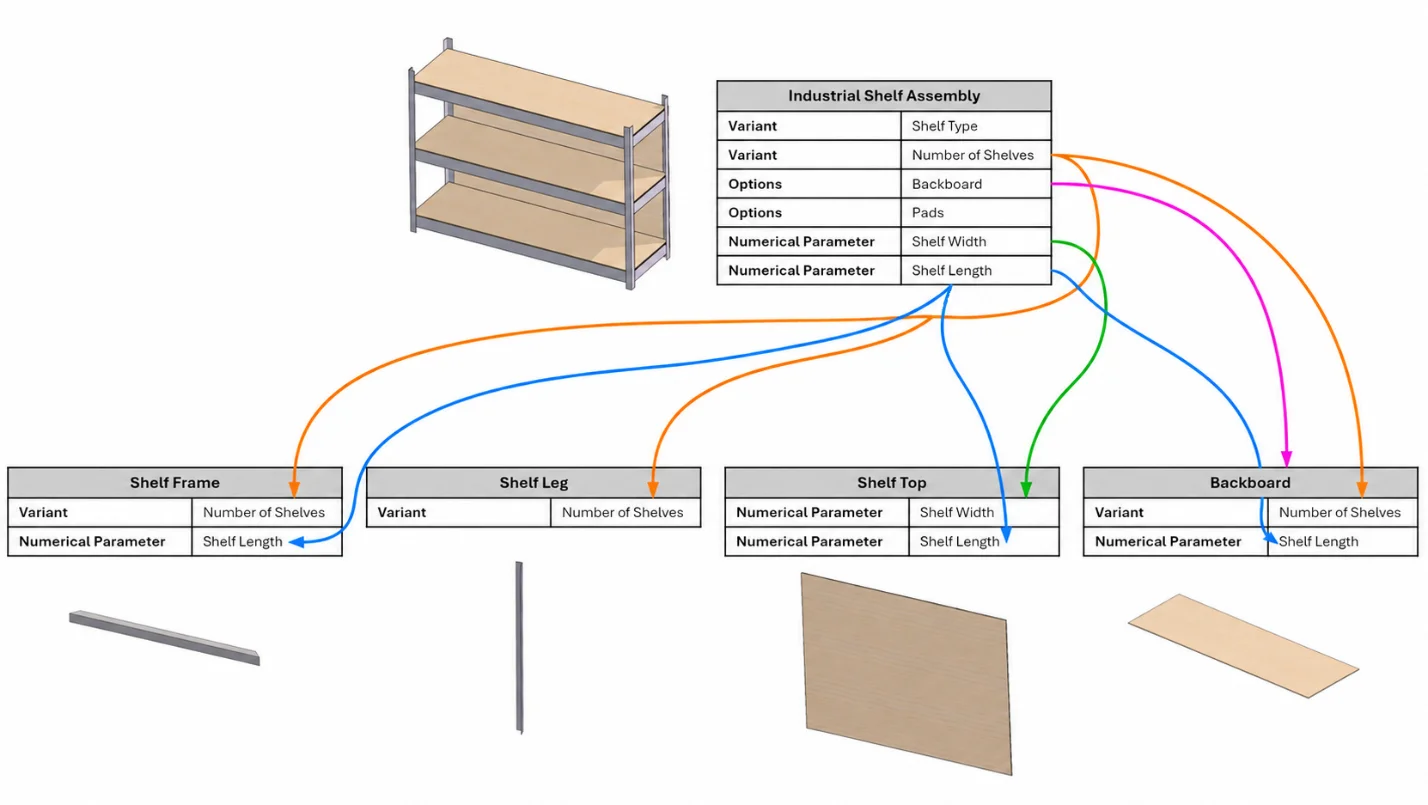
The Number of Shelves variant can control the shelf pattern and frame height.
Shelf Length and Shelf Width can update dimensions in the frame, backboard and shelf panels.
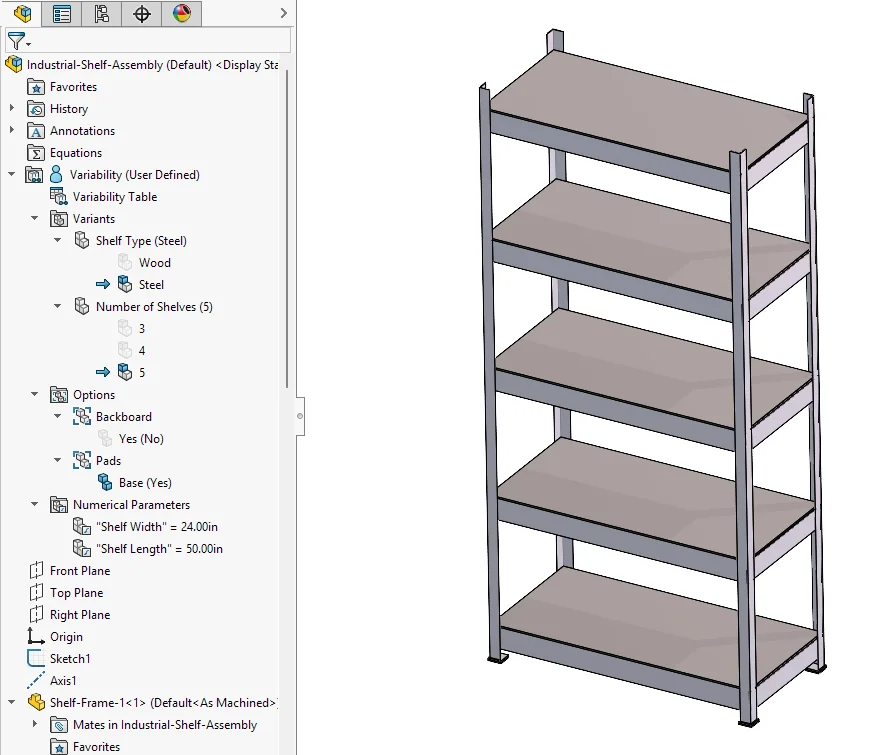
Now, after connecting the design, you need a shelving unit with five 50 in. × 24 in. steel shelves and pads at the base. Select those values under Model Variability in the FeatureManager design tree. The connected components, dimensions, patterns, and features are updated to create the new product variation.
How Model Variability Differs from Configurations and Design Tables
First, it helps to separate two related terms.
A SOLIDWORKS configuration is a predefined state of a part or assembly stored within a SOLIDWORKS file. A product variation is the design produced by applying a set of inputs to the model. Model Variability updates the model based on those inputs, but it does not automatically create a SOLIDWORKS configuration for each result.
SOLIDWORKS Configurations and Design Tables are well-suited for managing a defined set of part or assembly states. For example, a shelf component could have separate Wood, Metal, and Glass configurations. A Design Table can make those configurations easier to create and maintain.
However, managing every possible combination at the top-level assembly is different. Suppose the shelving unit offers three materials, three shelf counts, and a chamfer option that can be on or off. Representing every combination requires 3 × 3 × 2, or 18, top-level configurations. Add Glass as a fourth material, and the total increases to 24.
With Model Variability, these choices remain separate inputs. You can add Glass to the Shelf Material variant and link it to the appropriate shelf configuration without creating six additional top-level configurations.
Model Variability does not replace SOLIDWORKS configurations. The two can work together: configurations define the available versions of a component, while Model Variability selects and coordinates those versions as part of the complete product.
Reuse a Master Assembly Template to Create New Product Variations
Once the inputs are connected, the assembly becomes a reusable master assembly template. Change the values to create the variation you need.
If that variation requires its own files, part number, drawings, or revision history, save it using an existing workflow such as Pack and Go or Save As New.
Keeping the variability definition in the master assembly avoids maintaining every possible product combination as a separate configuration. It also gives the next designer a clear set of inputs to use, rather than a long list of configurations from previous designs.
To summarize, Model Variability in SOLIDWORKS Design R2026x FD04 introduces a new way to define product variations at the top level and connect them to model parameters throughout an assembly. To see a demo of this new functionality, watch the video on this page and learn more about SOLIDWORKS R2026x updates. The SOLIDWORKS Design R2026x FD04 enhancements are available now!
To learn more about the fundamentals of Model Variability, check out this help page. To learn more about SOLIDWORKS modeling best practices on configurations, check out this blog on the Configuration Manager.