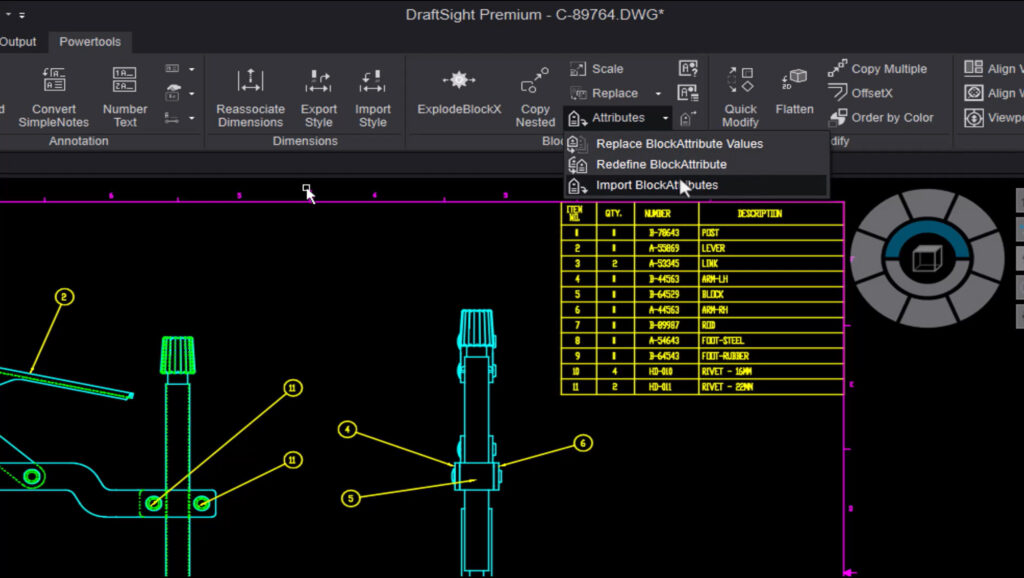

If you’ve ever updated block attributes one at a time, trimmed entities one at a time, or fought inconsistent annotation scales across a drawing set, you already know how much time DraftSight’s built-in tools can save once you know they’re there. None of what follows needs a plug-in or a workaround. It’s already sitting in your toolbar.
Make the Block Change Once
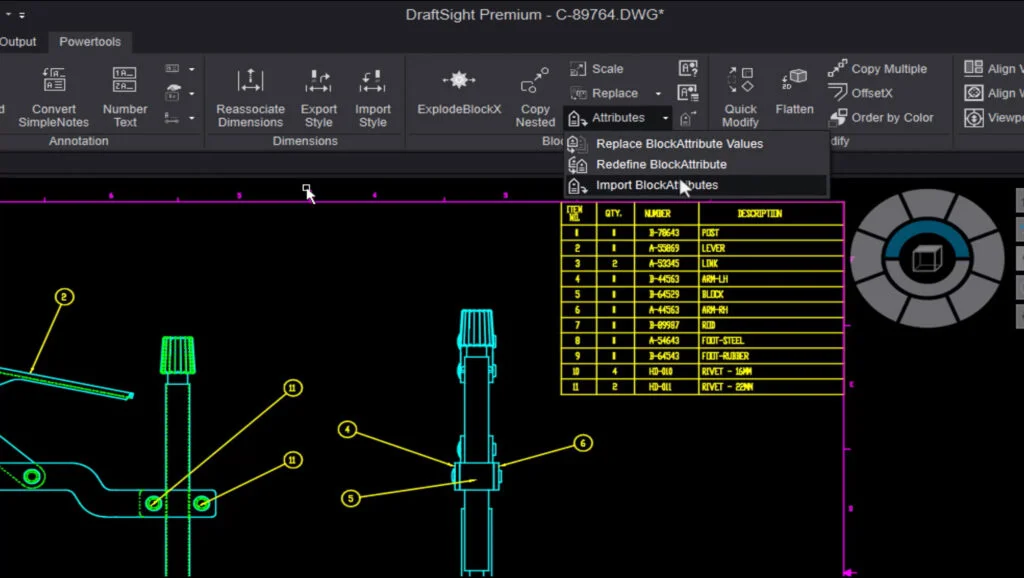
Take block attributes first. A title block with a revision number, a fastener callout with a part number, and blocks like these are convenient until you need to change one field across fifty instances of the same block. Editing them individually means opening each one, correcting the text, and hoping you didn’t miss one. The Block Attribute Manager, which longtime AutoCAD users know by its command name BATTMAN, opens every attribute for a selected block in one dialog: text style, height, rotation, layer, and line settings, all in a single view. Make the change once, and it applies everywhere that block appears.
Draw a Line and Trim
The same problem occurs when editing geometry. The standard Trim command wants a precise click on the exact segment you want gone, which gets slow fast on a polyline or a dense cluster of lines. PowerTrim makes trimming much easier: draw a single crossing line over whatever needs trimming, and every entity your line touches gets cut back to the nearest intersection. On a drawing with dozens of overlapping lines, that turns a minute of careful clicking into a two-second line drag.
Automatically Resize for Each Viewport
Viewport scaling is another area prone to manual work. Print a drawing at 1/4″ scale and 1/2″ scale, and text sized correctly for one looks wrong on the other, too small to read, or big enough to swallow the geometry. The usual workaround is to duplicate dimensions and text for each scale and track them on separate layers, which holds up until someone updates one copy and forgets the rest. Annotation scales fix this at the object level: mark a dimension, note, or hatch as annotative, assign it the scales it needs, and DraftSight resizes it automatically wherever it’s used.
Save Time – You Might Already Have the Tool for That
DraftSight has dozens of productivity tools to make the repetitive part of your job simpler. And one of the fastest ways to get familiar with them – and see how they can benefit your workflows is by watching someone demonstrate them in real drawing.
Learn more about DraftSight productivity tips and workflow boosts in the on-demand webinar, DraftSight Workflow Boost: Tricks Every User Should Know.