
Annotation Scales in DraftSight: Stop Fighting Your Viewports
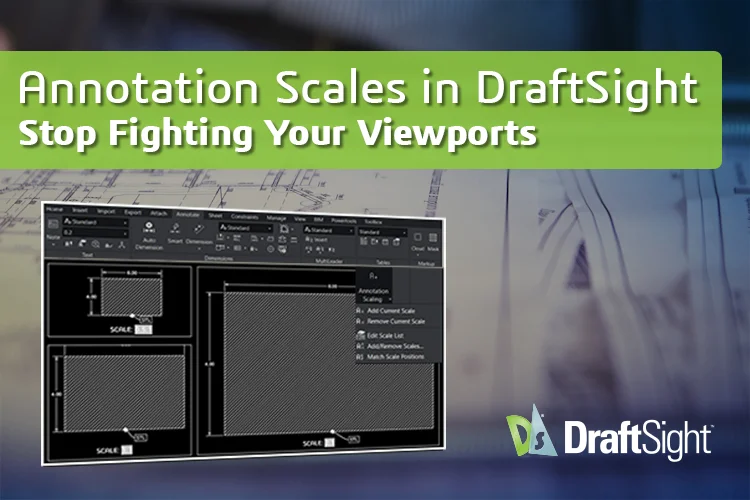
If you’ve spent any time juggling dimensions across multiple viewports, you know how frustrating it can be. One scale might look just right, while another appears too small, and before you know it, you’re duplicating dimensions, handling layers, and second-guessing your choices. That’s what annotation scales are built to solve.
Why Annotation Scales Matter
Most CAD users have dealt with mismatched scales at some point, and it can be as frustrating as it sounds. Traditionally, the workaround involved using multiple dimension styles, creating several viewports, assigning separate layers for each scale, and duplicating geometry and annotations. Manual scaling just wastes time.
Annotation scales remove that entire workflow. Instead of recreating or resizing annotations per viewport, you assign scale behavior once and let the system handle the rest.
What Annotation Scales Do
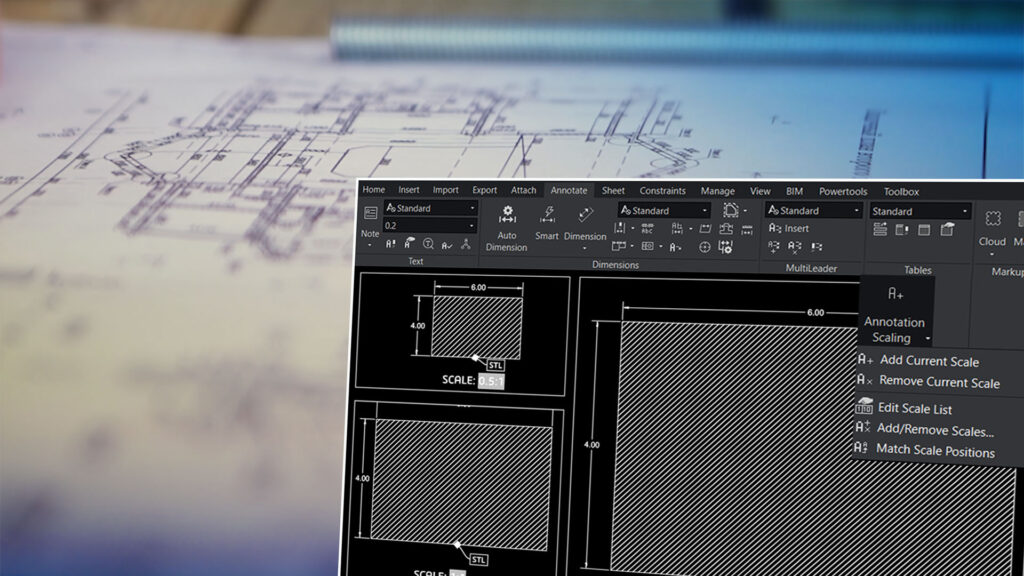
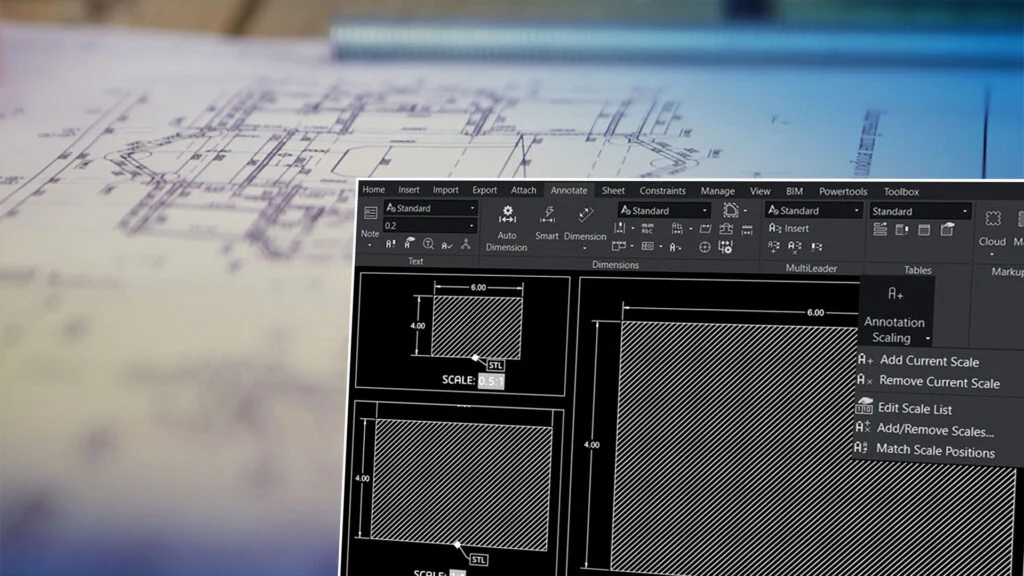
Annotation scales ensure that text, dimensions, and other annotation objects maintain a consistent plotted size, regardless of the viewport scale. This means that a dimension that is clear at a 1/2″ scale will also be clear at a 1/4″ scale. There is no need to duplicate objects or maintain multiple sets of dimensions. Instead, your objects will adapt based on the viewport in which they are displayed. They will either appear correctly or not at all, depending on whether the appropriate scale is assigned. That moment when an object seems to disappear is a feature, not a bug; it simply means the object hasn’t been assigned to the current scale yet.
One Object, Multiple Viewports
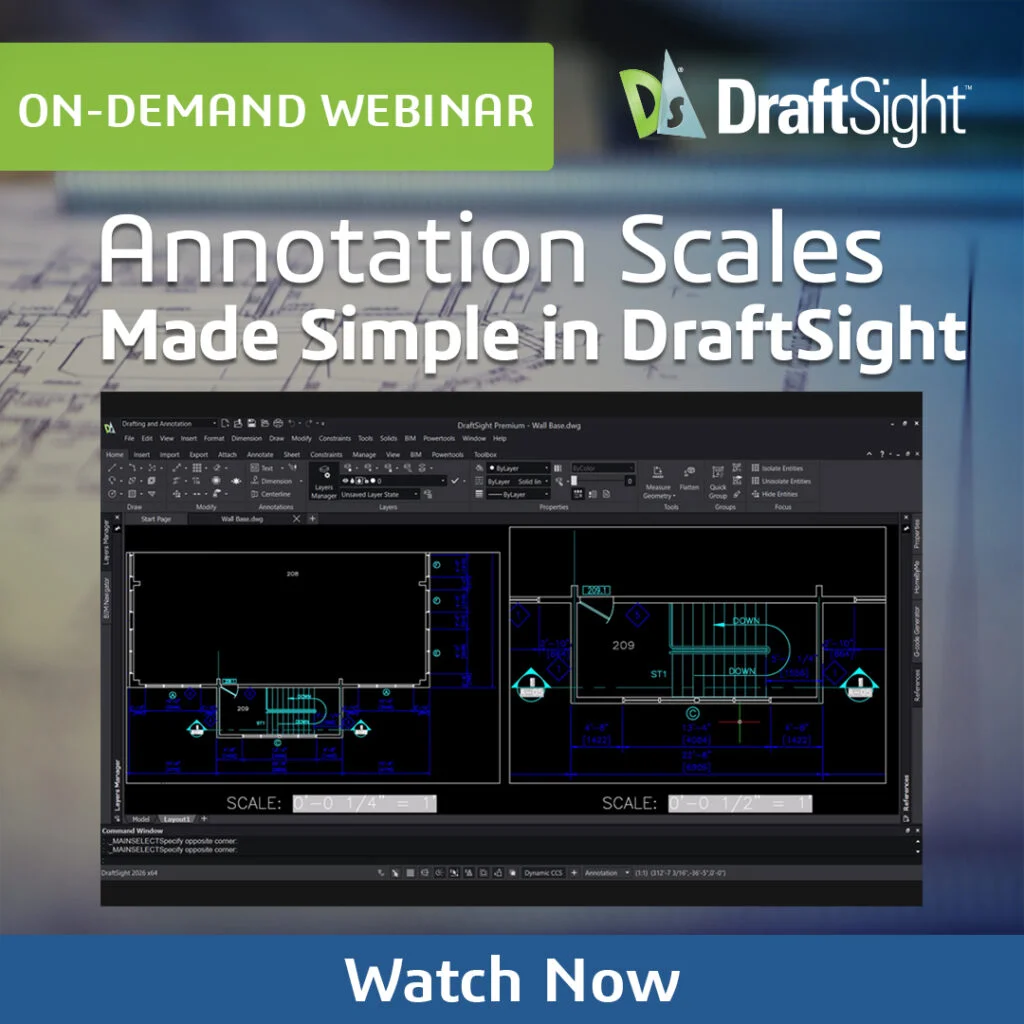
Let’s say you’ve got a plan and a blown-up stair detail. Before annotation scales, you would copy the dimensions from the plan into the detail view, resize them, and then manage both sets of dimensions as separate entities. When you use annotation scales, you only need to maintain one set of dimensions. You can apply different scales to the same dimensions, one for the plan and another for the detail view. It’s the same object, displaying the measurements differently depending on where you’re looking at it.
Troubleshooting Annotation Scales
Most issues with annotation scales come down to a couple of things. If something looks wrong, ask the following questions:
- Is the object actually annotative?
- Does it have the correct scale assigned?
- Does the viewport scale match?
- Am I in model space or paper space?
When annotations start to frustrate you, and you don’t know what is going wrong, take your hands off the mouse, take a breath, and then start looking at the areas mentioned above. This check will often provide the solution. If something disappears, don’t rush to rebuild it without first checking these points. There’s also a tendency to add every available scale, believing it will solve all problems. However, this approach can clutter the drawing and slow down your work. It’s best to stick with the scales you actually use.
Working with Text, Hatch, and Blocks
Text and dimensions are usually straightforward once they’re set to annotative, but there are a couple of details worth paying attention to. First, text should be set to the size you want it to appear when plotted, rather than the size it appears in model space. If this value is incorrect, it can throw off everything else. Hatch works the same way. If it’s annotative, you don’t have to keep adjusting scale factors per viewport. You set it once and move on.
Blocks take a little more effort. If you’re converting existing ones, they need to be scaled correctly first. Then you go into the block editor, turn on annotative behavior, and assign the scales. If the base size is wrong, everything that follows will be off.
Can You Preload Annotation Scales in a Block?
One user question that came up during the live annotation scales webinar was whether you can preload annotation scales into a block.
Placing blocks within the tool palette removes the annotation scale, BUT there is another way to bring in a preloaded annotation block: from an existing project with blocks that have annotation scales. So, the answer is, yes, you can via a separate DWG file, but unfortunately, you can’t store them in the tool palettes.
Annotations Made Simple in DraftSight
Automating annotation scales will significantly improve your annotation process and reduce manual work. If you find yourself duplicating dimensions, managing separate layers for each scale, or frequently resizing text, consider watching the on-demand webinar: Annotation Skills Made Simple in DraftSight.